
Recurring Orders Modes: Review or Auto
Each schedule has a mode. Review creates a draft and waits for you. Auto lets the order or the invoice go out without your review. What Auto does depends on the buyer.
Key takeaways
Section titled “Key takeaways”- Review is the default and the recommended start.
- Auto for a company location with payment terms creates the order with those terms.
- Auto for a customer without a company creates a draft and Shopify emails the buyer an invoice.
- A company location without payment terms can only use Review.
- Run now creates only a draft, even in Auto.
- Nothing is charged to a saved card in any mode.
What does each mode do?
Section titled “What does each mode do?”| Mode | Buyer | What happens on each date |
|---|---|---|
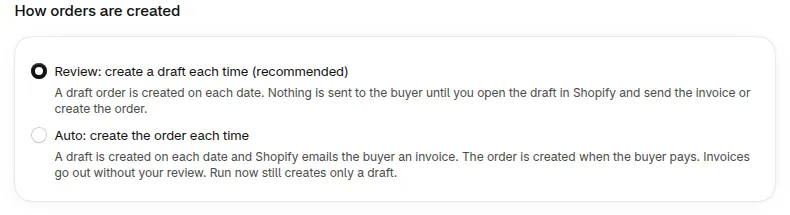
| Review | Any | A draft order is created. Nothing reaches the buyer until you open the draft in Shopify and send the invoice or create the order. |
| Auto (shown as Auto: payment terms) | Company location with payment terms | The order is created and completed with the location’s payment terms. The buyer pays by the due date, like your other Net Terms orders. |
| Auto (shown as Auto: email invoice) | Customer without a company | A draft is created and Shopify emails the buyer an invoice. The order is created when the buyer pays. |
You choose the mode under How orders are created on the schedule form.
When should I use Review?
Section titled “When should I use Review?”Use Review for a new schedule, for a buyer whose orders change often, and for any order you want to read before it goes out. You open each draft in Shopify and send it when it looks right.
When should I switch to Auto?
Section titled “When should I switch to Auto?”Switch after a few orders look right. When you switch, the form says that orders go out without your review, starting with the next order date.
For Auto with a company, the location needs payment terms in Shopify. If it has none, the form says orders cannot be completed automatically. Add payment terms to the location, or choose Review. Learn how terms work in Net Terms.
When does an Auto order stay a draft?
Section titled “When does an Auto order stay a draft?”In Auto, some orders are kept as drafts for you to finish in Shopify:
- The Credit limit add-on is on and the company is over its credit limit, on hold or overdue, or the limit could not be checked. See Credit limit.
- The order breaks an order limit. See Order limits.
- The location has no payment terms.
- No shipping rate was found for the address.
- Some amounts from your B2B rules could not be added to the draft.
- The add-on ended before the order was completed.
The run history shows which one applied and what to do.
Need help with Recurring Orders? Reach us at [email protected] or Live Chat.