
Recurring Orders Run History: Results and What to Do
Run history on a schedule shows one line for each order date. Each line has the result, a link to the draft or order in Shopify, the total and, when something went wrong, what to do.
Key takeaways
Section titled “Key takeaways”- The columns are Order date, Result, Draft or order and Total.
- Failed and Skipped do not stop the schedule. The next date still runs.
- A failed run may still leave a draft. Check Drafts in Shopify.
- Check in Shopify means the app needs you to look in Shopify. The line under the result says why and what to do.
- A product that no longer exists fails the run until you edit the schedule.
What do the results mean?
Section titled “What do the results mean?”| Result | What it means |
|---|---|
| Waiting | The date has not run yet. |
| Creating | The app is creating the draft. |
| Draft created | A draft was created. In Review, you send it from Shopify. |
| Draft to review | A draft was created and needs a look, for example because it breaks an order limit. |
| Order created | The order was created (Auto, company location with payment terms). |
| Invoice sent | Shopify emailed the invoice (Auto, customer without a company). |
| Failed | The order could not be completed for that date. A draft may still exist, so check Drafts in Shopify. The next date still runs. |
| Skipped | The date was not run. This includes a schedule paused or ended while the run was waiting, and a date that passed more than 48 hours before the app could run it. |
| Skipped by buyer | The buyer skipped that date in the B2B Portal. |
| Check in Shopify | The app stopped and needs you to look in Shopify. Either it could not confirm whether the draft was created: search Drafts in Shopify for the tag shown before you run the schedule again. Or, in Auto, it kept the draft because the company is over its Credit limit (when the Credit limit add-on is on), the order breaks an order limit, no shipping rate was found, or some amounts from your B2B rules could not be added. The line under the result says which. |
Runs started with Run now carry a Run now tag.
What does a run history look like?
Section titled “What does a run history look like?”Example: “Weekly cafe restock” repeats every 1 week for a customer without a company and with no email on file. The first order date is Monday, March 3 (sample dates). The schedule starts in Review, and Buyer can manage this schedule in the B2B Portal is on.
- Monday, March 3: the app creates a draft. You open it in Shopify and finish it.
- Before Monday, March 10: the buyer skips that date in the B2B Portal.
- Before Monday, March 17: you switch the schedule to Auto. The form says orders go out without your review, starting with the next order date.
| Order date | Result | What it tells you |
|---|---|---|
| Mon, Mar 3 | Draft created | A draft is waiting. In Review you finish it in Shopify. |
| Mon, Mar 10 | Skipped by buyer | The buyer skipped this date in the B2B Portal, so it was not run. The next date still runs. |
| Mon, Mar 17 | Failed | The line under the result says the customer has no email, so the invoice could not be sent, and the draft was kept. Add an email to the customer, then send the invoice from the draft in Shopify, or complete the draft another way. The next date still runs. |
To avoid the third row, make sure the customer has an email before you switch a schedule to Auto. See Review or Auto and Buyer self-service.
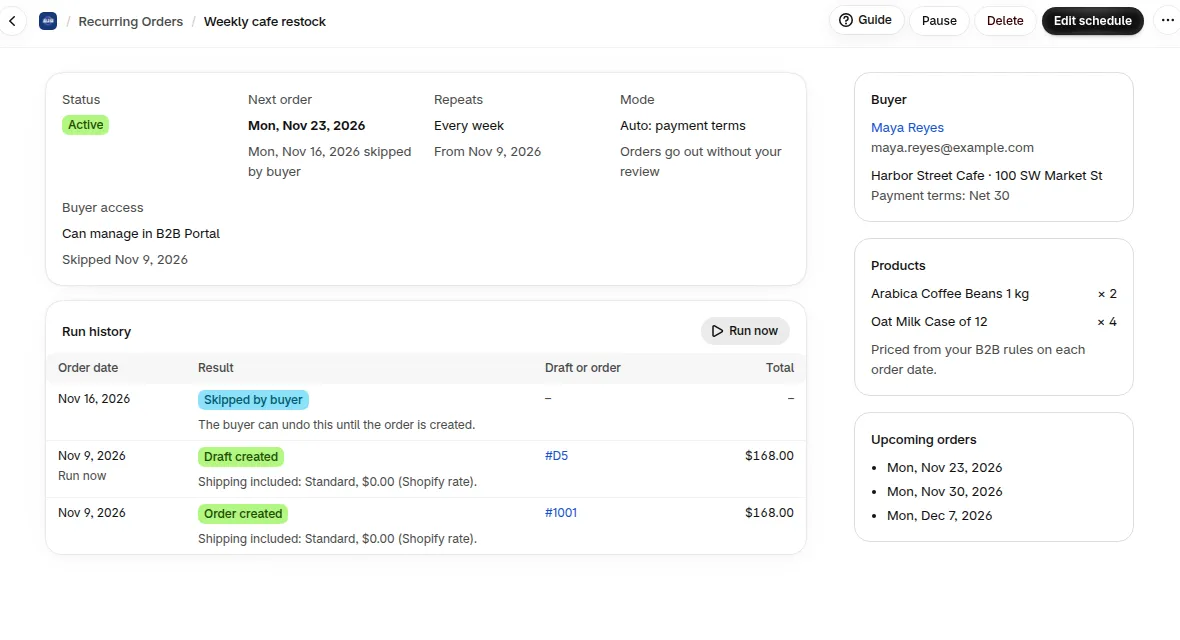
This is how a real Run history looks on a schedule detail page, with a skipped date, a draft and a created order.
What do the common messages mean?
Section titled “What do the common messages mean?”- A product no longer exists: no draft is created. Edit the schedule and remove it.
- A product is out of stock: no draft is created for that date.
- The location has no payment terms: the draft is kept. Open it and finish it in Shopify.
- The customer has no email: the invoice cannot be sent and the draft is kept.
- The add-on ended before the order was completed: the draft is kept.
- The order breaks an order limit: review the draft and complete it in Shopify.
- Your pricing rules weren’t ready yet: prices could not be calculated because Recurring Orders was still getting ready after the add-on was turned on. The next run tries again. If it still fails after several tries, the run fails.
- We tried several times and couldn’t create this order. Use Run now to try again. The run failed after several tries. Use Run now to try again.
- Prices couldn’t be calculated: the run tried several times and failed. Use Run now to try again.
- This order couldn’t be priced: check the products and the buyer’s pricing rules.
- Credit limit stopped this order: with the Credit limit add-on on, the company is over the limit, on hold or overdue, or the limit could not be checked. Check the buyer’s Credit limit first, then review the draft and complete it in Shopify.
- The app lost access to your store: open BSS B2B Solution from Shopify admin to reconnect, then use Run now.
How are fees and shipping added?
Section titled “How are fees and shipping added?”- Fees and shipping from your B2B rules are added to each draft.
- With no B2B shipping rule, the first Shopify shipping rate for the address is used.
- If no shipping rate is found for the address, the draft has no shipping and Auto keeps it as a draft. Add shipping to the draft, then complete it in Shopify.
- If some amounts from your B2B rules could not be added, the lines under the result list what was and was not added. Add the ones you charge, then complete the draft in Shopify.
What does an order limit do?
Section titled “What does an order limit do?”If an order breaks an order limit or a quantity increment rule, the line lists which rule and the numbers, for example the quantity and the minimum. In Review you read it on the draft. In Auto the order is not completed. Review the draft and complete it in Shopify.
Need help with Recurring Orders? Reach us at [email protected] or Live Chat.