
Sales Rep Portal: How Reps Create Draft Orders at B2B Prices
Reps create draft orders in the rep portal, a page on your online store. The rep chooses an assigned customer, adds products at that customer’s B2B price and creates a draft order. You see the draft in Shopify and complete it. Nothing is charged when the rep creates the draft. Share this page with your reps. Before they can use the portal, finish add reps.
Key takeaways
Section titled “Key takeaways”- By default the portal page is at
/apps/bss-b2b/repon your store. If you changed the app proxy path, it is at<your proxy path>/rep. A signed-in rep also sees a Rep portal button on every page, and the button always opens the right address. - The price a rep sees is the customer’s B2B price, from the same rules as your storefront.
- A rep can lower a price only within the Maximum discount you set. The default is 0.
- A rep can set a higher price. The portal flags the line to the rep, and the Activity log records it.
- Discount codes are not applied to sales rep orders; reps adjust prices within the max discount you set.
- The portal orders in your store currency only.
- My orders shows four number cards for the current month, a search box, a status filter and Send invoice for drafts.
How does a rep open the portal?
Section titled “How does a rep open the portal?”The rep signs in to your store with the customer account you used to add them. Then the rep opens the Rep portal button, or goes to the portal address. By default that is /apps/bss-b2b/rep on your store, or <your proxy path>/rep if you changed the app proxy path.
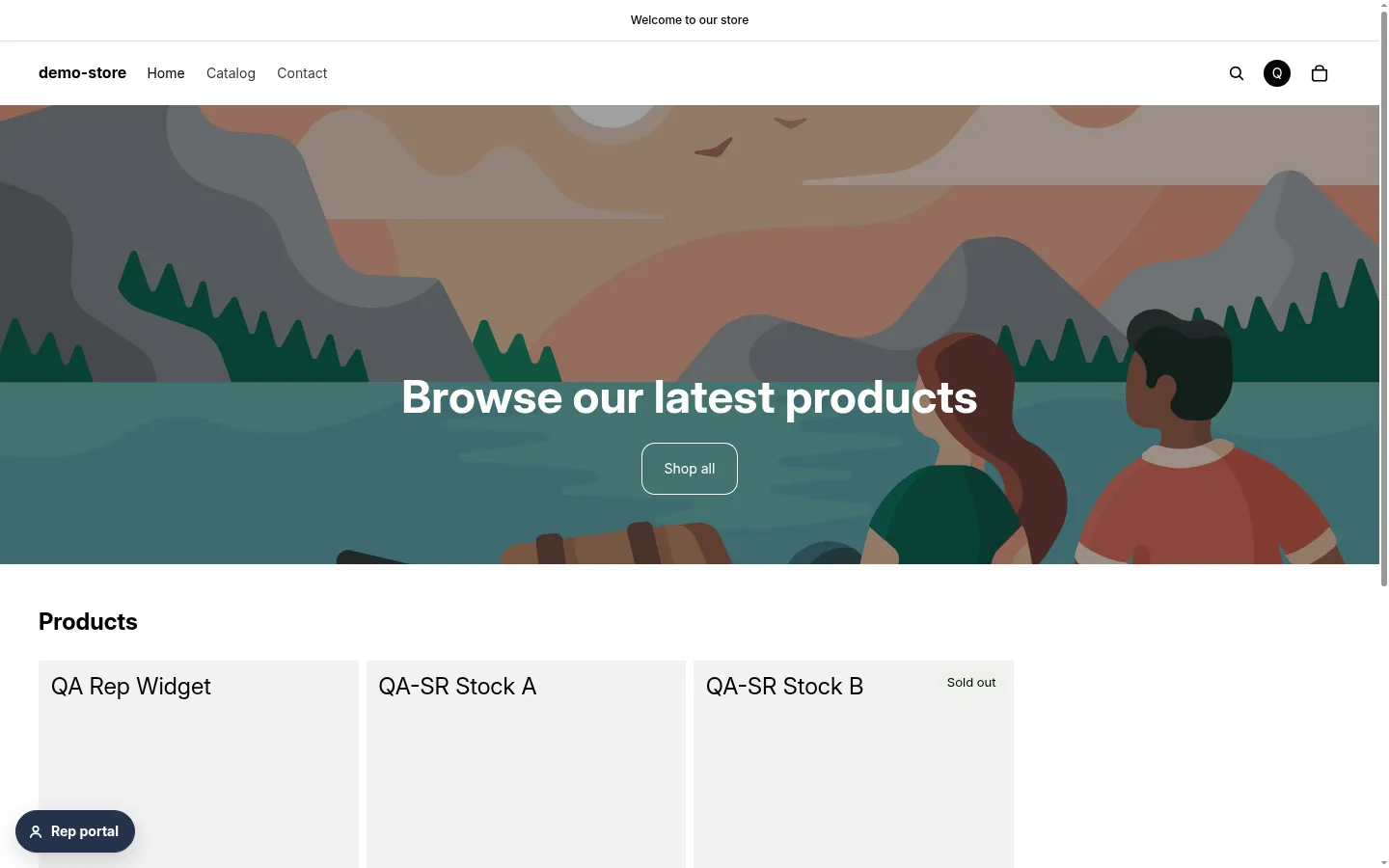
A signed-in rep sees the Rep portal button on the storefront.
If the rep is not signed in, the page says Sign in to use the rep portal. If the account is not a rep, the page says This page is for sales reps.
How does a rep create a draft order?
Section titled “How does a rep create a draft order?”-
Choose who to order for
Section titled “Choose who to order for”The portal shows Who are you ordering for? with the company locations and customers assigned to the rep. Search by company, location, city, name or email. Recent customers show first. When a rep has both companies and customers, a filter shows All, Companies or Customers.
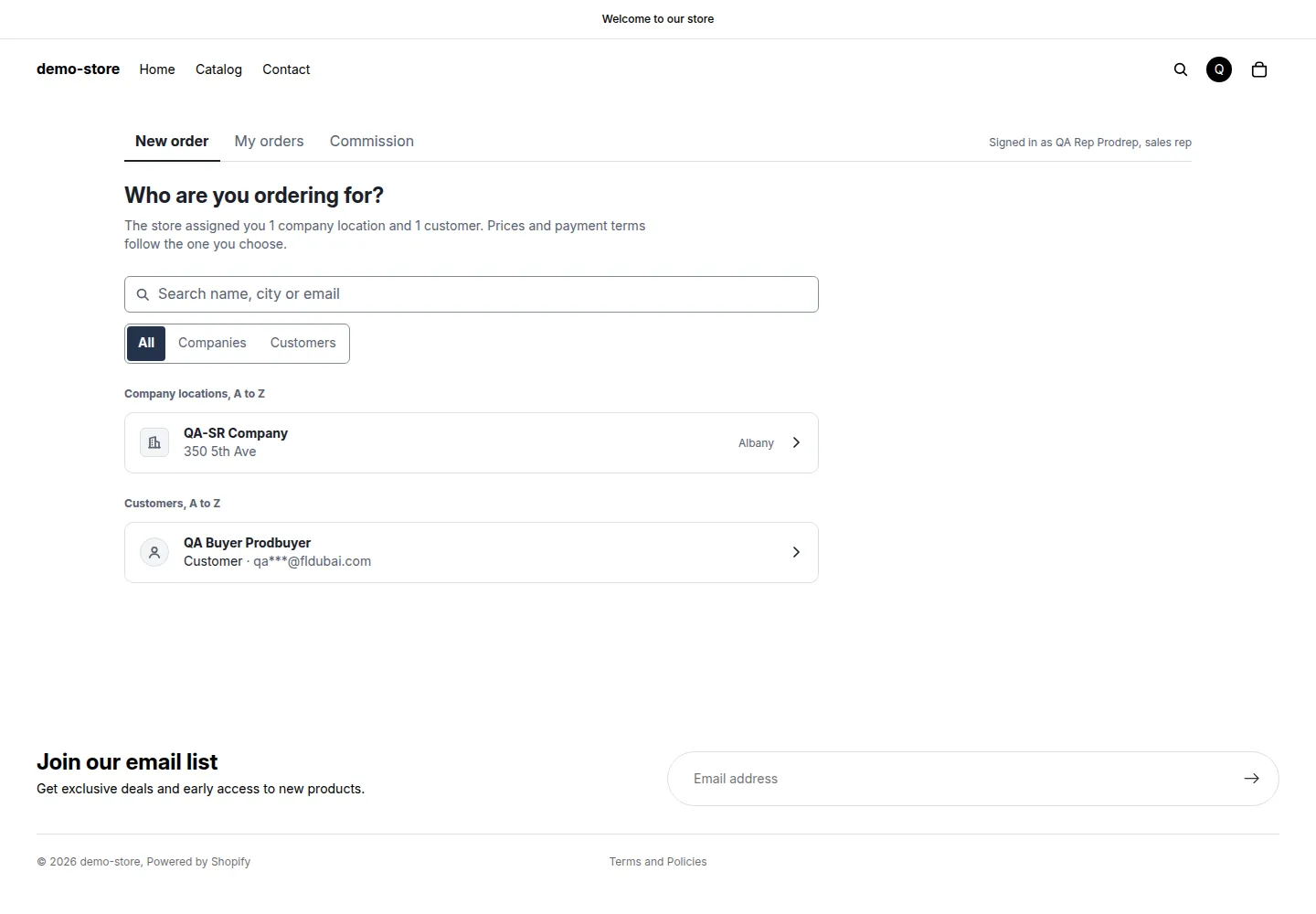
The rep chooses who to order for.
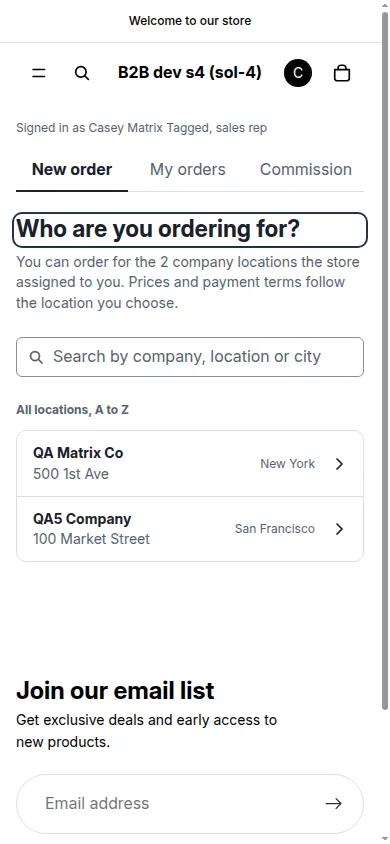
The same list on a phone.
-
Add products
Section titled “Add products”The list Add products shows products at the Customer price. Search by name or SKU. Enter a quantity and click Add. A quantity rule such as “Minimum 6, in steps of 6” shows under the product.
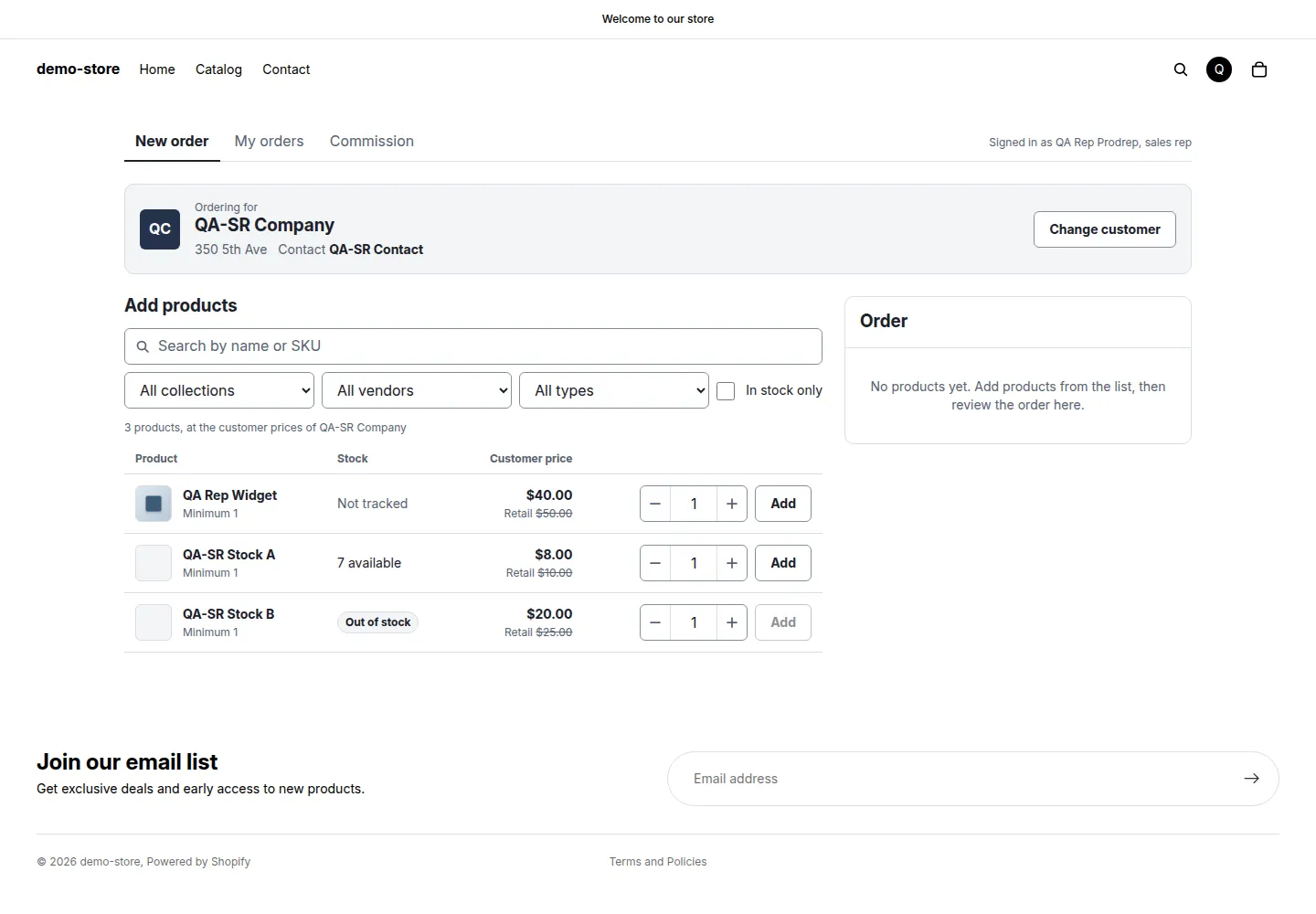
Each product shows the customer price, with the retail price crossed out.
-
Check the order
Section titled “Check the order”The Order panel lists the lines. The rep can change the quantity and the unit price of each line. The subtotal does not include shipping and tax.
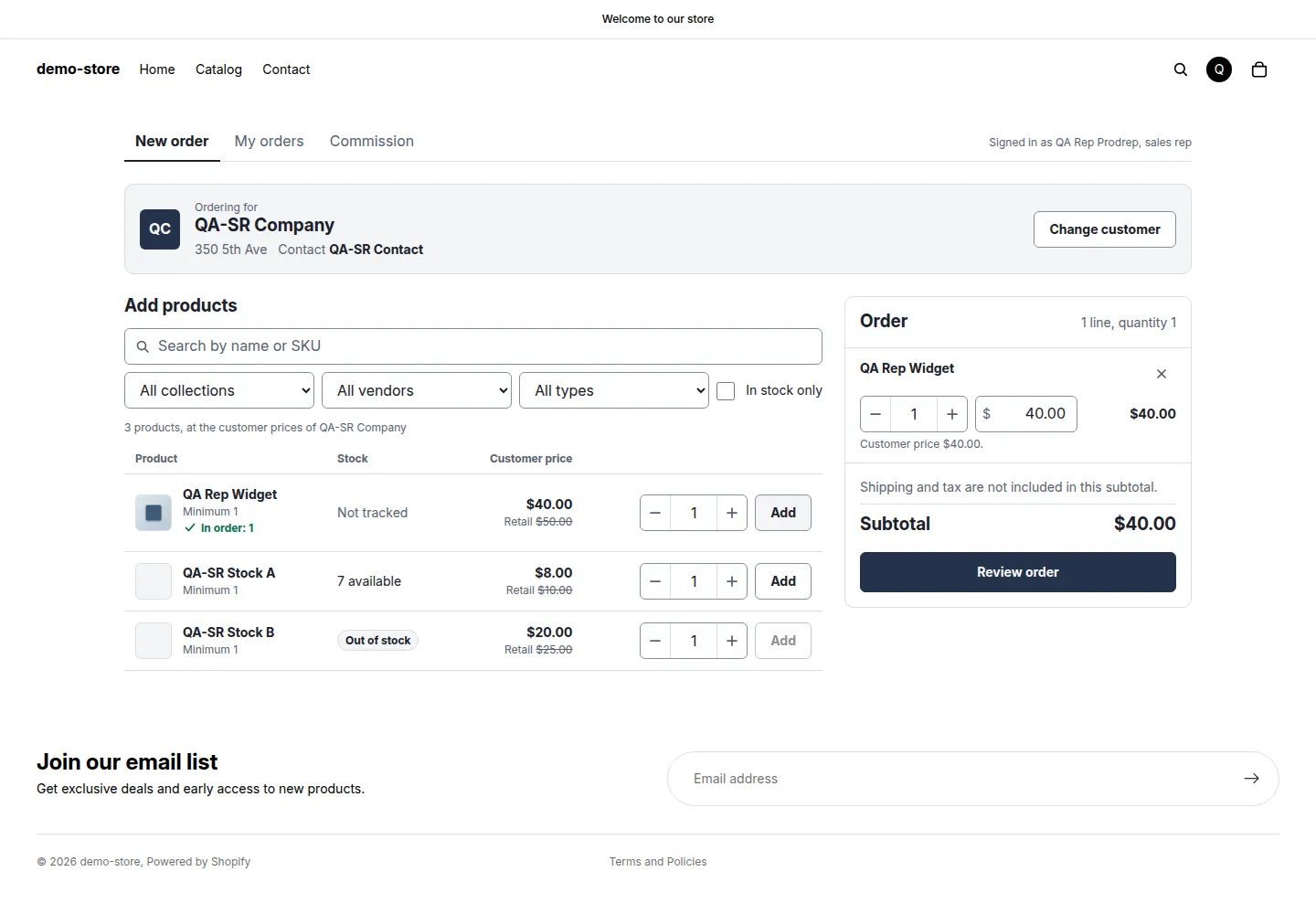
The Order panel lists the line, its price and the subtotal.
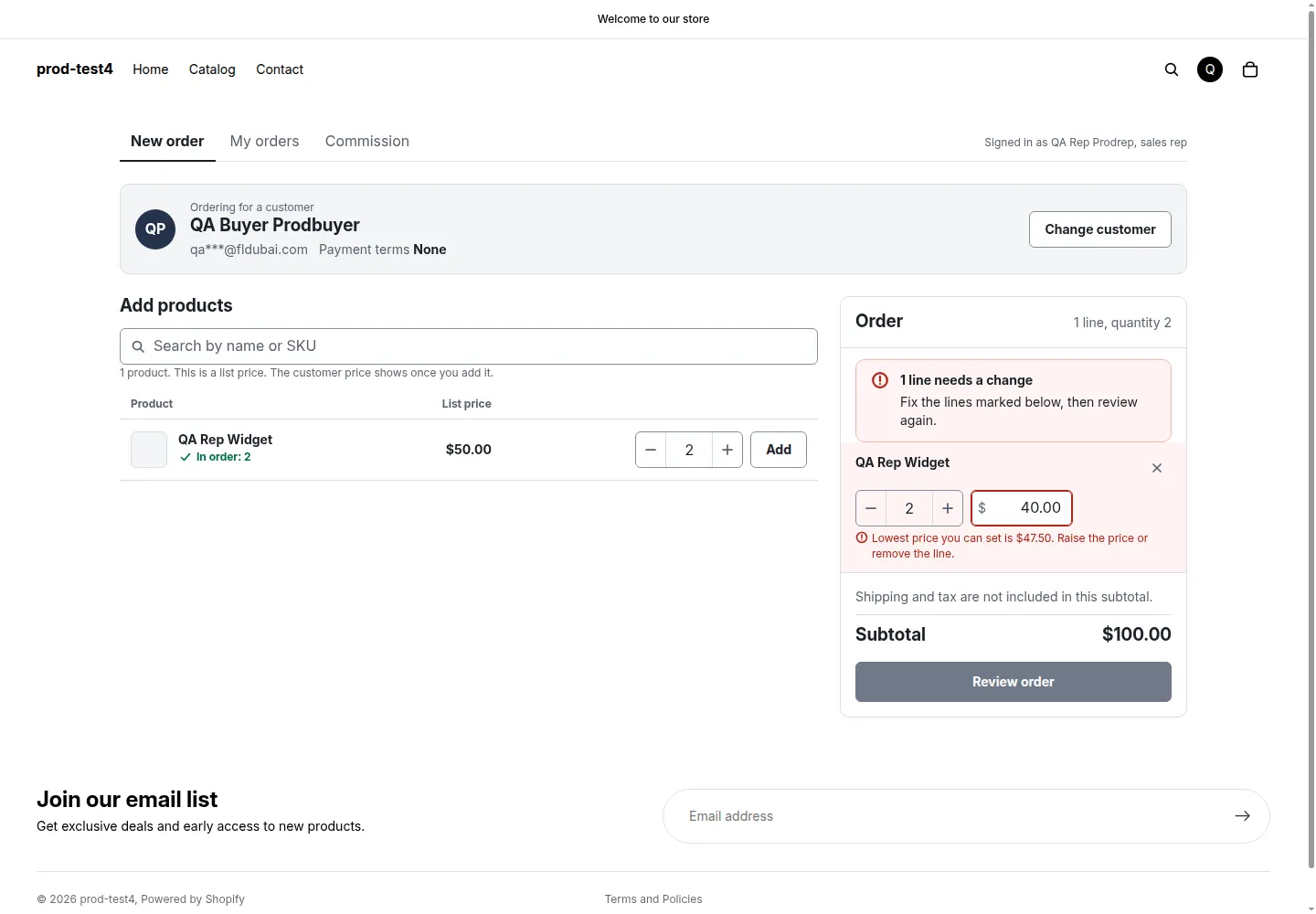
A price below the lowest allowed price blocks the review.
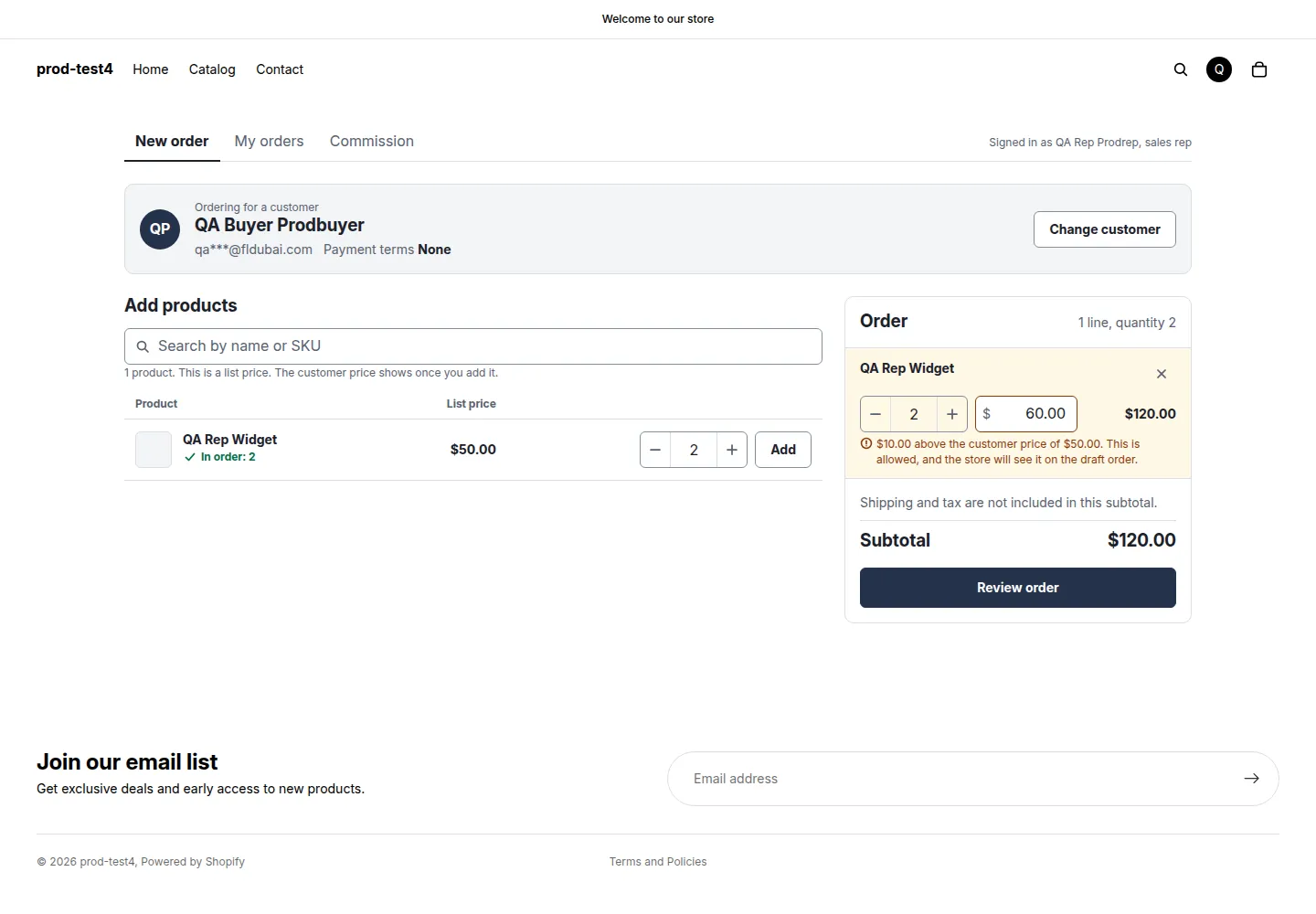
A price above the customer price is allowed, with a warning.
-
Review
Section titled “Review”Click Review order. The page Review and create draft order shows the payment terms, who the order ships to, an optional PO number and an optional Note. The box Email the invoice to the customer is off by default.
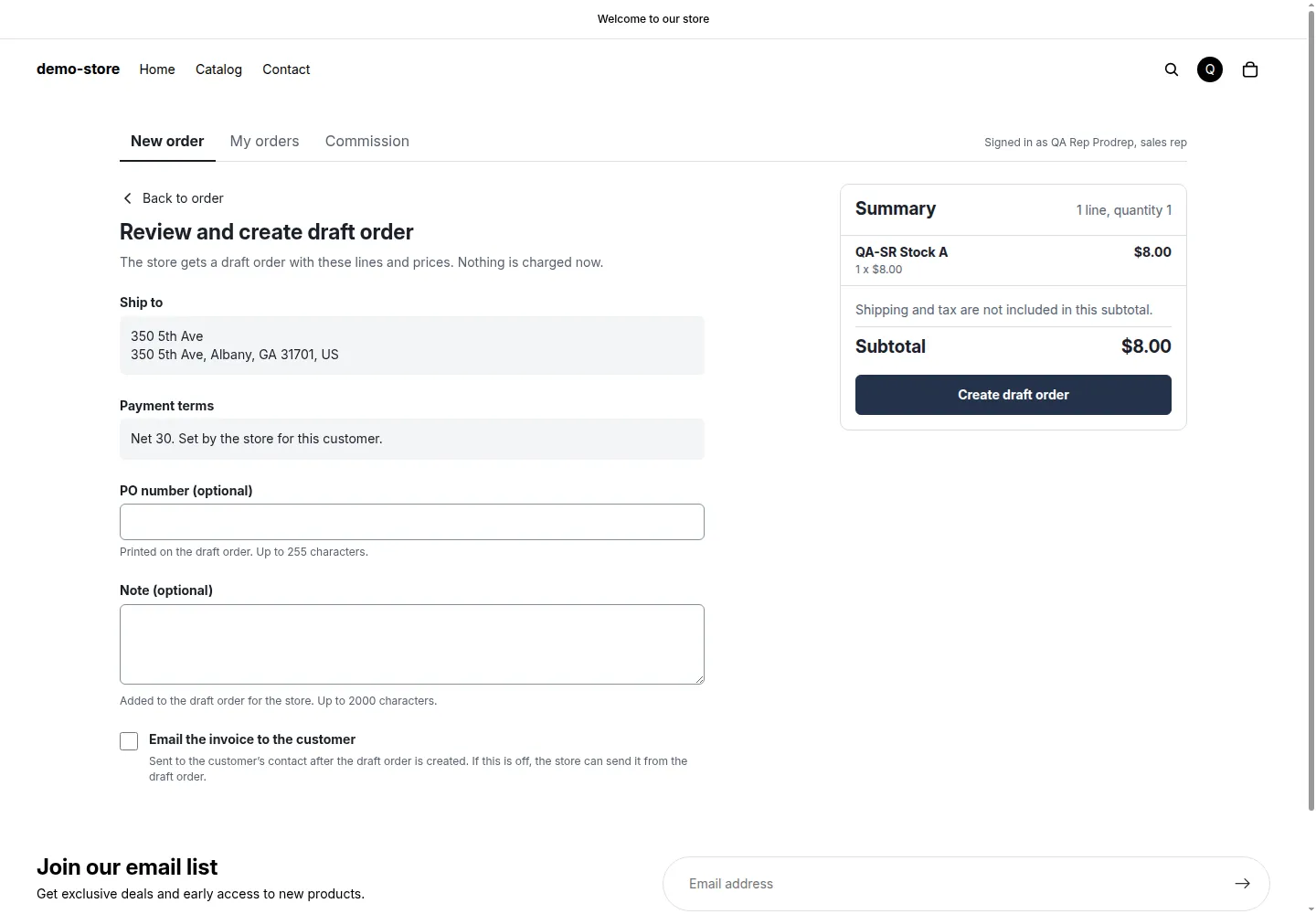
The review step shows the payment terms, set by the store.
-
Create the draft order
Section titled “Create the draft order”Click Create draft order. Keep the page open until it finishes. The page Draft order [name] created shows the order name and the subtotal.
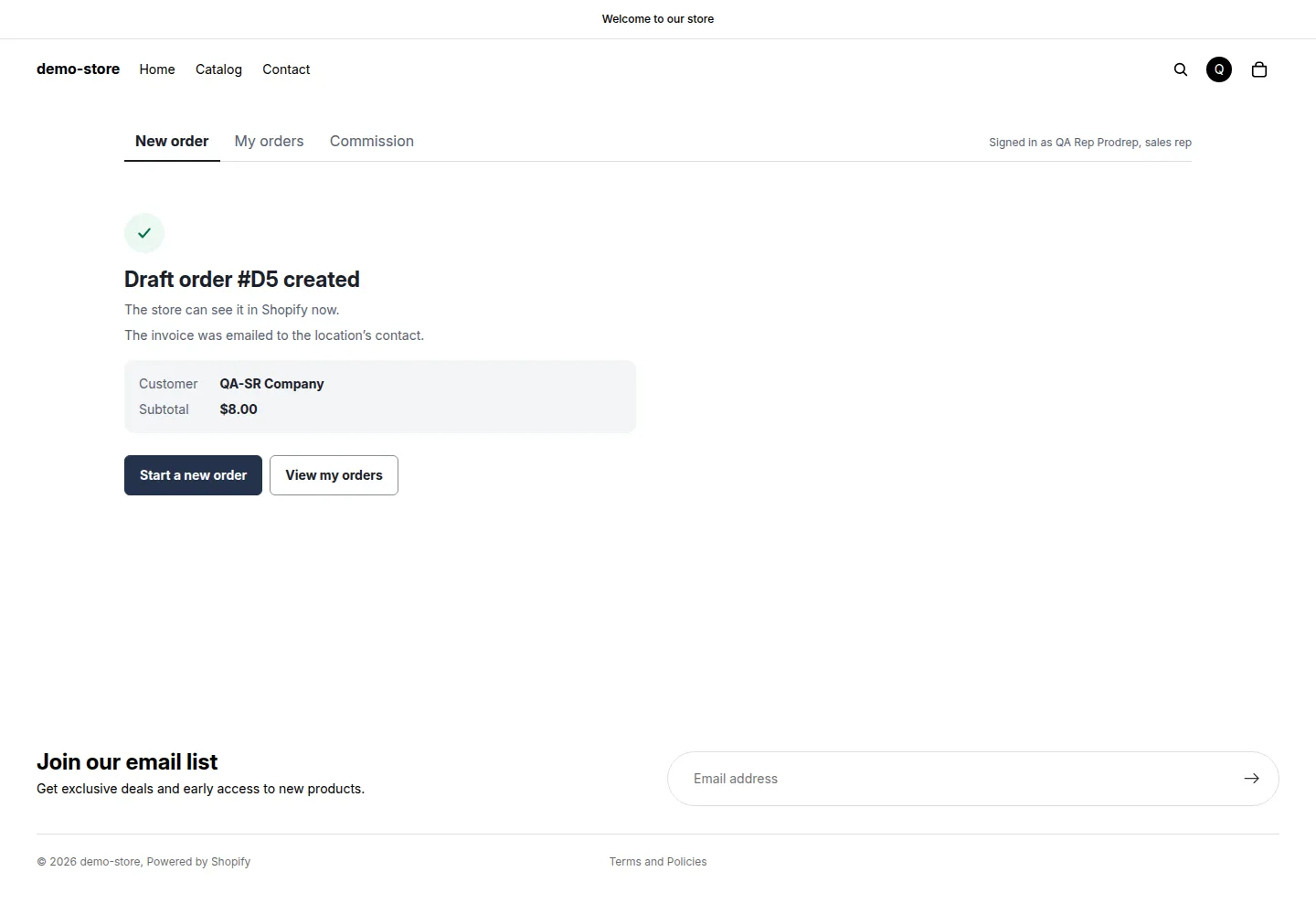
The rep sees the draft order name and the subtotal.
Expected result: a draft order appears in Orders > Drafts in Shopify, and in My orders in the portal. If the rep’s connection drops, creating the order again does not create a second draft.
A rep’s unfinished order is saved in the browser for up to 7 days for each customer. When the rep comes back, the prices are checked again at today’s prices.
How are prices worked out?
Section titled “How are prices worked out?”The price in the portal is the customer’s B2B price. It follows the same rules as your storefront, including rules for a company location. Quantity rules and order limits also apply, and so do the limits on the customer’s payment terms. The rep sees a message on any line that doesn’t fit.
The rep can change the unit price of a line:
| The rep sets | What happens |
|---|---|
| A price at or above the lowest allowed price | Accepted |
| A price above the customer price | Accepted. The line is flagged, the review shows lines priced above the customer price, and the Activity log records it |
| A price below the lowest allowed price | The line shows an error, and the order can’t be created until the rep fixes it |
The lowest allowed price is the customer price minus the rep’s Maximum discount, rounded up to the next cent. Example: the customer price is $24.00 and the rep’s maximum discount is 10%. The lowest price is $21.60. A rep with a maximum discount of 0 can’t go below $24.00.
Discount codes do not work on rep orders. To let a rep give a discount, raise the Maximum discount on the rep’s page.
Which payment terms apply?
Section titled “Which payment terms apply?”The payment terms come from your Net Terms rule for that customer. For a company location with no Net Terms rule, the draft uses the payment terms you set on that location in Shopify, for example Net 30. The rep can’t change them. For a customer with no terms, the review says the draft has no payment terms. You can add them in Shopify.
Why is the shipping address blank for a customer?
Section titled “Why is the shipping address blank for a customer?”For a company location, the draft gets the location’s shipping and billing address. For a customer without a company, the portal does not set a shipping address. Add or change it on the draft order in Shopify.
How do I find the orders of one rep?
Section titled “How do I find the orders of one rep?”Each rep draft gets the tag bss-rep-<number> and the order detail Sales rep with the rep’s name. In Shopify, filter Orders or Drafts by that tag. The rep’s email is never written on the order. Shopify’s default invoice email does not show the rep’s name. If you edited your notification templates to print order attributes, your customer sees it too.
What does the invoice email do?
Section titled “What does the invoice email do?”If the rep ticks Email the invoice to the customer, Shopify emails the invoice after the draft is created. A customer without an email in Shopify can’t be emailed. If the box stays off, the rep can click Send invoice on the draft in My orders (see how a rep sends an invoice), or you can send it from the draft order in Shopify.
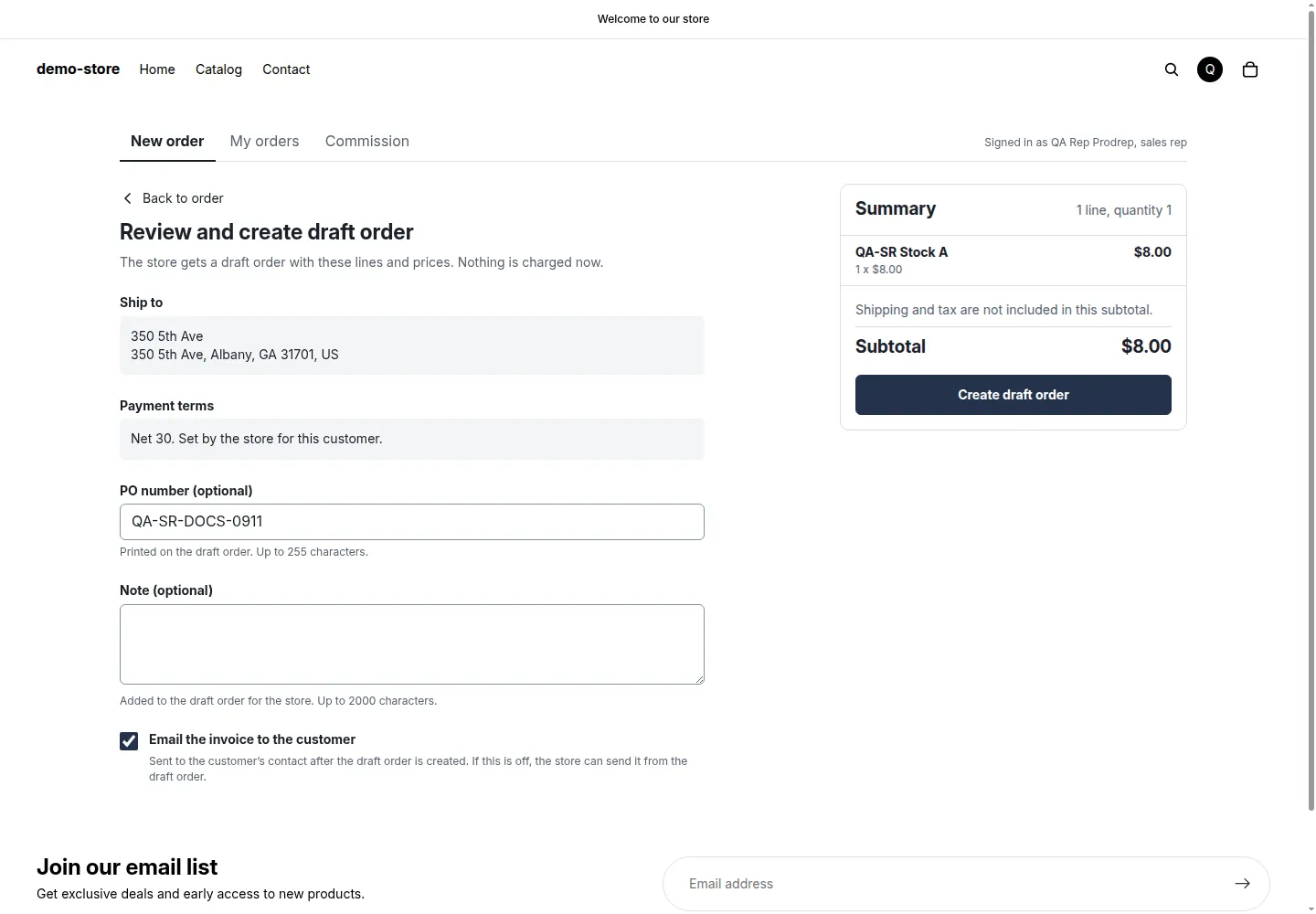
The box Email the invoice to the customer, ticked, with a PO number.
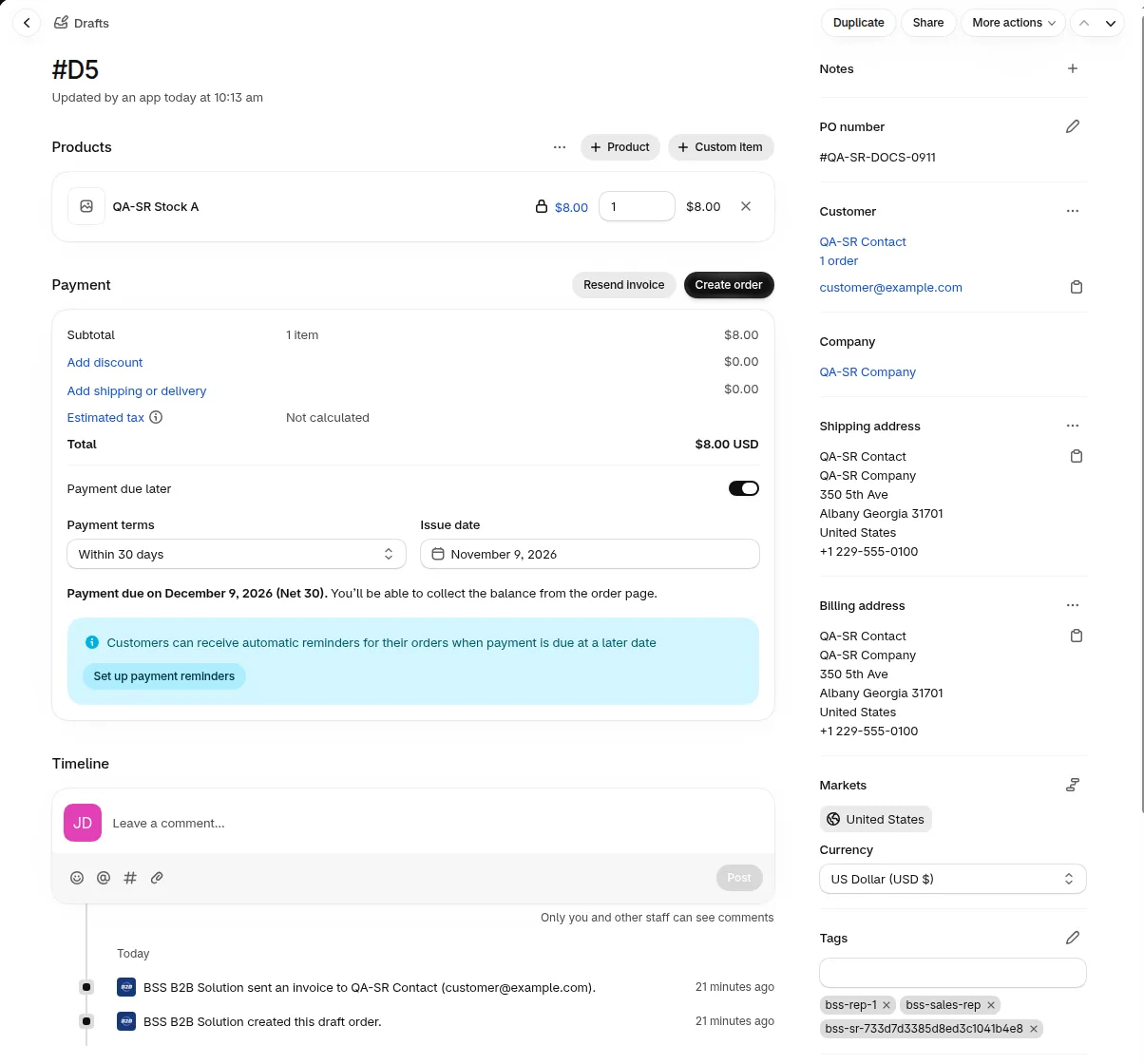
The draft order timeline in Shopify records that the invoice was sent.
How do I hold stock for a rep draft?
Section titled “How do I hold stock for a rep draft?”Turn on Hold stock for in the Settings tab of Sales Reps. Then the review page says stock is held for up to that many hours after the draft is created. See settings and reports.
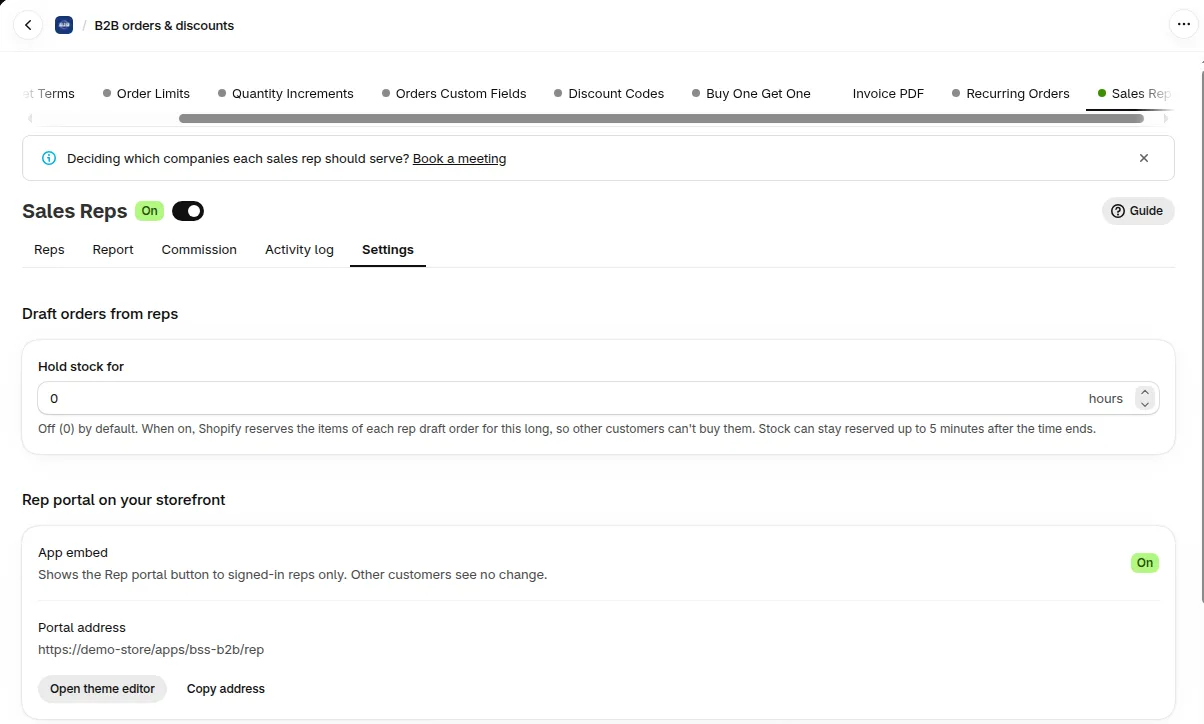
Hold stock for sits in the Settings tab, with the rep portal switch below it.
What can a rep see in My orders?
Section titled “What can a rep see in My orders?”My orders lists the drafts and orders the rep created, with the customer, date, total and status. Above the list sit four number cards, a search box and a status filter. The rep opens an order to see its lines, or clicks Reorder to start a new order from it. Export CSV downloads the list. The file has up to the newest 5,000 orders. If there are more, the portal says the file lists the newest orders.
What do the four number cards show?
Section titled “What do the four number cards show?”The cards show this month’s orders, sales and earned commission, and how many customers the rep has. They cover the current month in your store’s time zone, and the month name in the card titles changes each month. They are for information and do not change what is paid.
| Card | What it counts |
|---|---|
| Orders, Nov 2026 | Orders placed this month, plus drafts created this month that are still open. Cancelled and deleted orders are not counted. |
| Sales, Nov 2026 | The subtotal of orders placed this month, after discounts and without tax and shipping. Open drafts are not added. Refunds do not change it. The card shows one amount per currency. |
| Commission earned | Commission earned this month from paid orders, before refunds. The link See commission opens the Commission tab, which shows the amount after refunds. |
| Your customers | The company locations and customers assigned to the rep. The card shows one number, for example 3 locations or 1 customer. When the rep has both, it shows the total, with a line below such as 2 company locations, 4 customers. |
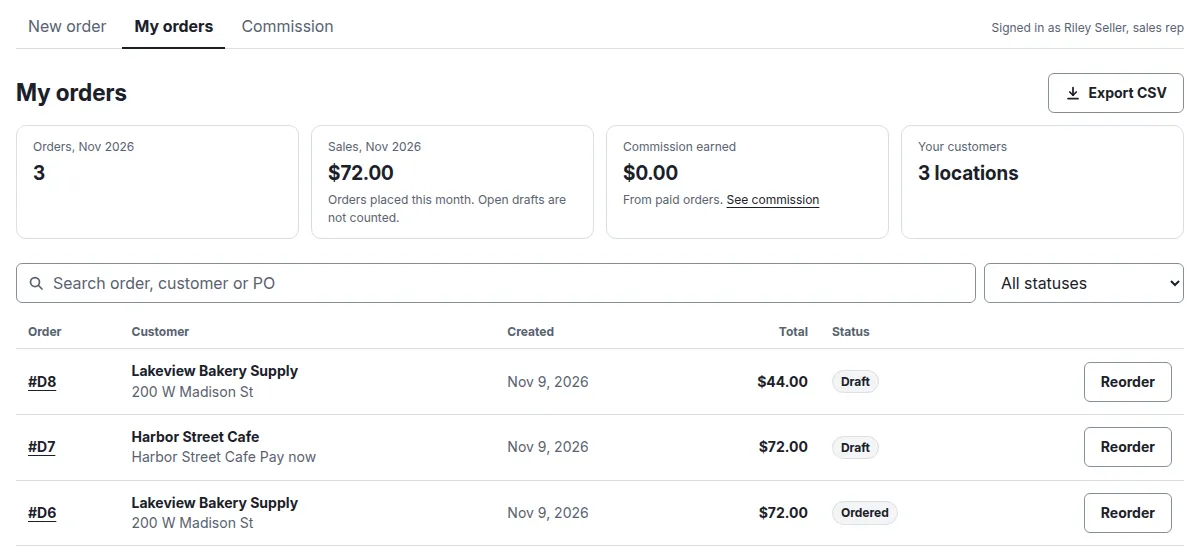
The four cards sit above the list. Numbers are for the current month.
Sales counts an order on the day it was placed, and Commission counts it on the day the customer paid, so an order that is paid next month shows in next month’s Commission.
Example: a rep has a 5% rate. A customer on Net 30 terms orders on October 30 with a subtotal of $1,000.00 and pays on November 5. The rep has no other orders. Commission is 5% of $1,000.00, which is $50.00.
| Month | Orders | Sales | Commission earned |
|---|---|---|---|
| October | 1 | $1,000.00 | $0.00 |
| November | 0 | $0.00 | $50.00 |
How does a rep search and filter orders?
Section titled “How does a rep search and filter orders?”A rep finds an order by typing in Search orders and picking a status. The search reads the order number, the customer or company name and the PO number. The four cards do not change.
- Type in Search orders. It looks at the order number, the customer or company name and the PO number, up to 100 characters.
- Pick a status in Status: All statuses, Draft, Ordered or Cancelled.
- If the message No orders match shows, click Clear filters. It resets the search and the status.
Expected result: the list shows a count such as “1 of 1 orders”, with Show more orders for the rest. The four cards do not change when the rep searches or filters.
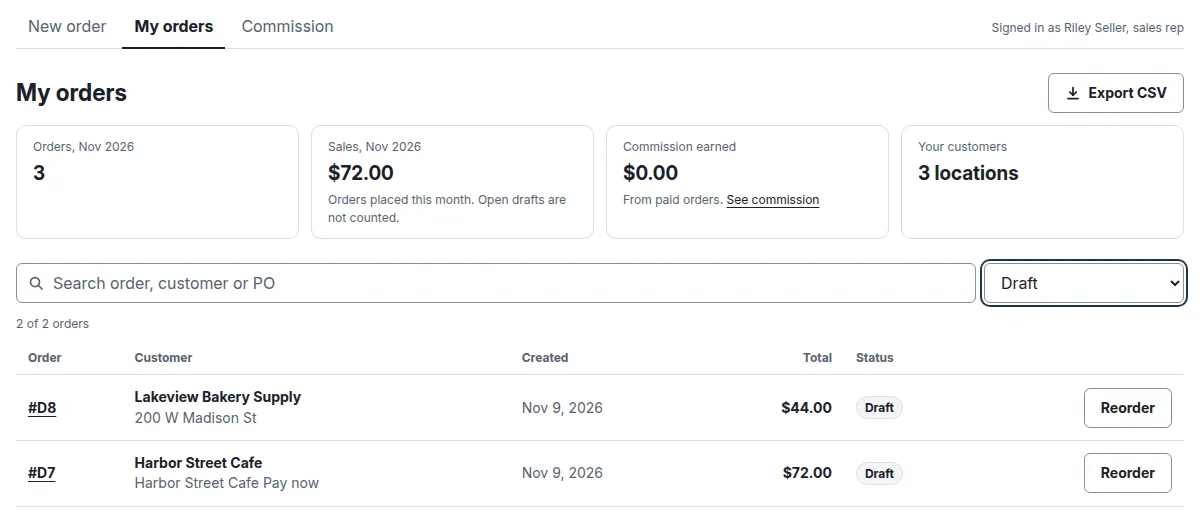
Filtered to Draft.
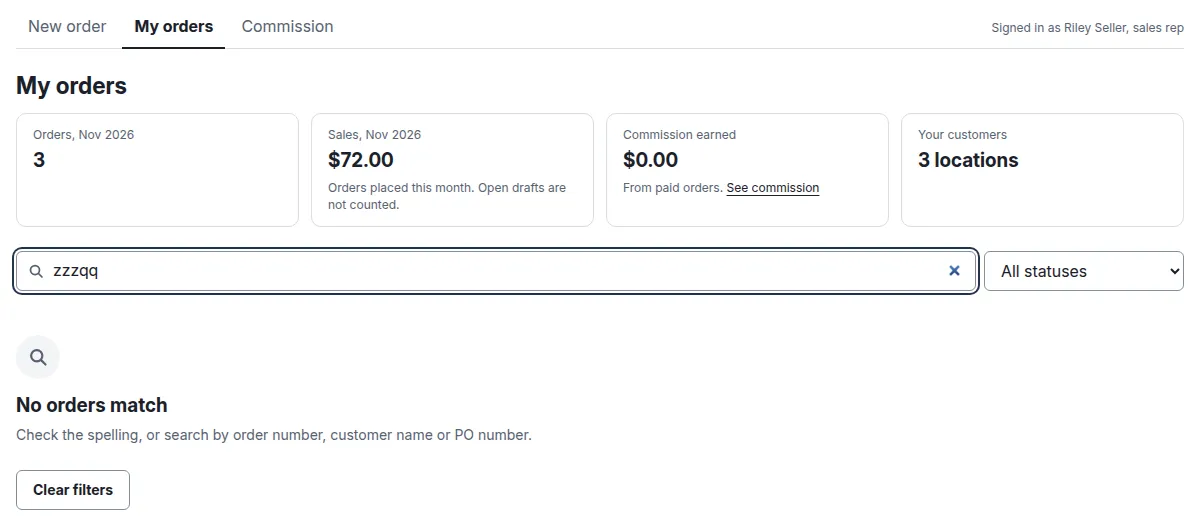
Clear filters resets the search and the status.
How does a rep send an invoice from My orders?
Section titled “How does a rep send an invoice from My orders?”The rep opens a draft in My orders and clicks Send invoice. Shopify emails the invoice to the customer.
-
Open the draft
Section titled “Open the draft”Open My orders and click a draft order. Only drafts the rep created show Send an invoice to the customer, and only while the customer is still assigned to the rep and the rep is not paused.
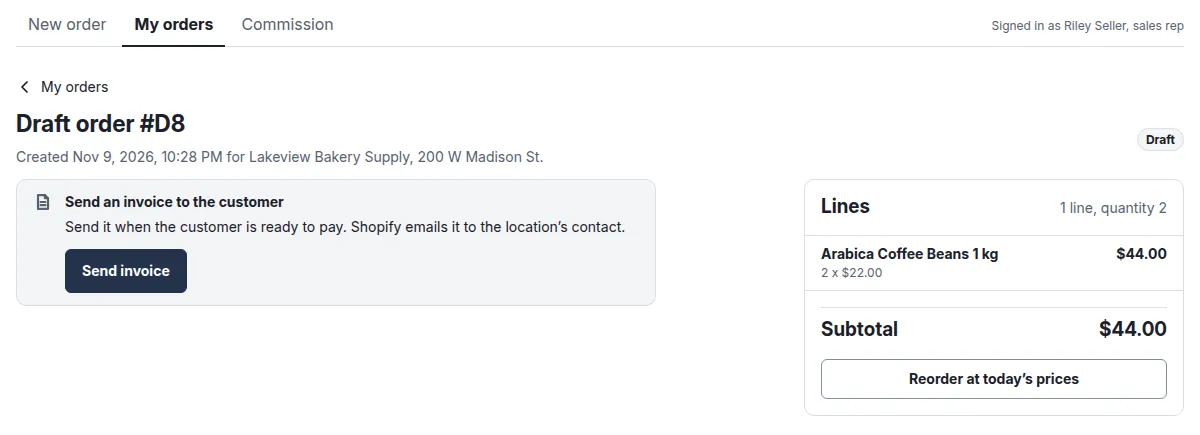
A draft shows Send invoice.
-
Click Send invoice
Section titled “Click Send invoice”Send it when the customer is ready to pay. The button shows Sending… while it works.
-
Wait for the confirmation
Section titled “Wait for the confirmation”The message Invoice sent appears. Shopify emails the invoice to the customer’s email, or to the location’s contact for a company order.
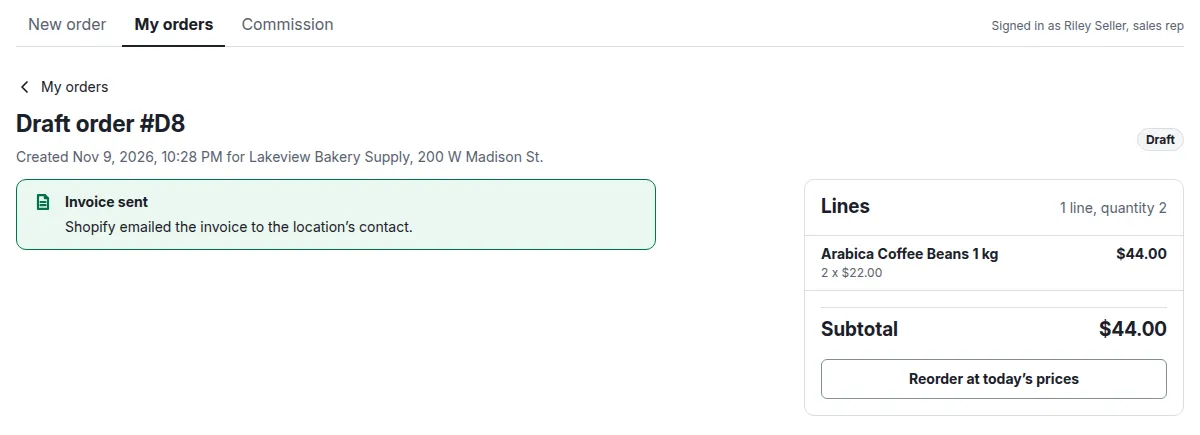
The green message confirms the invoice was sent.
A few things to know:
- The email address is read from Shopify. The rep can’t type one.
- The invoice goes through Shopify, the same as the Email the invoice to the customer box on the review page.
- A rep can send at most 3 invoices to the same recipient in an hour, and 10 invoices an hour in total. The review-page box counts toward both limits. A send that fails does not use up these hourly limits. See invoice limits.
- Two clicks within 10 seconds on one draft send one email.
- Invoice sent is not remembered. If the rep reloads the page, Send invoice shows again, so the rep should check before sending twice.
If the invoice does not go out, see invoice problems.
When can’t a rep create orders?
Section titled “When can’t a rep create orders?”Usually the cause is a missing catalog permission, a full seat count or a paused rep. See troubleshooting.
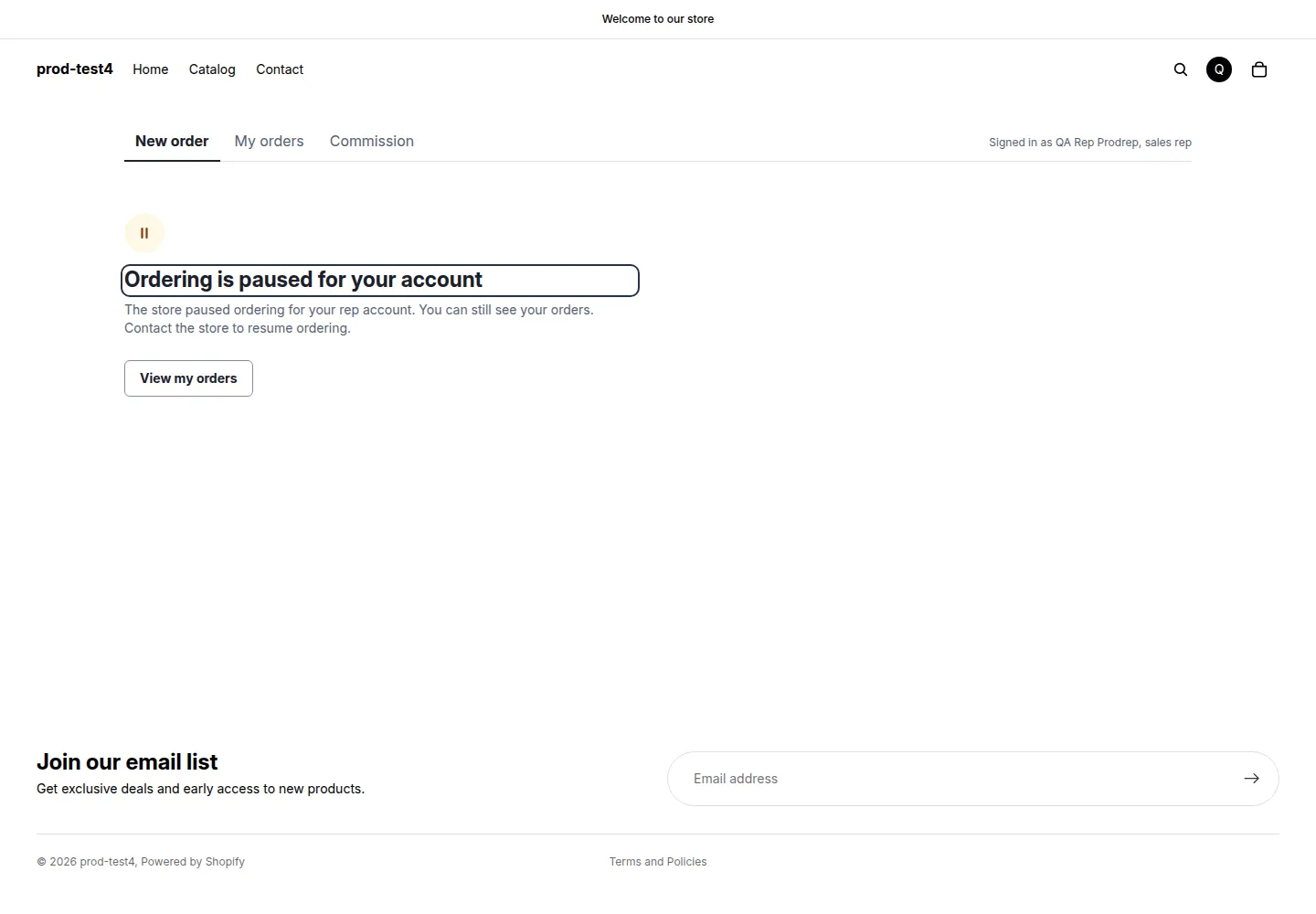
A paused rep can view orders only.