
Credit Limit Emails: Buyer Alerts, Overdue Summary, Statements
With Credit emails you can send credit limit email alerts to buyers at 70%, 90% or 100% of their limit, get a daily overdue summary yourself and send any customer a statement. Buyer alerts and the daily overdue summary are off until you turn them on. The approval email is on by default.
Key takeaways
Section titled “Key takeaways”- The approval email is on by default, and its switch shows in Credit emails once a rule uses Ask me to approve. Buyer alerts and the daily overdue summary send nothing until you turn them on in Credit emails.
- Buyer alerts go out once each time a balance crosses 70%, 90% or 100% of the limit.
- The daily overdue summary goes to your store email, and only when the overdue list changed.
- Statements are manual, list unpaid orders and have no payment link.
- Sent credit emails keeps the last 90 days.
Which credit emails can I send?
Section titled “Which credit emails can I send?”You can send these emails: a buyer alert, an approval request for you, a Daily overdue summary for you, and a statement for one customer. Buyers also get an email when you reject an order or it expires.
| Who gets it | When | Needs | |
|---|---|---|---|
| Buyer alert | The buyer | When their balance reaches a level you turned on | Level on, a credit rule with a limit, an email in Shopify |
| An order is waiting for your approval | Your store email | One email per order, when a buyer sends an order for approval | On by default. Needs a rule set to Ask me to approve. Until you have one, the switch is not shown in Credit emails |
| Order rejected or expired | The buyer | When you reject an order, or it has no decision in 7 days | None. It is sent when the order ends |
| Daily overdue summary | Your store email | Once a day at 02:30 UTC, only when the list changed | Daily overdue summary on, a store email in Shopify |
| Statement | One customer | When you click Send statement | An email address on the customer |
Turn emails on in Settings, in the Credit emails card. Read the full list of options in Credit limit settings. Net Terms order emails are a separate feature, covered in Net Terms email notifications.
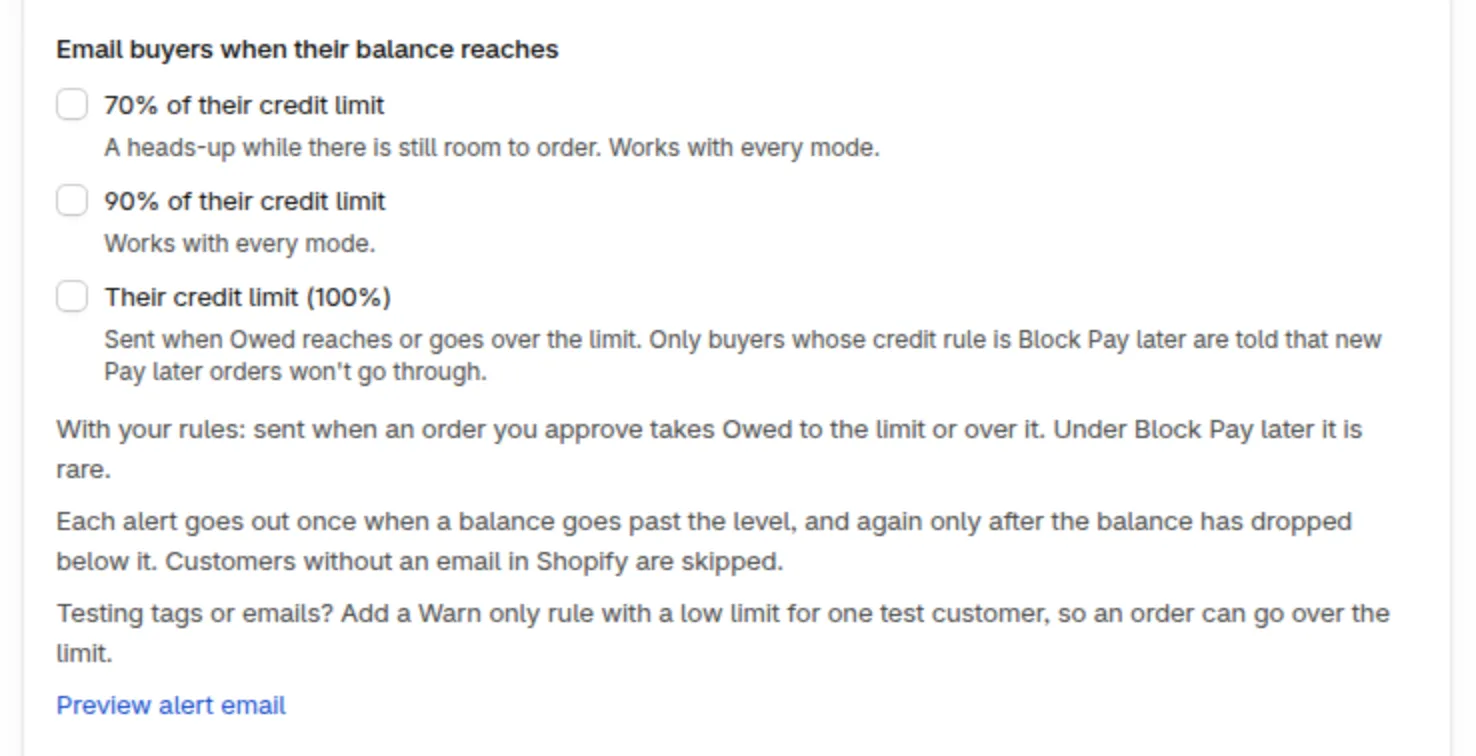
The Credit emails card in Settings, before any rule uses Ask me to approve. Tick the levels you want. The approval switch shows here once such a rule exists.
When does a buyer get a limit alert?
Section titled “When does a buyer get a limit alert?”A buyer gets one alert each time their balance crosses a level you turned on, going up. Levels are 70%, 90% and 100% of the credit limit. Each level is its own option.
The rules are simple:
- Alerts use Owed only. Pending drafts are not counted.
- A level counts when the balance is at or over it.
- The level opens again after the balance drops below it. The next crossing sends a new email.
- A jump over two levels sends one email, for the highest level that is on.
- When you turn a level on, buyers already over it are marked as handled. They do not get an email for it.
- Only buyers with a credit rule and a limit are checked.
- A customer without an email in Shopify is skipped. That level is then marked as handled and is not retried. Adding an email later does not resend the alert. The next alert goes out when the balance drops below the level and crosses it again.
The check runs every hour, and about 30 seconds after a balance changes. Each run sends up to 100 alerts. The rest go on the next run. A failed send is retried up to 3 times within 24 hours, at least 15 minutes apart. A skipped send, such as a missing address or sender, is not retried.
Example: a buyer has a $1,000.00 limit. You turned on the 70% and 90% options.
| Owed changes | Email sent | Why |
|---|---|---|
| $500.00 to $720.00 | One email, 70% | 720 is over 700 and under 900 |
| $720.00 to $950.00 | One email, 90% | 950 is over 900 |
| $950.00 to $600.00 | None | Both levels open again |
| $600.00 to $960.00 | One email, 90% | The jump crosses both levels, so one email for the highest |
At 100%, only buyers whose rule is set to Block Pay later, and who are not on hold, are told that new Pay later orders won’t go through. Buyers on a warn-only rule get the same alert without that sentence.
What is in the buyer alert?
Section titled “What is in the buyer alert?”The alert shows the store name, a usage meter, the limit, Used, Reserved, available credit and a View your account button. It also shows a contact line and an as-of time.
Below 100%, the subject reads “You’ve used 70% of your credit with” your store name, or 90%. At 100% it reads “You’ve reached your credit limit with” your store name.
Reserved appears only when the amount is above zero. If the buyer is over the limit, available credit shows as 0 with the amount over.
Buyer emails are in English for now. They say Used for the amount you see as Owed. The email has no payment link. The button opens the buyer’s account page on your store.
To see each version, click Preview alert email and pick a Version: 70% of the limit, 90% of the limit, Credit limit reached with Block Pay later, or Credit limit reached with Warn only. Nothing is sent from the preview.
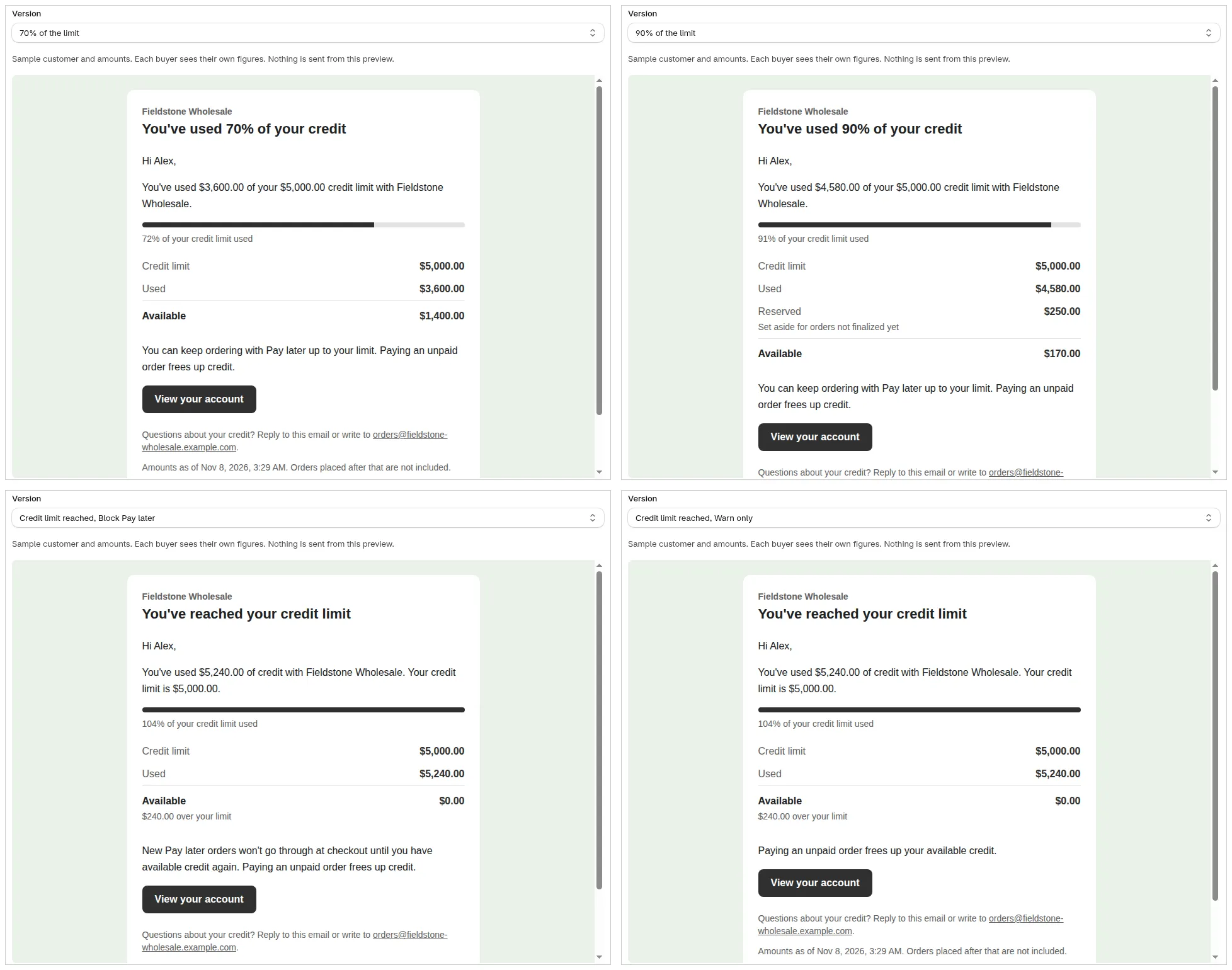
Use Preview alert email to see what buyers receive. The sample uses made-up names and amounts.
What are the approval emails?
Section titled “What are the approval emails?”When a buyer sends an order for approval, you get one email per order at your store email. Its subject reads “Approval needed” with the amount and the customer. It names the customer and has a Review and approve button, and a link to reject the order. Both ask for a short note that only your staff see. The footer says approval request emails are on. Once a rule uses Ask me to approve, the An order is waiting for your approval switch shows under Email you in Credit emails, and you can turn this email off or on there.
The buyer gets an email when you reject the order (“Your order wasn’t approved”) or when it has no decision in 7 days (“Your order request expired”). When you approve, the buyer gets the usual Pay later order email.
What is the daily overdue summary?
Section titled “What is the daily overdue summary?”The Daily overdue summary is an email to you, not to your buyers. It lists customers who have orders past their due date. It goes to your store email once a day at 02:30 UTC, and only when the list changed.
An order is overdue when its due date has passed and it is not fully paid. This does not depend on the Days past the due date value in the overdue block setting. Pending draft orders are not included.
What the summary contains:
- Customer, orders, the oldest order’s days past due and the overdue amount.
- Up to 25 customers, then a count of the rest.
- A total overdue amount.
- A Changes since the last summary line with new customers and paid ones (up to 3 named).
- A subject like “Overdue summary: 1 customer, $450.00 past due”.
The first summary lists every order that is past due now. It is sent only if at least one order is overdue. After that you get one email a day, only when the list changes. If a send fails, it is retried the next day.
When the list becomes empty after it had customers, you also get a “No overdue orders” email.
If your store has no email in Shopify, the summary is skipped and the sent log shows why. Turning the option off and on again makes the next summary list everything. Click Preview summary email to see the three versions: Summary with changes, First summary and No overdue orders.
How do I send a statement?
Section titled “How do I send a statement?”Open the customer’s credit page and click Send statement. The statement lists their unpaid orders and what is left to pay. It has no payment link.
-
Open Credit limit and click the customer.
-
Click Send statement at the top of the page.
-
Check To, From, Replies go to and Language in the window.
-
Click Preview statement to see the email.
-
Click Send statement. A message confirms “Statement sent to” the address.
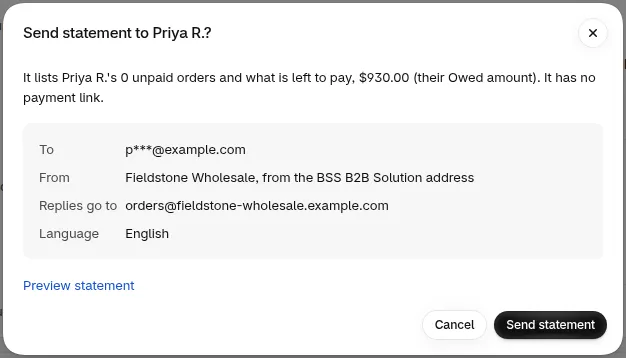
The window shows who gets the statement and who it comes from before you send it.
The statement lists each unpaid order with its order date, due date and what is left to pay. It also shows an earlier balance line for the opening balance and manual adjustments, and a Total left to pay that matches the customer’s Owed amount. It says “To pay, use the payment details on your invoices or contact” your store.
A statement goes out even when the customer has no unpaid orders. Statements are never sent automatically.
| Limit | Value |
|---|---|
| Per customer | 1 statement every 60 seconds |
| Per store | 200 statements in 24 hours |
If you hit a limit, the window tells you: “You sent a statement to this customer a moment ago. Try again in N seconds.” or “Daily statement limit reached for this store. Try again later.” See the customer credit page for the rest of the page.
How do I see what was sent?
Section titled “How do I see what was sent?”Open Sent credit emails in Settings. It lists the last 90 days of alerts, summaries and statements, with the recipient, the result and the time.

Each row shows the email type, the result and the time it was sent.
| Column | What it shows |
|---|---|
| Recipient | The customer name and email, shortened to protect privacy |
| Result | Sent, Not sent or Failed |
| Alert with the level, Overdue summary or Statement | |
| Sent | The date and time |
Staff-sent statements are marked Sent by staff or You. A skipped or failed email shows the reason:
- Email sending was unavailable. Nothing reached the customer.
- No email address in Shopify.
- No sender address is set up for this store.
- The email service rejected it. Try sending again.
A banner counts emails that were not sent in the last 7 days. Skipped emails are not resent. Failed alerts are retried a few times. A failed summary is retried the next day.
Emails come from the BSS B2B Solution sending address, with your store name as the sender name. If your store has its own sender address set up for these emails, they come from that address instead. Replies go to your store email.
Why didn’t an email go out?
Section titled “Why didn’t an email go out?”Most missing emails have a simple cause. This table covers the common ones. Check Sent credit emails first, since it shows the reason.
| Symptom | Likely cause | Fix |
|---|---|---|
| No buyer alert | The level is not on, or you saved after the buyer passed it | Turn the level on and wait for the next crossing |
| No buyer alert | The customer had no email when the level was crossed | Add an email in Shopify. The alert is not resent for that crossing. The next one goes out after the balance drops below the level and crosses it again |
| No buyer alert | No credit rule or no limit covers the buyer | Check the rule in Credit limit rules |
| No second alert | The balance has not dropped below the level | The alert returns only after the balance falls below the level |
| No summary | Nothing is overdue, or the list did not change | Wait for the list to change |
| No summary | Your store has no email in Shopify | Add a store email in Shopify |
| No statement | The customer has no email, or you hit a limit | Add an email or wait |
For more cases, see troubleshooting Credit limit. To see what buyers see in their account, read the buyer experience.
Can I change the email text?
Section titled “Can I change the email text?”No. You can preview each email, but the text is fixed. Each email uses your store name.
Can buyers get the email in their language?
Section titled “Can buyers get the email in their language?”Buyer emails are in English for now.
Do alerts contain a payment link?
Section titled “Do alerts contain a payment link?”No. Alerts and statements have no payment link. The alert has a View your account button that opens the buyer’s account page.
Who is the sender?
Section titled “Who is the sender?”Emails come from the BSS B2B Solution sending address, with your store name as the sender name. Replies go to your store email.