
Credit Limit Not Working in Net Terms? Fix Blocks and Balances
If Credit limit is not working in Net Terms, find your symptom below, run the check in the admin and apply the fix. Each row names the screen to open and the label to read. Terms such as Pending, Owed and Available are defined in the Credit limit glossary.
Key takeaways
Section titled “Key takeaways”- Start from the symptom. The quick table maps the words a buyer or merchant uses to a section.
- Check the customer page first: the Balance card, the Pay later card, History and Orders in this balance.
- Most “wrong balance” cases come from the 60-day order window, orders without payment terms or a short delay after Shopify reports an order.
- Recalculate refreshes stale numbers.
Quick decision: which section do I need?
Section titled “Quick decision: which section do I need?”| The buyer or merchant says | Go to |
|---|---|
| “There is no Pay later button” | A, missing button |
| “Pay later isn’t available for this order” | A, over-limit block |
| “Pay later isn’t available” with “check out with a card” | A, customer on hold |
| “You have an overdue payment” | A, overdue block |
| “Pay later is temporarily unavailable” in the buyer’s credit summary | A, unavailable summary |
| “The customer is over the limit but the order went through” | A, over limit but ordered |
| “The balance is wrong” or “an order is missing” | B, balances look wrong |
| “The balance did not move after I recorded a payment” | B, payment not shown and C, timing and delays |
| “The buyer did not get an email” or “tags did not change” | D, emails and tags |
| “Shopify checkout stopped a card order” | E, Shopify checkout check |
| “The buyer cannot see their credit” | F, buyer view |
| “I see Add Credit limit”, “the API returns 403” or “the export fails” | G, access, plan and API |
A. Pay later is missing or blocked
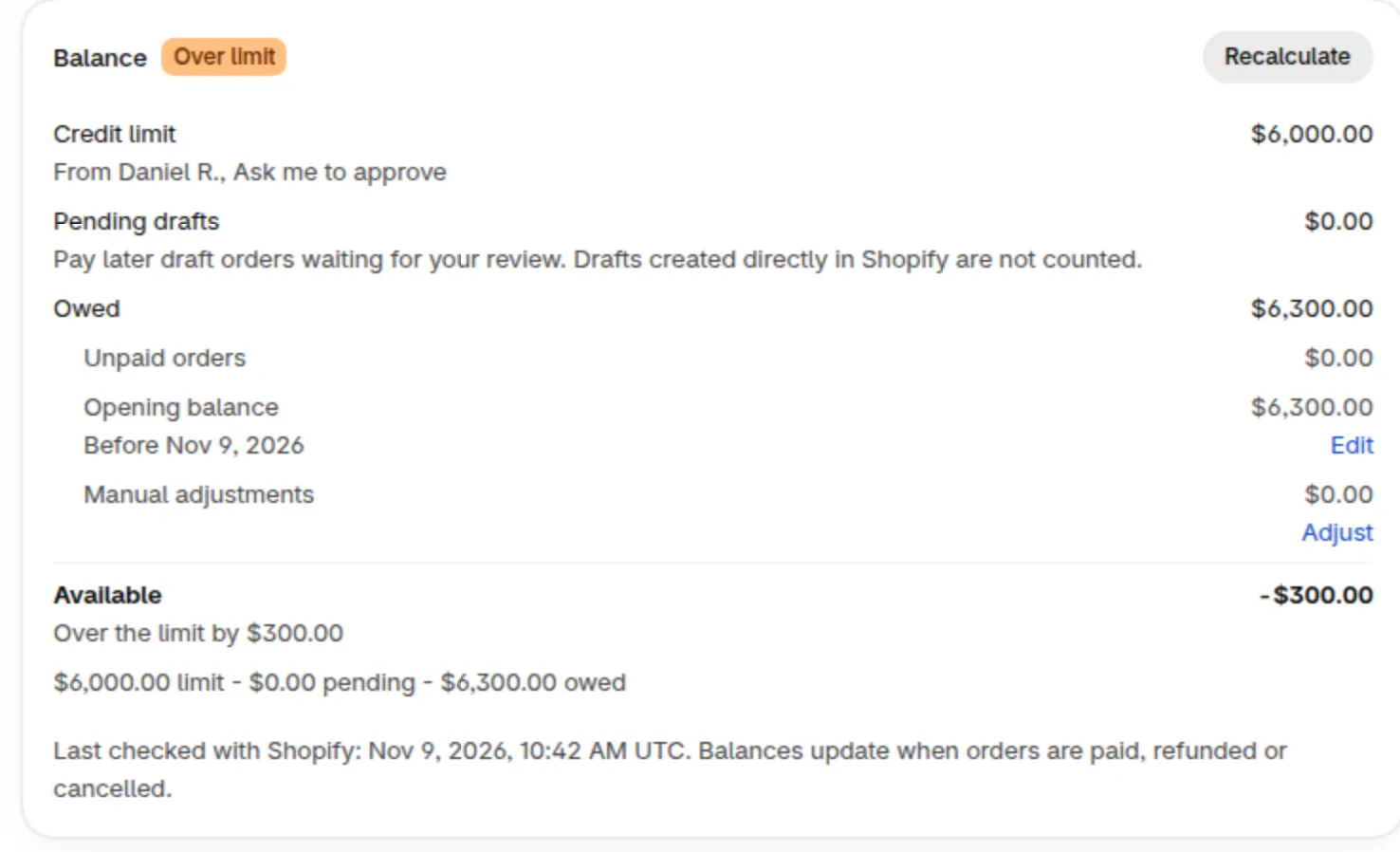
Section titled “A. Pay later is missing or blocked”Blocks come from a rule, a hold, an overdue order or a company limit. Open the customer page first. The Balance card shows the limit, Pending drafts, Owed and Available. An order is blocked only when its total is more than Available. An order equal to Available passes.
| Symptom | Likely cause | How to check | Fix |
|---|---|---|---|
| The Pay later button is missing | The button comes from Net Terms, not from Credit limit. The customer has no Net Terms rule, is not logged in, or the theme app block is off. | Open B2B orders & discounts > Net Terms. Check the customer’s rule and tags. | Follow the Net Terms button guide linked below this table. If the buyer sees “Pay later isn’t available for this order”, the cause is Credit limit: see the next row. |
| Message “Pay later isn’t available for this order” | The rule is Block Pay later and the order total is more than Available, or a company limit is used up. | Open the customer page and read Balance. In Customer balances, read the Status column. | Raise the limit, set a temporary limit, record the payment in Shopify, or switch the rule to Warn only. The buyer can still pay now. |
| Message “Pay later isn’t available”, with “Go back to your cart and check out with a card” | The customer is on hold. | On the customer page, the Pay later card shows On hold. | Click Remove hold. A temporary limit does not lift a hold. The buyer can still pay now. |
| Message “You have an overdue payment” | Block Pay later when a customer has an overdue order is on and an order is past due. | On the customer page, the Pay later card shows Overdue. | Get the overdue order paid, or change Days past the due date in Overdue orders. A temporary limit does not lift an overdue block. |
| Message “Pay later is temporarily unavailable” | The buyer’s credit summary (shown when Show buyers their remaining credit is on) replaces Available with this message when the customer is on hold or has an overdue block. The buyer is not told which. | On the customer page, check the Pay later card for On hold or Overdue. | Remove the hold, or get the overdue order paid. The message goes away on the next page load. |
| The customer looks under the limit but is blocked | Pending drafts count toward the limit. A company or location limit may be used up. A hold or an overdue block applies. A one-order temporary limit was already used. | Work out Available = limit - pending - owed on the customer page. Then open the company page. | Use the fixes in the two rows above. |
| A company or location is on hold but buyers still order | A hold on a company or location is written to History. It does not stop orders. | Open the company page and read the Pay later section. | Place the buyers’ own customer pages on hold, or use a company limit in Block Pay later mode. |
| The customer is over the limit but the order went through | The rule is Warn only. The order was not placed at Pay later checkout: Shopify admin, POS, an order edit or the API. Check at Shopify checkout is off, or the location has no payment terms. A temporary limit raised the limit. The rule is in another currency, which Shopify checkout does not check, or no conversion was available. Credit limit could not read the limit, so the order went through. The add-on ended. |
Open the rule and read When over limit. Read History for the order. | Switch to Block Pay later. Turn on Check at Shopify checkout for company locations. Set the rule in your store currency. |
| The add-on ended and the checks stopped | When a trial runs out, a trial is cancelled or a removed add-on reaches the end of the period, the Pay later credit check stops. Rules and balances are kept but hidden. | Open Pricing plans > Add-ons. | Add Credit limit again, then click Recalculate on the Credit limit tab. After Cancel trial, the credit check stops at once and the Shopify checkout check within a few minutes. |
Rules behind this section: credit rules and priority, holds and temporary limits, Overdue orders setting and Net Terms button not showing.
Worked example: blocked while “under the limit”
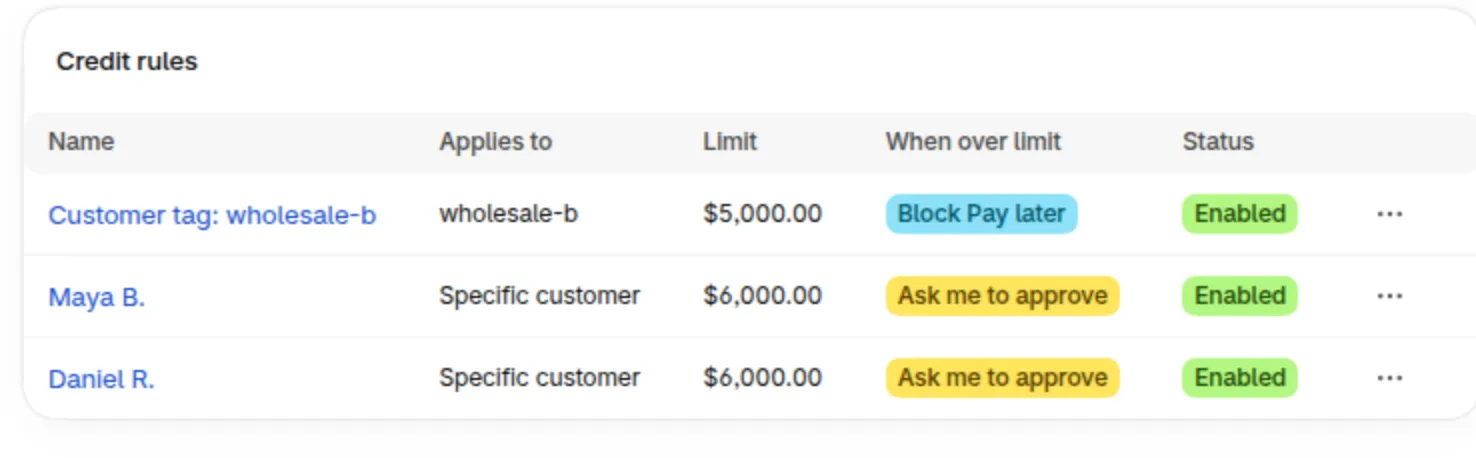
Section titled “Worked example: blocked while “under the limit””Example: a customer has a limit of 500. Owed is 215 and Pending drafts is 285. Available is 500 - 285 - 215 = 0. A new order of 100 is more than 0, so Pay later is blocked in Block Pay later mode. The buyer sees only 215 owed in Shopify because the 285 is still a draft waiting for you to click Create order.
Example for a company: Acme has a limit of 10,000. East owes 5,000 and West owes 3,000, so the company owes 8,000 and has 2,000 available. West has its own limit of 6,000, so West alone has 3,000 available. An order of 2,500 at West is still blocked, because it is more than the company’s 2,000.
B. Balances look wrong
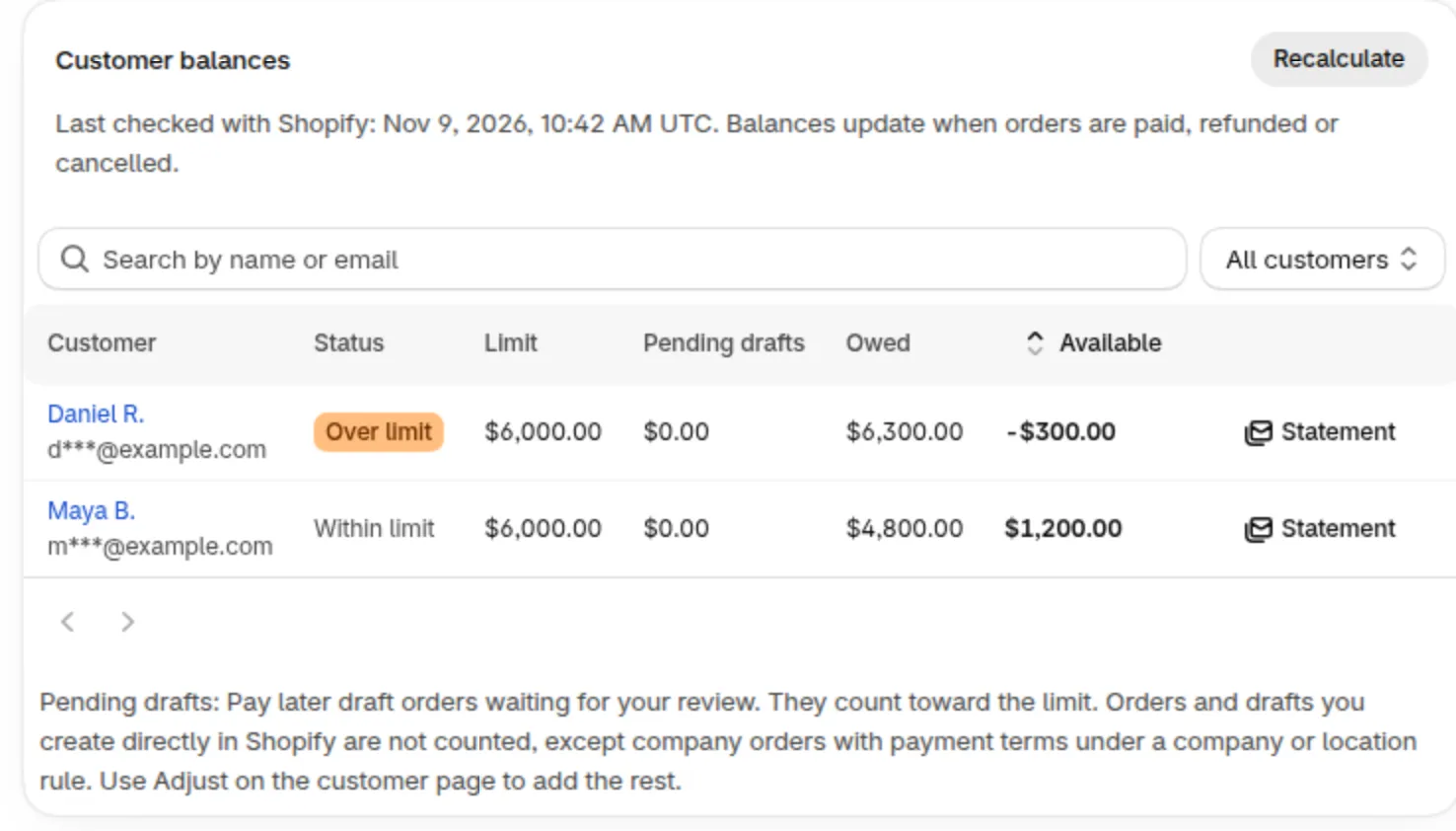
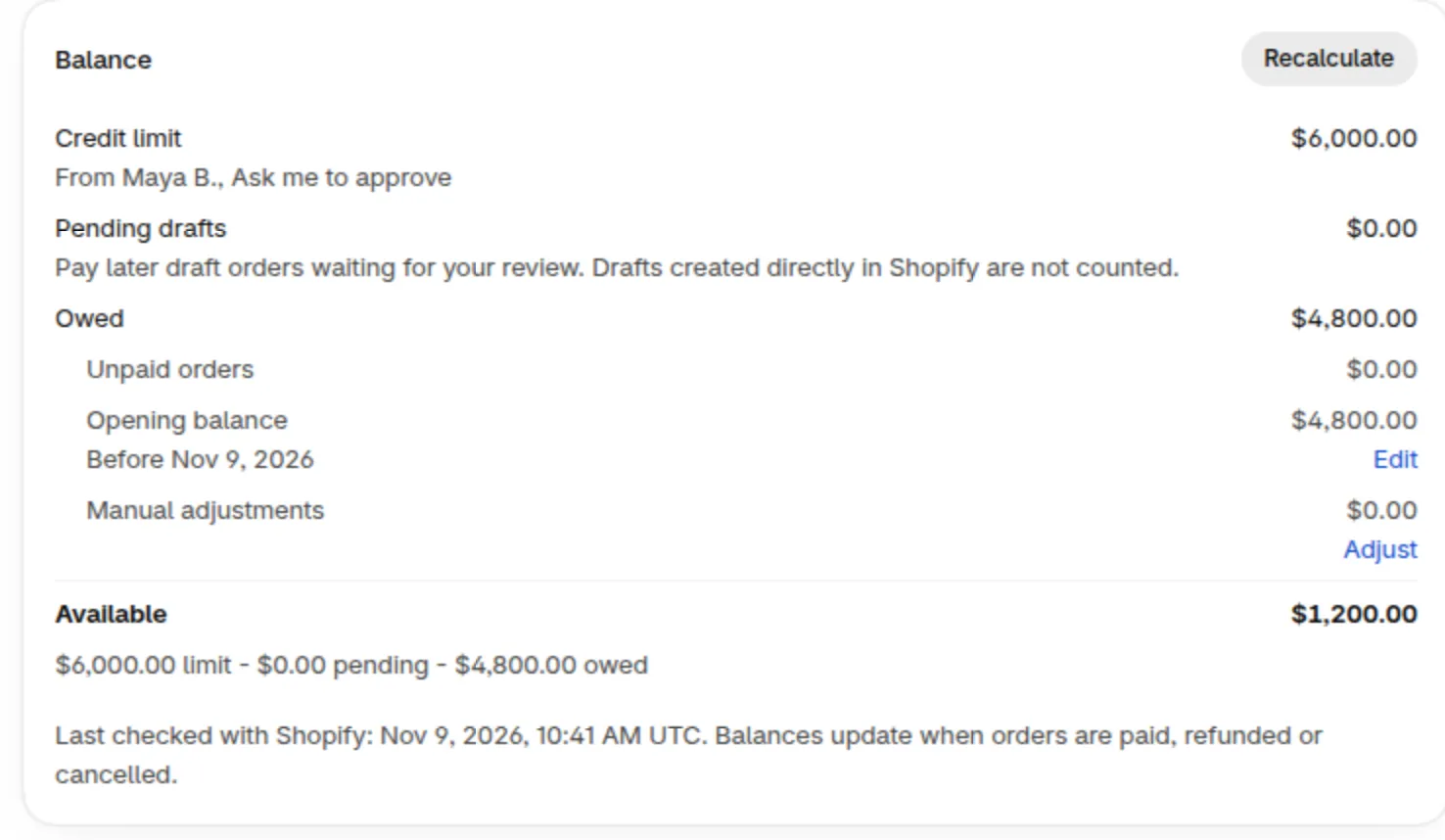
Section titled “B. Balances look wrong”Balances are built from Pay later drafts, orders in the ledger, the opening balance and manual adjustments. Owed is never below 0. Partly paid orders count only for what is left to pay.
| Symptom | Likely cause | How to check | Fix |
|---|---|---|---|
| Owed is lower than expected | Orders older than 60 days are not counted until you click Allow access to all orders. Orders and drafts you created directly in Shopify admin or POS are not counted, even with payment terms, except company orders with payment terms when a company or location rule applies. Pending drafts is also $0 for drafts made in Shopify admin. Manual Order orders in a currency other than the store currency are not counted. Money owed before you started has no Opening balance. |
Open the customer page. Read Orders in this balance and History. Look for the Allow access to all orders banner. | Allow access, enter an Opening balance, use Adjust for debt from orders made directly in Shopify, then click Recalculate. |
| Owed is higher than expected | An order was paid or cancelled in Shopify and Credit limit has not seen it yet. The Customers view shows it as Paid or cancelled, not updated yet. The Opening balance may include amounts that Shopify orders also count from Owed as of on. A manual adjustment adds to Owed. The daily check found an order it missed earlier. |
Open the customer page. Read Opening balance, Manual adjustments and History. | Click Recalculate. Edit the opening balance, or add an opposite adjustment with Subtract from balance and a note. |
| A customer covered by a tag rule or an all-customers rule is missing from Customer balances | Tag rules and Logged-in customers rules reach a customer once that customer has an order in the ledger. | Search the customer in Customer balances. Check the customer’s tags in Shopify. | Wait for the first Pay later order. To list the customer now, add a Specific customers rule for that customer. |
| A deleted draft still counts in Pending drafts | Credit limit releases the amount when Shopify sends the delete notice for the draft. Without that notice the amount stays reserved until the reservation ends after 30 days. | On the customer page, read Pending drafts and Orders in this balance (type Pending draft). | The reservation ends by itself after 30 days at the latest, so it may take time. Other numbers on the page are not affected. |
| Pending stays after you created the order | New orders reach Credit limit shortly after Shopify reports them, usually within a minute. | Reload the customer page after one minute. | Wait one minute, then click Recalculate. |
| Balances stopped updating | The add-on ended, or Credit limit is not receiving order updates from Shopify. | Open Pricing plans > Add-ons. Click Recalculate and read the message. | If the add-on ended, add it again. If it is active, contact support with the details listed at the end of this page. |
Related guides: Customer balances and Manual Orders and Credit limit.
C. Timing and delays
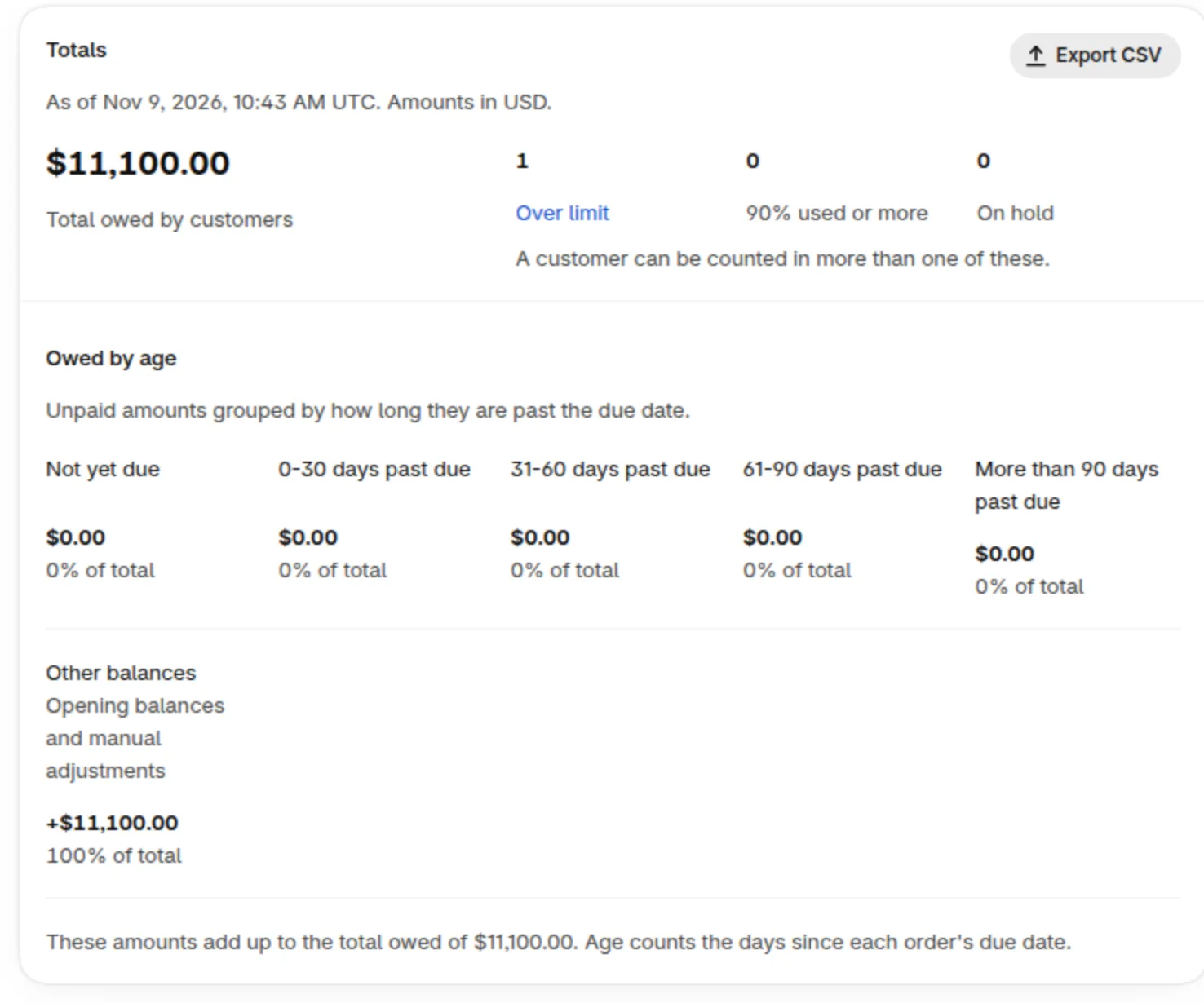
Section titled “C. Timing and delays”New orders and payments reach Credit limit shortly after Shopify reports them, usually within a minute. This is normal. Use the table to see what runs when.
| Symptom | Likely cause | How to check | Fix |
|---|---|---|---|
| Two orders placed seconds apart both went through | Shopify checkout does not see an order for about 30 seconds or more. Pay later checkout reserves the amount at once, so it is not affected. | Compare the order times in Orders in this balance. | None needed. For tight control, use a lower limit. |
| What | When | What it does |
|---|---|---|
| New orders and payments | Shortly after Shopify reports it, usually within a minute | Updates Pending drafts and Owed |
| Daily recheck | Every day at 01:40 UTC | Reads all tracked orders again from Shopify. A reservation ends after 30 days |
| Recalculate | When you click it | Starts the same recheck now. One run per store at a time. It can take a few minutes and you can leave the page. |
| Buyer alerts and customer tags | Every hour at minute 0 UTC | Alerts also run shortly after a balance changes. Tags also usually update within a minute when you change a customer’s credit in the app. The daily recheck updates them too |
| Add-on close | Every hour at minute 5 UTC | Closes ended trials and removals and switches off the Shopify checkout check |
| Daily overdue summary | Every day at 02:30 UTC | Emails the store when the overdue list changed |
The Shopify checkout limits are described in Check at Shopify checkout.
D. Emails and tags
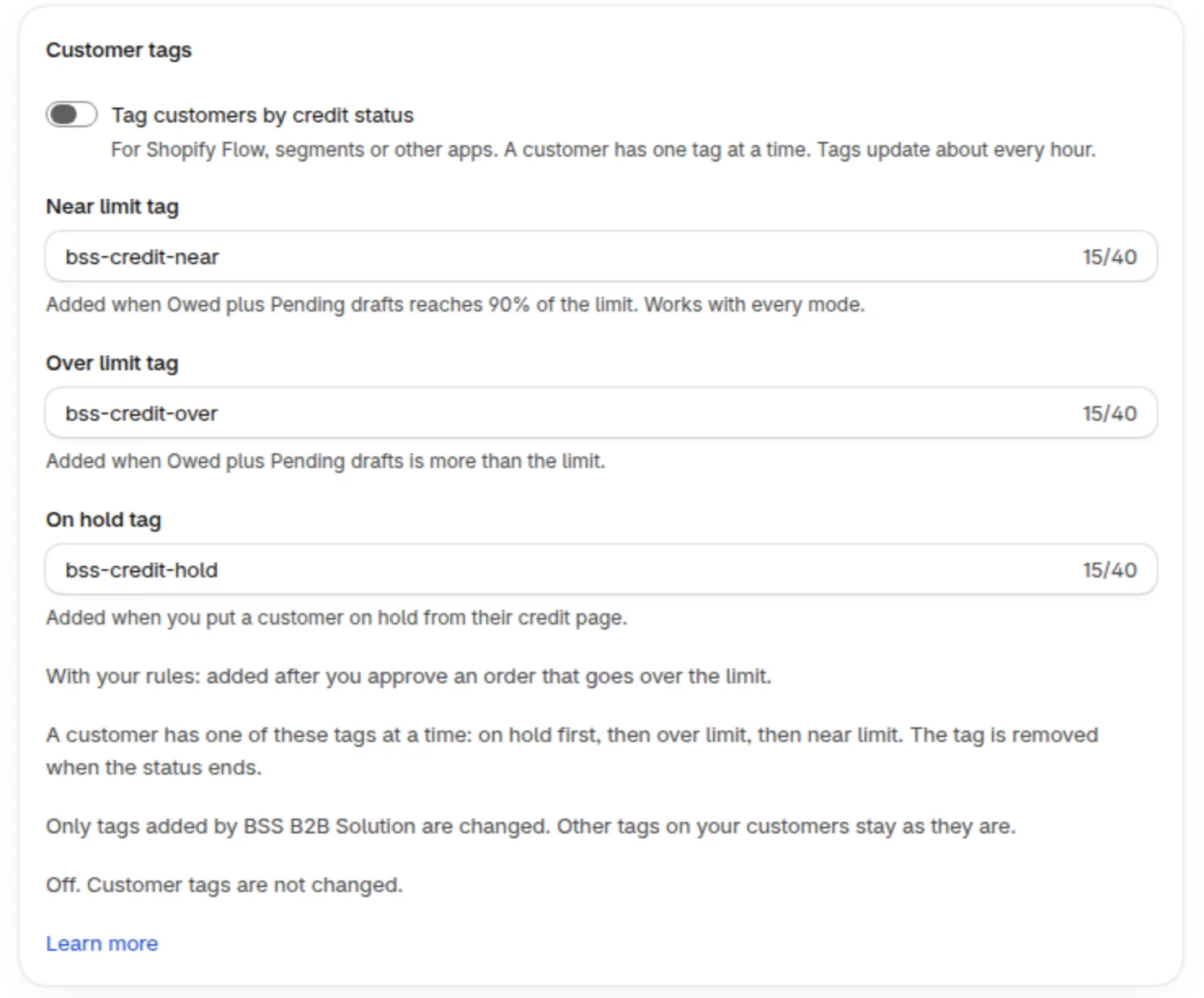
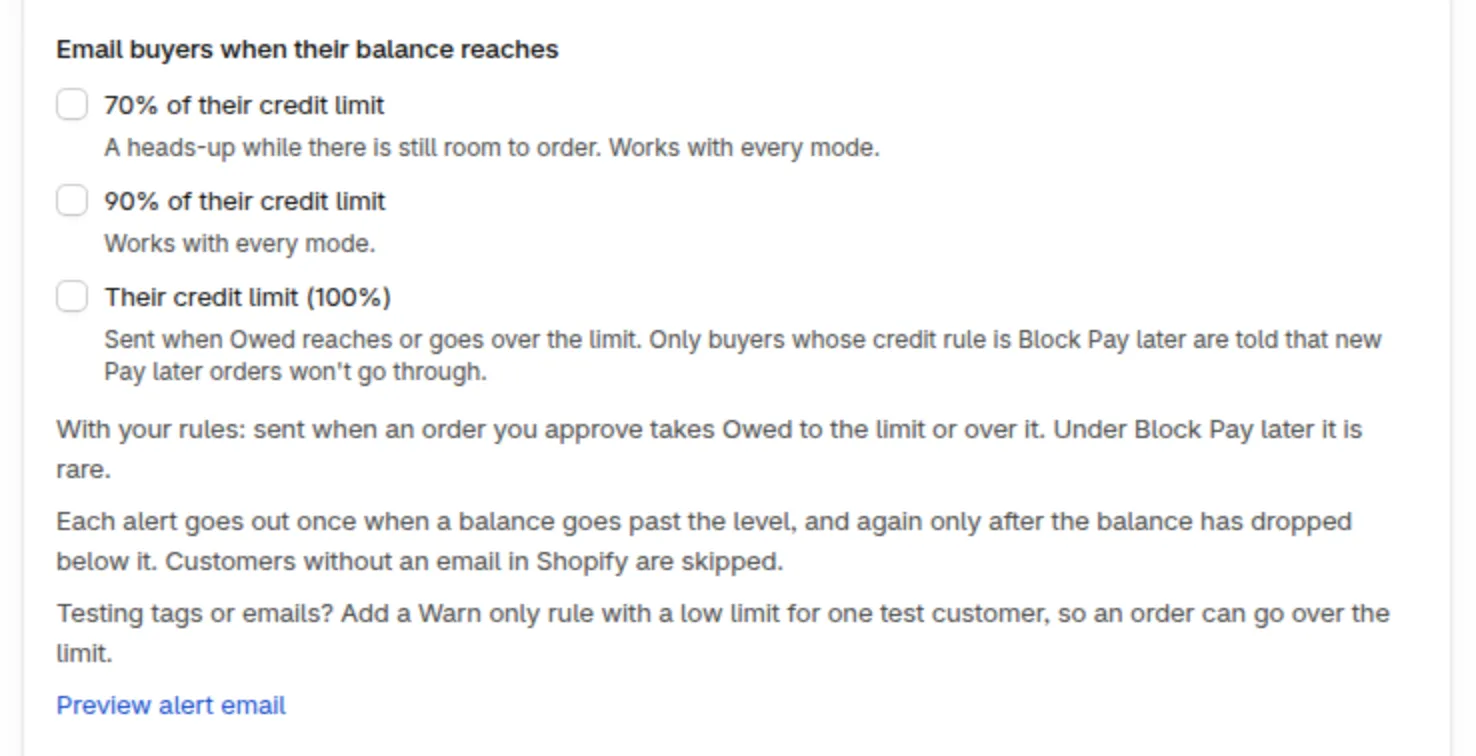
Section titled “D. Emails and tags”Buyer alerts, the overdue summary and tags are all off until you turn them on. Open Sent credit emails first. It lists the last 90 days with the result (Sent, Not sent or Failed) and a reason.
| Symptom | Likely cause | How to check | Fix |
|---|---|---|---|
| A buyer did not get an alert email | The level is not on in Credit emails. The customer has no email in Shopify. No rule or no limit applies. The alert already went out for this crossing. It opens again after usage drops below the level. Alerts were turned on after the buyer passed the level, so that buyer gets no email for it. Alerts count Owed only, while 90% used counts Pending and Owed. Three sends failed within 24 hours. Adding the email later does not resend a skipped alert. The next alert goes out when the balance drops below the level and crosses it again. |
Open Sent credit emails and read the reason. Read the customer’s History. | Turn the level on, add the email in Shopify, or add a rule with a limit. For the other causes, wait for the next crossing. |
| No daily overdue summary | Nothing is overdue yet, or the list did not change since the last email. The store has no email in Shopify. Daily overdue summary is off. A check never repeats within 12 hours. A failed send is tried again the next day. |
Open the Credit emails card and Sent credit emails. Check the store email in Shopify settings. | Turn the summary on or add a store email. The summary counts any order past its due date. Orders due on receipt or on fulfillment have no due date and are never counted. |
| Customer tags did not update | Tags usually update within a minute when you change a customer’s credit in the app, and about every hour after orders and payments. The first sync takes a few minutes. An update was already running when you made the change, so it waits for the next hourly update (up to about an hour). A tag name matches a credit rule’s tag or a tag customers already have. Shopify slowed the update. The next run picks up what is left. Renaming a tag leaves the old tag on customers who already have it. |
Open the Customer tags card and read the status line, for example “On. Last updated …”. A warning shows when Shopify did not accept some tags. | Rename the conflicting tag and wait for the next update. A customer holds one tag at a time: hold, then over, then near. Only tags that BSS B2B Solution added are changed. |
| Send statement does not send | One statement per customer per 60 seconds. The store sent 200 statements in the last rolling 24 hours. The customer has no email in Shopify. |
Read the message in the dialog. | Wait for the countdown. Add the email in Shopify. Try again later when the 200 limit for 24 hours is reached. |
More detail: credit emails and statements.
E. Shopify checkout check
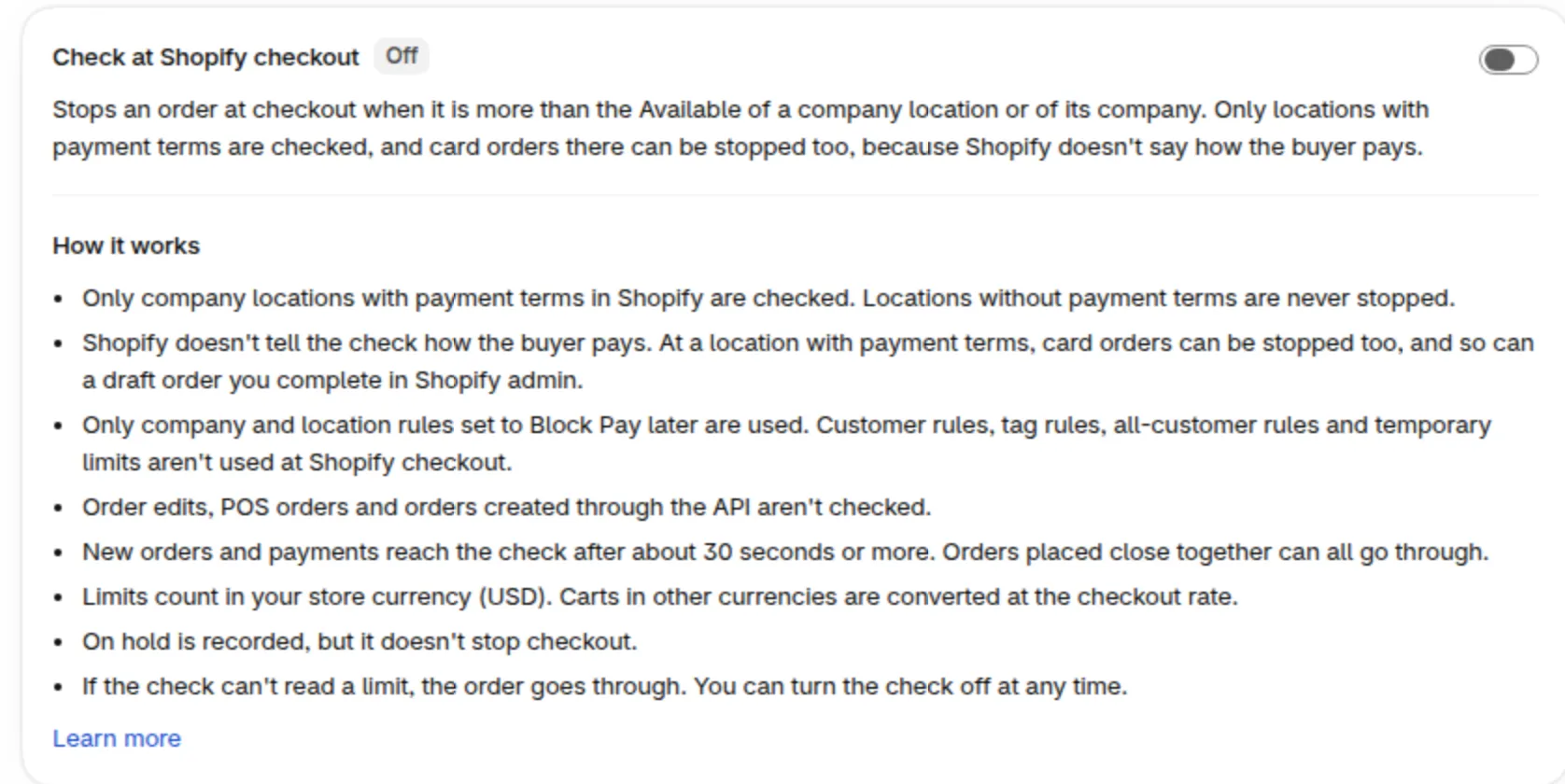
Section titled “E. Shopify checkout check”Check at Shopify checkout stops orders only for company locations that have payment terms in Shopify. It uses company and location rules set to Block Pay later. Read the badge on the card: Off, On or Needs attention.
| Symptom | Likely cause | How to check | Fix |
|---|---|---|---|
| The card shows Permission needed | The app needs one extra Shopify permission. Nothing is checked yet. | Open the Check at Shopify checkout card. | Click Grant permission. |
| The card shows Permission was removed | The app cannot update or turn off the check. It may still stop orders using old balances. | Same card. | Click Grant permission to update or turn off the check. |
| The check at Shopify checkout isn’t working or The check couldn’t turn on | Shopify did not accept the update or the setup. | Same card. | Click Try again after a few minutes. Contact support if it keeps failing. |
| No company or location limits to check | No active rule has a company or location limit. | Open Credit rules. | Click Add company rule, or turn the check off. |
| A card order is blocked at a company location | Shopify does not tell the check how the buyer pays. Card orders at a location with payment terms can be stopped. So can a draft order you complete in Shopify admin. | Open the company page. Read the Payment terms column. | Raise the limit, record payments to lower Owed, or turn the check off. |
| A location with room is blocked | The company limit applies too. The page shows Orders from this location are stopped at Shopify checkout. | Read Available for the company on the company page. | Raise the company limit or record payments. |
Related guide: company limits and locations.
F. Buyer view
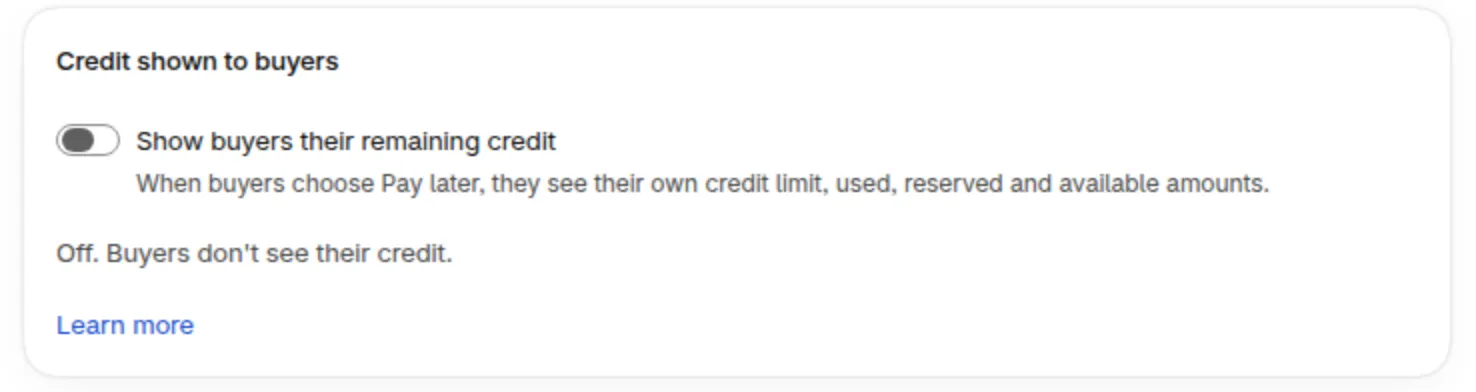
Section titled “F. Buyer view”Buyers see credit only when you turn it on.
| Symptom | Likely cause | How to check | Fix |
|---|---|---|---|
| The buyer does not see their credit | Show buyers their remaining credit is off (default). No rule applies to the buyer. The buyer is not logged in. |
Open the Credit shown to buyers card on the Credit limit tab. | Turn the switch on. The Credit page in the customer account uses the same switch. |
See what buyers see in Credit limit buyer experience.
G. Access, plan and API
Section titled “G. Access, plan and API”| Symptom | Likely cause | How to check | Fix |
|---|---|---|---|
| The Credit limit tab shows Add Credit limit | The add-on is not active. It needs a plan that includes Net Terms. | Open Pricing plans > Add-ons. | Add Credit limit by following the get started guide linked below this table. |
The Public API returns 403 AUTHORIZATION_DENIED |
The plan is not Platinum or Enterprise, Net Terms is missing, or the add-on is not active. | Check your plan and Pricing plans > Add-ons. | Fix the plan or add Credit limit. |
| The Public API returns 404 for a customer | The customer is not in Customer balances. | Search the customer in Customer balances. | Check the customer ID. |
| The Public API returns 429 | More than 60 requests per minute for the store. | Read the Retry-After header. |
Wait for the seconds shown, then retry. |
| Export CSV fails or is slow | The export covers up to 50,000 customers. A few minutes is normal. | Read the message: “Too many customers to export.” | Wait a few minutes. For more customers, read balances in pages with the Public API. |
Steps for the first row are in Credit limit get started. Field and error details for the API rows are in the Credit limit API reference.
What to collect before you contact support
Section titled “What to collect before you contact support”Send these with your message and we can find the cause faster:
- Your store domain.
- The customer name or ID, and the order number.
- A screenshot of the customer page and of History.
- The time of the action, with the time zone.
Also see the Credit limit overview and the Credit limit FAQ.