
Net Terms Credit Limit Buyer View: What Buyers See
The Net Terms credit limit buyer view shows buyers their own credit only when you turn on Show buyers their remaining credit. With the switch off, the Pay later window shows no credit numbers. A blocked order always shows a clear message, and the buyer can pay now instead. This page shows each state, so you can match what a buyer reports. It works the same on storefront version 3 and version 5. How Credit limit works covers the rules behind it.
Key takeaways
Section titled “Key takeaways”- Buyers see their credit only if you turn on Show buyers their remaining credit. It is off by default.
- Warn only blocks nothing. With the switch on, the buyer sees a note that the order is over their available credit and can still place it. You see Over limit.
- Ask me to approve lets the buyer send the order for approval (the button reads Send for approval when the buyer credit switch is on). The order waits for your decision for up to 7 days and does not use credit until you approve it.
- Block Pay later shows “Pay later isn’t available for this order” and a Back to cart button.
- Buyers see only their own numbers, never other customers, your notes or the reason Pay later is paused.
- The Credit page in the customer account follows the same switch.
- Buyers can also see their credit on one page of your storefront. See the B2B Portal.
What does a buyer see in each situation?
Section titled “What does a buyer see in each situation?”The table lists eleven states. For each one it shows what the buyer sees in the Checkout with Net Terms window and where you see the same state in admin.
| State | What the buyer sees | Can the buyer place the Pay later order? | Where you see it |
|---|---|---|---|
| Within limit, switch off | The usual window, no credit numbers. | Yes | Customer balances |
| Within limit, switch on | A note on whether the order fits, for example “This order uses $288.00 of your $380.00 available credit.”, with a bar and one line: Credit limit, Used and Reserved. | Yes | Customer balances |
| Over limit, Warn only | Switch off: no warning and no block. Switch on: a note that the order is over their available credit, and “You can still place it with Pay later.” | Yes | Over limit in Customer balances |
| Over limit, Ask me to approve | Switch on: the note “This order needs the store’s approval”, and the button reads Send for approval. Switch off: no note, the button still reads Confirm, and after Confirm the window shows Order sent for approval with a decision date. | Yes, as a request. It waits for you and does not use their credit until you approve it. | Approvals view |
| Over limit, Block Pay later | After Confirm: “Pay later isn’t available for this order”, with Back to cart. No draft order is created. With the switch on and the shown subtotal already over Available, the window can show this note and Back to cart at once, before Continue. | No. The buyer can pay now. | Activity and Customers views |
| On hold | Switch off: after Confirm, “Pay later isn’t available” and a hint to check out with a card or contact you. | No. The buyer can pay now. | Pay later card on the customer page |
| Overdue block | Switch off: after Confirm, “You have an overdue payment” and a request to pay it or contact you. | No. The buyer can pay now. | Overdue counter in Totals on the Customers view |
| On hold or overdue, switch on | For both cases, a note with “Pay later isn’t available” and “Go back to your cart and check out with a card, or contact us if you have questions.”, and Back to cart at once, before Continue. | No | Same as the two rows above |
| No credit rule | The usual window, no credit text. A hold or an overdue block still applies. | Yes, unless on hold or overdue | No credit rule on the customer |
| Order waiting for approval, in the buyer’s account | A Waiting for approval section on the Credit page, with the Decision by date. | Not applicable | Approvals view |
| Add-on ended | The usual window. Credit limit checks nothing. | Yes | Rules and balances are kept but hidden |
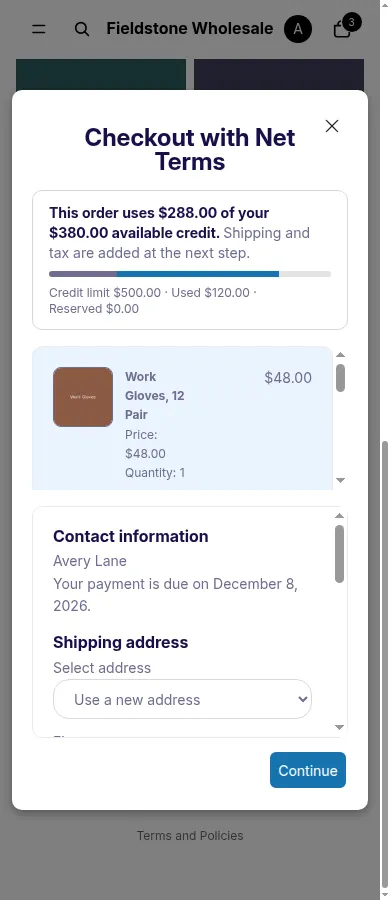
The note, bar and credit line at the top of the window, on a 390 px wide screen.
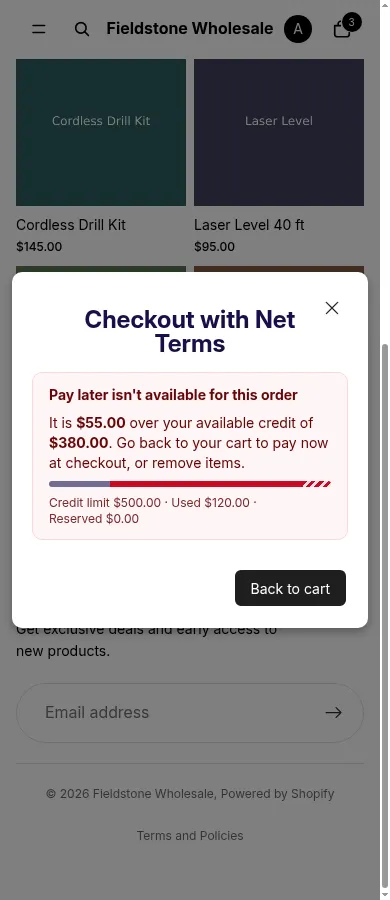
The message a buyer sees when Block Pay later stops the order.
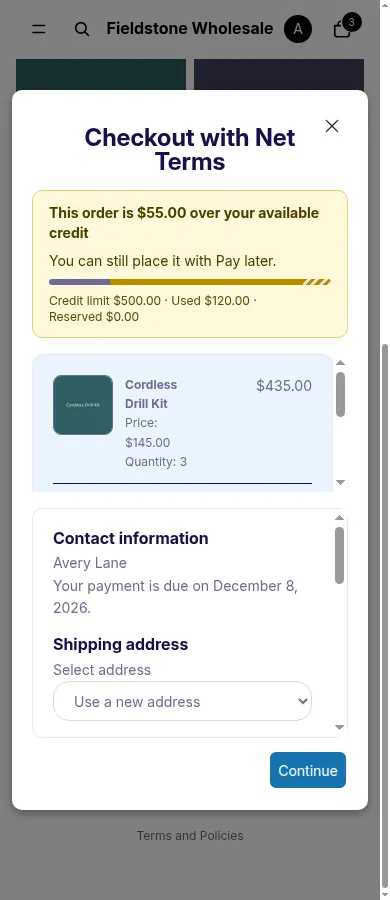
Warn only: the note says the order is over the available credit, and the buyer can still place it.
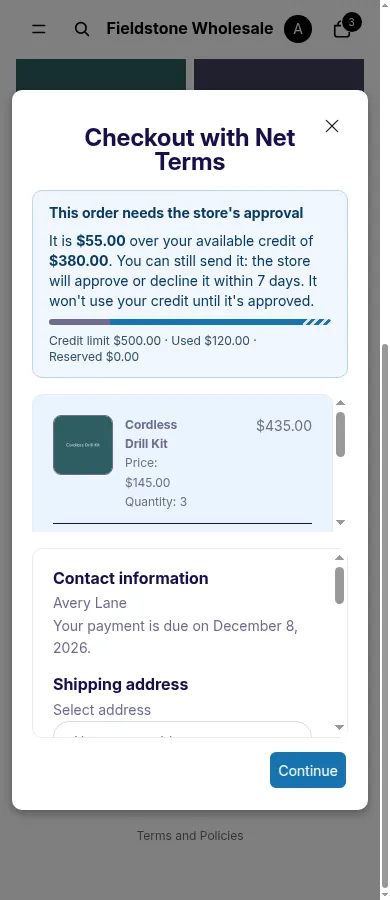
Ask me to approve: the note says the store will approve or decline the order within 7 days.
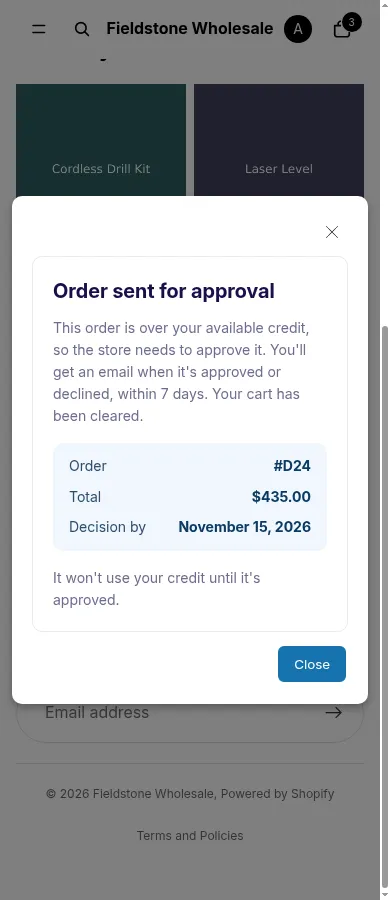
After the buyer sends the order for approval: the order number, the total and the decision date.
You can see Warn only from the merchant side too: the customer is listed as Over limit and the order still arrives.
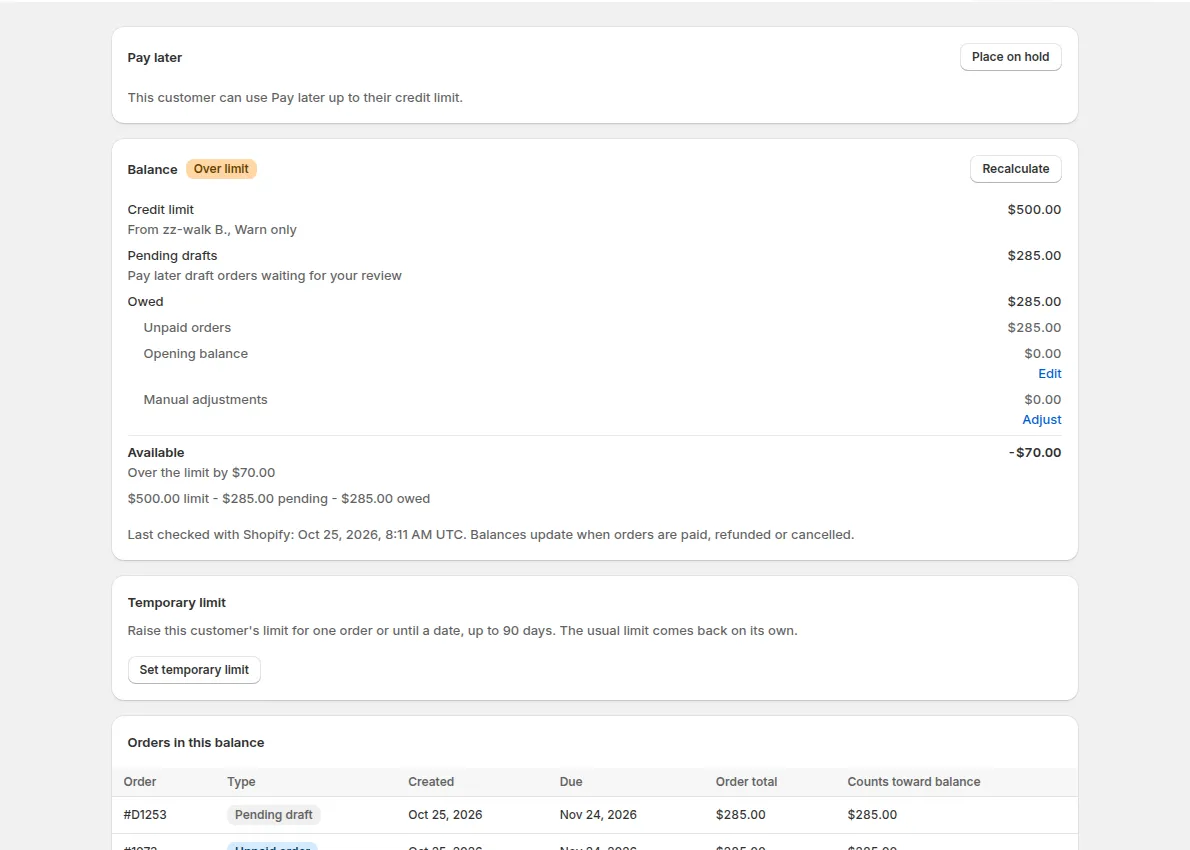
A customer over the limit in Warn only mode, as you see it in Customer balances.
Hold and overdue block Pay later in every mode, even for customers with no credit rule. The settings guide explains the overdue block, and place a customer on hold explains holds.
What is the note at the top of the Pay later window?
Section titled “What is the note at the top of the Pay later window?”With Show buyers their remaining credit on, a buyer with a credit rule sees a short note under the window title. It says whether the order fits their available credit. It loads a moment after the window opens.
| Situation | The note says |
|---|---|
| The order fits | “This order uses $285.00 of your $500.00 available credit.” (Example amounts.) |
| Warn only, over the limit | “This order is $100.00 over your available credit” (Example amount.) and “You can still place it with Pay later.” |
| Ask me to approve, over the limit | “This order needs the store’s approval”, and the button reads Send for approval. You can still send it: the store approves or declines it within 7 days, and it does not use credit until approved. |
| Block Pay later, over the limit | The amount over, and “Go back to your cart to pay now at checkout, or remove items.” with Back to cart. |
Shipping and tax are added at the next step, so the note on the first step uses the order subtotal. With the switch off, the window shows no note. The note does not show when the shop has a company or location rule.
What is the summary in the Pay later window?
Section titled “What is the summary in the Pay later window?”The summary is the note at the top of the Checkout with Net Terms window. Under the note sits a bar and one line of figures, for example “Credit limit $500.00 · Used $120.00 · Reserved $0.00”. The note names the available credit.
| Figure | What it means |
|---|---|
| Credit limit | The limit of the rule that applies to this buyer. |
| Used | What the buyer still owes. You see the same amount as Owed. |
| Reserved | Credit set aside for Pay later orders you have not finalized yet. They count toward the limit. |
| Available, in the note | Credit limit minus used minus reserved. |
The bar shows what the buyer has used and reserved, and how much of the limit this order would take.
Only buyers who have a credit rule see the summary. The amounts use the currency of the rule. Buyers see only their own numbers. They never see other customers, your notes or why Pay later is paused.
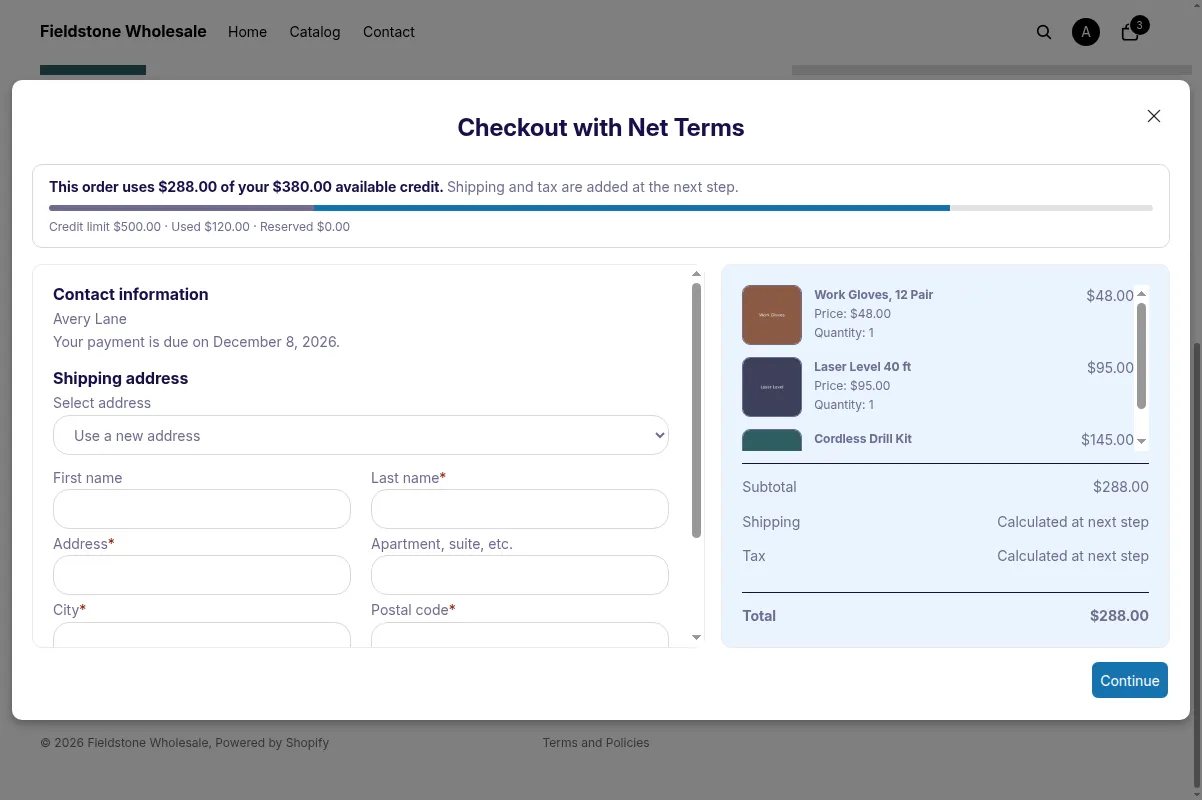
The same note and bar on a desktop screen. The limit is $500.00, $120.00 is used, and the order uses $288.00 of the $380.00 available.
What does the Credit page in the customer account show?
Section titled “What does the Credit page in the customer account show?”The Credit page shows a buyer their own credit in the customer account. It has two sections: Your credit and Unpaid orders. A third section, Waiting for approval, shows when the buyer has orders waiting for your decision. It shows credit details only when Show buyers their remaining credit is on, the add-on is active and the buyer has a credit rule. Otherwise it says there are no credit details to show.
The Credit page is an app page of the Shopify customer account. Buyers open it from the link in the customer account menu. To add the link, go to Content > Menus in your Shopify admin and add the Credit page to the customer account menu. Shopify may also offer to add the link in the checkout and accounts editor. If the link is not in the menu, buyers cannot find the page.
Your credit shows a large Available amount, then Credit limit, Used and Reserved. A line below reads: “Available = credit limit - used - reserved. Reserved is credit set aside for Pay later orders the store has not finalized yet.” A buyer with no limit sees “No limit” for the limit.
Waiting for approval sits between Your credit and Unpaid orders. It reads: “These orders are over your available credit. The store approves or declines each one by the date shown. They don’t use your credit until they’re approved.” Its table has the columns Decision by and Total.
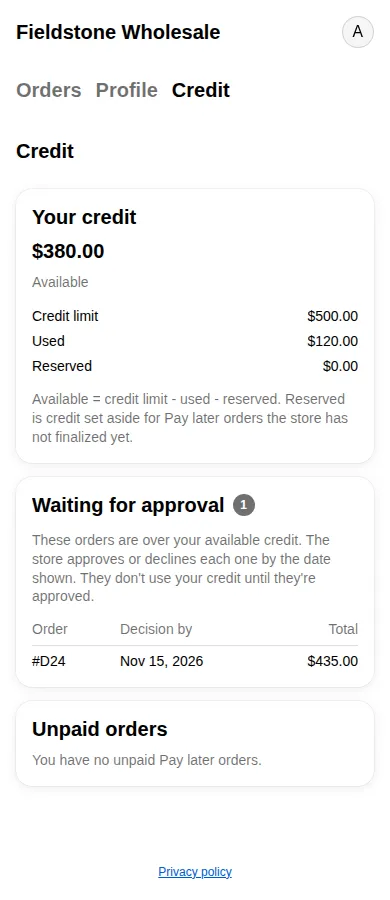
The Credit page on a phone, with one order waiting for the store’s decision.
Unpaid orders is a table with these columns:
| Column | What it shows |
|---|---|
| Order | The order name. |
| Due | The due date. Orders due on receipt or on fulfillment show No due date. |
| Left to pay | What is still unpaid on that order. |
The page can also show these states:
| State | What the buyer sees |
|---|---|
| On hold or overdue | A message, “Pay later is temporarily unavailable. Contact us if you have questions.”, in place of Available. The amounts stay. |
| No unpaid orders | “You have no unpaid Pay later orders.” |
| Switch off or no credit rule | “There are no credit details to show for your account. Contact us if you have questions about paying later.” |
| The page can’t load | “We couldn’t load your credit details” and a Try again button. |
What does a buyer see at Shopify checkout?
Section titled “What does a buyer see at Shopify checkout?”A company buyer sees an error at Shopify checkout only when Check at Shopify checkout is on and the order goes over the limit of their company or location. The message reads: “This order is more than your company’s available credit. Remove items or contact the store.” It is in English for all stores for now. The check covers company locations with payment terms. The Shopify checkout check guide lists what it stops and what it does not.
Can I change the words buyers see?
Section titled “Can I change the words buyers see?”Yes, for the Pay later window. Open More actions > Translations on the Net Terms page. Click Add language first if your language is not listed, then choose it. Two cards hold the credit texts: Credit limit message and Credit shown to buyers. Anything you leave empty keeps the default wording.
| Text | Default wording |
|---|---|
| Blocked, title | Pay later isn’t available for this order |
| Blocked, message | This order would go over your credit limit with us. Go back to your cart and check out to pay now, or contact us about your limit. |
| On hold, title | Pay later isn’t available |
| On hold, message | Go back to your cart and check out with a card, or contact us if you have questions. |
| Overdue, title | You have an overdue payment |
| Overdue, message | Your account has an overdue payment. Please pay it or contact us to sort it out. |
| Button | Back to cart |
| Send for approval, button | Send for approval |
| Sent for approval, title | Order sent for approval |
The figure labels Credit limit, Used and Reserved are in the same Credit shown to buyers card, together with the note texts. If you changed the old Pending orders wording, your own text stays as you wrote it.
Two texts stay in English for now: the buyer emails (see the emails guide below) and the Shopify checkout message. The texts on the Credit page show in English and French, and other languages show English. You can’t edit the Credit page texts in Translations.
What happens to the sale when Pay later is blocked?
Section titled “What happens to the sale when Pay later is blocked?”The buyer can still pay now at checkout, so the sale stays open. No order or draft is cancelled. Credit limit caps the unpaid Net Terms amount for each customer. It does not check whether a buyer can pay. You choose the limit and the mode in your credit rules.
How do I test what a buyer sees?
Section titled “How do I test what a buyer sees?”Use a test customer with a limit of $500 in Block Pay later mode, then place two Pay later orders of $285. The first goes through and the second is blocked. All amounts below are an Example.
-
Create the rule
Section titled “Create the rule”Open the Credit limit tab, go to Rules and click Add credit rule. Under Applies to choose Specific customers and pick your test customer. Enter 500 in Limit per customer, choose Block Pay later under When an order goes over the limit and save. The page confirms with Credit rule created. Turn on Show buyers their remaining credit if you want to see the summary.
-
Place the first Pay later order
Section titled “Place the first Pay later order”Log in as the test customer, add products worth $285 and choose Pay later. Click Confirm. The window shows Thanks for your order! with a draft order number. The order now holds credit as a pending draft.
-
Place the second Pay later order
Section titled “Place the second Pay later order”Add another $285 and choose Pay later. Click Confirm. The window shows “Pay later isn’t available for this order”. The buyer can still pay now.
-
Check the numbers in admin
Section titled “Check the numbers in admin”Open the Customers view and click the test customer. Pending drafts shows $285 and Available shows $215.
| Step | Pending drafts | Owed | Available | Result |
|---|---|---|---|---|
| Before | $0 | $0 | $500 | Rule in place |
| First order, $285 | $285 | $0 | $500 - $285 - $0 = $215 | Placed |
| Second order, $285 | $285 | $0 | $215 | Blocked, because $285 is more than $215 |
If the second order had gone through, Available would be $500 - $570 = -$70.
Frequently asked questions
Section titled “Frequently asked questions”Why don’t my buyers see their credit?
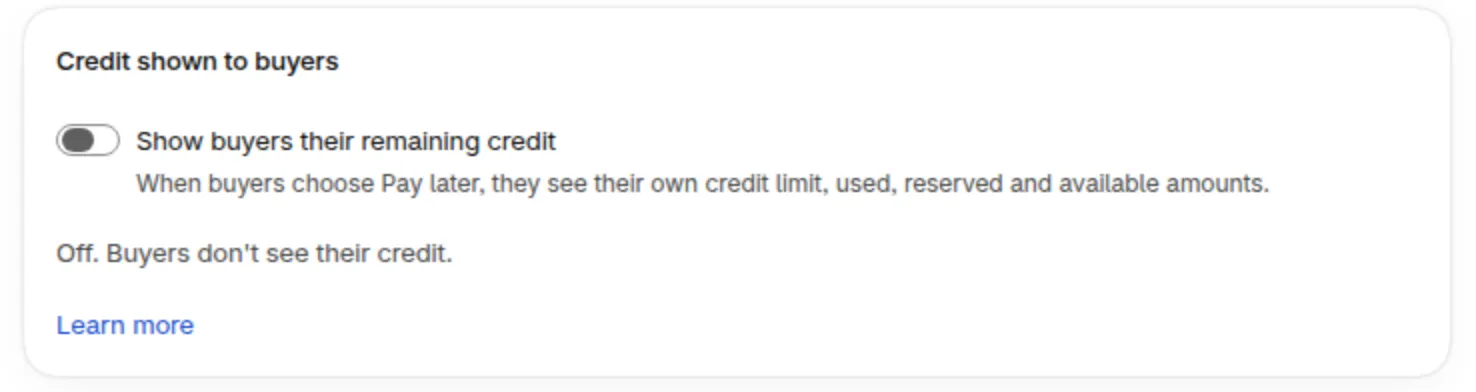
Section titled “Why don’t my buyers see their credit?”Four things hide it. Show buyers their remaining credit is off, which is the default. The buyer has no credit rule. The add-on has ended. Or the buyer is not logged in. Turn the switch on in the Credit shown to buyers card and check the buyer’s rule. The troubleshooting guide lists more causes.
Where does a buyer find the Credit page?
Section titled “Where does a buyer find the Credit page?”In the customer account menu, once you add the link under Content > Menus. If a buyer still cannot find it, contact support with the customer’s email.
Can a buyer see another customer’s balance?
Section titled “Can a buyer see another customer’s balance?”No. Buyers see only their own numbers, in the Pay later window and on the Credit page. They never see other customers or your notes.
Do buyers get an email when they reach the limit?
Section titled “Do buyers get an email when they reach the limit?”Only if you turn on buyer alerts in Credit emails. Each alert level is off until you turn it on. Blocking Pay later does not send an email by itself. The timing is in the emails guide.
Why is the Pay later button missing instead of blocked?
Section titled “Why is the Pay later button missing instead of blocked?”A blocked order shows its message after the buyer clicks Confirm. If the button itself is missing, the cause is the Net Terms rule or the login, which Credit limit does not change. Follow the steps in Net Terms button not showing.