
Credit Rule for Net Terms: Targets, Priority, Warn or Block
A credit rule for Net Terms sets a limit and a mode for a customer, a customer tag, a company, a company location or all logged-in customers. At Pay later checkout the most specific rule wins. New rules start in Warn only, so no order is blocked until you choose. For the big picture, see the Credit limit overview.
Key takeaways
Section titled “Key takeaways”- A rule can apply to five kinds of target: specific customers, customer tags, specific companies, specific company locations, or all logged-in customers.
- Priority at Pay later checkout is customer, then location, then company, then tag, then all logged-in customers.
- New rules start in Warn only. Switch to Ask me to approve or Block Pay later when you are ready.
- Ask me to approve lets the buyer send an over-limit order to you. You approve or reject it in the Approvals view within 7 days.
- The limit must be greater than 0 and is in your store currency.
- Editing a rule changes the limit and mode. Balances stay as they are.
Who can a credit rule apply to?
Section titled “Who can a credit rule apply to?”A credit rule applies to one of five kinds of target. You pick the kind under Applies to on the rule form. Open it from B2B orders & discounts > Net Terms, tab Credit limit, view Rules, button Add credit rule.
| Option under Applies to | What the limit covers |
|---|---|
| Logged-in customers | One limit for all logged-in customers. Only one rule of this kind can be on at a time. |
| Specific customers | A limit for each customer you pick. |
| Customer tags | A limit for customers who have one of the Shopify customer tags you pick. Tag names are matched without regard to capital letters. |
| Specific companies | One limit shared by all the company’s locations. It counts every order for the company, whoever places it. |
| Specific company locations | Each location has its own limit. Its Owed also counts toward its company’s limit. |
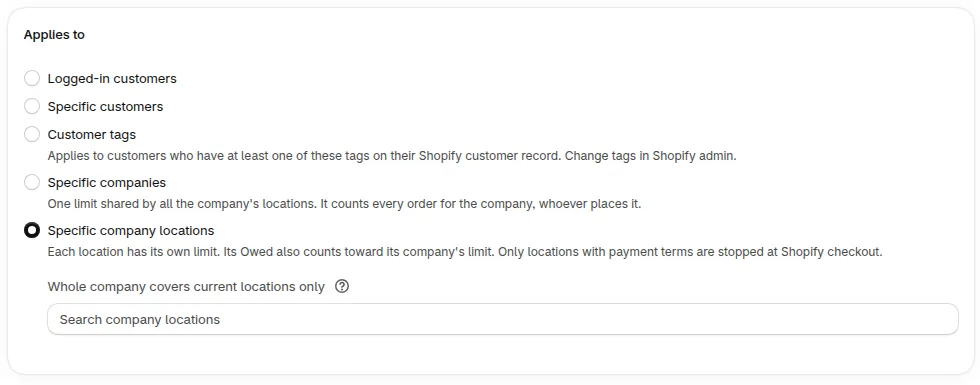
The company and location options on the rule form.
Three things to know before you save:
- If you pick several customers, tags, companies or locations, saving creates one rule for each.
- A saved rule keeps its Applies to type and its target. To cover someone else, create a new rule.
- A tag rule cannot use a tag name that is also a credit status tag (
bss-credit-hold,bss-credit-over,bss-credit-near, or the names you chose in your settings). See the Credit limit glossary for the terms used on this page.
Which rule wins when a customer matches more than one?
Section titled “Which rule wins when a customer matches more than one?”At Pay later checkout, Credit limit uses the first rule that matches, from the top of this list. The rule form says it too: “a customer’s own rule is used first, then location, company, tag and all-customer rules.”
- A Specific customers rule for that customer.
- A Specific company locations rule for the location the buyer orders for.
- A Specific companies rule for the buyer’s company.
- A Customer tags rule for one of the customer’s tags.
- The Logged-in customers rule.
Two rules of the same type can match one customer. The one with the lower number in Advanced > Priority (0 = first) wins. The number runs from 0 to 99. When the numbers are equal, the older rule wins.
Example: three customers and three rules.
| Customer | Matching rules | Limit that applies |
|---|---|---|
| Ana | Her own rule ($2,000), tag Gold ($5,000), all logged-in customers ($1,000) | $2,000 |
| Ben | Tag Gold ($5,000), all logged-in customers ($1,000) | $5,000 |
| Cara | All logged-in customers ($1,000) only | $1,000 |
A company rule works in two ways. It can set the limit, as in the list above. It also acts as a shared ceiling over the sum of all its locations for every buyer of that company, even when a customer, tag or all-customer rule sets the buyer’s own limit. An order has to fit both. If it is over either one and that rule is set to Block Pay later, Pay later is blocked. See company limits and location limits for a full example.
Which rule applies to this customer?
Section titled “Which rule applies to this customer?”The Balance card on the customer page names the rule that sets the limit. Use it when a ticket asks why a customer has a given limit. See the customer page guide for the other cards.
-
Open B2B orders & discounts > Net Terms, tab Credit limit, view Customers.
-
Under Customer balances, click the customer. For a company or location, open Company balances and click the company.
-
Read the rule line. A customer shows “From” followed by the rule name and mode, for example “From Customer tag: Gold, Warn only”. A company or location shows its limit “from” the rule name in the Pay later card.
-
Compare that rule with the priority list above. The first match from the top is the one shown.
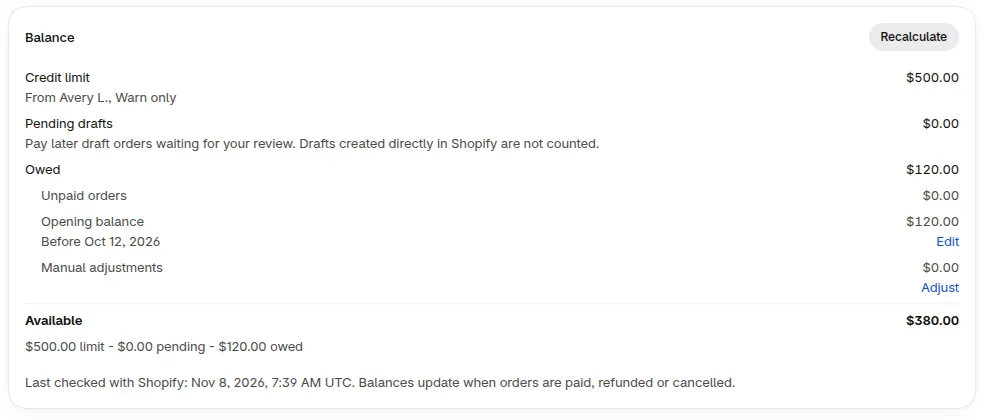
The Balance card names the rule that sets the limit, here a customer rule in Warn only.
If the card says “No credit rule applies to this customer”, no rule matches and Pay later has no limit for them. With a temporary limit, the card shows “Temporary limit until” a date and names the usual limit and its rule.
Should I choose Warn only, Ask me to approve or Block Pay later?
Section titled “Should I choose Warn only, Ask me to approve or Block Pay later?”Choose Warn only first. It lets every order through and shows you who goes over. Choose Ask me to approve for customers whose big orders you want to see first. Choose Block Pay later for the customers you want to stop, once you have seen the numbers.
| Choice | Order is over the limit | The buyer sees | You see |
|---|---|---|---|
| Warn only | The order goes through | Nothing about the limit. With Show buyers their remaining credit on, a note that the order is over their available credit (not shown when the shop has a company or location rule) | The customer is marked Over limit in Customer balances |
| Ask me to approve | The buyer sends the order for approval. It waits for you | With Show buyers their remaining credit on: the note “This order needs the store’s approval”, and the button reads Send for approval. Off: no note, the button still reads Confirm, and after Confirm the window shows “Order sent for approval”. The note does not show when the shop has a company or location rule | The order in the Approvals view, and an email |
| Block Pay later | Pay later is not available for that order | “Pay later isn’t available for this order” | The block in the customer’s History as “Pay later blocked: over limit” |
With Block Pay later, the buyer can still pay now at checkout, so the sale is not lost.
How does Ask me to approve work?
Section titled “How does Ask me to approve work?”When an order goes over the limit under an Ask me to approve rule, the buyer can still place it. It waits in the Approvals view for up to 7 days. You approve it to complete it, or reject it to cancel it. It does not use the buyer’s credit until you approve it.
-
Open Approvals
Section titled “Open Approvals”Open B2B orders & discounts > Net Terms, tab Credit limit, view Approvals. The view shows when a rule uses Ask me to approve or a request exists. Choose Waiting for approval or All requests under Show.
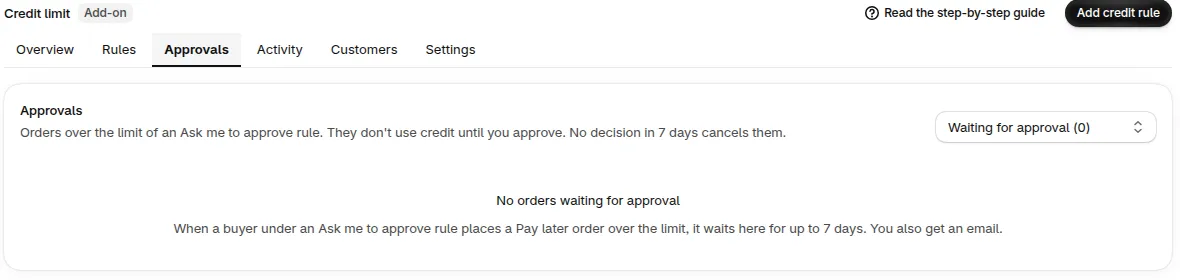
The Approvals view when no order is waiting.
-
Approve or reject
Section titled “Approve or reject”Click Approve or Reject on the order. Write a Note (required) of 3 to 500 characters. Only your staff see it. Confirm with Approve order or Reject order.
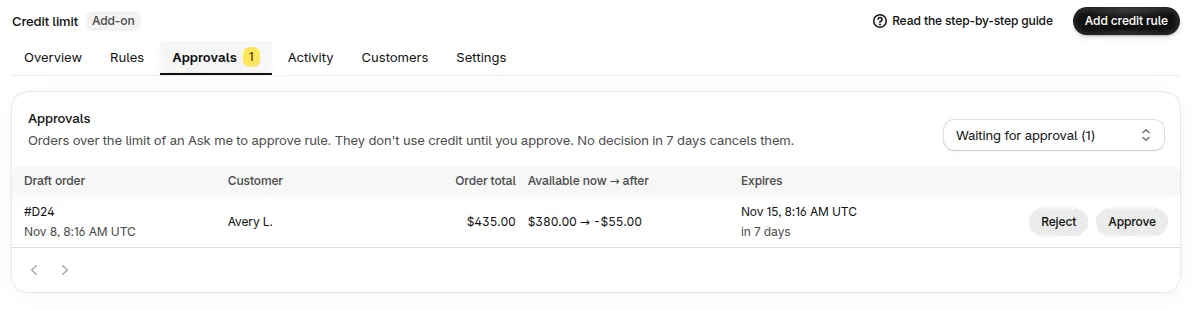
The Approvals view with one draft order waiting, and the Reject and Approve buttons.
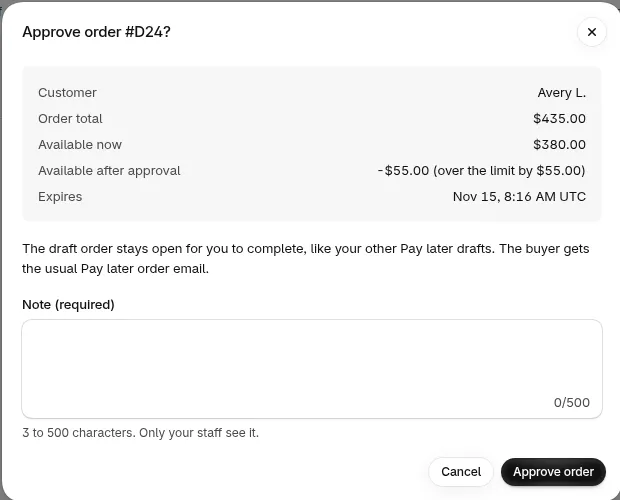
The Approve order dialog. The note is required before you confirm.
-
Check the result
Section titled “Check the result”Approve completes the order as a Pay later order and uses the buyer’s credit. For a draft order, it keeps the draft open for you to complete, like your other Pay later drafts. Reject deletes the draft, and the buyer gets an email that it wasn’t approved. An order with no decision in 7 days is cancelled, and the buyer gets an email that the request expired.
You get an email for each order waiting. It is on by default, and you can turn it off with An order is waiting for your approval in Credit emails, a switch that shows once a rule uses Ask me to approve. At Shopify checkout this mode doesn’t stop the order. Approval works only in the Pay later window.
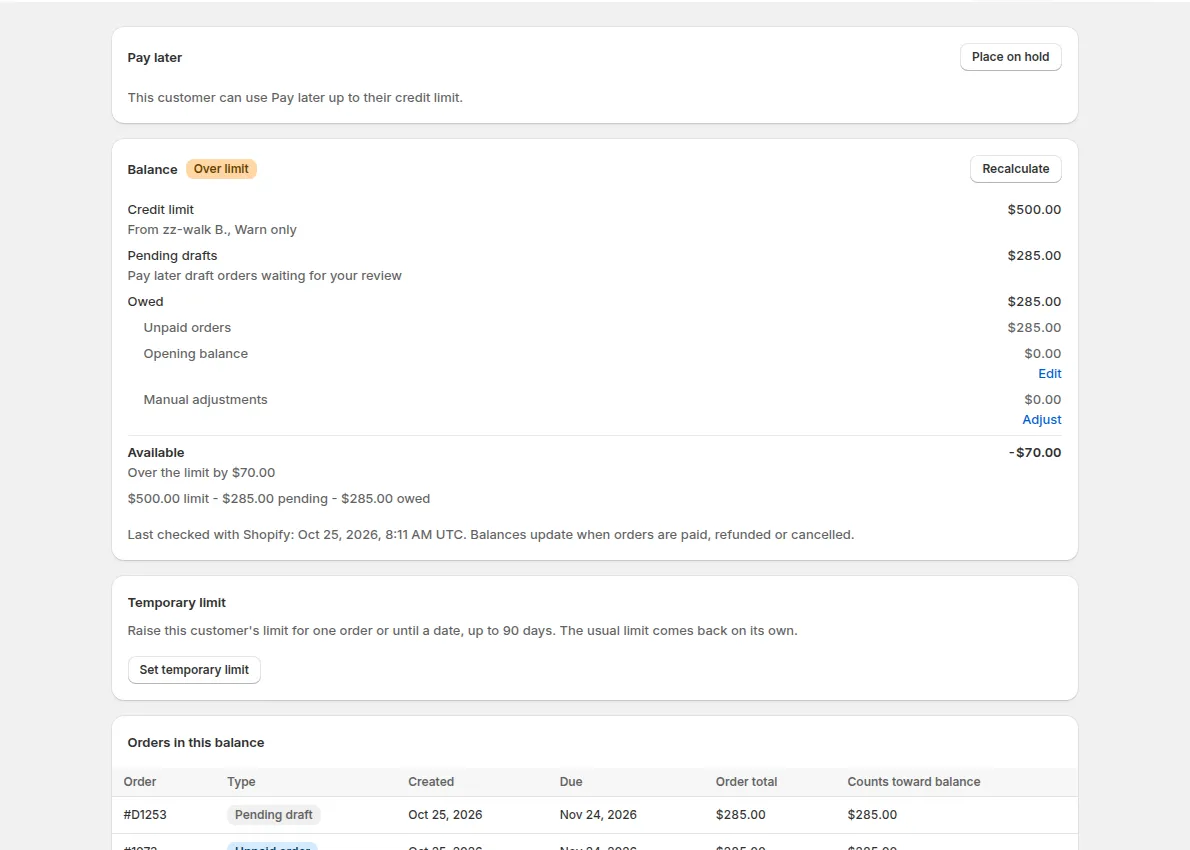
A customer over the limit in Warn only: the order went through and the row shows Over limit.
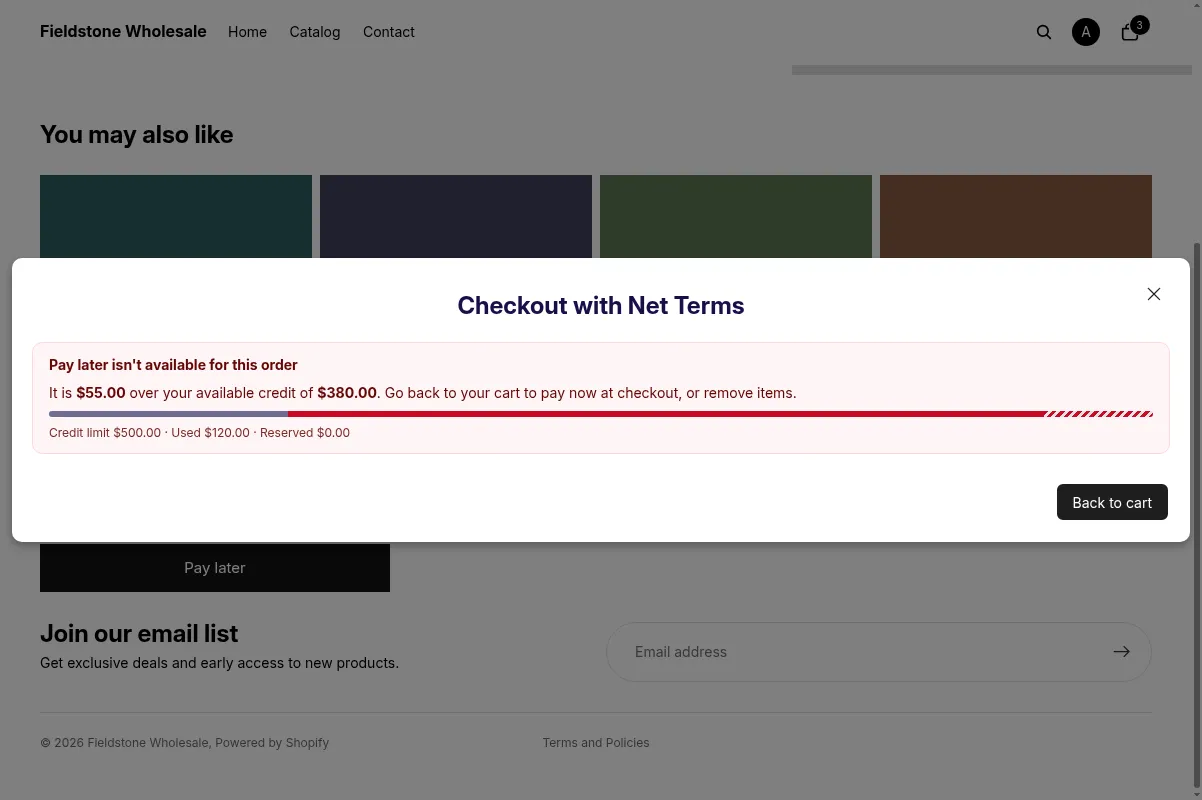
What the buyer sees when Block Pay later stops an order.
If you turn on Show buyers their remaining credit, buyers also see their own limit and available amount in the Pay later window.
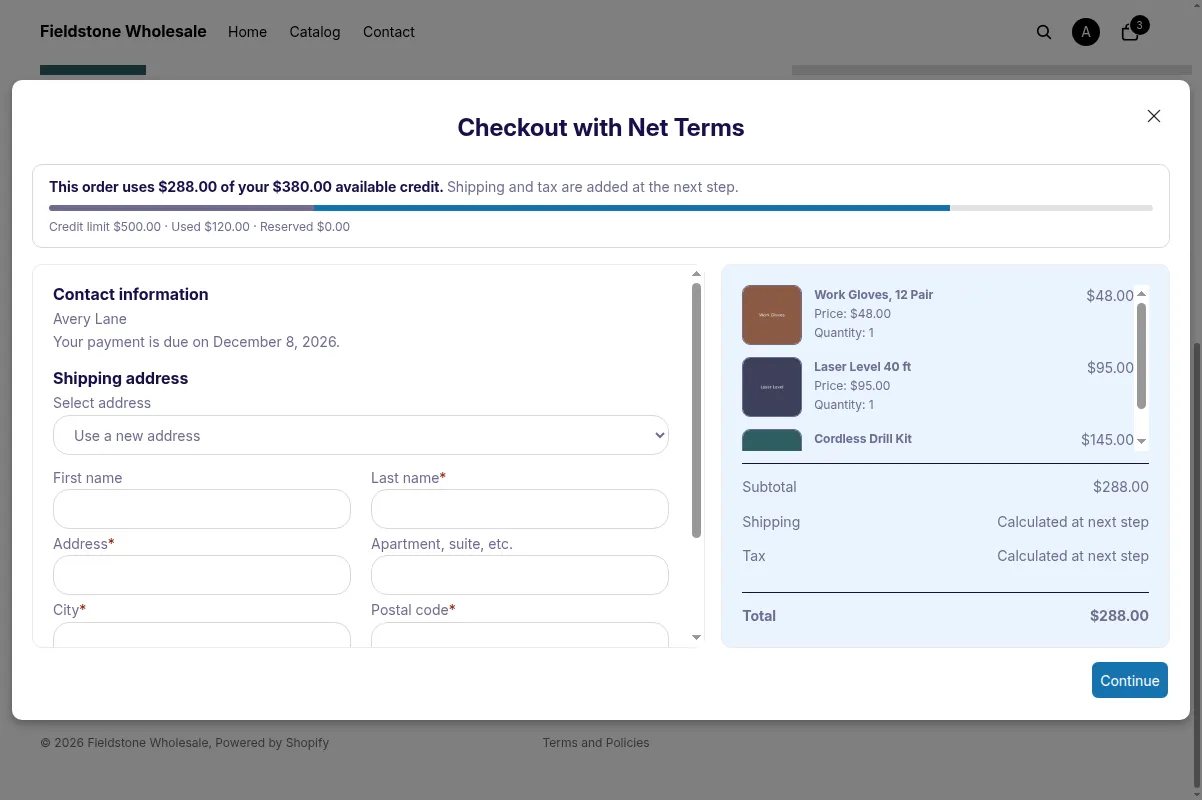
The credit summary a buyer sees when buyer credit is turned on.
How do I create a credit rule?
Section titled “How do I create a credit rule?”Go to B2B orders & discounts > Net Terms, open the Credit limit tab and click Add credit rule.
-
Choose who the rule applies to
Section titled “Choose who the rule applies to”Under Applies to, pick one of the five options. For customers, tags, companies or locations, search and select the targets.
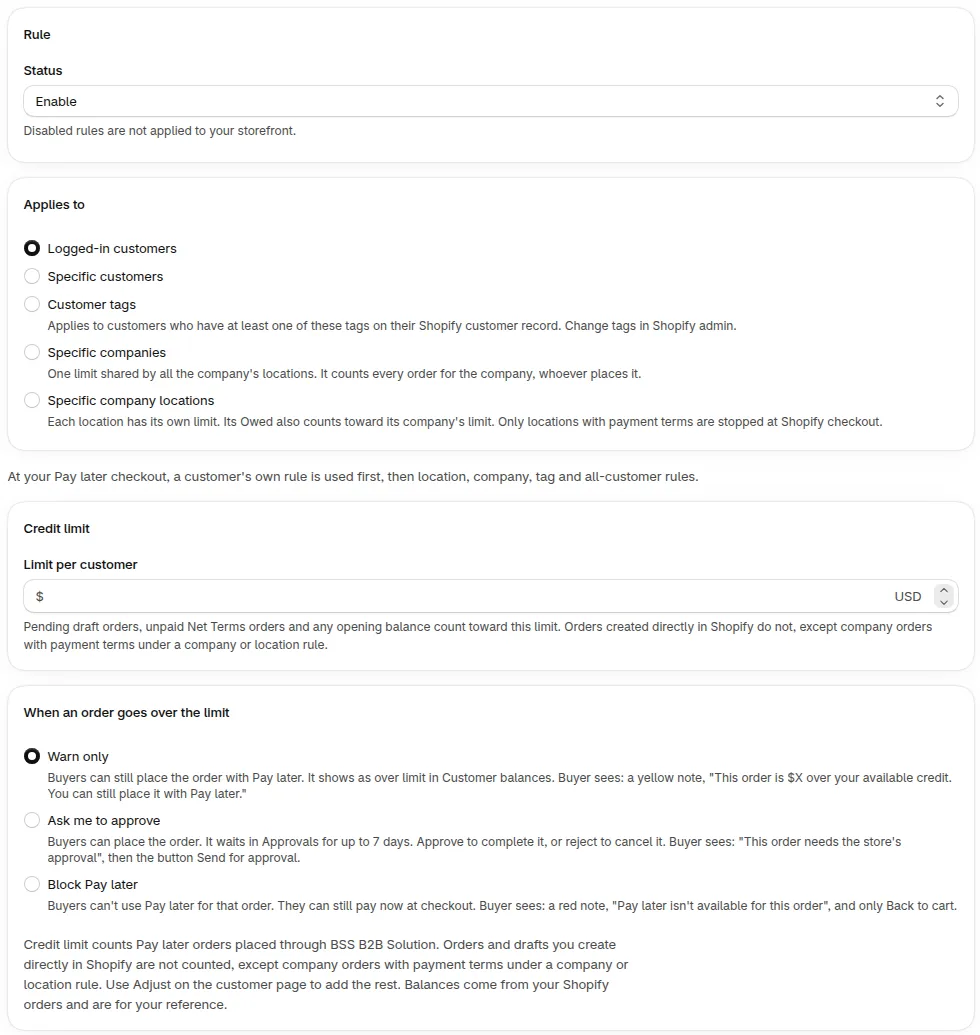
The new rule form: Applies to, Limit per customer and When an order goes over the limit, with Warn only selected.
-
Enter the limit
Section titled “Enter the limit”Type the amount in Limit per customer. For companies and locations the field reads Limit per company or Limit per location. The amount must be greater than 0. It is in your store currency.
-
Choose what happens over the limit
Section titled “Choose what happens over the limit”Under When an order goes over the limit, pick Warn only, Ask me to approve or Block Pay later. New rules start in Warn only.
-
Confirm if customers are already over the limit
Section titled “Confirm if customers are already over the limit”If you choose Block Pay later and some customers are already over the limit, a window lists them. It also tells you they can’t use Pay later until their balance goes down. Click Save and block to confirm.
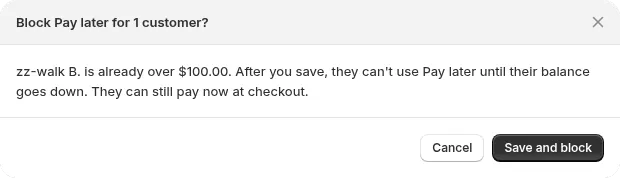
The window that asks you to confirm before blocking customers who are already over.
-
Check who the rule affects
Section titled “Check who the rule affects”The Who this rule affects card shows how many customers get the limit and how many are already over it. The list of customers already over the limit shows up to 10 names. It also counts customers who keep the limit of a higher-priority rule. For company and location rules, it lists what each company or location owes and its Available amount with the new limit.
-
Save the rule
Section titled “Save the rule”Save the rule. The page confirms with Credit rule created. Under Credit rules the new rule shows its Applies to, Limit and When over limit. Each customer it covers appears under Customer balances.
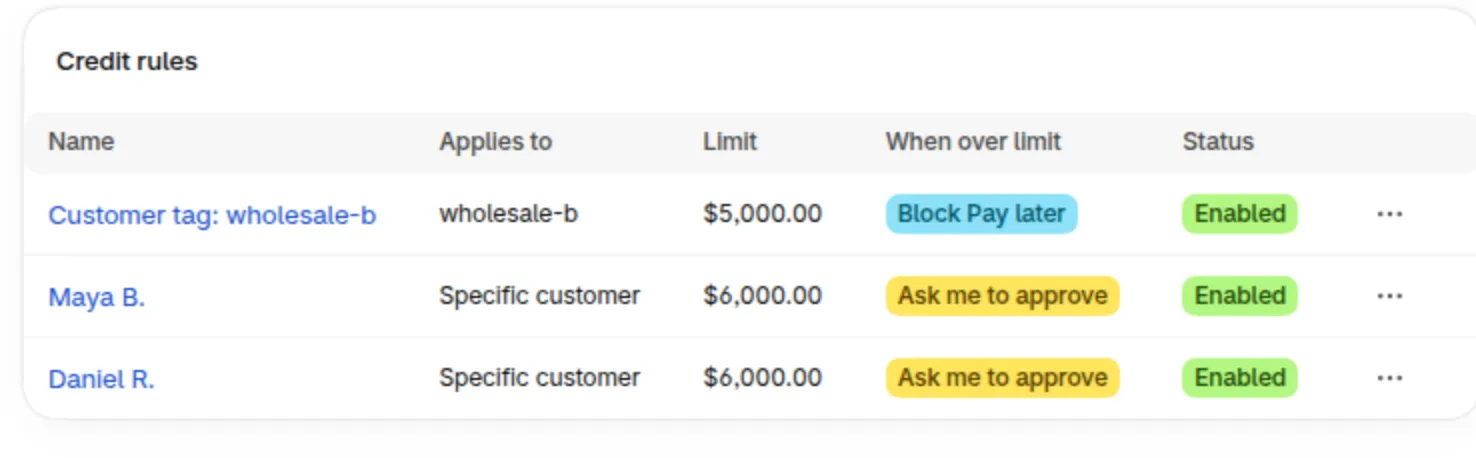
The Credit rules list after saving.
What counts toward the limit?
Section titled “What counts toward the limit?”Credit limit works with three amounts: Pending drafts, Owed and Available. Available is the limit minus the other two, and the order the buyer is placing is compared with it.
| Term | What it is |
|---|---|
| Pending drafts | Pay later draft orders waiting for your review. They reserve part of the limit. |
| Owed | Unpaid orders, plus the opening balance and manual adjustments. Never below 0. |
| Available | Limit minus Pending drafts minus Owed. It can be negative. |
An order is over the limit when its total is more than Available. An order that equals Available exactly goes through. An order with a total of 0 uses no credit.
Example: a customer has a limit of $5,000. They owe $3,200 and have $900 in pending drafts.
- Available = $5,000 - $3,200 - $900 = $900.
- A $1,000 order is $100 over the limit.
- A $900 order is exactly equal to Available, so it goes through.
Can I change, pause or delete a rule?
Section titled “Can I change, pause or delete a rule?”Yes. Open the Actions menu on a row in Credit rules (view Rules). You can Edit, Turn off (or Turn on) and Delete.
- Edit changes the limit and the mode. It does not change who the rule applies to.
- Turn off keeps the rule but stops using it. The form says “Disabled rules are not applied to your storefront.”
- Delete asks you to confirm with Delete rule. Buyers the rule covered no longer have this limit. Their balances do not change.
When you turn a rule on, or create it turned on, Credit limit also reads unpaid Net Terms orders placed before the rule in the background. Those orders then count toward the balance. Shopify shares only the last 60 days of orders until you click Allow access to all orders. For older debts, use an opening balance on the customer page.
What are the limits of a credit rule?
Section titled “What are the limits of a credit rule?”A credit rule has a few fixed boundaries. They keep the numbers exact.
Frequently asked questions
Section titled “Frequently asked questions”Why was a customer blocked when they are under the limit?
Section titled “Why was a customer blocked when they are under the limit?”Pending drafts count toward the limit, and the order being placed is compared with Available. A customer can also be stopped by a hold, by the overdue block, or by a company limit. See the credit limit troubleshooting guide to find the cause.
Can one customer have two rules?
Section titled “Can one customer have two rules?”Yes. A customer can match several rules, and the first match in the priority list sets their limit. If two rules of the same type match, the lower Priority (0 = first) number wins. A company rule also caps the sum of the company’s locations.
Do rules apply to orders placed before the rule?
Section titled “Do rules apply to orders placed before the rule?”Yes, for unpaid Net Terms orders. When a rule is created turned on, or turned on later, Credit limit reads those orders in the background. Shopify shares only the last 60 days of orders until you allow access to all orders.
Can I set a limit of 0?
Section titled “Can I set a limit of 0?”No. The limit must be greater than 0. To stop Pay later for one customer, place them on hold from the customer page.