
Company Credit Limit in Shopify B2B: Caps and Locations
A company credit limit for Shopify B2B sets one cap shared by every location of a company. A location limit gives one location its own room. A location’s Owed also counts toward the company cap, so a location can be stopped while it still has room of its own. This page is part of Credit limit, the add-on that caps what Net Terms customers can owe.
Key takeaways
Section titled “Key takeaways”- A company rule is one shared cap over all locations of the company, for every buyer of that company.
- A location rule is that location’s own limit.
- A location’s Owed also counts toward the company cap.
- Company balances shows both kinds of rule, with their Owed and Available.
- On hold on a company or location is recorded in History. It does not stop checkout.
How do company and location limits work together?
Section titled “How do company and location limits work together?”A company rule caps the total of all its locations. A location rule limits one location. An order has to fit both, so the smaller room wins.
| Rule | Applies to option | What it limits | Where Owed is counted |
|---|---|---|---|
| Company rule | Specific companies | The sum of all locations of the company, for every buyer of the company | Company Owed is the total of every location’s Owed, plus the company’s own opening balance and adjustments |
| Location rule | Specific company locations | One location | That location’s Owed, which also counts toward the company cap |
Each rule keeps its own Warn only or Block Pay later setting. An order is stopped only by a rule set to Block Pay later. An order is over a limit when its total is more than Available. An order exactly equal to Available goes through.
Example: company Acme has a company limit of $10,000. Location East has a limit of $6,000 and owes $5,000. Location West has a limit of $6,000 and owes $3,000. All three rules are set to Block Pay later.
| Figure | Arithmetic | Result |
|---|---|---|
| Company Owed | $5,000 + $3,000 | $8,000 |
| Company Available | $10,000 - $8,000 | $2,000 |
| East Available | $6,000 - $5,000 | $1,000 |
| West Available | $6,000 - $3,000 | $3,000 |
Here is what happens to four Pay later orders:
| Order | Fits its location? | Fits the company ($2,000)? | Result |
|---|---|---|---|
| $900 at East | Yes, $900 is at most $1,000 | Yes | Goes through |
| $1,200 at East | No, $1,200 is more than $1,000 | Yes | Pay later is stopped by the location limit |
| $1,800 at West | Yes, $1,800 is at most $3,000 | Yes | Goes through |
| $2,500 at West | Yes, $2,500 is at most $3,000 | No, $2,500 is more than $2,000 | Pay later is stopped by the company cap |
The last row is the case that surprises people. West has $3,000 of its own room, but Acme only has $2,000 left in total. The buyer sees “Pay later isn’t available for this order” and can still pay now.
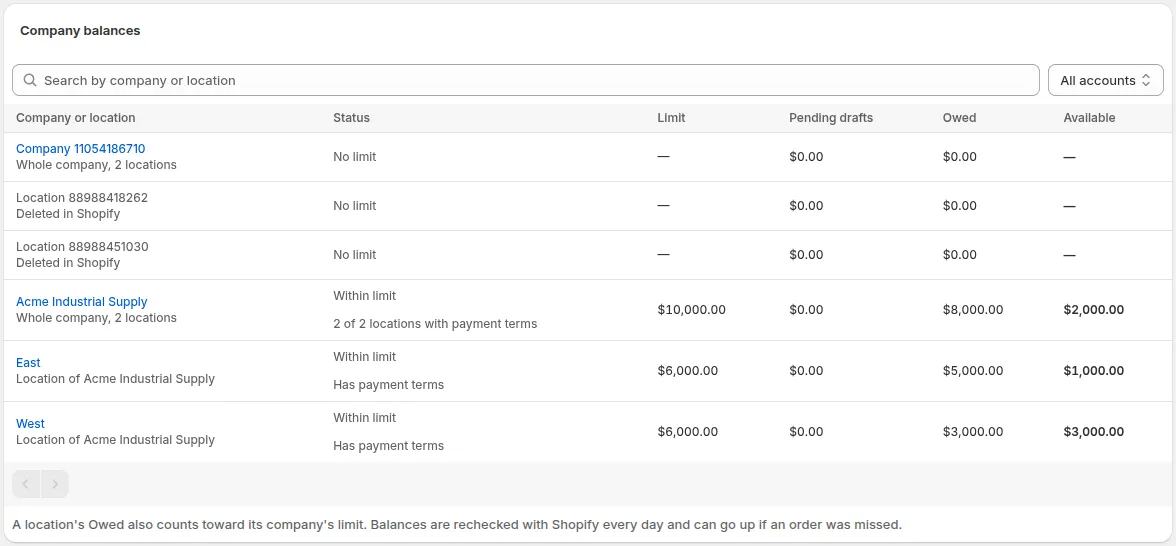
Acme and its locations in Company balances: each row shows Limit, Owed and Available.
Pending Pay later drafts are subtracted as well. If Acme had $500 in pending drafts, company Available would be $10,000 - $8,000 - $500 = $1,500. The glossary defines Pending, Owed and Available.
Two more points help when you read a ticket:
- A buyer who has their own customer rule is still held to the company cap. The customer rule sets that buyer’s own limit. The company cap sits on top of it.
- A location rule is used for a buyer only when that buyer has no customer rule. The buyer’s orders still count toward the location’s Owed.
How do I create a company or location rule?
Section titled “How do I create a company or location rule?”Create it from the Credit limit tab, the same way as any other rule. The steps below show the company and location choices. The rules page covers the other scopes, priority and currency in full.
-
Open the rule form
Section titled “Open the rule form”Go to B2B orders & discounts > Net Terms, open the Credit limit tab and click Add credit rule.
-
Choose who the rule applies to
Section titled “Choose who the rule applies to”Under Applies to, choose Specific companies for a shared cap, or Specific company locations for a location’s own limit. Search with Search companies and pick one or more. Picking several creates one rule for each. You cannot change who a rule applies to after you save it.
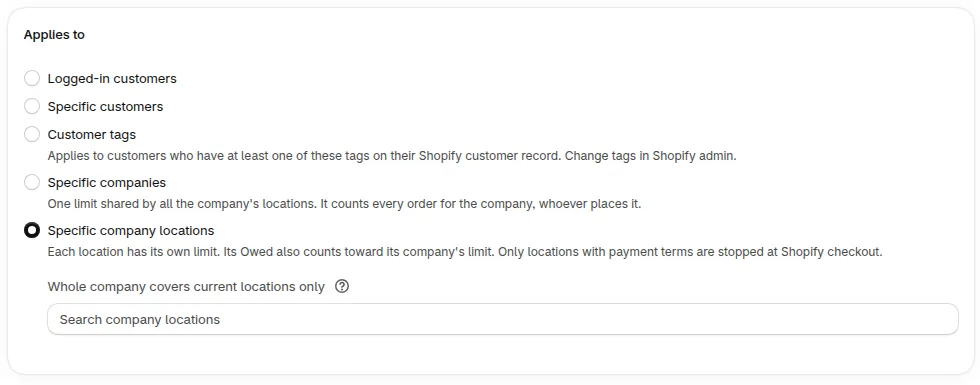
The two company choices under Applies to.
-
Enter the limit
Section titled “Enter the limit”Type the amount in Limit per company or Limit per location. Enter an amount greater than 0. Pending drafts, unpaid orders and the opening balance count toward it. The limit is in your store currency.
-
Choose what happens over the limit
Section titled “Choose what happens over the limit”Pick Warn only or Block Pay later. New rules start in Warn only. For a company, the Who this rule affects card shows how many companies are already over the limit. For a location, it shows what the location owes and what its Available would be.
-
Save and check the result
Section titled “Save and check the result”Save the rule. A Credit rule created message appears. The rule appears under Credit rules with Applies to, Limit and When over limit. Its company or location appears under Company balances.
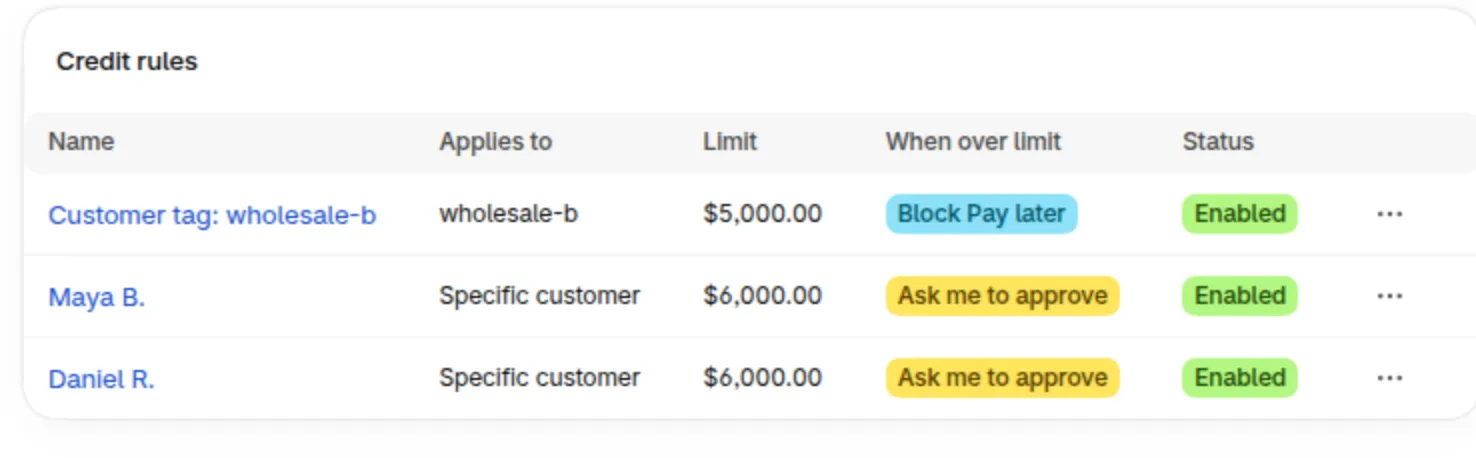
The Credit rules list with Applies to, Limit and When over limit.
If you have a company rule, you do not need a location rule. Add one only to give a location a smaller share of the company cap.
What does Company balances show?
Section titled “What does Company balances show?”Company balances lists every company and location that has a credit rule, with the limit and what is left. It sits under Customer balances on the Credit limit tab.
| Column | What it shows |
|---|---|
| Company or location | The name, with Whole company, 2 locations or Location of and the company name under it. Click the name to open its page. |
| Status | A badge such as Over limit, At limit, 90% used, On hold or Company over limit, or Within limit and No limit. Under the badge: Has payment terms, No payment terms or Couldn’t check payment terms. For a company the line reads like “1 of 2 locations with payment terms”. |
| Limit | The limit from the rule. |
| Pending drafts | Pay later draft orders waiting for your review. |
| Owed | Unpaid orders, opening balance and manual adjustments, never below 0. A company row adds up all its locations. |
| Available | Limit - Pending drafts - Owed. It can be negative. |
Use the search box (Search by company or location) and the filter to narrow the list: All accounts, Companies, Locations, Over limit and On hold, each with a count.
Company over limit appears on a location row when its company has no room left. It means orders from that location can be stopped by the company cap, even when the location itself has Available.
Below the table, a line reminds you that a location’s Owed also counts toward its company limit. The balances are rechecked with Shopify every day and can go up if an order was missed. Under the heading, Last checked with Shopify shows when the last check ran.
If a rule uses a currency other than your store currency, the banner Limits in other currencies are not checked names it. Only limits in your store currency are checked at Shopify checkout. The status Limit not checked marks that row. Create a new rule in the store currency to fix it.
What is on a company or location page?
Section titled “What is on a company or location page?”Each company and each location has its own page, opened from Company balances. The pages share most cards. The table shows what each card holds.
| Card | What it shows |
|---|---|
| Pay later | The limit and the rule it comes from, or “No credit rule applies to this company”. A line shows payment terms. The buttons Place on hold and Remove hold are here. |
| Balance | Credit limit, Pending drafts, Owed and Available, with the lines Unpaid orders, Opening balance (Edit) and Manual adjustments (Adjust). |
| Locations (company page only) | Location, Payment terms (Yes, None or Couldn’t check) and Owed for each location, plus a Company opening balance and adjustments line. |
| Available for Acme (location page only) | The company’s Available, so you can compare it with the location’s own. It shows when the company has a limit. |
| Orders in this balance | Order, Due and Counts toward balance. The company page adds a Location column. Only the newest orders are listed. |
| History | Every change to the balance and every hold, newest first, with who and when. |
The View in Shopify button opens the company or location in Shopify.
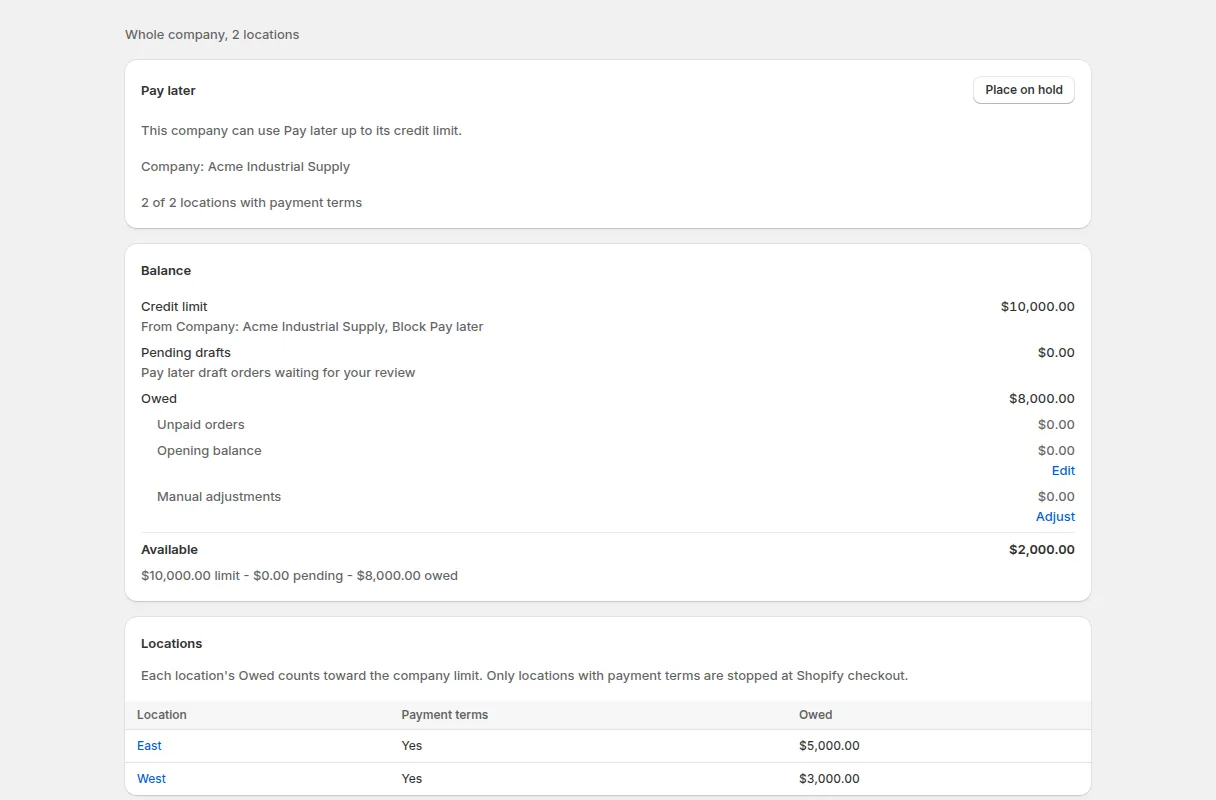
The Acme company page: Balance card and a row per location.
On a location page, a warning banner Orders from this location are stopped at Shopify checkout can appear. It shows only when Check at Shopify checkout is on, the location has payment terms and the company has no room left at checkout.
Opening balance and Adjust work as they do for a customer. The customer page guide lists the fields, the note rules and what History records.
Which orders count toward a company’s balance?
Section titled “Which orders count toward a company’s balance?”Three kinds of order count toward a company’s Owed or Pending drafts:
- Orders you create in Manual Order for a company buyer with Shopify payment terms. See Manual Order and Credit limit.
- Shopify orders with payment terms placed by a company buyer. These count only when a company or location rule applies to that buyer, so stores without such a rule are never affected.
- Pay later drafts count as Pending until you create the order from the draft. Then they count as Owed.
These do not count:
- Shopify admin and POS orders without payment terms.
- Orders placed in a currency other than your store currency.
- Orders older than the 60 days Shopify shares, unless you allow access to all orders. Enter older unpaid amounts as an Opening balance. Customer balances explains the 60-day window.
A location with no payment terms in Shopify still counts toward Owed. It is never stopped at Shopify checkout.
What does “on hold” do for a company or location?
Section titled “What does “on hold” do for a company or location?”On hold on a company or location is a record. It appears in History and as the On hold badge, and it does not stop any order at checkout. Place it from the Pay later card with Place on hold, and end it with Remove hold.
What are the limits?
Section titled “What are the limits?”| Topic | What to know |
|---|---|
| Temporary limits | A temporary limit raises only the buyer’s own limit. It never raises a company cap. |
| Currency | A company limit is applied to a Pay later order only when it is in the same currency as the buyer’s own limit. At Shopify checkout, only limits in your store currency are checked. |
| Pay later checkout | Company and location limits are checked when a company buyer uses Pay later on your online store. |
| Shopify checkout | They are checked there only when you turn on Check at Shopify checkout. That check uses company and location rules in Block Pay later only. |
| Locations without payment terms | Their orders count toward Owed but are never stopped at Shopify checkout. |
| Holds | Holds on companies and locations are recorded only. |
| Unreadable limit | If Credit limit cannot read a limit, the order goes through. |
Frequently asked questions
Section titled “Frequently asked questions”Why is a location blocked when it still has Available?
Section titled “Why is a location blocked when it still has Available?”The company cap applies too. The order has to fit the location’s own Available and the company’s Available. Open the location page and compare Available for the company with the location’s own Available.
Do I need a location rule if I have a company rule?
Section titled “Do I need a location rule if I have a company rule?”No. A company rule alone caps the total for every location and every buyer of the company. Add a location rule only to give one location a smaller share.
Where do I see which buyer placed an order?
Section titled “Where do I see which buyer placed an order?”The company and location pages list each order with its Order name, Location (company page), Due date and the amount that Counts toward balance, but not the buyer. Open the order in Shopify to see who placed it. To see one buyer’s own orders, open that customer’s page and check Orders in this balance there.
Does a company rule limit buyers who also have their own customer rule?
Section titled “Does a company rule limit buyers who also have their own customer rule?”Yes. The customer rule sets that buyer’s own limit, and the company cap still applies on top of it.
What if the company rule is Warn only and the location rule is Block Pay later?
Section titled “What if the company rule is Warn only and the location rule is Block Pay later?”Each rule is judged on its own setting. An order that is over only the company cap goes through and the company shows as over limit. An order that is over the location limit is stopped.