
Run Seasonal Promotions on Top of B2B Prices
Run a seasonal sale, such as 15% off for your wholesale buyers, without touching your B2B rules. You create one Shopify automatic discount for a customer segment. Shopify applies it on top of the B2B price at checkout, and the app lets it through for your tagged customers.
This page shows the formula, a worked example with real numbers, the setup, and what to expect on the cart and at checkout.
How the final price is calculated
Section titled “How the final price is calculated”The promotion comes off the price your buyer already has after the B2B discount. The steps run in this order:
- Custom Pricing (or a Price List) sets the base price.
- Volume Pricing takes its tier discount from that base price.
- Your Shopify automatic discount takes its percentage from the order subtotal that results.
When all three layers are percentages:
final price = list price x (1 - base discount) x (1 - tier discount) x (1 - promotion)
The discounts do not add up. 20% + 5% + 15% is not 40% off. Each one works on a smaller price than the one before.
Example: a 20% base price, a 5% tier and a 15% promotion
Section titled “Example: a 20% base price, a 5% tier and a 15% promotion”Example numbers. Your prices and discounts will differ.
A product lists at $100.00. A buyer in your promotion segment puts 6 in the cart.
| Step | Calculation | Result |
|---|---|---|
| Base price (Custom Pricing, 20%) | $100.00 x 0.80 | $80.00 |
| Tier price (Volume Pricing, 5%, from the base price) | $80.00 x 0.95 | $76.00 each |
| Order subtotal | 6 x $76.00 | $456.00 |
| Promotion (automatic discount, 15%) | $456.00 x 0.15 | -$68.40 |
| Total at checkout | $456.00 - $68.40 | $387.60 |
The buyer saves $212.40 against the list price of $600.00, which is 35.4% off. The same result as one multiplication: 0.80 x 0.95 x 0.85 = 0.646, so $64.60 per unit, or $387.60 for 6.
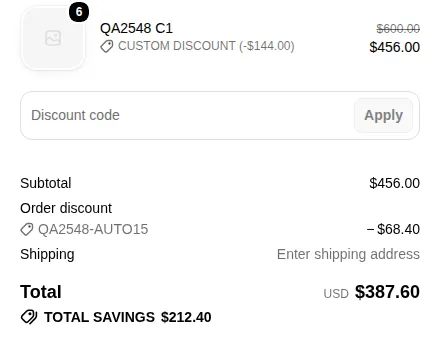
At checkout the promotion shows as an order discount. The item line already carries the B2B price.
Amount-based tiers
Section titled “Amount-based tiers”If your Volume Pricing tier depends on the order amount, the tier is fixed before Shopify applies the promotion, so the promotion does not change the tier.
Example. A product has a 10% Custom Pricing rule, and a Volume Pricing rule with 2% off for amounts from 0 to 280.00 and 15% off from 280.01. A buyer adds 3 items.
- Base price: $100.00 x 0.90 = $90.00. The three items come to $270.00, so the 2% tier applies.
- Tier price: $90.00 x 0.98 = $88.20 each, $264.60 for 3.
- Promotion (15%): -$39.69.
- Total at checkout: $224.91.
The formula above holds for percentage layers. A fixed-amount layer does not multiply. Amounts are rounded to the cent, so your own calculation can differ by a cent. Always check the number at checkout.
Set it up
Section titled “Set it up”These steps are for checkout version 3 (see Settings > Checkout version). Checkout version 5 has different automatic discount options: see Shopify checkout settings.
Before you start: you need B2B prices (Custom Pricing, a Price List or Volume Pricing) and your wholesale customers tagged in Shopify.
You need three things: a customer segment in Shopify, an automatic discount for that segment, and one setting in the app. Use the same customer tag in the segment and in the app.
1. Create a customer segment in Shopify
Section titled “1. Create a customer segment in Shopify”- In Shopify admin, go to Customers > Segments and create a new segment.
- Enter a query that selects your wholesale customers by tag, for example
customer_tags CONTAINS 'wholesale', and click Run. The list shows the customers who will get the promotion. - Save the segment and give it a name.

A segment that selects customers by tag. The tag in this example is a test tag.
2. Create the automatic discount
Section titled “2. Create the automatic discount”- In Shopify admin, go to Discounts and create a discount of the type Amount off order.
- Under Method, select Automatic discount.
- Enter a Title. Customers see it in their cart and at checkout.
- Under Discount value, choose Percentage and enter the value, for example 15.
- Under Eligibility, select Customer segments, click Browse and choose your segment.
- Set the dates under Schedule and click Save.
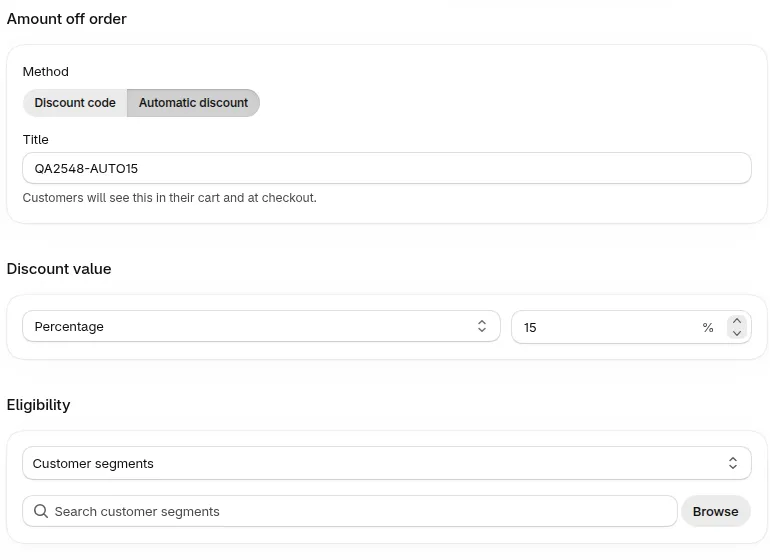
Eligibility is set to Customer segments.
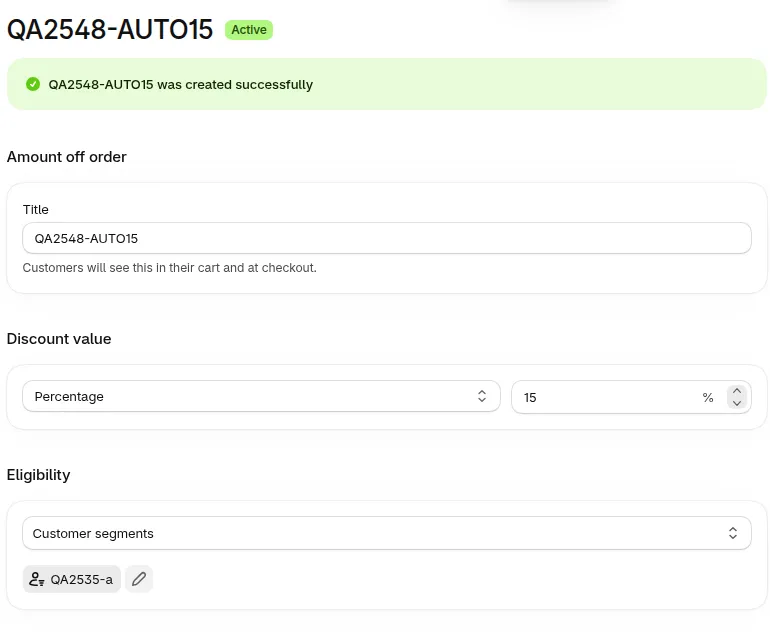
The saved discount shows the segment it is for.
3. Allow automatic discounts in the app
Section titled “3. Allow automatic discounts in the app”- In the app, go to Settings > Shopify checkout settings.
- In the Shopify discounts card, find Automatic discounts.
- Select Only customers with selected tags.
- In Selected tags, type the same customer tag and click Add.
- Click Save.
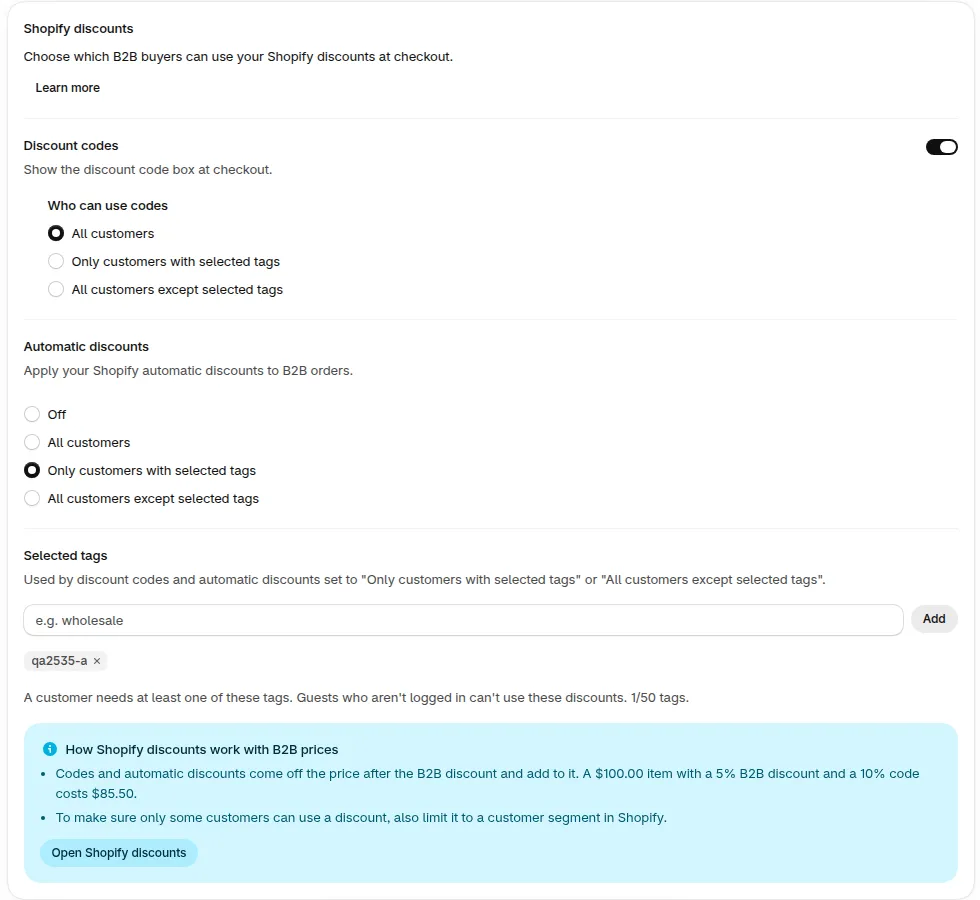
The app lets the promotion through for customers with the selected tag. Guests who aren't logged in can't use it.
4. Check it with a test customer
Section titled “4. Check it with a test customer”Sign in as a customer who has the tag, add a product with a B2B price and go to checkout. The order summary shows your promotion as an order discount. Then sign in as a customer without the tag: the same cart should show no promotion.
What your buyers see
Section titled “What your buyers see”- Product page: the B2B price.
- Cart: the B2B price on each item, such as $76.00, and the app’s estimated total of $456.00.
- Checkout: the order discount line and the final total of $387.60.
The cart page of your theme can show its own discount line. It is calculated on the list price, so it can show a different number than checkout. In the example, the theme’s cart shows -$90.00 (15% of $600.00) next to the app’s estimated total of $456.00. At checkout the promotion is $68.40, calculated on $456.00.
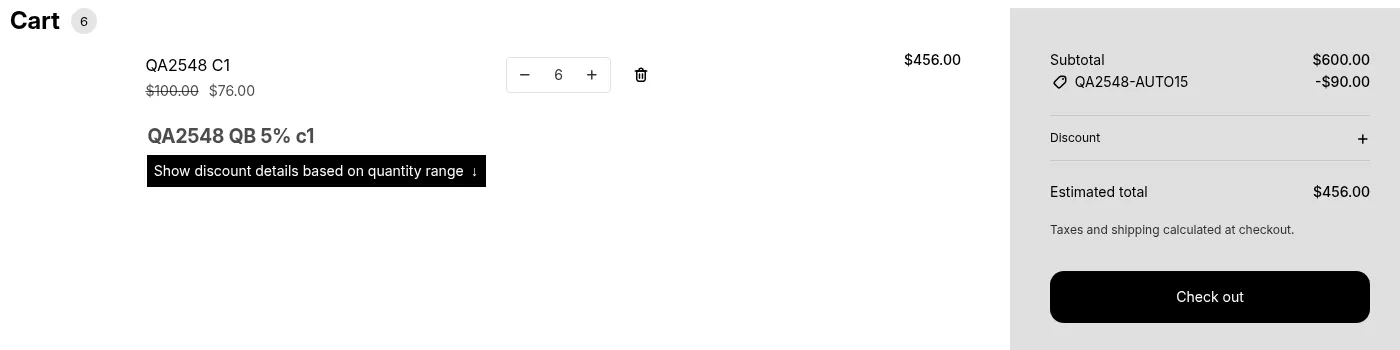
A theme cart can show a promotion line on the list price. The checkout amount is the one the buyer pays.
Tell your buyers that the final price with the promotion is on the checkout page.
Related pages: How B2B prices combine, Can I apply additional discounts with Custom Pricing or Volume Pricing?.
Limits to know before you launch
Section titled “Limits to know before you launch”- The promotion shows only at checkout. The product page and the cart show the B2B price. Shopify calculates the automatic discount at checkout.
- It applies to the price after the B2B discount. The promotion is 15% of what the buyer would otherwise pay.
- Only customers in the segment get it, and they must be signed in. Guests who aren’t logged in do not get the promotion.
- Amount-based tiers are fixed before the promotion. See the second example above.
- Your theme cart can show a different promotion amount. See What your buyers see.
Can I run the sale for all my B2B customers? Yes. In Shopify, select a segment that contains them, and in the app select Only customers with selected tags with the tag they share.
Why does my cart show a different discount than checkout? The theme’s cart can calculate the automatic discount on the list price. Shopify calculates it on the B2B price at checkout. Checkout shows the amount the buyer pays.
Can I show the price after the promotion on the product page? Not today. The product page shows the B2B price. The promotion appears at checkout.
A customer with the tag does not get the promotion. What should I check? Check that the customer is signed in, that the tag is in Selected tags in the app, that the customer is in the Shopify segment, and that the discount is Active for today’s date.
If you need further assistance, please feel free to reach us at [email protected] or Live Chat.