
Net Terms Local Pickup: Let Buyers Collect Orders
Local pickup lets a buyer who pays later with Net Terms collect the order at one of your Shopify locations instead of having it shipped. The buyer does not enter a shipping address, and pickup is free. You turn it on per rule, and you choose which locations the rule offers.
To create a rule first, see Set Up Net Terms for Your B2B Customers.
Before you start: turn on local pickup in Shopify
Section titled “Before you start: turn on local pickup in Shopify”BSS B2B Solution uses the pickup locations you already manage in Shopify. A location is offered only when:
- Local pickup is turned on for that location in your Shopify settings.
- The location has a full address: street, city, postal code and country.
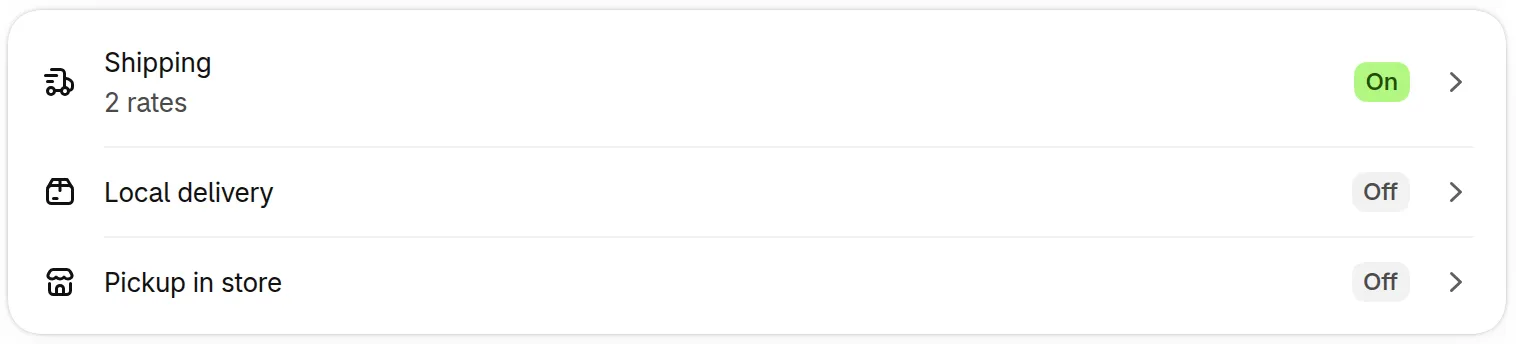
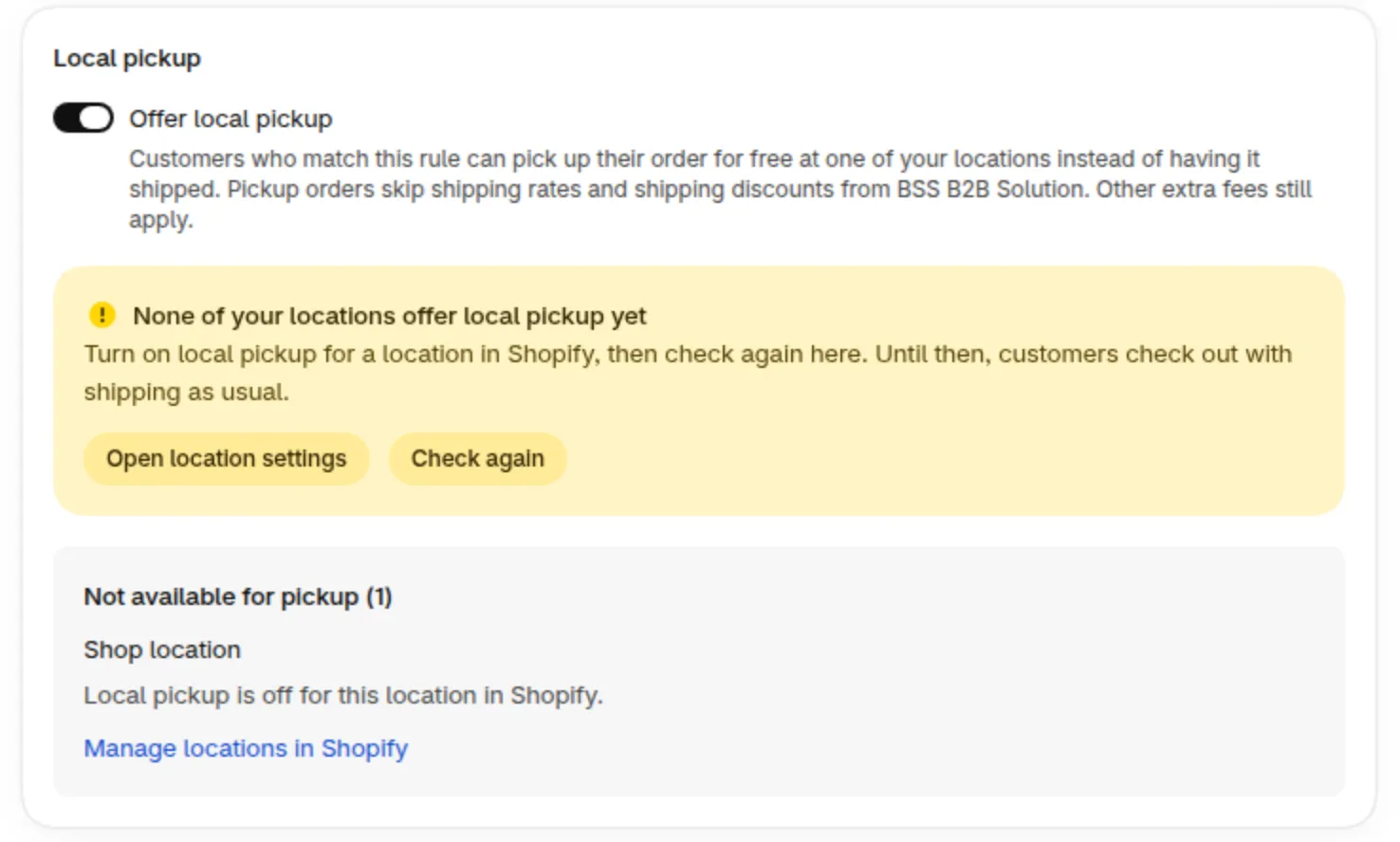
Turn pickup on in Shopify’s Local pickup settings. After you switch on Offer local pickup, if no location offers pickup yet, the Local pickup card says so and links to your Shopify location settings.
Turn on Local pickup in a rule
Section titled “Turn on Local pickup in a rule”-
Go to B2B orders & discounts > Net Terms and open the rule, or click Add rule.
-
In the Local pickup card (below Net Terms order limit), switch on Offer local pickup. It is off until you turn it on.

-
Under Locations to offer, choose one option:
Option What buyers can pick All pickup locations Every location that offers pickup in Shopify, including locations you turn on for pickup later Selected locations Only the locations you tick in the Pickup locations list. Use Select all or Clear to change the whole list at once -
Click Save. To save the rule with Selected locations, tick at least one location, or choose All pickup locations.
Check that it works
Section titled “Check that it works”Place a test order as a customer who matches the rule, with a product that needs shipping in the cart. Click Pay later, enter a country, then choose Pick up: the Pickup location list should show your location.
The list shows each location’s address and how fast it is usually ready, for example Usually ready in 24 hours. That time comes from your Shopify pickup settings.
Why a location is not in the list
Section titled “Why a location is not in the list”Locations that cannot be offered are listed under Not available for pickup with the reason:
| Reason shown | What to do |
|---|---|
| Local pickup is off for this location in Shopify. | Turn on local pickup for the location in Shopify, then reload the page. (If none of your locations offer pickup, the card shows Check again.) |
| The address is incomplete in Shopify. Add the street, city and postal code. | Complete the address in Shopify. |
| This location no longer exists in Shopify. | Choose another location for the rule. |
Use Manage locations in Shopify to open your location settings.
What the buyer sees
Section titled “What the buyer sees”Pickup shows for a buyer who matches the rule, when the cart has at least one product that needs shipping.
- The buyer clicks Pay later and the Checkout with Net Terms form opens.
- The Delivery method block offers Ship and Pick up. Ship is selected first.
- The buyer fills in the country. The form then checks pickup for that country and the cart. While it checks, Pick up shows Checking pickup locations. With no country yet it shows Add your country first.
- When Shopify offers locations, Pick up becomes available. The buyer picks one from the Pickup location list. Each location shows its name, address, the usual ready time and Free.
- The buyer still fills in the billing address. The shipping address is not asked for.
The list depends on the shipping country. A location that Shopify offers for one country may not be offered for another, so the buyer sees the country the list is based on and can change it by choosing Ship.
If none of your locations can be offered for the cart when the form opens, the Delivery method block does not appear and the buyer checks out with shipping as usual. If the buyer changes the country to one without pickup, Pick up shows Not available for and the country name, and Ship is selected again.
Pickup orders
Section titled “Pickup orders”- The order is created with your location’s address from Shopify as its shipping address.
- The shipping charges from BSS B2B Solution are skipped: Shipping Rate and shipping discounts do not apply. Other extra fees still apply.
- The order records the pickup location name. The Net Terms emails show Pickup location with that name in place of the shipping address.
- After the order, the buyer sees Pick up your order at with the location name.
- Payment terms and the due date work as for any other Net Terms order.
Limits
Section titled “Limits”- Pickup must be turned on per location in Shopify. A location that is off there is not offered.
- If two locations that offer pickup have the same name, neither is offered, because the app cannot tell them apart. Give each pickup location its own name in Shopify.
- If Shopify no longer offers the chosen location when the buyer places the order, the order is not placed. The buyer sees a message that pickup is not available and can choose another location or Ship.
- If the list cannot be loaded, the buyer keeps the shipping checkout. Your saved rule settings do not change.
Change the pickup wording
Section titled “Change the pickup wording”Go to Net Terms > More actions > Translations and open General translations. The texts of the Delivery method and Pickup location groups are there, for example Ship, Pick up and Usually ready in 1 hour. The pickup texts show to buyers only when a rule has local pickup on. See Net Terms Checkout Form and Settings.
Next, you can show only Pay later so matched buyers go straight to the Net Terms form.