
Style the B2B Portal with Custom CSS
Custom CSS lets you change colors, spacing, fonts and what shows on the B2B Portal. A developer or our support team can help you write it.
Key takeaways
Section titled “Key takeaways”- Paste your CSS in the CSS box and click Save. It applies only on the B2B Portal page.
- To recolor the portal, set the 12
--bss-portal-*variables inside:host { }. - To change spacing or hide a part, target one of the 10 class names.
- The limit is 20,000 characters.
- To go back to the default look, clear the CSS box and save.
How do I add custom CSS?
Section titled “How do I add custom CSS?”-
Open the CSS box
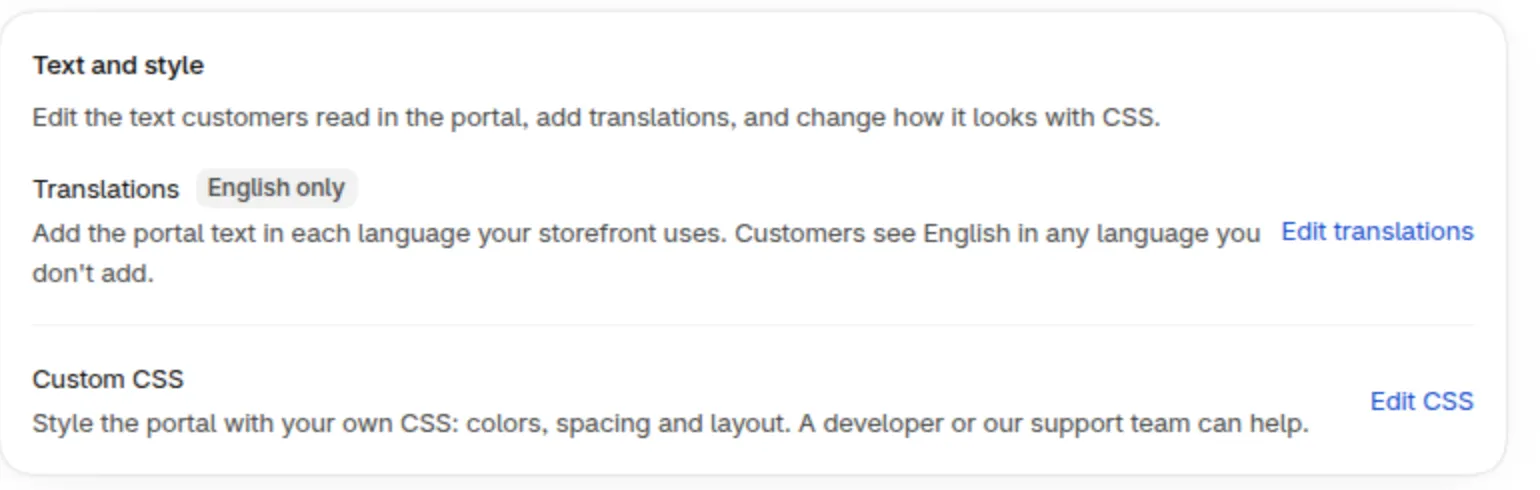
Section titled “Open the CSS box”Open B2B Portal and click Edit CSS in the Text and style card.
-
Paste your CSS
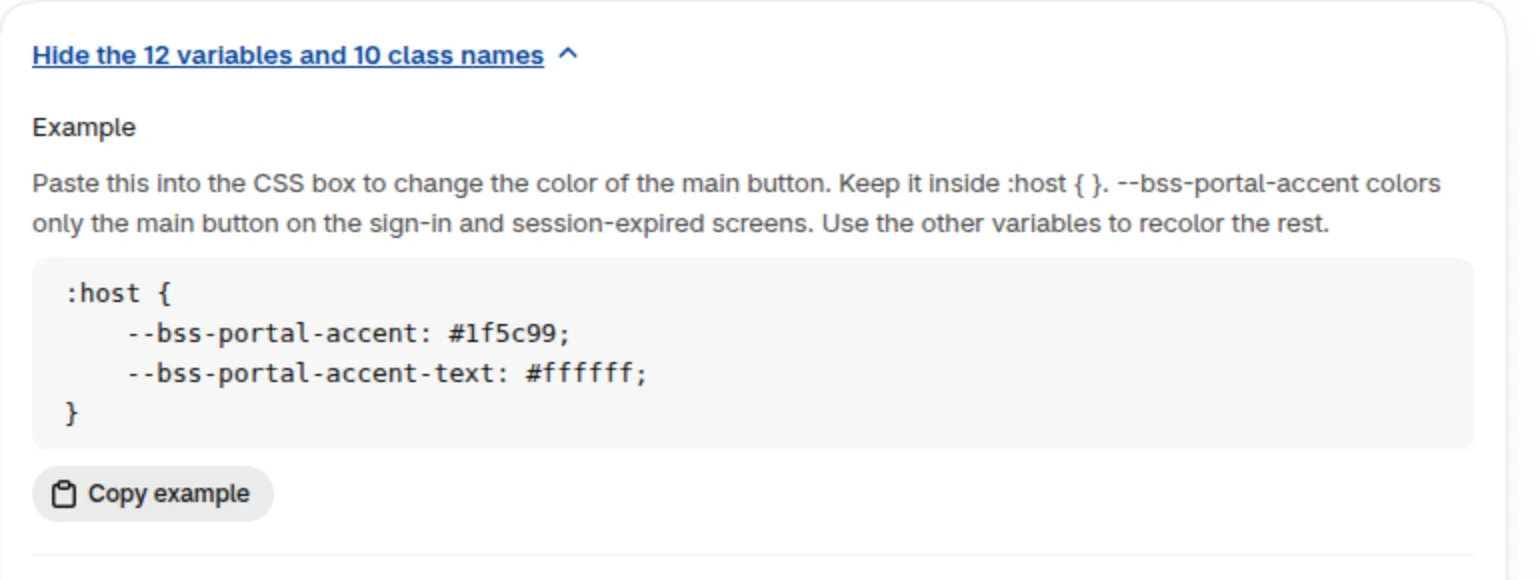
Section titled “Paste your CSS”Paste your CSS in the CSS box. Keep variables inside
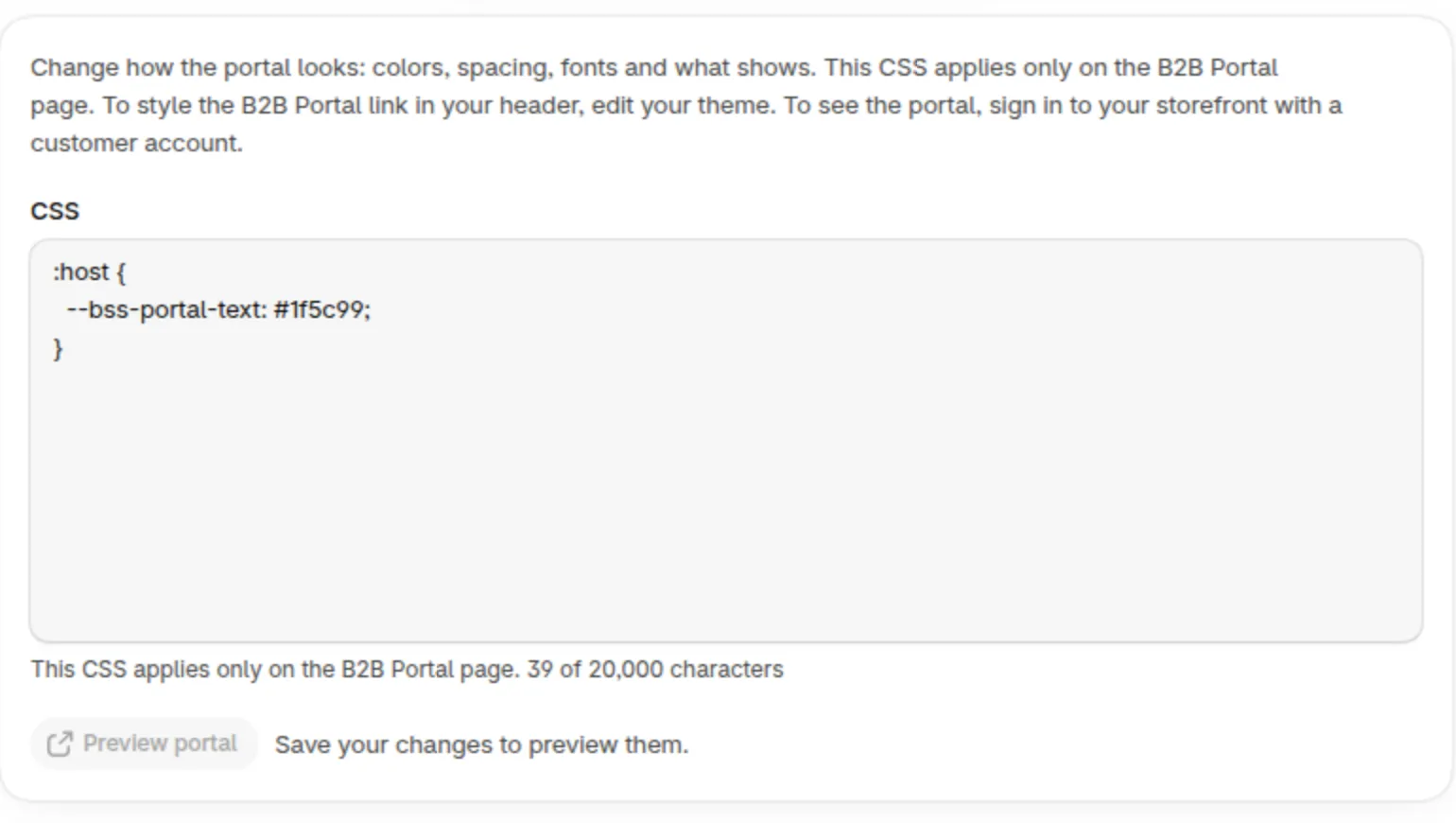
:host { }. For example, paste this to change the main text color::host {--bss-portal-text: #1f5c99;}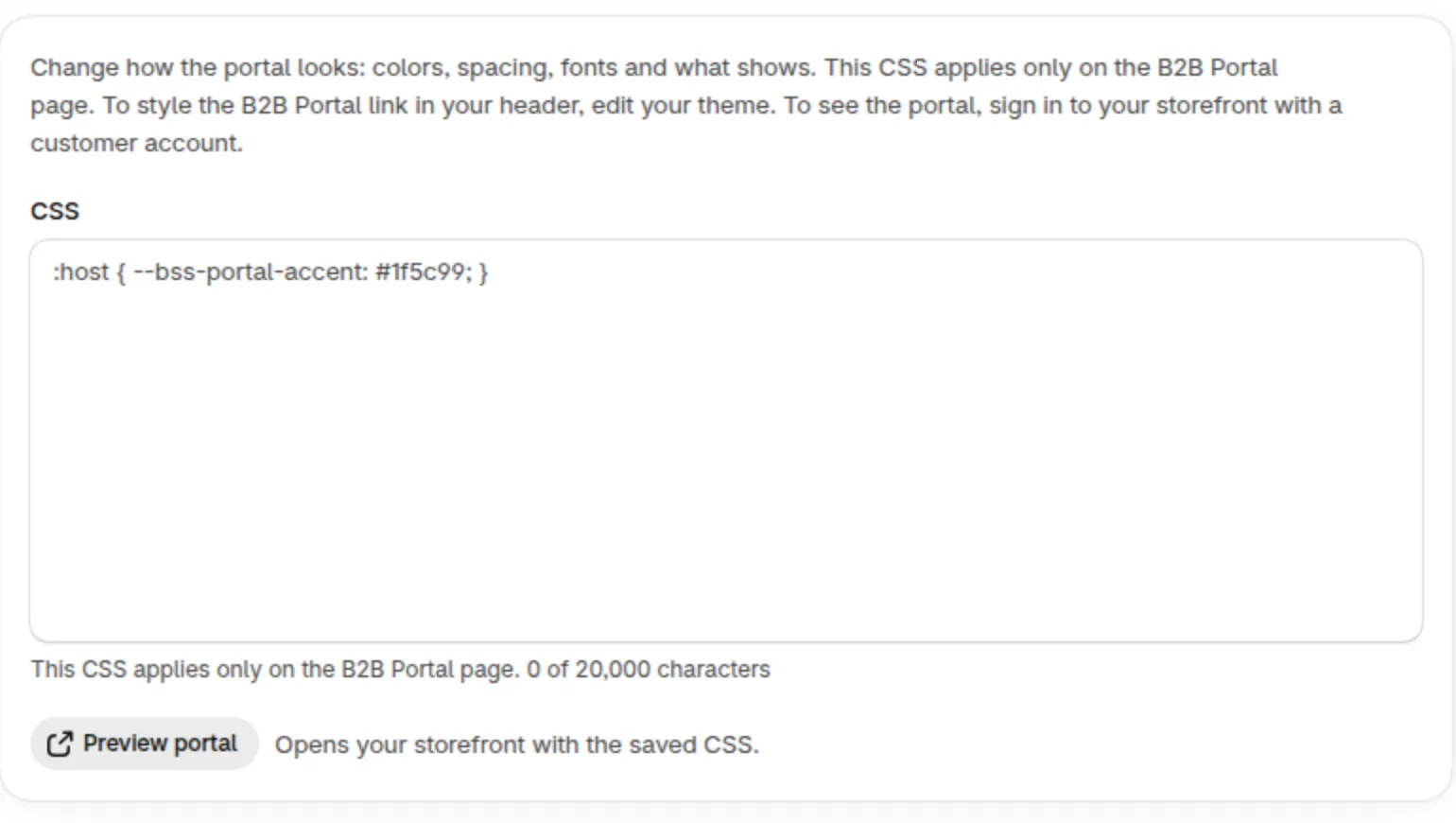
-
Save and preview
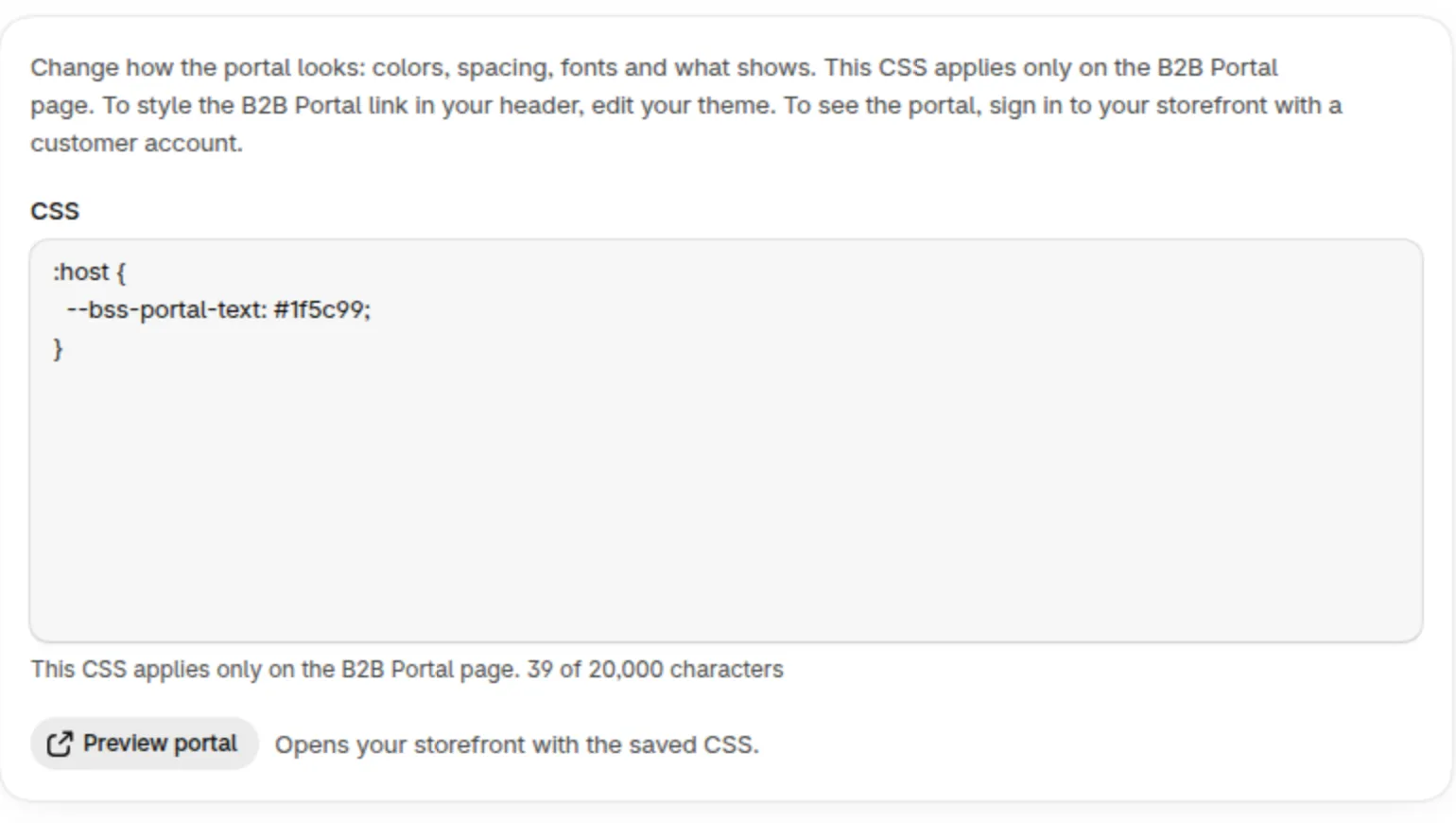
Section titled “Save and preview”Click Save. Then click Preview portal to see the saved CSS on your storefront. The button is available once the portal is on and your changes are saved.
-
Sign in as a customer
Section titled “Sign in as a customer”To see the portal, sign in to your storefront with a customer account.
Under the CSS box, the link Show the 12 variables and 10 class names opens all variables and class names, with a copy-ready example.
Preview portal is disabled while you have unsaved changes, and while the portal is off.
Which variables can I change?
Section titled “Which variables can I change?”Keep variables inside :host { }, not .portal { }. They also work in your theme’s CSS.
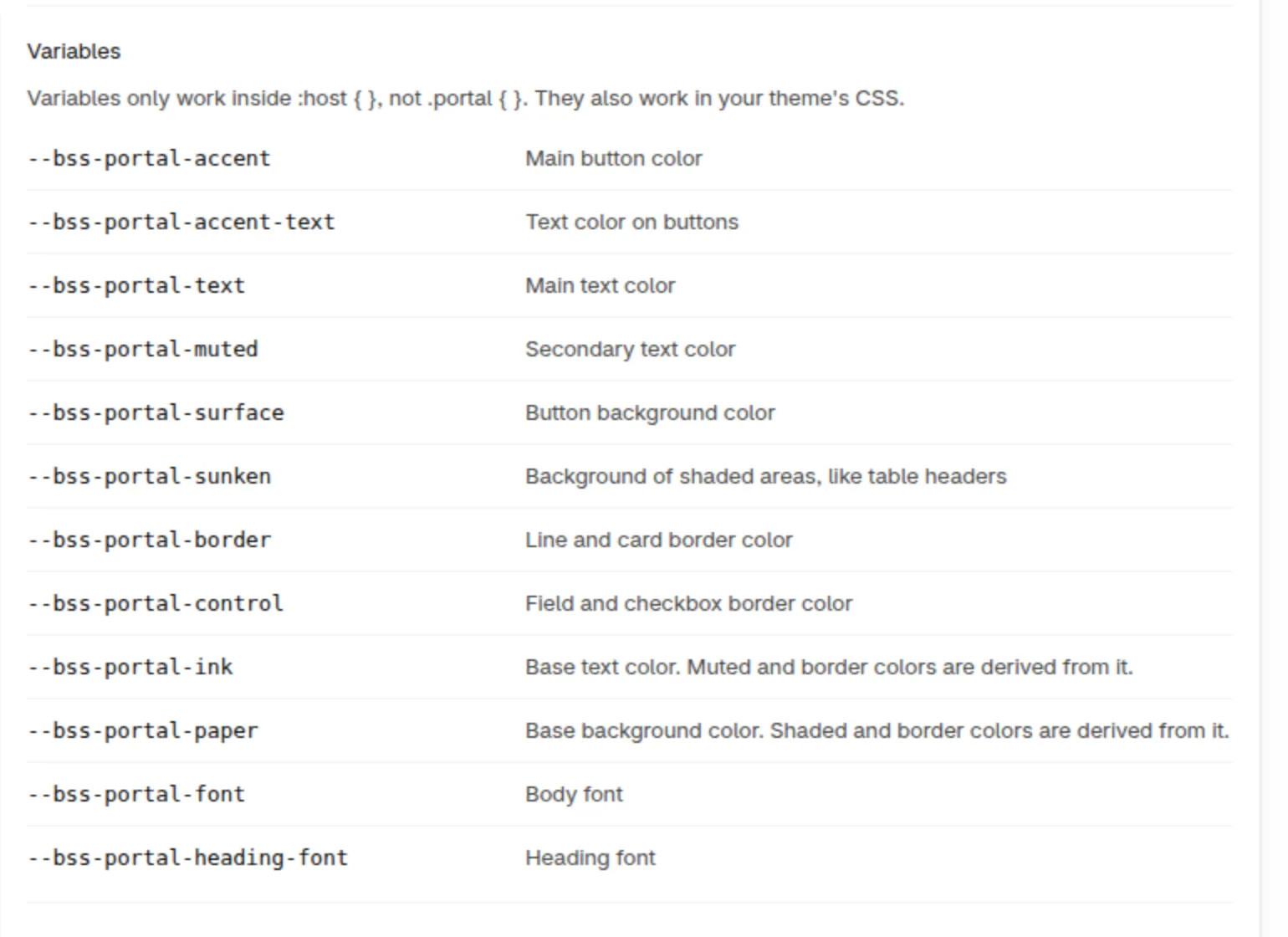
| Variable | What it changes |
|---|---|
--bss-portal-accent |
Main button color |
--bss-portal-accent-text |
Text color on buttons |
--bss-portal-text |
Main text color |
--bss-portal-muted |
Secondary text color |
--bss-portal-surface |
Background of buttons that are not the main button. It also shows as the inner edge of the keyboard focus ring. |
--bss-portal-sunken |
Background of shaded areas, like table headers |
--bss-portal-border |
Line and card border color |
--bss-portal-control |
Field and checkbox border color |
--bss-portal-ink |
Base text color. Muted and border colors are derived from it. |
--bss-portal-paper |
Base background color. Shaded and border colors are derived from it. |
--bss-portal-font |
Body font |
--bss-portal-heading-font |
Heading font |
Which class names can I target?
Section titled “Which class names can I target?”These names stay the same when we update the portal.
| Class name | What it is |
|---|---|
.portal |
The whole portal |
.head |
Portal header: title and who is signed in |
.tabs |
Menu of portal pages |
.hero |
Available credit amount |
.summary |
Summary of credit limit, used and reserved credit |
.ledger |
Unpaid orders table |
.tool |
A tool card on the home page |
.badge |
Status labels, like Past due |
.btn, .btn-primary |
Buttons. .btn-primary is the main button. |
.banner |
Messages and errors |
Examples
Section titled “Examples”Change the main button color. Paste this into the CSS box:
:host { --bss-portal-accent: #1f5c99;}This shows on the sign-in and session-expired screens. It colors only the main button there.
Change the main text color. This shows on the signed-in portal pages:
:host { --bss-portal-text: #1f5c99;}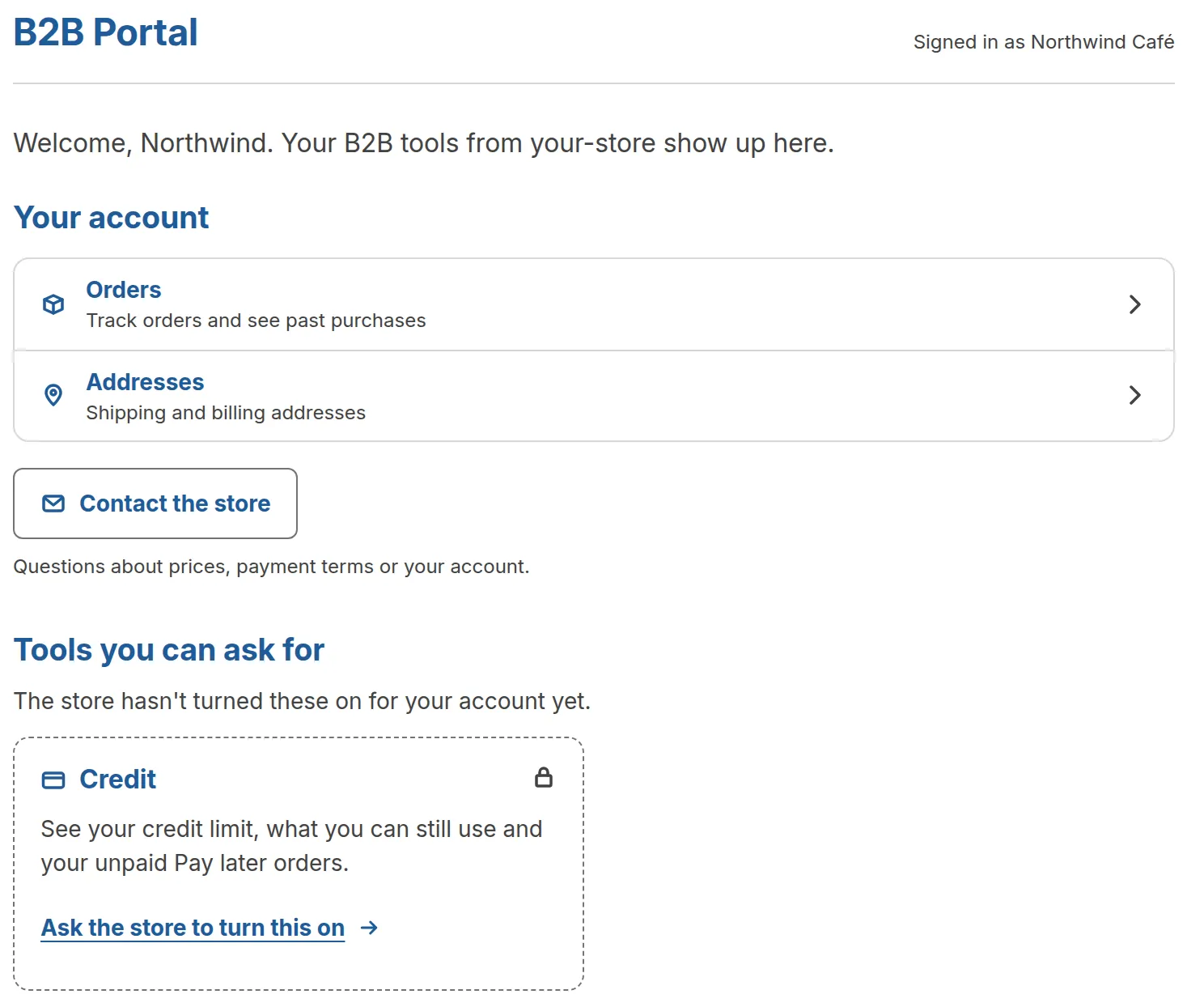
Use the other variables to recolor the rest.
Hide the status labels. Paste this to hide labels such as Past due:
.badge { display: none; }Limits and good to know
Section titled “Limits and good to know”- This CSS applies only on the B2B Portal page. To style the B2B Portal link in your header, edit your theme.
- The limit is 20,000 characters. If Save is refused as too long once line breaks are counted, shorten the CSS.
- There is no CSS editor with color or syntax checks. The box is a plain text area.
- A line with a syntax error is ignored by the browser. The page still shows.
- The CSS does not apply to the Open B2B Portal button in the customer account.
Frequently asked questions
Section titled “Frequently asked questions”Who can help with custom CSS?
Section titled “Who can help with custom CSS?”A developer or our support team. Use live chat in the app.
Why does my CSS not change the portal?
Section titled “Why does my CSS not change the portal?”Check that you clicked Save, then use Preview portal and sign in with a customer account. Keep variables inside :host { }. If the result still looks wrong, clear the box, save and ask support.