
How B2B Prices Combine
BSS B2B Solution calculates a B2B price in a fixed order. Read this page to predict the price a customer will see and to set up rules that give the price you want.
The order
Section titled “The order”- Price List or Custom Pricing sets the base price. They never apply to the same product: when a Price List rule covers it, the Price List wins.
- Volume Pricing then takes its tier discount from that base price, not from the original price.
Inside one module, only one rule applies to a product. By default, the rule with the lowest Priority number wins. If two rules have the same number, the oldest rule wins. Rules of the same module do not add up. In Custom Pricing and Price List you can change this: see When several rules match a product.
Example A: a fixed price, then 20% off
Section titled “Example A: a fixed price, then 20% off”Goal: customers pay $100, and from the first unit they get 20% off that price. The result is $80 per unit.
- Create a Price List rule (or a Custom Pricing rule) with the price type Set a fixed price and the price $100.
- Create a Volume Pricing rule with Quantity-based pricing. In the first tier, set Quantity from to 1 and Discount type to Percentage decrease (%) with 20.
Result: $100, then 20% off $100, which is $80.
Example B: a fixed amount off, then 10% off
Section titled “Example B: a fixed amount off, then 10% off”Goal: take $5 off a $50 product, then give a 10% volume discount.
- Create a Custom Pricing rule with Decrease a fixed amount of $5. The base price becomes $50 - $5 = $45.
- Create a Volume Pricing rule with a tier of Percentage decrease (%) of 10.
Result: $45 minus 10% is $40.50 per unit. Custom Pricing runs first, so the $5 comes off before the 10%. Taking 10% off $50 and then $5 would give $40, which is not what the storefront shows.
When several rules match a product
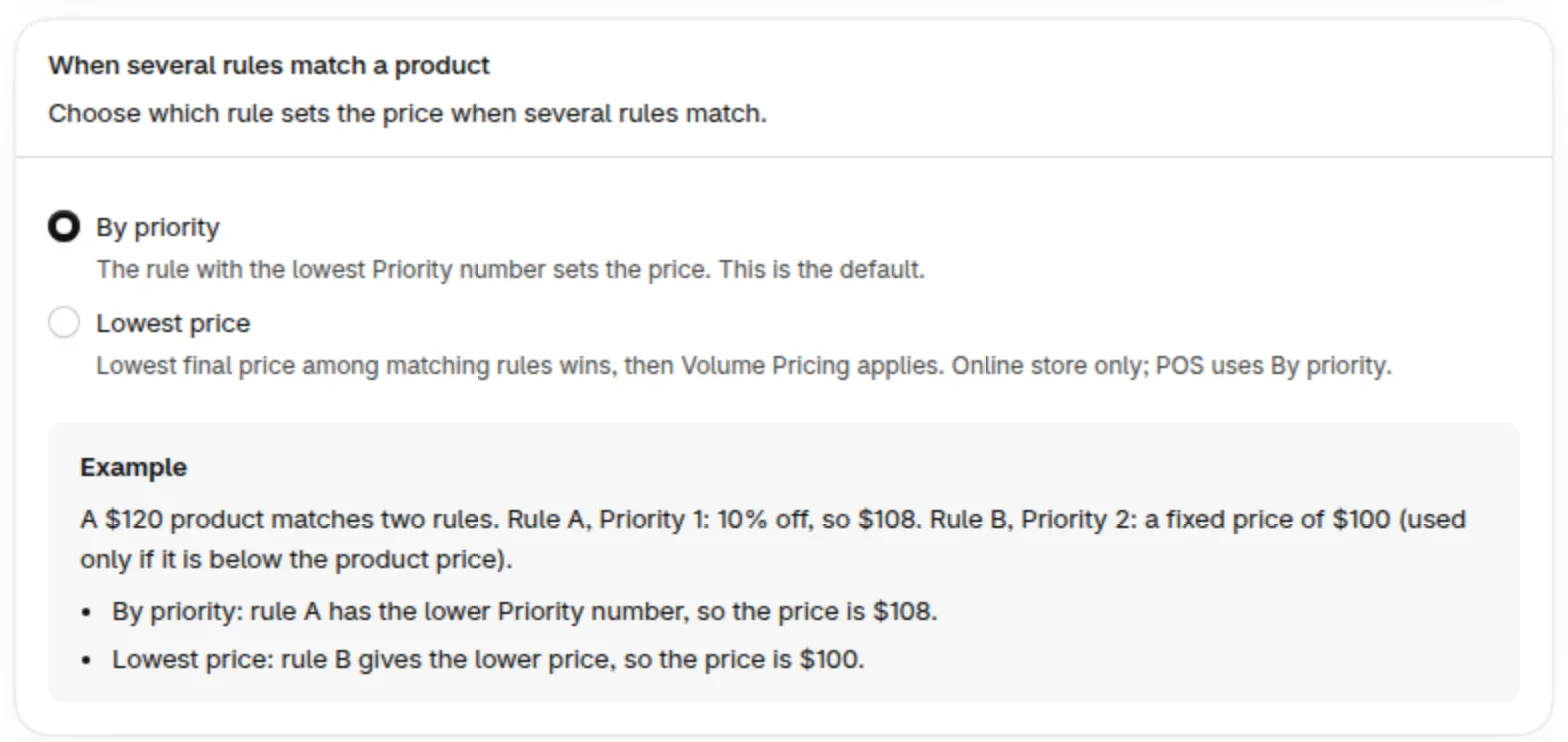
Section titled “When several rules match a product”If several Custom Pricing rules, or several Price List rules, match the same product and customer, you choose which one sets the price. On the Custom Pricing or Price Lists tab, click Price display and find the card When several rules match a product. Each module has its own setting.
| Option | What happens |
|---|---|
| By priority (default) | The rule with the lowest Priority number sets the price. |
| Lowest price | The lowest final price among the matching rules wins. Volume Pricing then applies on that price. Priority only breaks ties: lowest number first, then the oldest rule. |
Click Save to apply your choice. The storefront shows the new prices within a minute.
Example. A $120 product matches two rules. Rule A has Priority 1 and takes 10% off, so $108. Rule B has Priority 2 and sets a fixed price of $100 (used only if it is below the product price).
- With By priority, rule A has the lower Priority number, so the price is $108.
- With Lowest price, rule B gives the lower price, so the price is $100.
If a Volume Pricing tier also applies, it takes its discount from the winning price.
In the rule editor, the note about overlapping rules and the help text of the Priority (0 = first) field change with your choice. With Lowest price, they tell you that customers get the lowest final price and that Priority only breaks ties.
Plan your setup around these points
Section titled “Plan your setup around these points”- One discount type per tier. A Volume Pricing tier uses Fixed price, Fixed-amount decrease or Percentage decrease (%). To mix a fixed price with a percentage, put the fixed price in Price List or Custom Pricing and the percentage in Volume Pricing (Example A).
- Quantity or value, one per rule. A Volume Pricing rule uses Quantity-based pricing or Value-based pricing. For both, create two rules and give each the products and customers it should serve. Only one of them applies to a product at a time.
- One winner per module. If two Custom Pricing rules match, one sets the price and the other is ignored. With By priority (default), the rule with the lower Priority number wins, so give the rule you prefer the lower number. With Lowest price, the rule with the lower final price wins.
Can I choose the lowest price when several rules match? Yes, in Custom Pricing and Price List. Click Price display, find When several rules match a product and choose Lowest price. The lowest final price among the matching rules wins, and Volume Pricing applies on it. This needs storefront version 3, or version 5 with draft order checkout, and it applies to your online store only. POS keeps By priority.
Why does my Price List price win over a better Custom Pricing discount? Price List always goes first for the same product, and Custom Pricing is skipped for it. Keep one of the two modules responsible for each customer group and product.
Does Volume Pricing use the original price? No. It uses the price after Price List or Custom Pricing.
Related pages: How rule priority works, How Custom Pricing and Volume Pricing work together.
Need help setting this up? Contact us at [email protected] or through Live Chat.