
Sales Reps Settings, Report and Activity Log
The Sales Reps page has five tabs: Reps, Report, Commission, Activity log and Settings. This page covers Settings, Report and Activity log. For Commission, read commission.
Key takeaways
Section titled “Key takeaways”- Hold stock for is off by default. Enter a whole number from 1 to 168 hours to reserve stock for rep drafts. 0 turns it off.
- Report shows orders, revenue and unpaid drafts for each rep. You can export it as CSV.
- Activity log lists changes to reps and every draft order a rep creates.
- Report ranges go up to 400 days. Activity log ranges go up to 366 days.
How do I hold stock for rep drafts?
Section titled “How do I hold stock for rep drafts?”Open Settings and enter the number of hours in Hold stock for. Click Save.
| Setting | Values | Default |
|---|---|---|
| Hold stock for | A whole number from 0 to 168 hours (7 days) | 0 (off) |
When it is on, Shopify reserves the items of each rep draft order for this long, so other customers can’t buy them. Stock can stay reserved up to 5 minutes after the time ends. When it is off, drafts do not reserve stock. If you enter anything else, you see Enter a whole number from 0 to 168.
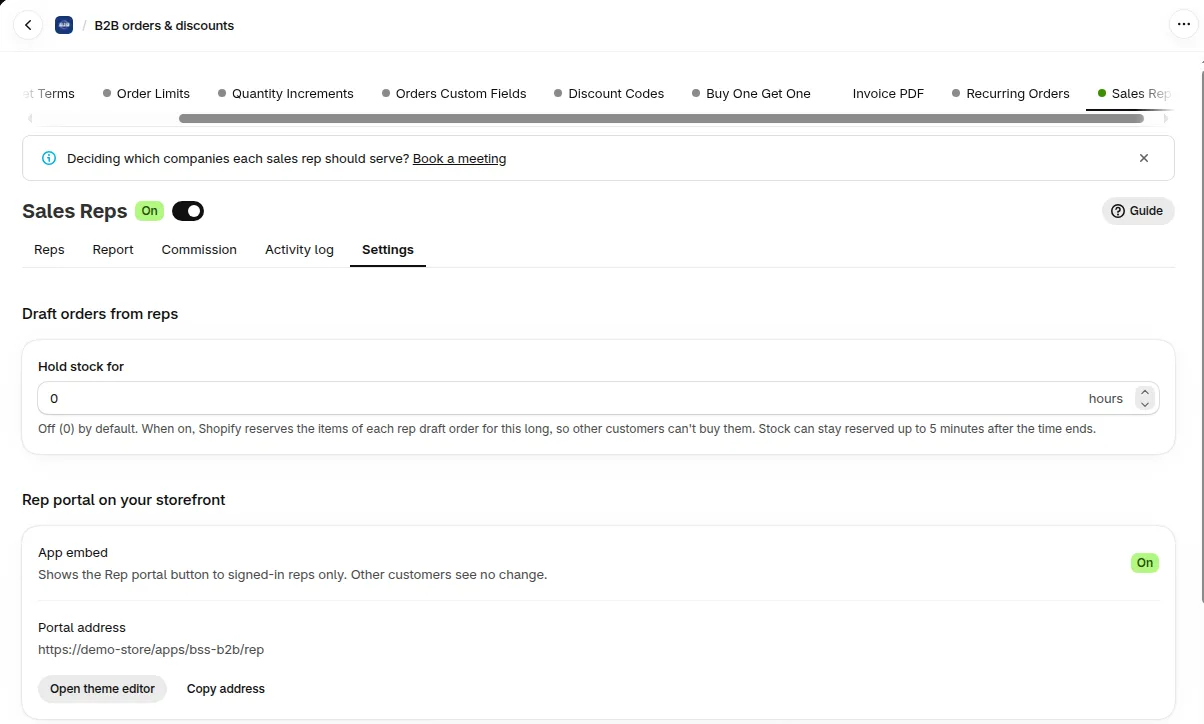
Set how long stock is held for rep drafts.
The rep sees the hold on the review page and on the page Draft order [name] created, only when the setting is above 0.
The Settings tab also has Rep portal on your storefront. It shows whether the App embed is On and the Portal address, with buttons to Open theme editor and Copy address. The Commission rate is not here. You set it on the rep’s page.
How do I read orders and revenue by rep?
Section titled “How do I read orders and revenue by rep?”Open the Report tab. Choose a Period: Today, Last 7 days, Last 30 days, Last 90 days, This month, Last month or Custom range. A custom range can be up to 400 days. Dates use your browser’s time zone.
| Number | What it counts |
|---|---|
| Orders from reps | Orders completed from rep drafts. Cancelled orders are not counted |
| Revenue | After refunds, including tax and shipping |
| Unpaid drafts | Drafts created in the period that are still open |
The table Orders by rep shows each rep with Orders, Revenue, Average order and Unpaid drafts. A rep with orders in two currencies has one row for each currency.
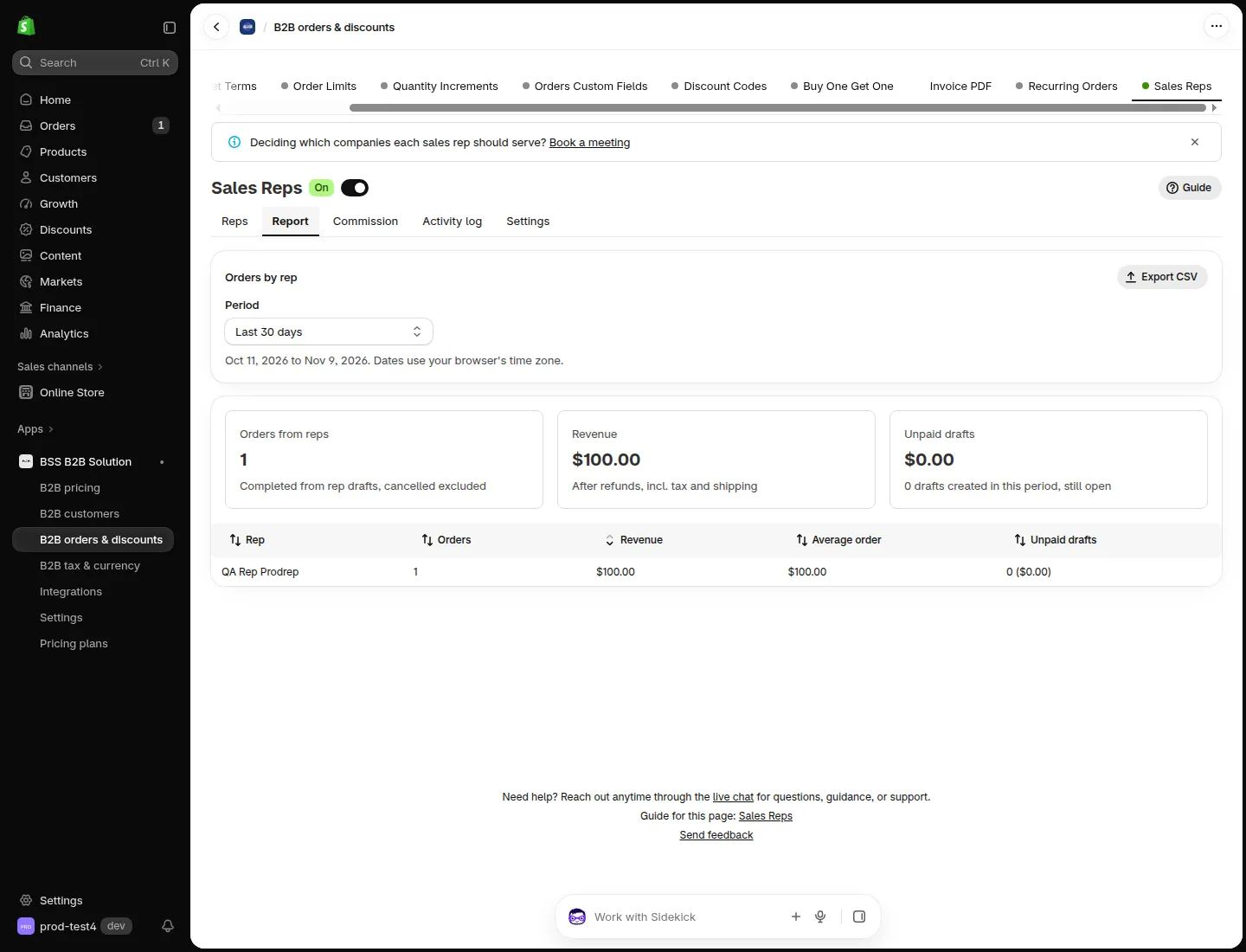
Orders and revenue by rep.
Revenue here is the order total after refunds, with tax and shipping. It is not the same as the commission base. See commission.
How do I export the report?
Section titled “How do I export the report?”Click Export CSV and choose what to export:
- Summary by rep: one row for each rep and currency, with orders, revenue, unpaid drafts and average order.
- Orders and drafts: one row for each order or draft, with rep, date, draft order, order ID, customer, status, number of lines, total, currency and PO number.
The period comes from the Report filter.
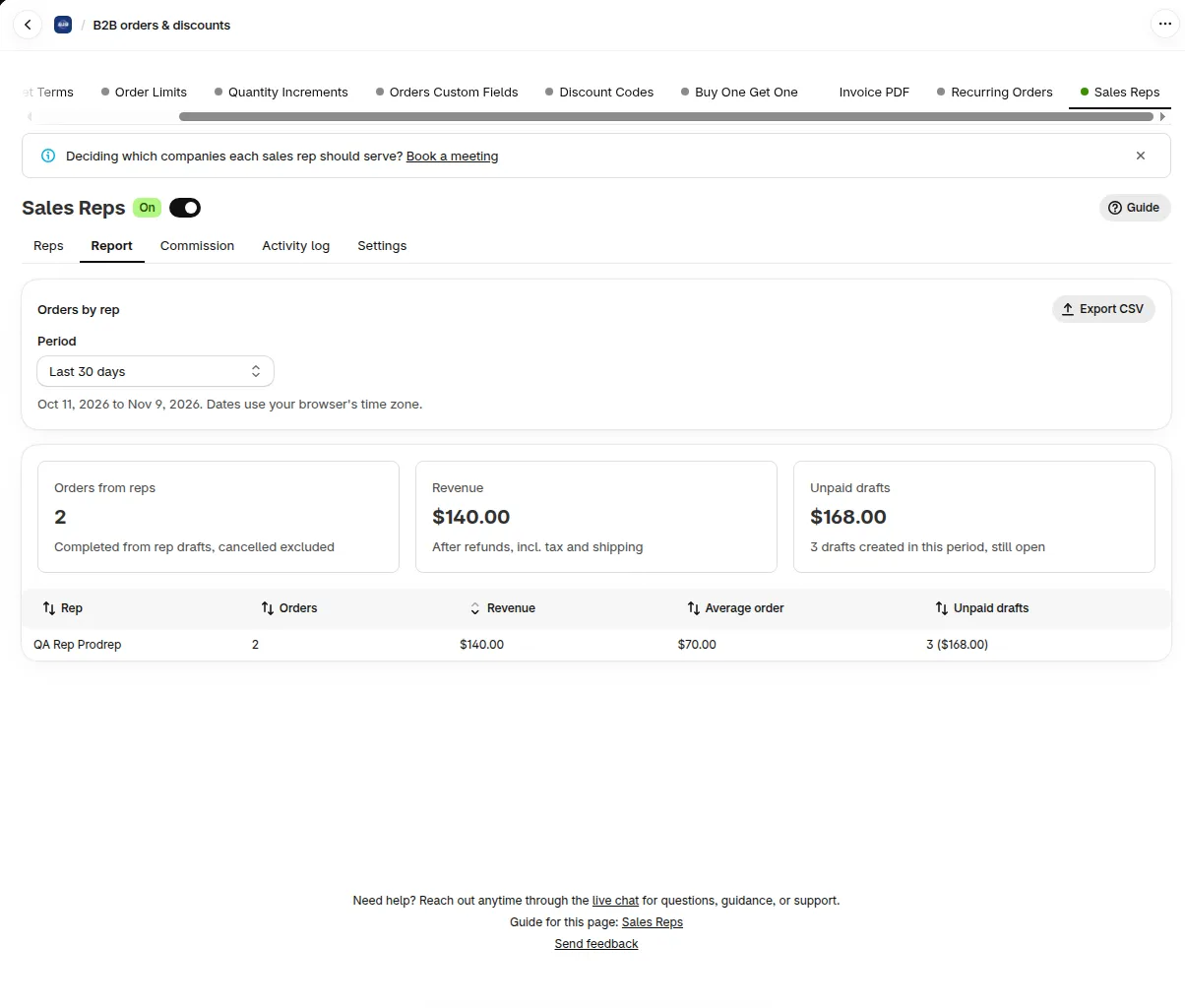
Export CSV sits at the top of the Report tab.
What does the Activity log show?
Section titled “What does the Activity log show?”The Activity log lists changes to reps and every draft order a rep creates or edits. Use the filters Rep, Action type and Period. Times use your browser’s time zone. A date range can be up to 366 days.
| Filter | Options |
|---|---|
| Action type | Draft orders, Price changes, Rep changes, Commission, Imports |
| Period | All time, Last 7 days, Last 30 days, This month, Last month, Custom range |
The log records, among others:
- Created a draft order
- Set a price above the customer price
- Added a rep, Turned on a rep, Turned off a rep and Sent an invite
- Assigned locations, Removed locations, Assigned customers, Removed customers and Imported assignments
- Changed commission rate and Changed max discount
- Paused ordering and Resumed ordering
- Marked commission as paid and Unmarked commission as paid
- Changed stock hold, Turned on Sales Reps and Turned off Sales Reps
Rep changes show the old and new value, for example “Commission rate 5% to 7.5%”. The details do not include email addresses.
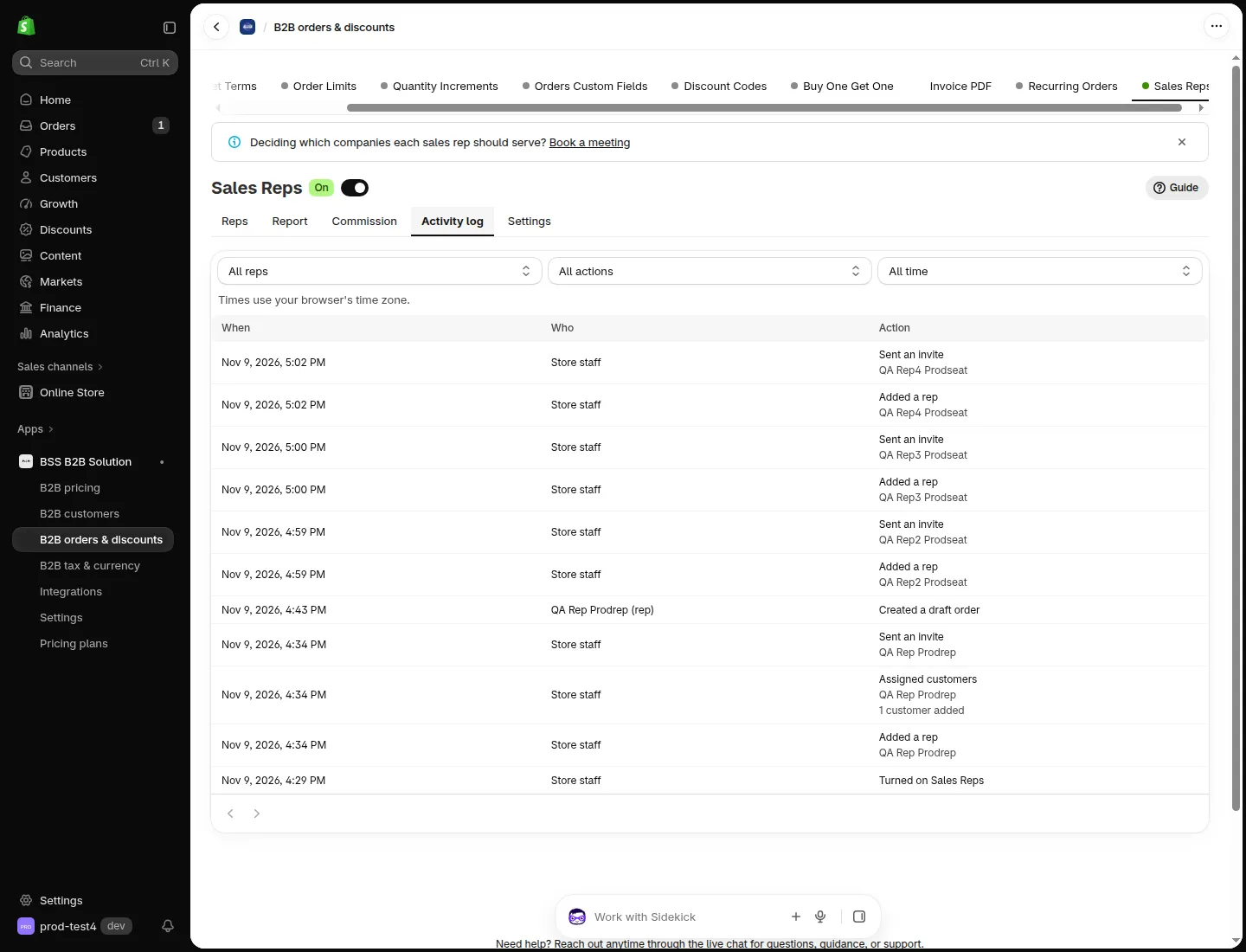
The Activity log lists every rep action.