
Invoice PDF Add-on: Order Summary PDFs, Price, Free Trial
The Invoice PDF add-on for BSS B2B Solution creates a PDF order summary for each Net Terms order and for the paid orders you choose. It carries your logo, and it can be emailed to the buyer with the PDF attached. It costs $12/month, or $129.60/year (10% off), with a 14-day free trial; development stores on the Development plan use it free. An order summary is not a tax invoice.
Key takeaways
Section titled “Key takeaways”- Invoice PDF is an optional add-on on any paid plan. It is not included in any plan.
- It costs $12/month, or $129.60/year (10% off), billed with your plan in one Shopify charge. You can use the free trial once for each add-on on a store. A free use on a development store does not count.
- Every Net Terms order gets a summary while the switch is on. For other orders you choose B2B buyers only, all buyers or none.
- The PDF says “not a tax invoice” on every page and the line cannot be removed.
- Nothing is created until you turn on Create order summaries. Past orders do not get a PDF automatically.
What does Invoice PDF do?
Section titled “What does Invoice PDF do?”Invoice PDF turns an order into a PDF that your buyer’s finance or purchasing team can file. You download it from the admin, or you send it by email. You decide which orders get one, and how the PDF looks.
Each PDF shows:
- Your logo, or your store name as a wordmark when you have no logo, and your store address.
- The title Order summary, the order number, the order date and the PO number when the order has one.
- Bill to with the buyer’s company, the Tax ID when the company has one, the contact and the address, and Ship to.
- A payment box with the payment status, method, currency and, for Net Terms orders, the payment terms and the due date.
- The items with quantity, unit price, discount and amount. Product images and SKU are optional.
- Subtotal, discount, shipping and tax lines when the order has them, then the total, the amount paid and the balance due.
- Your own footer text, and a fixed footer line: “Order summary for order #1001 from Your Store. This is not a tax invoice. Created” followed by the date and time, plus the page number.
The table header repeats on every page and a row never splits across two pages. The next pages show every design setting and the order summaries list.
What does Invoice PDF cost?
Section titled “What does Invoice PDF cost?”Invoice PDF costs $12/month, or $129.60/year (10% off) when your plan is billed yearly. Shopify bills it together with your plan in one charge, after you approve the new total.
| Billing | Price | Notes |
|---|---|---|
| Monthly | $12/month | Added to your plan price |
| Yearly | $129.60/year | 12 months with 10% off |
How the yearly price is worked out: $12 x 12 = $144.00. 10% of $144.00 is $14.40. $144.00 - $14.40 = $129.60.
What the card shows depends on your store:
| Your store | What the Invoice PDF card shows |
|---|---|
| A paid plan at the current plan price | Start 14-day free trial. After the trial is used, Add to plan |
| A plan with a custom price or a discount | Talk to us. Contact support and we will help you add it |
| A development store with the Development plan | Turn on for free. Shopify records a test charge and nobody is billed |
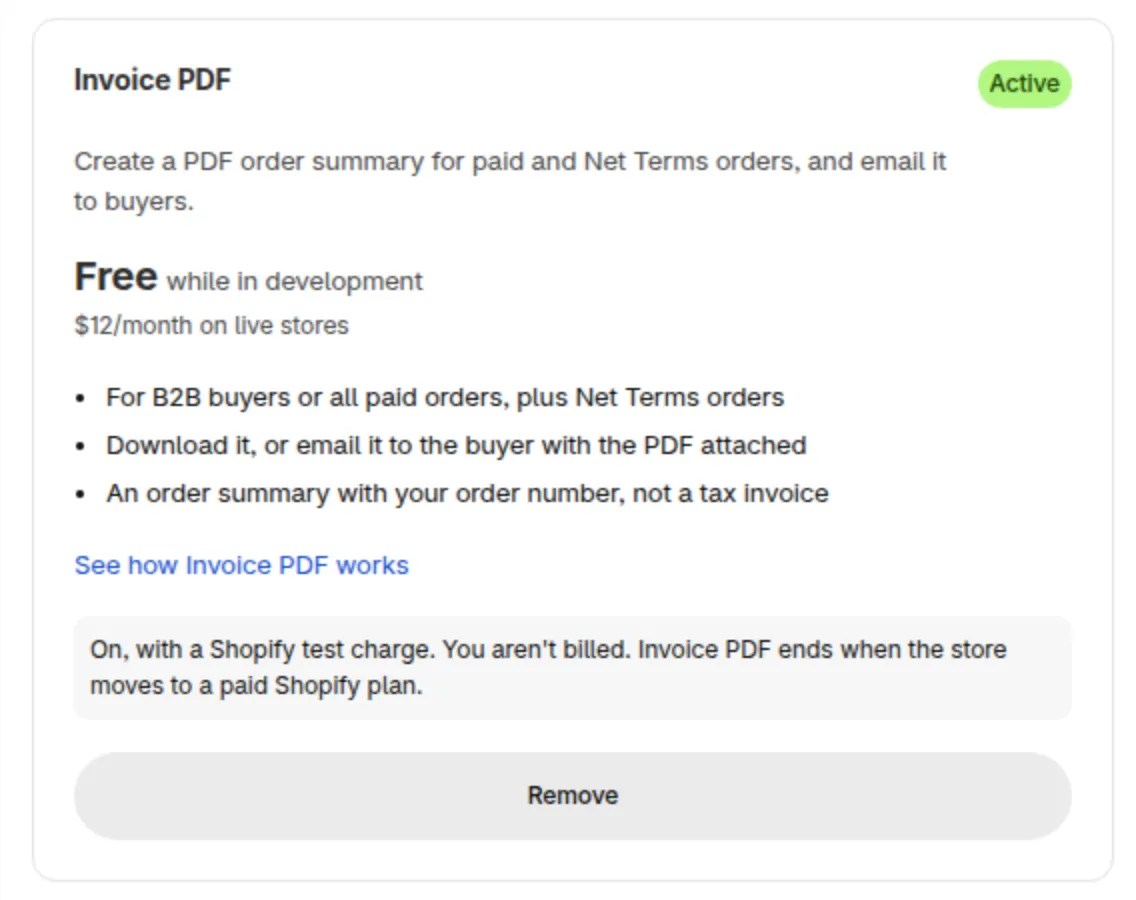
The Invoice PDF card in Pricing plans, under Add-ons, on a development store after you turn it on.
How do I start the free trial?
Section titled “How do I start the free trial?”Click Start 14-day free trial on the Invoice PDF card in Pricing plans > Add-ons. The trial starts at once and nothing is charged for 14 days. You can use the free trial once for each add-on on a store.
-
Open Pricing plans and scroll to Add-ons
Section titled “Open Pricing plans and scroll to Add-ons”In the Shopify admin, open BSS B2B Solution > Pricing plans and scroll to Add-ons.
-
Click Start 14-day free trial
Section titled “Click Start 14-day free trial”The dialog Start your free Invoice PDF trial shows the date the trial ends. Click Start free trial.
-
Check the card
Section titled “Check the card”The card now shows the Free trial badge and the days left. Cancel trial is available until the trial ends.
-
Open the Invoice PDF tab
Section titled “Open the Invoice PDF tab”Go to B2B orders & discounts > Invoice PDF and open Settings.
On a development store with the Development plan, click Turn on for free instead. The dialog Turn on Invoice PDF for free explains the Shopify test charge. Click Continue to Shopify and approve it. Back in the app, the card shows the Active badge and a Remove button.
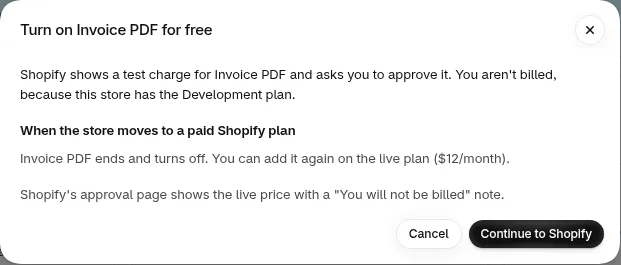
The dialog on a development store.
Expected result: the Invoice PDF tab opens with two sub-tabs, Order summaries and Settings. The list is empty and shows Waiting for your next order once the switch is on. The title shows an Off or On badge. With the switch off, the tab shows No order summaries yet and a Go to Settings button.
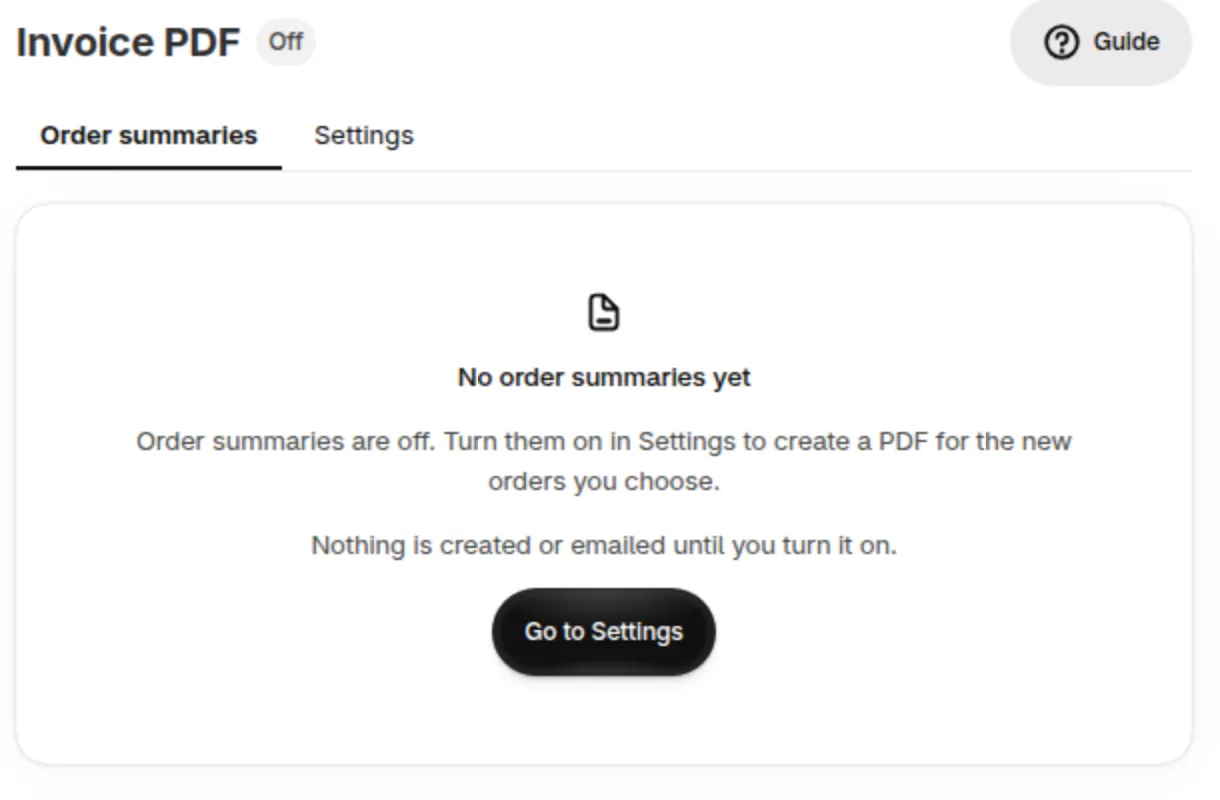
The Order summaries sub-tab with the switch off.
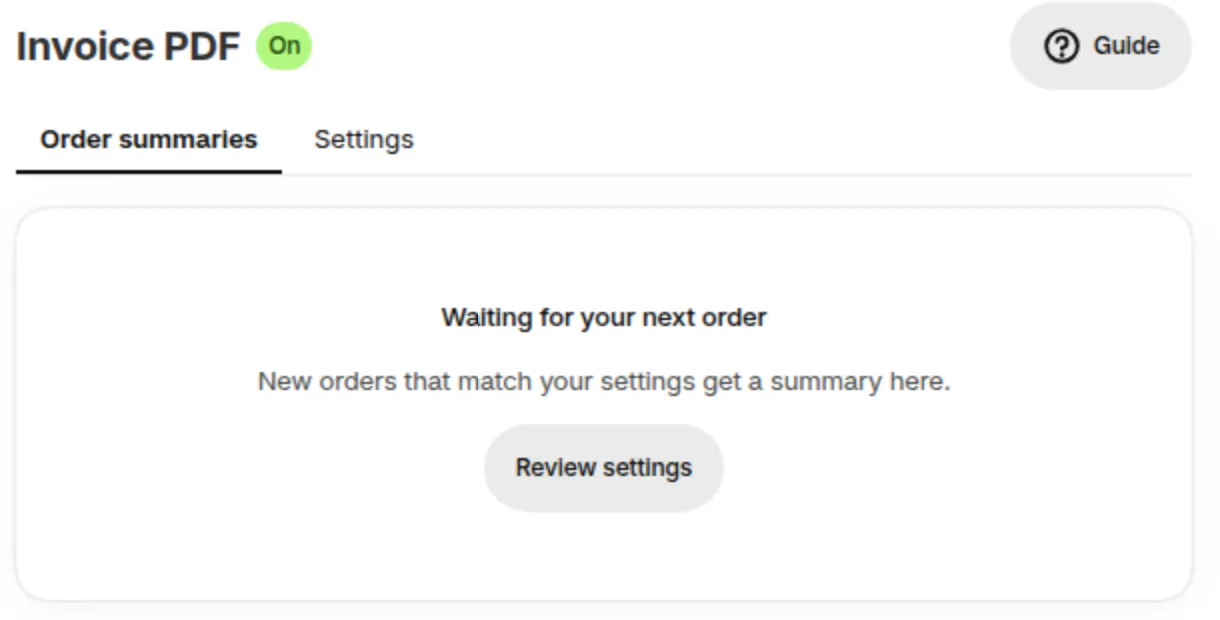
The same sub-tab with the switch on, before the first order arrives.
When the trial ends on the date shown, Invoice PDF turns off unless you approve the new total in Shopify. To continue, click Add to plan on the card, then Continue to Shopify and approve it.
How do I turn on order summaries?
Section titled “How do I turn on order summaries?”Open Invoice PDF > Settings and turn on Create order summaries. Nothing is created and nothing is emailed until you do.
-
Turn on Create order summaries
Section titled “Turn on Create order summaries”Switch Create order summaries on. A line under the switch says in words which orders get a summary now.
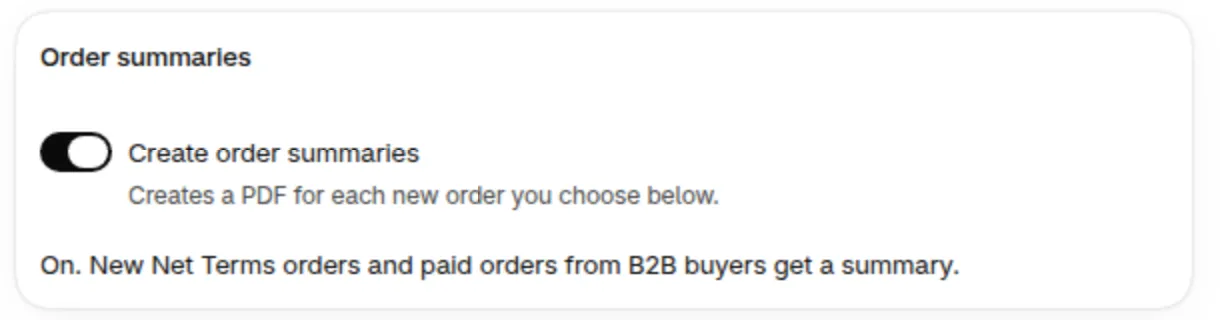
The switch on.
-
Choose which orders
Section titled “Choose which orders”In the Which orders card, pick an option under Create summaries for. The options are in the next section.
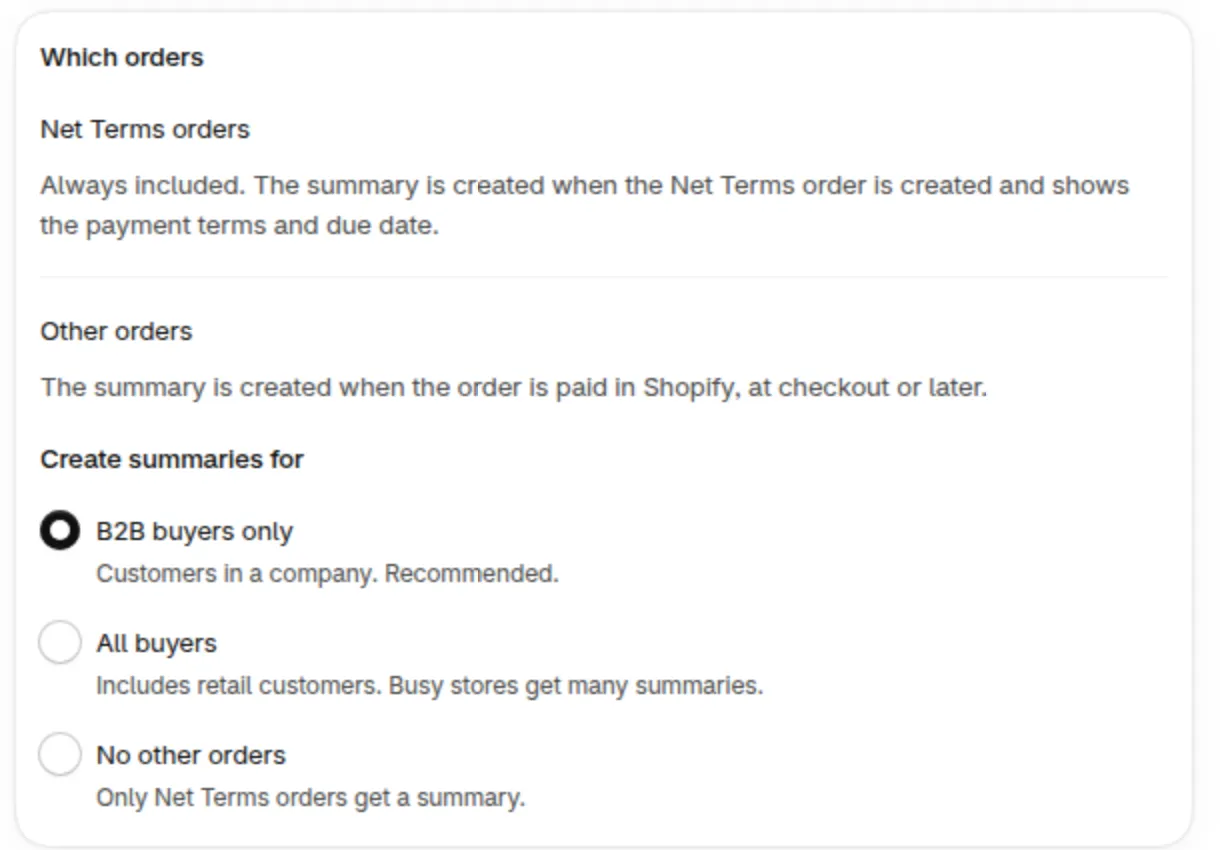
The Which orders card.
-
Check the design, if you like
Section titled “Check the design, if you like”Click Customize design to add your logo and preview a sample order. See Design your order summary PDF.
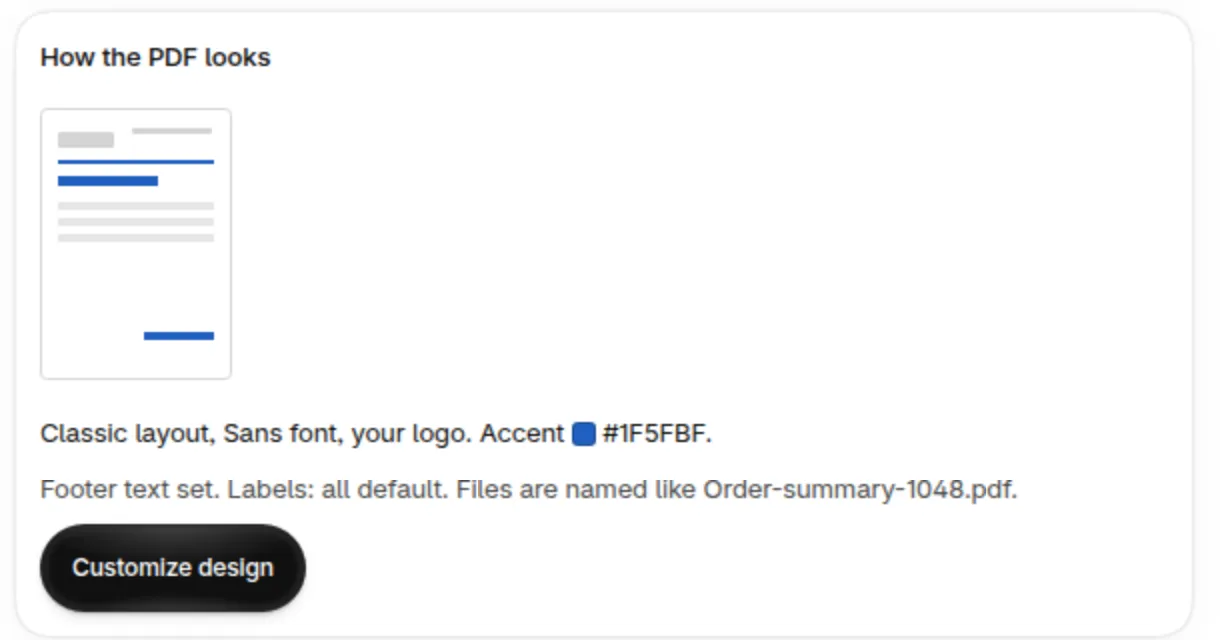
The How the PDF looks card.
-
Decide about email
Section titled “Decide about email”Email each summary to the buyer is off by default. Turn it on when you want buyers to get the PDF without you sending it. See Invoice PDF order summaries.
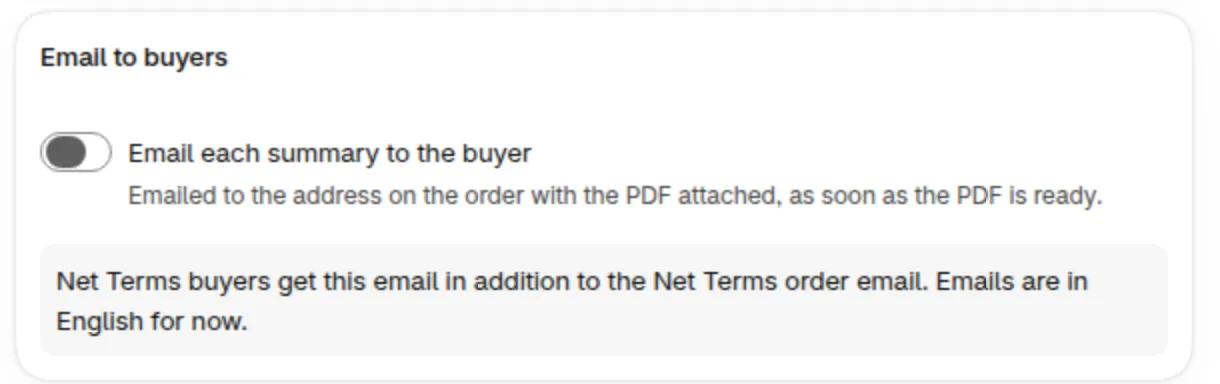
The Email to buyers card with the switch off.
-
Click Save
Section titled “Click Save”Click Save in the Unsaved changes bar. The message Settings saved confirms it.
Which orders get a PDF?
Section titled “Which orders get a PDF?”Net Terms orders always get a summary while the switch is on. For all other orders you choose under Create summaries for.
| Order | Gets a summary when | Setting |
|---|---|---|
| Net Terms order | The Net Terms order is created | Always included |
| Paid order placed for a company | Shopify reports the order as paid, at checkout or later | B2B buyers only (the default) or All buyers |
| Paid order placed without a company | Shopify reports the order as paid | All buyers only |
| Any other order | Never | No other orders |
Cancelled and voided paid orders are skipped. A Net Terms order gets one summary, not a second one when it is later paid. All buyers includes retail customers, so a busy store gets many summaries.
What happens after I turn it on?
Section titled “What happens after I turn it on?”New orders that match your settings get a PDF. The list shows Creating, then Ready.
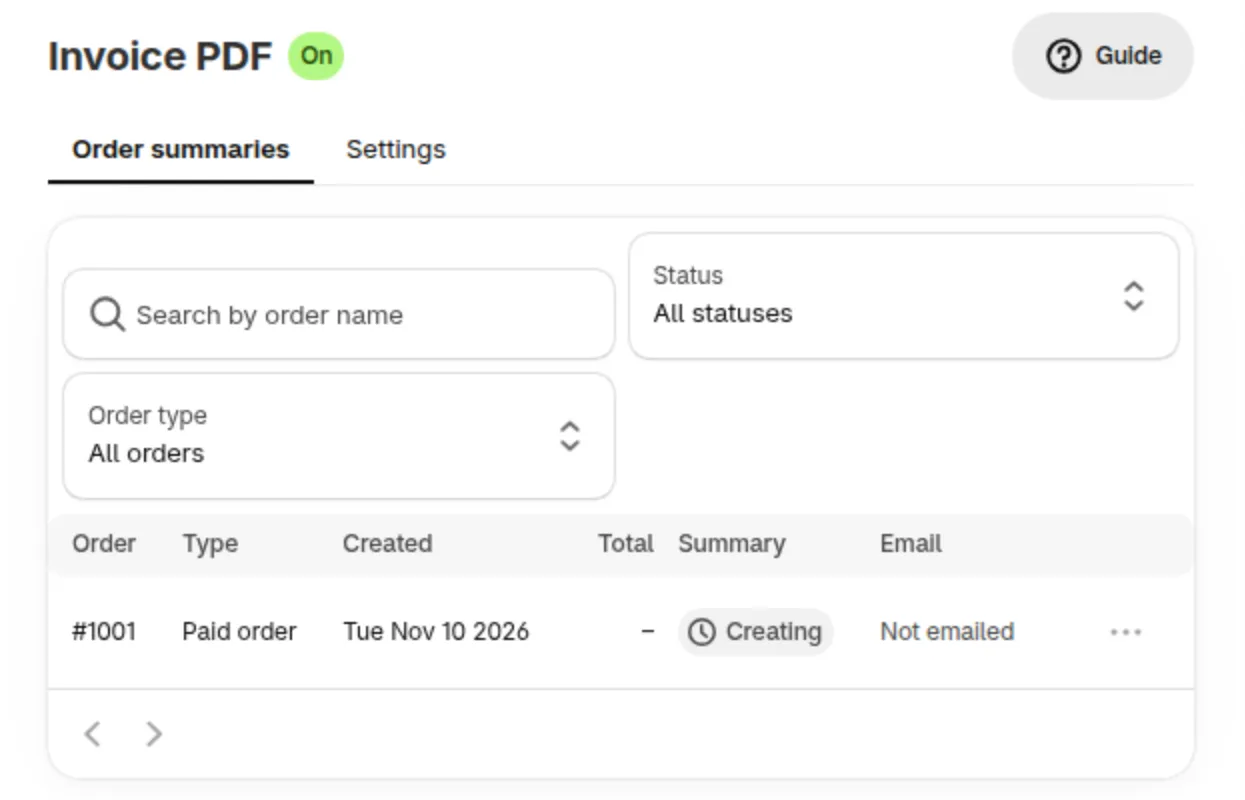
A new row while the PDF is being made.
Only orders created (Net Terms) or paid (other orders) after the add-on is active and the switch is on get one.
How do I remove the add-on or end the trial?
Section titled “How do I remove the add-on or end the trial?”When you remove the add-on or the trial ends, new summaries and emails stop and nothing is deleted. The details are in the Invoice PDF FAQ.
To remove the add-on, click Cancel trial during a trial, or Remove on a paid add-on. Cancel trial ends it at once. Remove opens Remove Invoice PDF?; click Remove add-on and approve the new total in Shopify. The add-on keeps working until the end of your billing period.
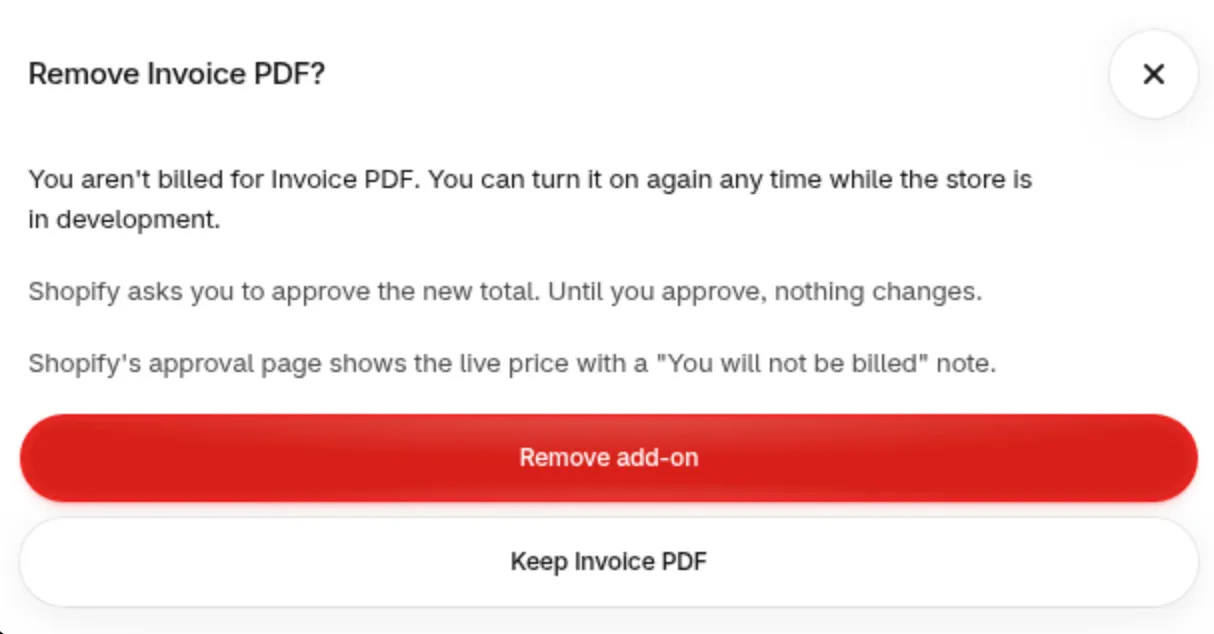
The Remove Invoice PDF? dialog on a development store, with Remove add-on and Keep Invoice PDF.
Related pages
Section titled “Related pages”- Design your order summary PDF: logo, colors, labels and file name.
- Invoice PDF order summaries: statuses, email and versions.
- Invoice PDF FAQ: tax invoices, language, limits and data.
- Email Sender: the sender address for emails.
- Sufio: an invoice app that creates tax invoices.
Ready to try it? Start the free trial from Pricing plans > Add-ons.