
Add Recurring Orders and Create a Schedule
To run Recurring Orders you add the add-on and create a schedule for each buyer. This page covers both, and you can create schedules first. A schedule needs a buyer, products with quantities, how often, a first date and a mode.
Key takeaways
Section titled “Key takeaways”- You can open Recurring Orders and save schedules before you add the add-on. They stay Paused: add-on not active until you add it and click Resume.
- Recurring Orders is billed with your plan. Its card on Pricing plans > Add-ons shows the price and the free trial.
- It works on your current storefront, version 3 or version 5.
- After you turn it on, it needs a few minutes to get ready before schedules can run.
- You can add up to 50 products to one schedule, each with a quantity from 1 to 99,999.
- Repeat every takes 1 to 12, in weeks or months.
- Upcoming orders shows the next 3 dates before you save.
- Run now creates one draft today so you can check the setup.
How do I add Recurring Orders?
Section titled “How do I add Recurring Orders?”- Go to Pricing plans > Add-ons.
- Add Recurring Orders from its card and approve the charge in Shopify.
- Go to B2B orders & discounts > Recurring Orders.
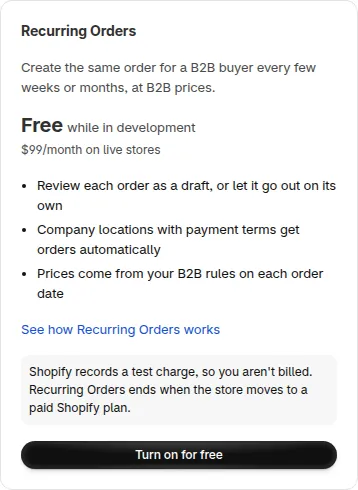
The card shows Free while in development only while the store is a development store. A live store pays the monthly price on the card, $99 per 30 days as stated above.
If your plan has a custom price, you cannot add the add-on from the card. Contact support to turn it on.
Recurring Orders works on your current storefront, version 3 or version 5. You do not need to change your checkout version.
Can I create a schedule before I add the add-on?
Section titled “Can I create a schedule before I add the add-on?”Yes. Without the add-on you can still open Recurring Orders, create a schedule and edit it. A banner at the top of the page tells you the add-on is not on yet. What it says depends on your store:
- Free trial available: “Add-on: free 14-day trial, then” the add-on price, with a Start free trial button.
- No trial available: “Add-on:” the price, then “Set things up now and pay when you turn it on for customers.” with a View plan button.
- Development store: “Add-on: free on development stores. Turn it on from your plan page.” with a View plan button.
Then:
- The schedule is saved as paused and shows Paused: add-on not active in the list.
- The Schedule column shows Not scheduled, and Next order on the schedule page shows the same. No draft orders or orders are created.
- Run now is not shown on a paused schedule.
- Resume, and the checkbox Buyer can manage this schedule in the B2B Portal, open a window that depends on your store.
Trial available:
- The window is Start your free Recurring Orders trial with a Start free trial button.
- For Resume, the schedule resumes right after the trial starts.
- For the checkbox, buyer access turns on after the trial starts. Save the schedule to keep it.
No trial available:
- The window is Add Recurring Orders to your plan. It says Recurring Orders is not on your plan yet.
- Click View plan to add it, or Cancel to stay.
- View plan leaves the screen, and what you entered on this screen is not saved.
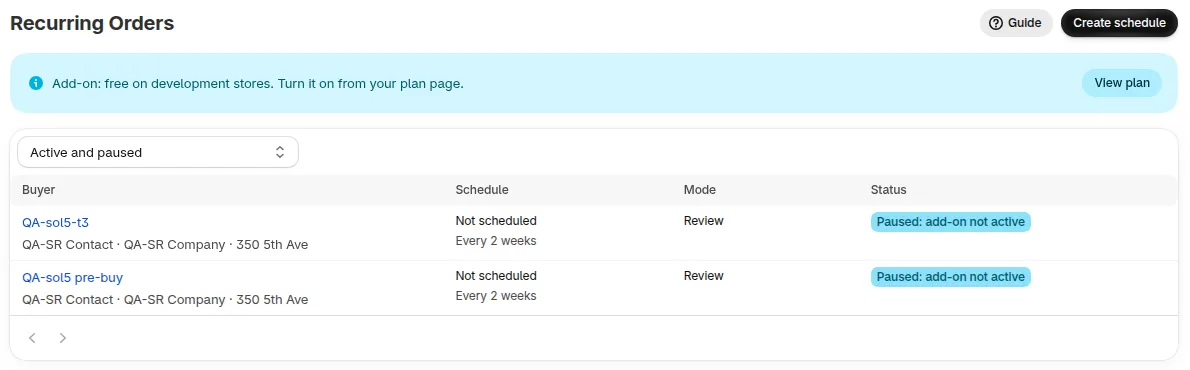
Example from a development store. The banner wording on your store may differ, as listed above.
To start the schedules, add the add-on as shown in How do I add Recurring Orders?. Then open each schedule and click Resume. Schedules do not start on their own.
What happens after I turn it on?
Section titled “What happens after I turn it on?”Recurring Orders needs a few minutes to prepare pricing. Until it is ready, the admin shows the banner Recurring Orders is getting ready. Refresh the page to check again.
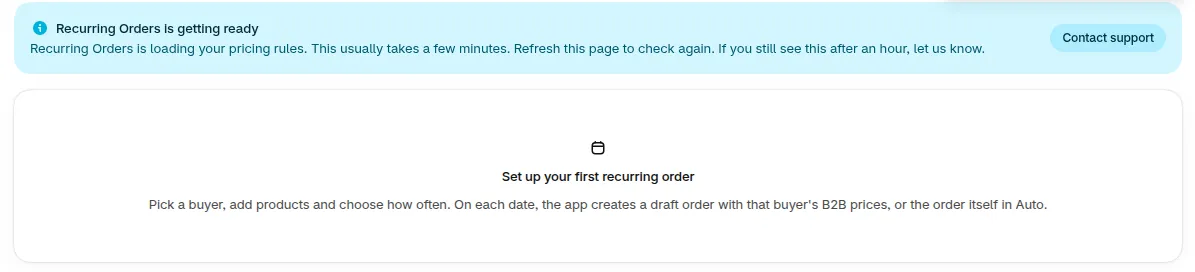
Schedules cannot run during that time. A run that falls in this window shows “Your pricing rules weren’t ready yet, so prices couldn’t be calculated. The next run will try again.” in Run history, and the next run tries again. If it still fails after several tries, the run fails and you can use Run now. If you still see the banner after an hour, click Contact support.
How do I create a schedule?
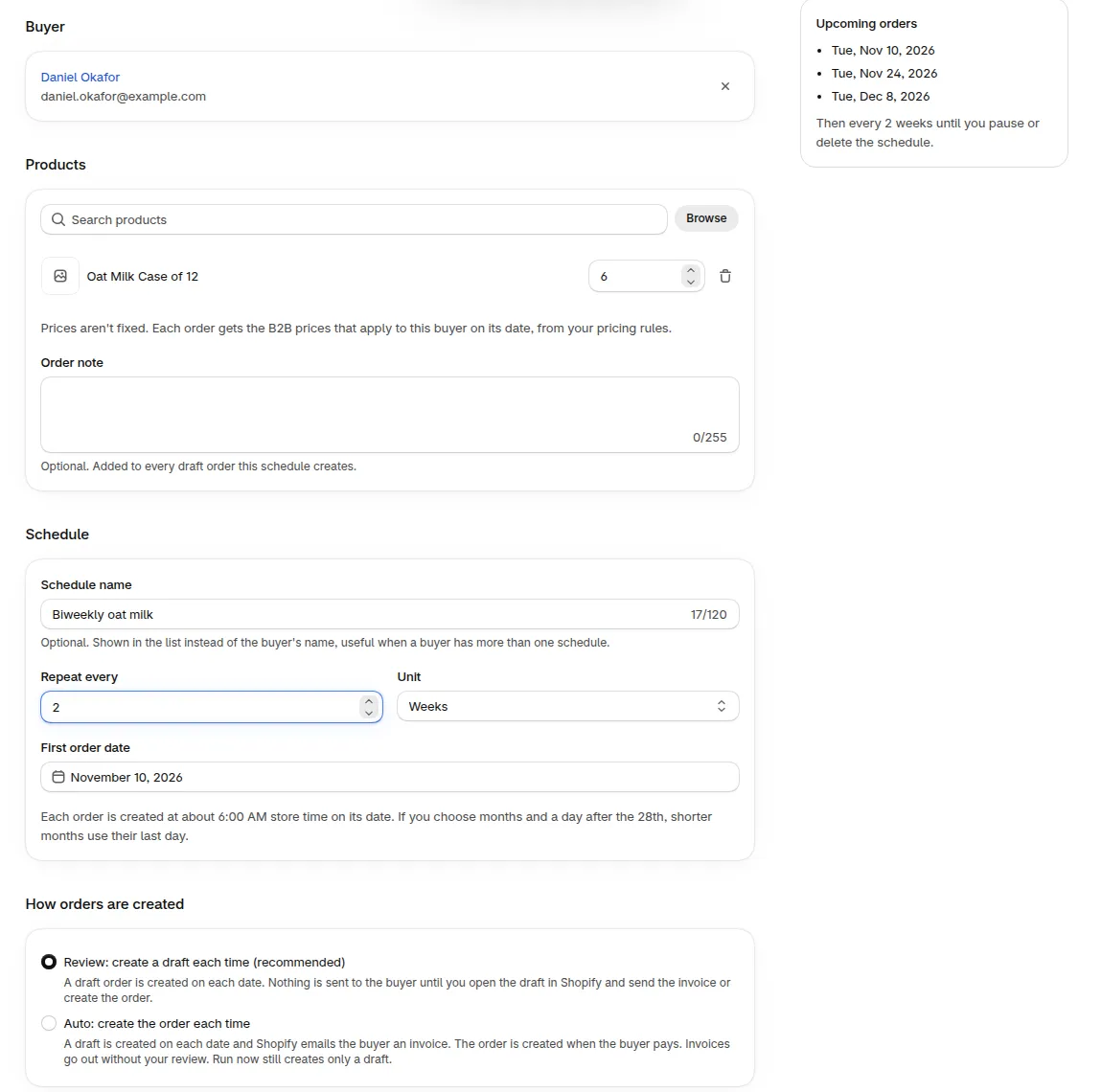
Section titled “How do I create a schedule?”- Click Create schedule.
- In Search customers, find the customer. If they buy for a company, choose the Company location next. Prices and payment terms follow the location.
- Add products with Search products or Browse, and set a quantity for each.
- Optional: enter a Schedule name, for example “Weekly cafe restock”. It shows in the list instead of the buyer’s name.
- Optional: add an Order note. It is added to every draft order this schedule creates.
- Set Repeat every and the Unit (Weeks or Months), then the First order date.
- Under How orders are created, choose Review or Auto. See Review or Auto.
- Check Upcoming orders, then click Save.
For a weekly schedule and three sample run history rows, see the example in Run history.
What happens on the first date?
Section titled “What happens on the first date?”- The first date defaults to tomorrow.
- Each order is created at about 6:00 AM store time on its date.
- If you pick today after 6:00 AM store time, the first order is created within about 15 minutes of saving.
- With months and a day after the 28th, shorter months use their last day.
How do I check a schedule before the first date?
Section titled “How do I check a schedule before the first date?”Open the schedule and click Run now, then Create draft now. It creates one draft order today, with today’s B2B prices, and does not change the schedule’s dates. Run now always creates only a draft, even in Auto, so nothing is sent to the buyer. You can use it once a day, and it works on active schedules only.
How are taxes handled?
Section titled “How are taxes handled?”Taxes follow the buyer’s tax exemption in Shopify. The order is priced when it runs, using your current pricing rules. See the FAQ for details.
What can I change after saving?
Section titled “What can I change after saving?”Click Edit schedule. Changes apply from the next order. Draft orders and orders already created do not change.
The buyer and the company location cannot be changed. To order for someone else, create a new schedule.
Why can’t I save?
Section titled “Why can’t I save?”The form lists what to fix. These are the checks:
- Choose a customer.
- Add at least one product, up to 50.
- Enter a quantity from 1 to 99,999 for each product.
- Enter a number from 1 to 12 for Repeat every.
- Choose today or a later date for First order date.
- Remove a product that no longer exists.
- Choose Review when the company location has no payment terms.
Need help with Recurring Orders? Reach us at [email protected] or Live Chat.