
Customize Order Summary PDF: Logo, Colors, Labels
In the PDF design editor you set your logo, accent color, font, layout, header note, footer text, labels and file name for Invoice PDF order summaries. A live preview on the right shows each change. Nothing is saved until you click Save.
Key takeaways
Section titled “Key takeaways”- Open the editor from Invoice PDF > Settings > How the PDF looks > Customize design.
- Edit on the left, live preview on the right. Previewing never saves a change and never sends an email.
- The logo is a PNG or JPG up to 1 MB. With no logo, your store name prints.
- A new design applies to summaries created after you save. Older summaries keep their look until you create a new version.
- The line “This is not a tax invoice” stays on every PDF whatever you change.
How do I open the PDF design editor?
Section titled “How do I open the PDF design editor?”Go to Invoice PDF > Settings, find the How the PDF looks card and click Customize design. The card sums up your current choices, such as layout, font and logo.
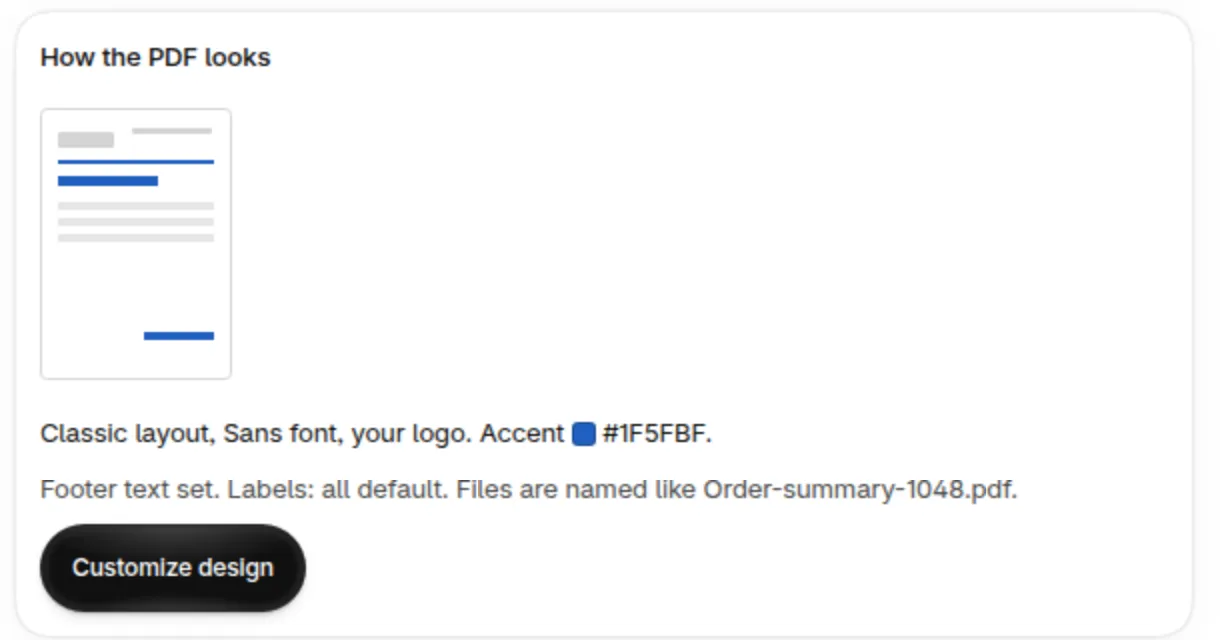
The How the PDF looks card in Settings.
The dialog PDF design opens with Edit on the left and Preview on the right. On a narrow screen they become two tabs, Edit and Preview.
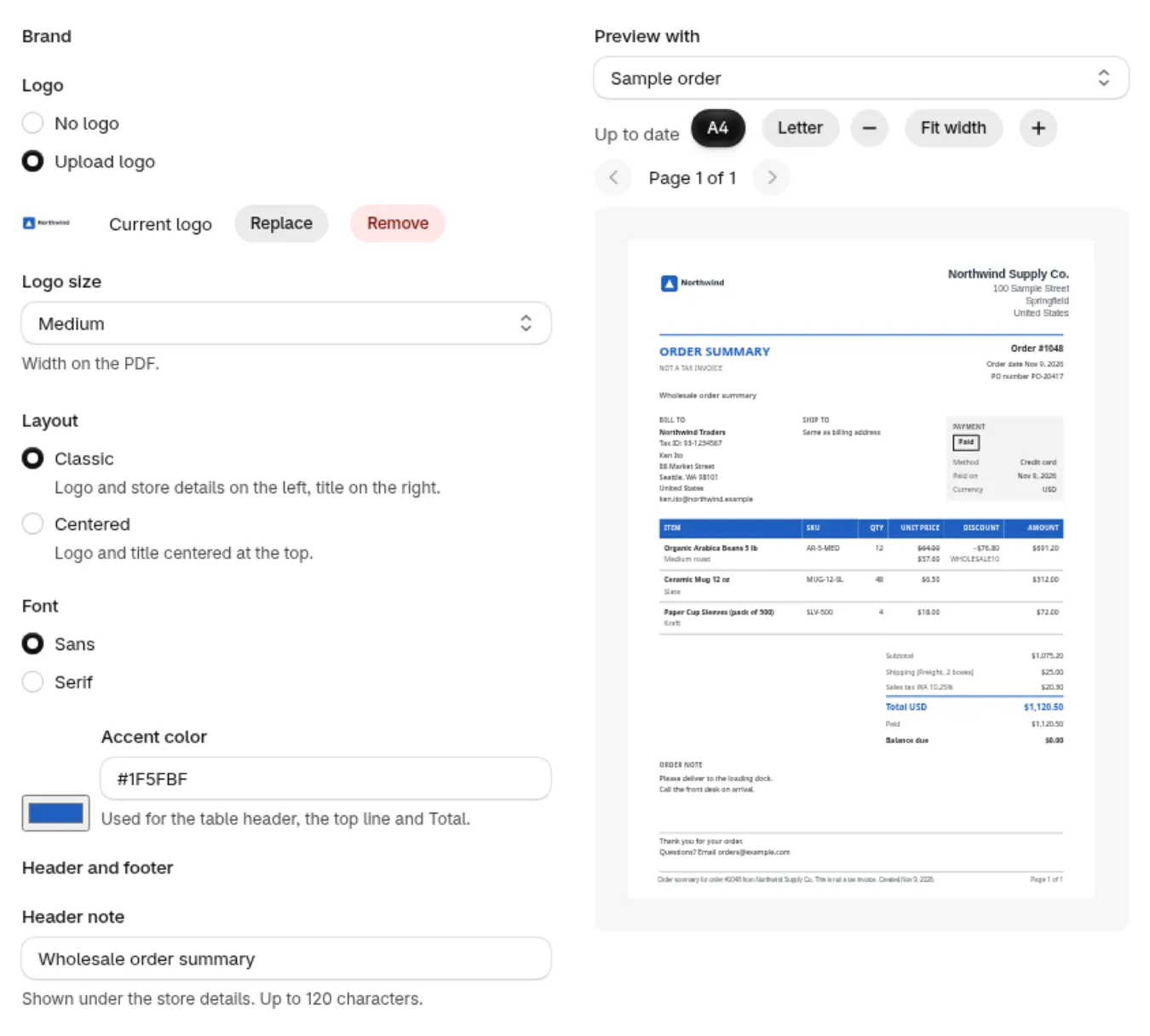
The editor with your settings on the left and the live preview on the right.
What can I change?
Section titled “What can I change?”The settings sit in five groups. The table lists all of them with their defaults and limits.
| Group | Setting | Options | Default | Limit |
|---|---|---|---|---|
| Brand | Logo | No logo, or an uploaded PNG or JPG | No logo | 1 MB, 2000 px on a side, 4,000,000 pixels |
| Brand | Logo size | Small, Medium, Large | Medium | |
| Brand | Accent color | A hex code such as #1F5FBF |
#303030 |
|
| Brand | Font | Sans or Serif | Sans | |
| Brand | Layout | Classic or Centered | Classic | |
| Header and footer | Header note | One line of text | Empty | 120 characters |
| Header and footer | Footer text | Up to 6 lines | Empty | 100 characters per line, 500 in all |
| Show on the PDF | Product images | On or off | Off | |
| Show on the PDF | SKU | On or off | On | |
| Show on the PDF | Original prices and discounts | On or off | On | |
| Show on the PDF | Order note | On or off | On | |
| File name | File name | Text with variables | Order-summary-{order_name} |
80 characters |
| Labels | 12 labels | Your own words | See the Labels table | 40 characters each |
Logo. Upload a PNG or JPG. The type is checked on the file itself, not on its name, so a renamed GIF, WebP, SVG or PDF is refused. The file can be up to 1 MB, 2000 px on its longest side and 4,000,000 pixels in all. Choose Small, Medium or Large under Logo size to set its width on the PDF. With No logo, your store name prints as a wordmark.
Accent color. The color is used for the table header, the top line and the Total. Enter it as a hex code, for example #1F5FBF. A very light color would not print on white paper, so the PDF uses dark gray for those three places instead, and the editor tells you.
Font and layout. Choose Sans or Serif. In the Classic layout the logo and store details sit on the left and the title on the right. In the Centered layout the logo and title are centered at the top.
Header and footer
Section titled “Header and footer”The Header note is one line under your store details, up to 120 characters. Line breaks you paste are turned into spaces.
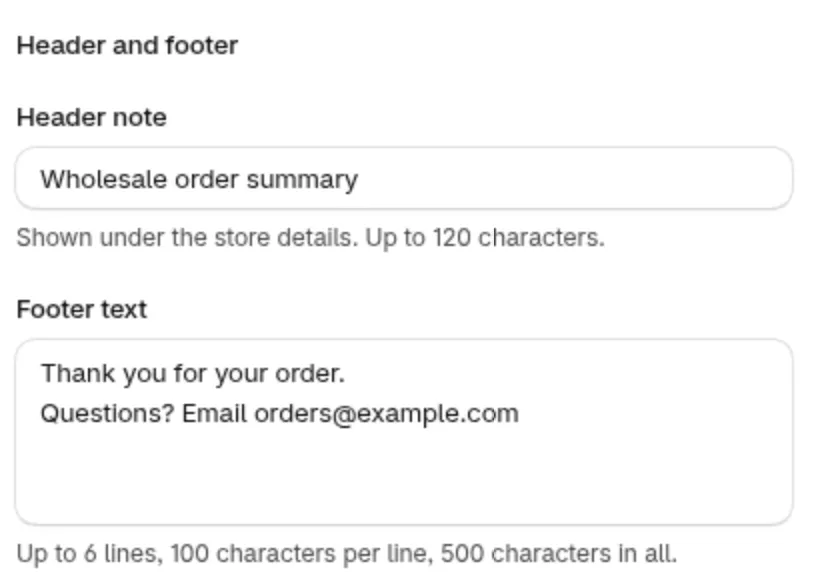
The Header and footer group.
The Footer text can have up to 6 lines, 100 characters per line and 500 characters in all. It prints on every page, above the fixed footer line. That fixed line always stays: “Order summary for order #1001 from Your Store. This is not a tax invoice.” with the creation date and the page number.
Show on the PDF
Section titled “Show on the PDF”| Setting | What it does |
|---|---|
| Product images | Adds a picture column. Off by default |
| SKU | Adds a SKU column. On by default |
| Original prices and discounts | On: each line shows the original price, the price paid and the discount. Off: each line shows only its final price, the Discount column is dropped and Unit price prints as Price, unless you renamed it. The total does not change |
| Order note | Prints the note from the Shopify order. On by default |
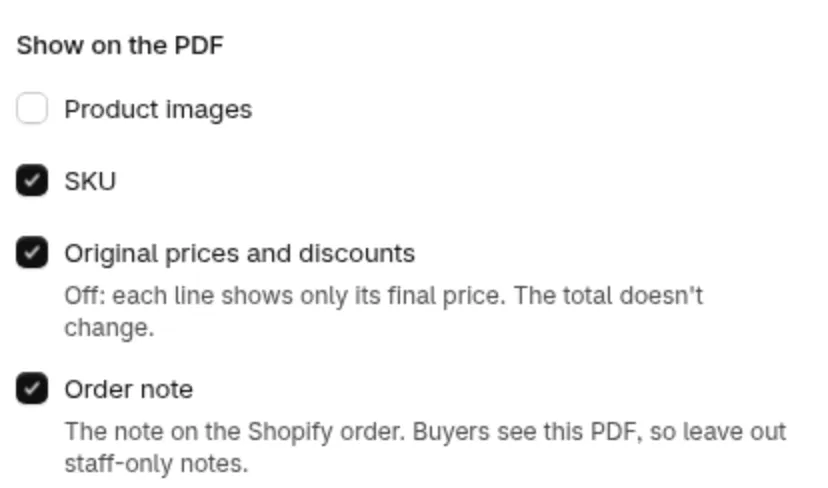
The Show on the PDF group.
File name
Section titled “File name”The file name can use three variables. Type them exactly as shown.
| Variable | Replaced with |
|---|---|
{order_name} |
The order number, without the # |
{shop_name} |
Your store name |
{date} |
The creation date as YYYY-MM-DD, in your store time zone |
The default is Order-summary-{order_name}, which gives a file such as Order-summary-1001.pdf. The name can have up to 80 characters. .pdf is added for you. Characters that file systems do not allow are removed, and a slash or an unknown variable is refused when you save. If nothing is left, the file is named Order-summary- followed by the order number.
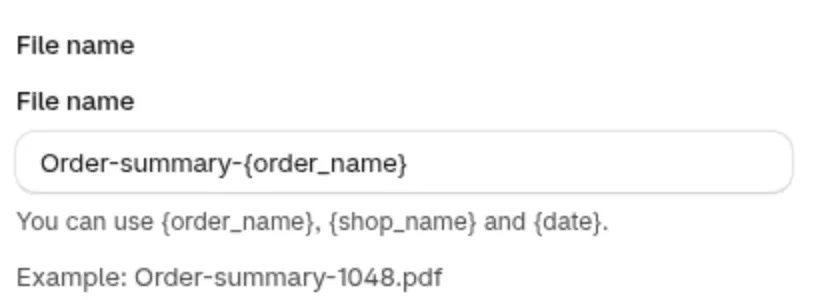
The File name group shows an example file name under the field.
Labels
Section titled “Labels”You can rename 12 words on the PDF. Each label can have up to 40 characters. Leave a field empty to use the default. Open Edit labels to see them. The button then reads Hide labels.
| Label | Default |
|---|---|
| Title | Order summary |
| Bill to | Bill to |
| Ship to | Ship to |
| Item | Item |
| Quantity | Qty |
| Unit price | Unit price |
| Discount | Discount |
| Amount | Amount |
| Subtotal | Subtotal |
| Total | Total |
| Due date | Due date |
| PO number | PO number |
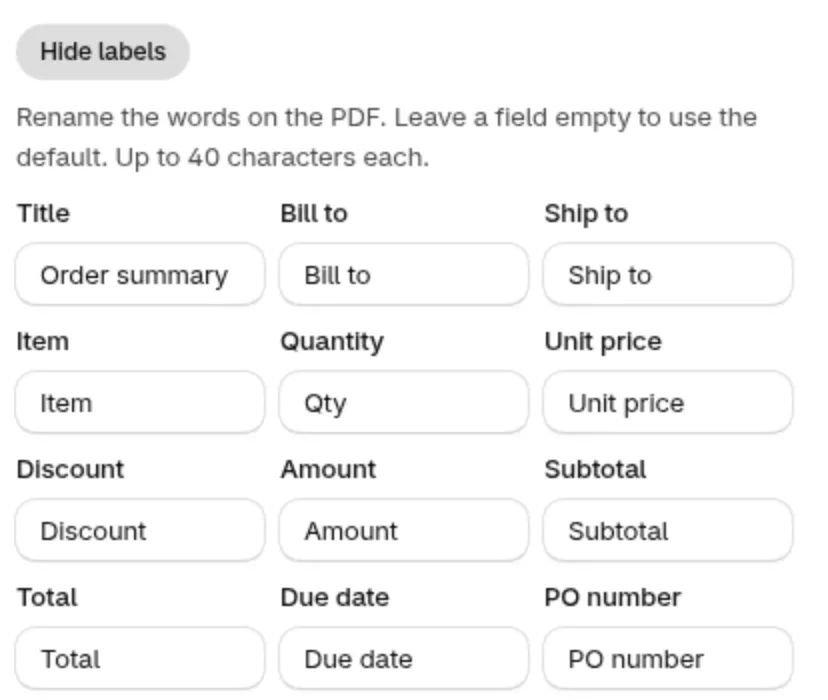
The Labels group lists the 12 words you can rename.
Renaming labels does not change the “not a tax invoice” line.
How do I preview my design?
Section titled “How do I preview my design?”The preview updates as you type. Use Preview with to pick the data:
- Your latest order, listed with its number (for example Order #1001 (latest)): shown with its real items.
- Sample order: made-up data, handy before your first real order.
Next to it you can change Paper size between A4 and Letter. This changes the preview only. The real PDF follows your store country: Letter in the United States, Canada, Mexico and some other countries, A4 elsewhere. You can also zoom in and out, choose Fit width and move between pages.
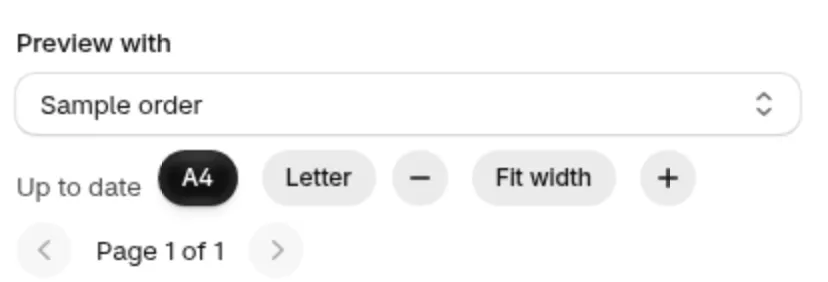
The preview controls.
Previewing never saves anything and never sends an email.
How do I save, discard or reset?
Section titled “How do I save, discard or reset?”-
Make your changes
Section titled “Make your changes”Edit the settings. The Unsaved changes bar at the top of the editor shows Discard and Save.

The Unsaved changes bar in the editor.
-
Click Save
Section titled “Click Save”PDF design saved confirms it. Click Discard to drop your changes instead.
-
Leave safely
Section titled “Leave safely”If you close the editor with unsaved changes, it closes and keeps your draft. The next time you open it, a banner says Your unsaved changes were restored, with a Discard button. Discard in the bar asks Shopify to confirm.
Reset look puts the logo, accent color, font, layout and columns back to the defaults. Your footer text, header note, labels and file name stay. Nothing is saved until you click Save, so you can still discard. Summaries already created do not change.
Why was my change refused?
Section titled “Why was my change refused?”A field is over a limit or empty, and the message under it says which. The editor checks each field as you type. Fix every field marked with an error, then save. Until then the preview shows your last valid settings.
| Field | What it tells you |
|---|---|
| Logo | Upload a logo, or choose No logo. |
| Logo (type) | This file isn’t a PNG or JPG. Upload a PNG or JPG up to 1 MB. |
| Logo (size) | This logo is over 1 MB. Upload a file up to 1 MB. |
| Accent color | Enter a color as a hex code, for example #1F5FBF. |
| Header note | Keep it to 120 characters. |
| Footer text | Keep it to 6 lines. Keep each line to 100 characters. Keep it to 500 characters. (The message adds your current count.) |
| File name | Enter a file name. Keep it to 80 characters. Use only {order_name}, {shop_name} or {date}. Slashes aren’t allowed. |
| Label | Keep it to 40 characters. |
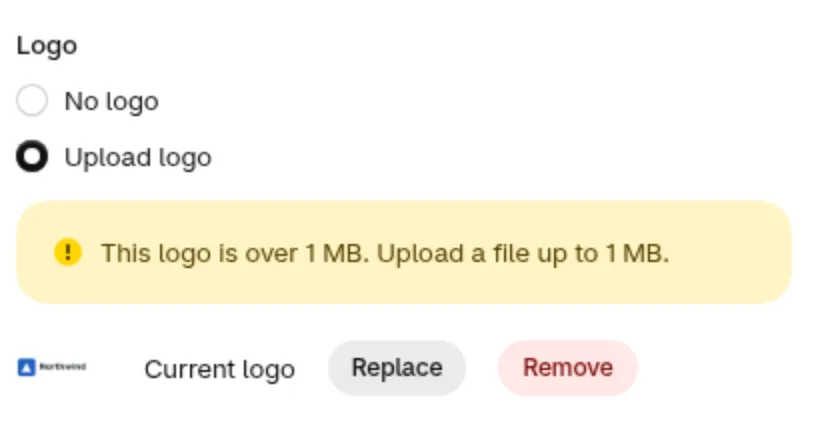
A logo over 1 MB is refused and your current logo stays.
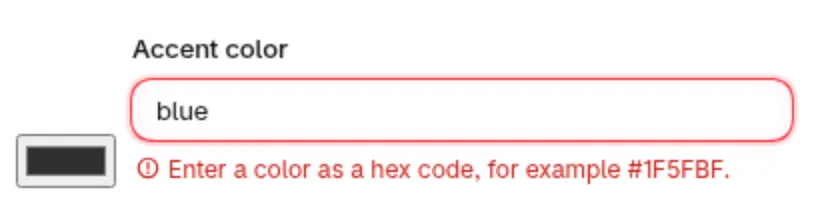
An accent color that is not a hex code, such as a color name.
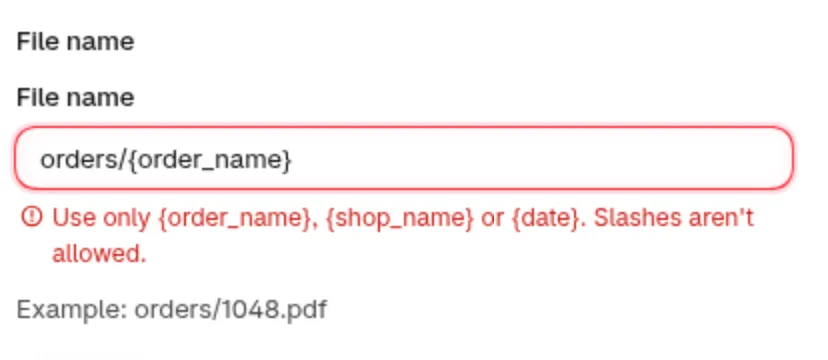
A file name with a slash.
What do my buyers see?
Section titled “What do my buyers see?”Your buyers get a PDF with your logo, the items, the totals and the line “This is not a tax invoice”. If you email it, the PDF is attached. Your design applies to summaries created after you save. Existing summaries keep the look they had when they were created. To give an older summary the new look, open its row menu and click Create new version. See Invoice PDF order summaries.
The labels and fixed text of the PDF are in English. Your own text prints as you typed it. The Invoice PDF FAQ lists which scripts print correctly.
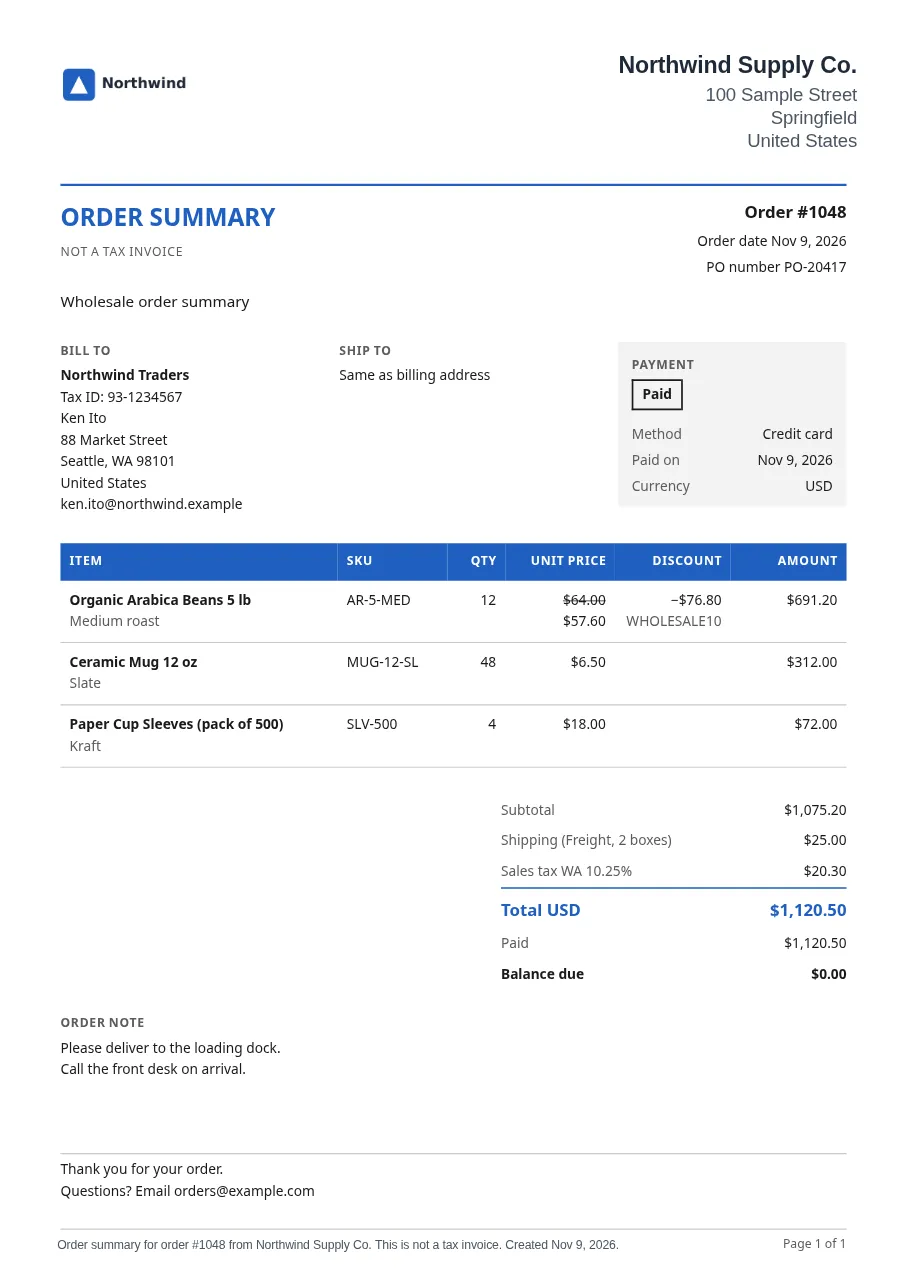
Example of a finished order summary.
For the add-on price and how to turn it on, start at the Invoice PDF overview.