
Notifications in the App
The notification bell on the Dashboard collects what needs your attention in BSS B2B Solution. Open a notification and the app takes you straight to the screen where you handle it.
Notifications stay in the app. No email or push message is sent for them.
Open the bell
Section titled “Open the bell”On the Dashboard, click the bell next to What’s new. A number on the bell counts the notifications you have not read. When nothing is unread, the bell shows no number.

The bell sits in the top right of the Dashboard. No number means nothing is unread.
The pop-up shows the latest four notifications. If you have more, click View all notifications (N) at the bottom, where N is your total, to open the Notifications page. The pop-up has its own Mark all as read button at the top right, above the All and Unread buttons.
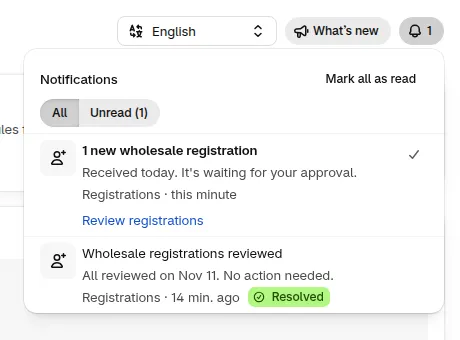
The pop-up: one unread registration notification with its action button, and one resolved.
The Notifications page
Section titled “The Notifications page”The Notifications page lists every notification, grouped under Today, Yesterday and Earlier, 20 to a page. Use the buttons at the top to switch the list:
- All shows every notification, read or not.
- Unread shows only the ones you have not read. The button shows how many, for example Unread (1).
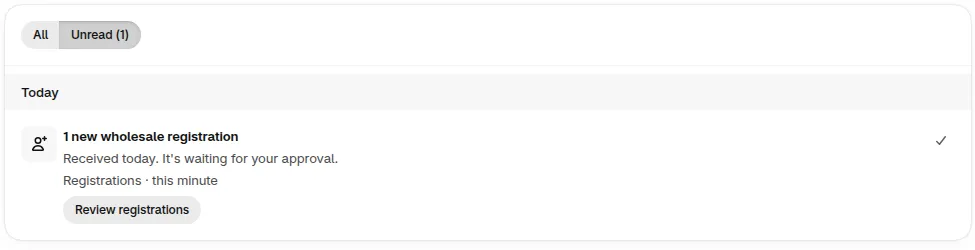
The Unread tab shows what still needs a look.
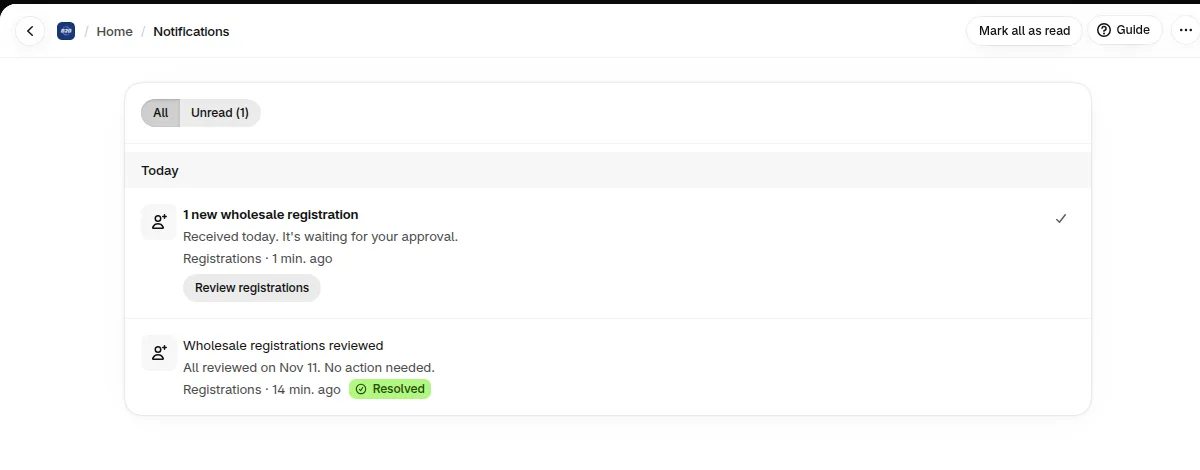
The All tab also keeps notifications that are read or resolved.
What you are notified about
Section titled “What you are notified about”Each notification shows its area under the text: Registrations, Storefront, Credit limit or Add-ons.
| Notification | When it appears | The button opens |
|---|---|---|
| N new wholesale registrations (area Registrations) | A wholesale registration is waiting for your approval. | The registrations list, with Review registrations |
| App embed is off (area Storefront) | The app’s scheduled check finds the embed off while at least one rule is on. The check may take up to a day. | The theme editor, with Open theme editor |
| A customer used N% of their credit limit (area Credit limit) | A customer reaches a credit alert level you turned on: 70%, 90% or 100% of their credit limit. Needs the Credit limit add-on. | The customer’s credit page, with View customer |
| Your [add-on] add-on trial ends on [date], or Your [add-on] add-on trial ended on [date] (area Add-ons) | An add-on trial has 3 days or less left, or it ended in the last 14 days without being approved. | The Pricing plans page, with Review add-on |
A few details:
- Registrations: you get one notification for the whole store. Its number goes up when new registrations arrive and down as you review them.
- App embed: if no rule is turned on, the app has nothing to show on your storefront, so there is no alert. To check or turn the embed on, see Enable or Disable the App in Your Theme.
- Credit limit: choose which levels trigger an alert in Credit emails (Email buyers when their balance reaches). The bell follows the same levels. At 100% the title reads A customer reached their credit limit. For a company location, A company location takes the place of A customer, and the text says “its” instead of “their”. See Credit limit emails and statements.
- Add-on trial: the add-on turns off on the trial end date unless you approve it in Shopify.
Mark notifications as read
Section titled “Mark notifications as read”- Click the check icon on a notification to mark it as read.
- Click the notification’s button, such as Review registrations, to mark it as read and open the screen in one go.
- Click Mark all as read to mark every unread notification as read, including ones on other pages or hidden by a filter. You find it at the top right of the pop-up, above the All and Unread buttons, and at the top right of the Notifications page header. Notifications that arrive later stay unread.
Read status is shared by your whole store. When one staff member marks a notification as read, everyone sees it as read.
Resolved notifications
Section titled “Resolved notifications”When the cause is handled, the notification changes to Resolved and says No action needed. This happens, for example, when:
- every waiting registration is reviewed,
- the app embed is back on,
- a customer’s credit balance drops below 70%,
- the add-on is approved.
A resolved notification no longer counts in the number on the bell. You still find it on the All tab.
Does my whole team see the same notifications?
Section titled “Does my whole team see the same notifications?”Yes. Notifications and their read status belong to the store. Everyone who opens BSS B2B Solution for your store sees the same list.
The bell shows no number. Where did my notifications go?
Section titled “The bell shows no number. Where did my notifications go?”No number means nothing is unread. Open the bell, or open the Notifications page and click All, to see read and resolved notifications.
Will I get an email for these notifications?
Section titled “Will I get an email for these notifications?”No. They show in the bell and on the Notifications page only. Other email alerts you set up, such as credit emails and registration emails, are not affected.
I turned the app embed off. Why is there no notification yet?
Section titled “I turned the app embed off. Why is there no notification yet?”The notification appears only if the app’s scheduled check finds the embed off while at least one rule is on, and that check may take up to a day. The bell is a reminder, not a monitor, so you can check the embed yourself at any time. See Enable or Disable the App in Your Theme.