
Credit Limit: Set Spending Limits for Net Terms Customers
Credit limit caps how much each customer can owe on Net Terms. When a buyer’s unpaid Pay later orders reach the limit you set, BSS B2B Solution warns you or stops the next Pay later order. The buyer can still pay now at checkout, so the sale is not lost.
Key takeaways
Section titled “Key takeaways”- You set a limit per customer, customer tag, company, company location, or for all logged-in customers.
- The limit counts Pay later drafts waiting for you (Pending drafts) plus what customers owe (Owed).
- New rules start in Warn only. Switch to Block Pay later when you are ready.
- The limit is checked at your Pay later checkout. For company locations you can also check at Shopify checkout.
- Credit limit is an add-on for Net Terms with a 14-day free trial.
What does Credit limit do?
Section titled “What does Credit limit do?”Credit limit turns a limit you choose into a check on every Pay later order. It caps the unpaid Net Terms amount. It does not check whether a buyer is creditworthy.
| You set | BSS B2B Solution does | The buyer sees |
|---|---|---|
| A limit and a mode for each customer, tag, company, location or all logged-in customers | Compares each Pay later order with what the customer can still use (Available) | Nothing, unless you turn on Show buyers their remaining credit |
| Block Pay later | Stops Pay later for an order that is over the limit and creates no draft | “Pay later isn’t available for this order”. The buyer can still pay now |
| Ask me to approve | Lets the buyer send the order to you. It waits in Approvals for up to 7 days and uses no credit until you approve it | With Show buyers their remaining credit on: “This order needs the store’s approval” and a Send for approval button. Off: no note and the button reads Confirm |
| Warn only | Lets the order through and marks the customer Over limit in Customer balances | Nothing, or a note that the order is over their credit if you turn on Show buyers their remaining credit. The order goes through as usual |
| Credit alerts and statements | Emails the buyer at 70%, 90% and 100% of the limit, and sends statements on request | The email, when you turn the alert on |
| A hold on a customer, and the overdue block (optional, in the Overdue orders setting) | Stops Pay later for a customer on hold or, when the overdue block is on, with an overdue order | On hold: “Pay later isn’t available” with a prompt to check out with a card or contact you. Overdue: a message that the account has an overdue payment |
Alerts, statements and the overdue summary are covered in the Emails and statements page. Holds and temporary limits are on the Customer page.
The Credit limit tab has six views: Overview, Rules, Approvals, Activity, Customers and Settings. Credit limit works the same on storefront version 3 and version 5.
| View | What it shows |
|---|---|
| Overview | Set up Credit limit, a four-step guide you can hide, then Is it working? and your most recent activity. With the guide hidden or finished, a Try it as a buyer card sits at the bottom. |
| Rules | Your credit rules and the Add credit rule button. |
| Approvals | Orders waiting for your decision. It shows when a rule uses Ask me to approve or a request exists. |
| Activity | Every Pay later order the credit check looked at, newest first. Filter by Result and Date. |
| Customers | Totals and Customer balances. |
| Settings | Overdue orders, Credit shown to buyers, Customer tags, Credit emails and Check at Shopify checkout. |
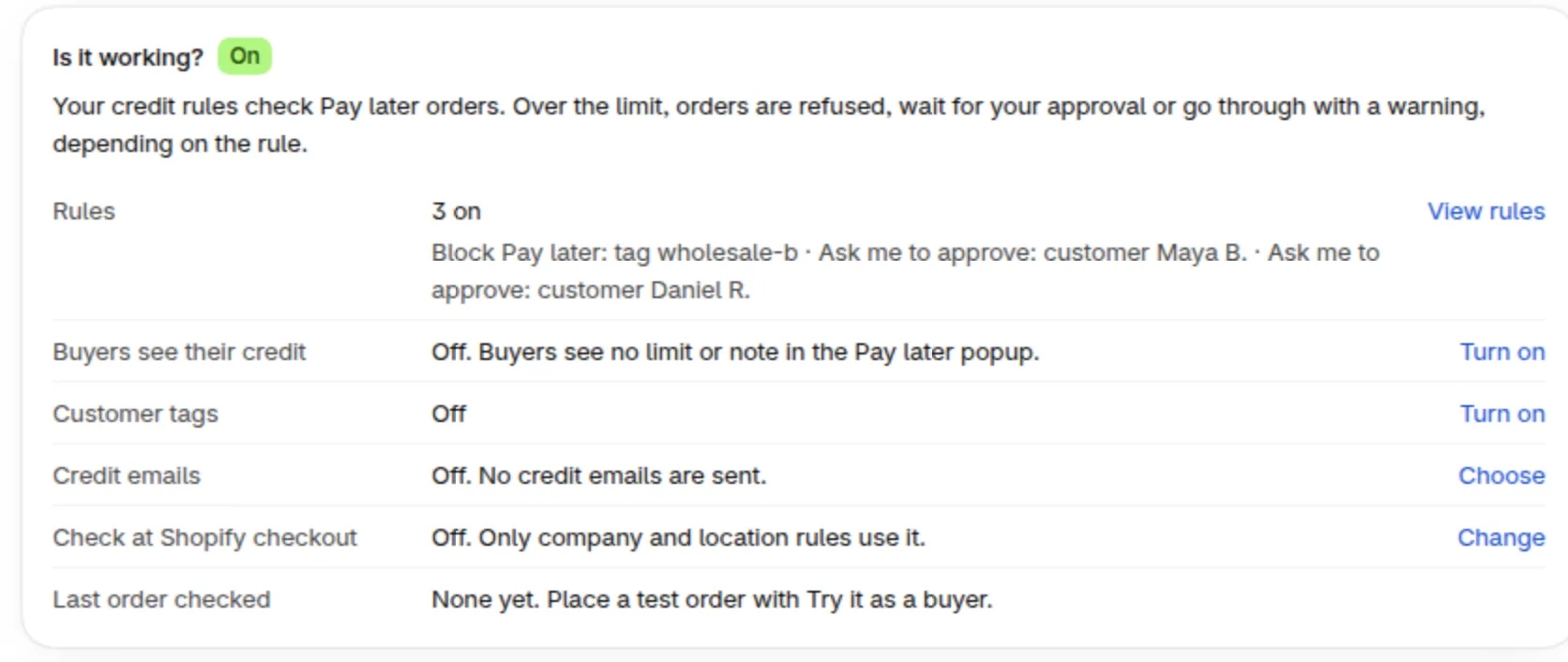
The Overview view. Is it working? lists your rules, buyer credit, tags, emails and the Shopify checkout check.
Is it working? shows On when at least one rule is on, or Not checking orders when none is. It lists Rules, Buyers see their credit, Customer tags, Credit emails, Check at Shopify checkout and Last order checked.
How does a Pay later order move through Credit limit?
Section titled “How does a Pay later order move through Credit limit?”A Pay later order goes through seven steps: the buyer chooses Pay later, Credit limit checks it, the amount is reserved, you create the order, the amount becomes owed, you record the payment, and cancelled or deleted orders release the amount.

A Pay later order from checkout to payment.
| Step | What happens | Where you see it |
|---|---|---|
| 1 | The buyer clicks Pay later and fills in the Net Terms form. | Your online store |
| 2 | Credit limit checks the order against Available. Block Pay later stops it. Ask me to approve sends it to you. Warn only lets it through. | The buyer sees the block message, or Send for approval (Confirm when the buyer credit switch is off). With Warn only the buyer sees nothing unless Show buyers their remaining credit is on |
| 3 | A draft order is created and its amount is reserved as Pending drafts. | The customer page, Balance card |
| 4 | You open the draft in Shopify and click Create order (payment pending). | Shopify admin, Drafts |
| 5 | Pending drafts becomes Owed. | The customer page, Balance card and Orders in this balance |
| 6 | When the buyer pays, you record the payment in Shopify with Collect payment > Manual payment > Record payment. Owed goes down. Partial payments and refunds are matched too. | The Shopify order, then the customer page |
| 7 | An order that is cancelled releases its amount. A draft that you edit changes the reserved amount. A draft that you delete releases it when Shopify sends the delete notice. | The customer page |
A deleted draft that Shopify does not report stays reserved until the reservation expires after 30 days.
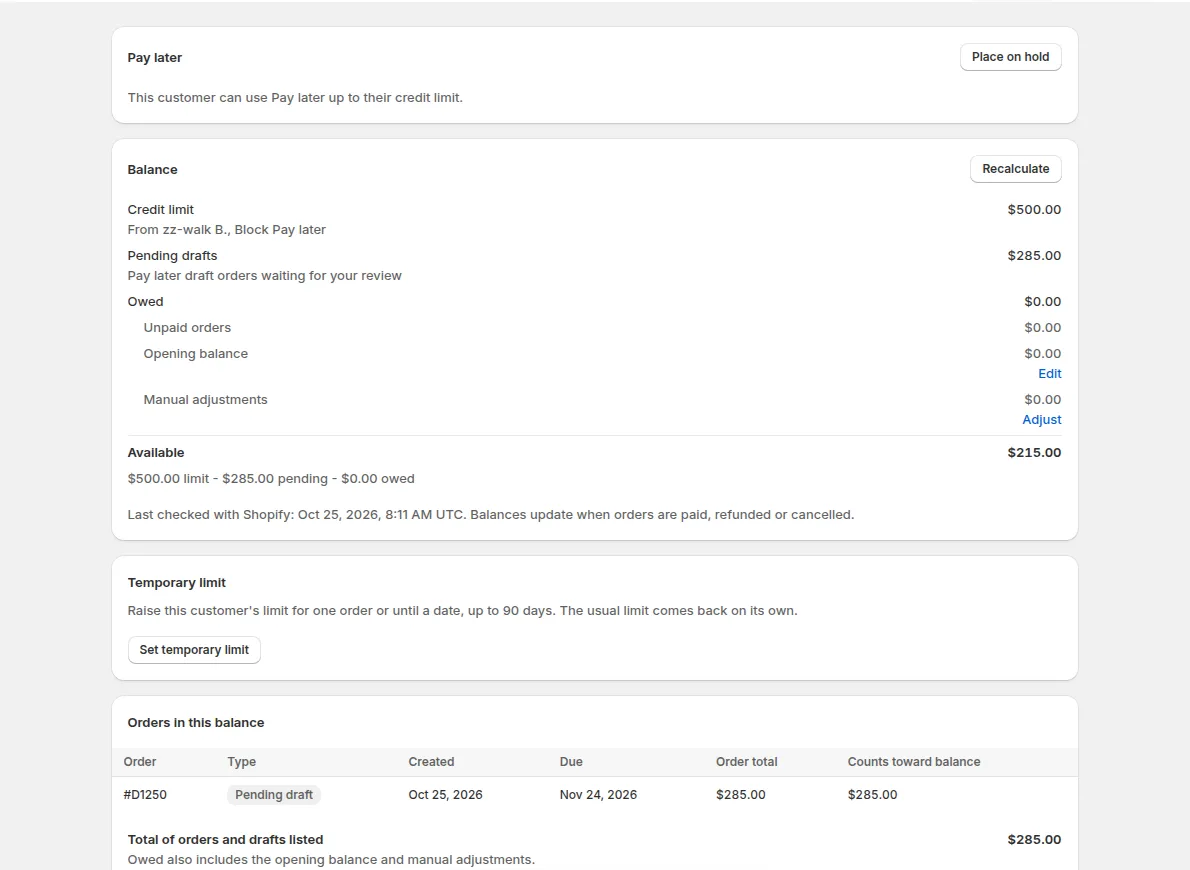
Step 3: the customer page shows the draft under Pending drafts.
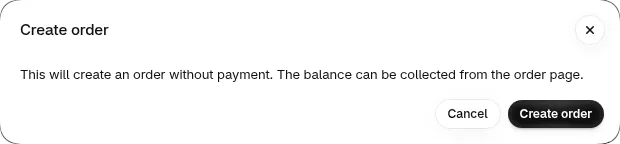
Step 4: click Create order on the draft and keep payment pending.
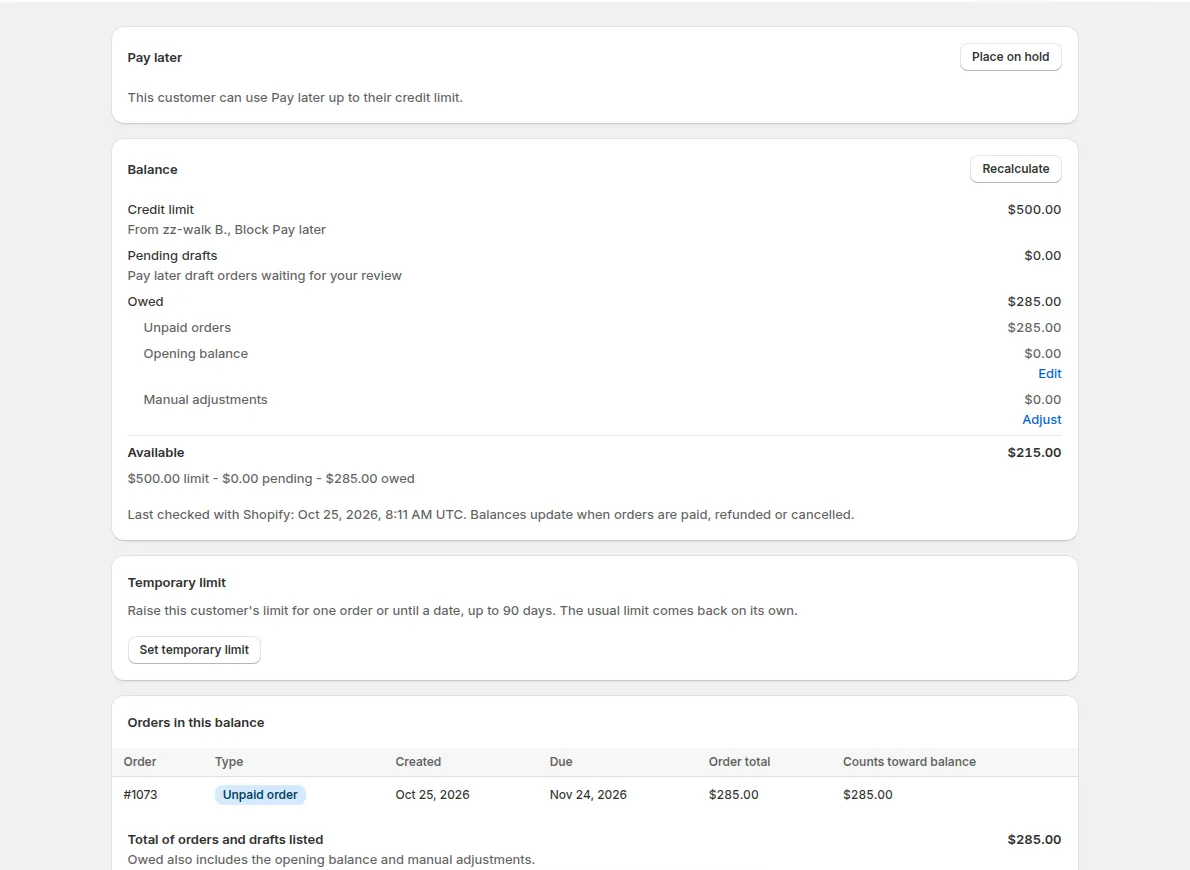
Step 5: the amount has moved from Pending drafts to Owed.
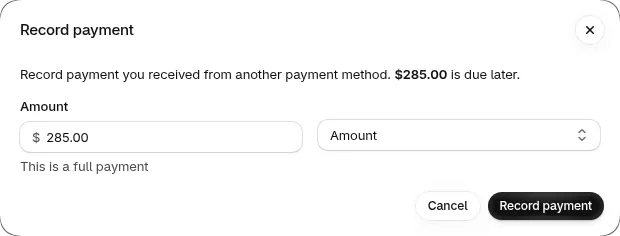
Step 6: record the payment in Shopify when the buyer pays.
How fast do balances update?
Section titled “How fast do balances update?”New orders and payments reach Credit limit shortly after Shopify reports them, usually within a minute. Every day at 01:40 UTC, Credit limit re-reads all tracked orders from Shopify. Click Recalculate in Customer balances to run the same refresh now. It can take a few minutes, and you can leave the page while it runs.
What counts toward the limit?
Section titled “What counts toward the limit?”Three amounts count: Pending drafts, Owed and Available. Credit limit adds up what the customer has reserved and owes, and subtracts it from the limit.
| Amount | What it is | Example |
|---|---|---|
| Pending drafts | Pay later draft orders waiting for your review. The amount is reserved. | A draft of $285.00 |
| Owed | Unpaid orders, plus the opening balance, plus manual adjustments. Never below 0. | $285.00 after you click Create order |
| Available | Limit minus Pending drafts minus Owed. It can be negative. | $500.00 - $0.00 - $285.00 = $215.00 |
An order is over the limit when its total is more than Available. An order that equals Available exactly goes through. An order with a total of 0 uses no credit.
Credit limit counts Pay later orders placed through BSS B2B Solution: Pay later at your online store checkout and Manual Orders. Orders and drafts you create directly in Shopify are not counted, even when they have payment terms (company orders with payment terms under a company or location rule are the exception, listed below). To record that debt, use Adjust on the customer’s credit page (see how to adjust a balance).
Counts toward the balance:
- Orders created in Manual Order that have Shopify payment terms.
- Pay later draft orders from your online store.
- Orders that a company buyer places in Shopify, when the order has payment terms and a company or location rule applies to that buyer.
- An opening balance and manual adjustments that you enter.
Does not count:
- Orders or draft orders you create directly in Shopify admin or at POS, with or without payment terms, unless they are company orders as listed above.
- Orders that are paid, refunded or cancelled. These lower the balance.
- Orders created in Manual Order in a currency other than your store currency.
What does a full example look like?
Section titled “What does a full example look like?”Example: a customer has a limit of $500 and owes nothing. The buyer places a Pay later order of $285.
- The draft reserves $285. Pending drafts is $285 and Available is $500 - $285 = $215.
- You click Create order. Owed is $285, Pending drafts is $0 and Available stays $215.
- The buyer places a second order of $285. That is $70 more than the $215 that is Available.
What happens next depends on the mode:
| Mode | Second order of $285 | Balance afterwards |
|---|---|---|
| Warn only | Goes through and the customer is marked Over limit | After you click Create order, Owed is $570 and Available is $500 - $570 = -$70 |
| Block Pay later | Pay later shows “Pay later isn’t available for this order” and no draft is created | Owed stays $285 and Available stays $215 |
In Block Pay later mode the buyer goes back to the cart and pays now.
Where is the limit checked?
Section titled “Where is the limit checked?”Credit limit always checks Pay later orders on your online store. It checks Shopify checkout only when you turn on Check at Shopify checkout.
| Place | Checked? | Notes |
|---|---|---|
| Pay later checkout on your online store | Yes, for every rule type | Block Pay later stops the order. Warn only flags it. |
| Shopify checkout for company locations | Only if you turn on Check at Shopify checkout | Uses company and location rules in Block Pay later mode, at locations that have payment terms in Shopify. |
| Manual Order | A warning banner only | The banner appears under Payment terms. You can still create the order. |
| Orders created in Shopify admin or POS, order edits, API orders | No | These orders are not stopped. See the counting rules above for which ones reach the balance. |
The Shopify checkout page explains the extra permission, the delay of 30 seconds or more, and what the buyer sees. The Manual orders page explains the banner states.
Auto runs for company locations with payment terms check the credit limit too. See Recurring Orders. If the company is over its limit, on hold or overdue, or the limit could not be checked, the order stays a draft for you to finish in Shopify.
If Credit limit cannot read a limit or has an internal error, the order goes through.
How do I set up Credit limit in five steps?
Section titled “How do I set up Credit limit in five steps?”Start in Warn only so that no order is blocked while you learn how balances behave.
-
Turn on Net Terms and create a Net Terms rule
Section titled “Turn on Net Terms and create a Net Terms rule”Your buyers need the Pay later button. Follow Set up Net Terms for your B2B customers. Result: Pay later shows at checkout on your online store.
-
Add Credit limit from Pricing plans
Section titled “Add Credit limit from Pricing plans”Open Pricing plans, scroll to Add-ons and click Start 14-day free trial on the Credit limit card. If you open the Credit limit tab first, click Add Credit limit and you land on the same card. Result: the card shows Free trial and the end date.
-
Create your first rule in Warn only
Section titled “Create your first rule in Warn only”Go to B2B orders & discounts > Net Terms, open the Credit limit tab, open Rules and click Add credit rule. Choose Applies to, enter the limit and keep When an order goes over the limit on Warn only. Result: the page confirms Credit rule created.
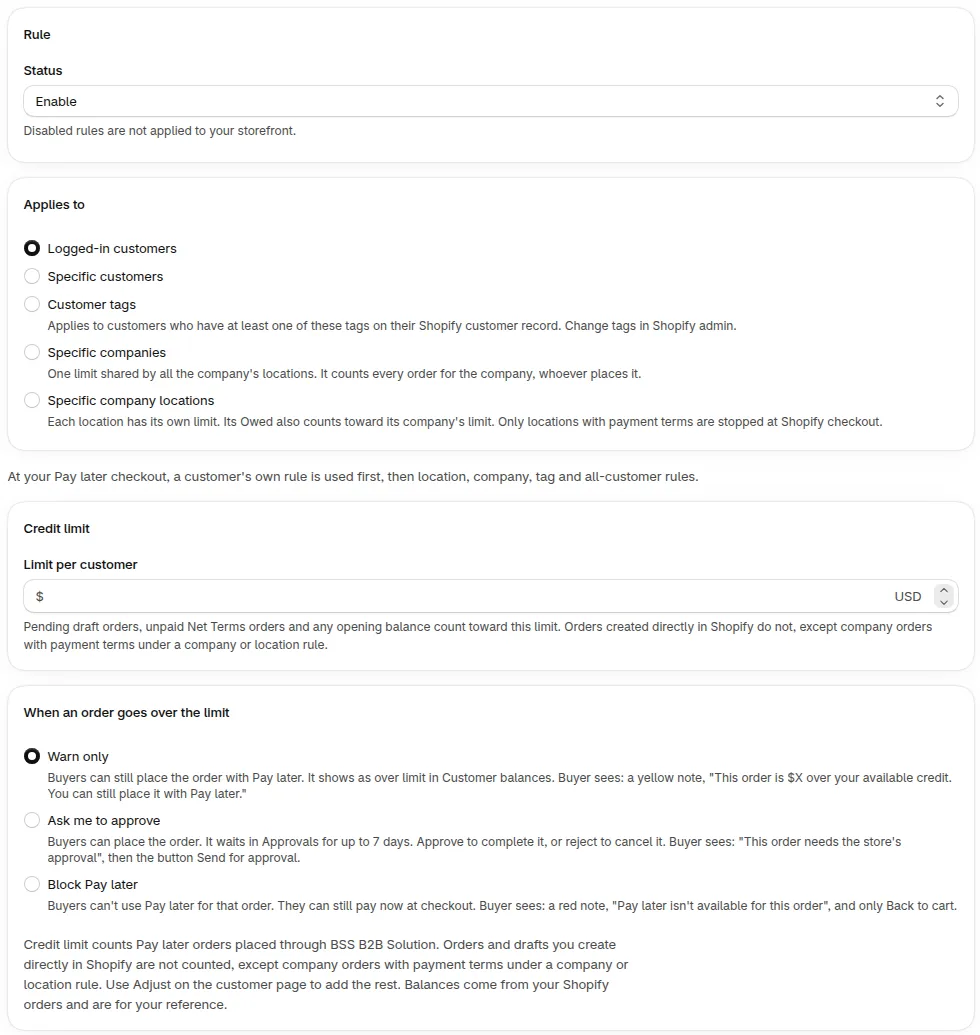
The new rule page. Save with Warn only first.
-
Check Customer balances
Section titled “Check Customer balances”Open the Customers view. Under Customer balances, each customer the rule covers shows a limit and Available. Result: customers who are already over the limit show Over limit.
-
Switch the rules that matter to Block Pay later and review the settings
Section titled “Switch the rules that matter to Block Pay later and review the settings”Edit a rule and choose Block Pay later. The page lists customers who are already over the limit and asks you to confirm with Save and block. Then review the settings cards: Overdue orders, Credit shown to buyers, Customer tags, Credit emails and Check at Shopify checkout. Result: orders over the limit stop at Pay later, and the buyer can still pay now.
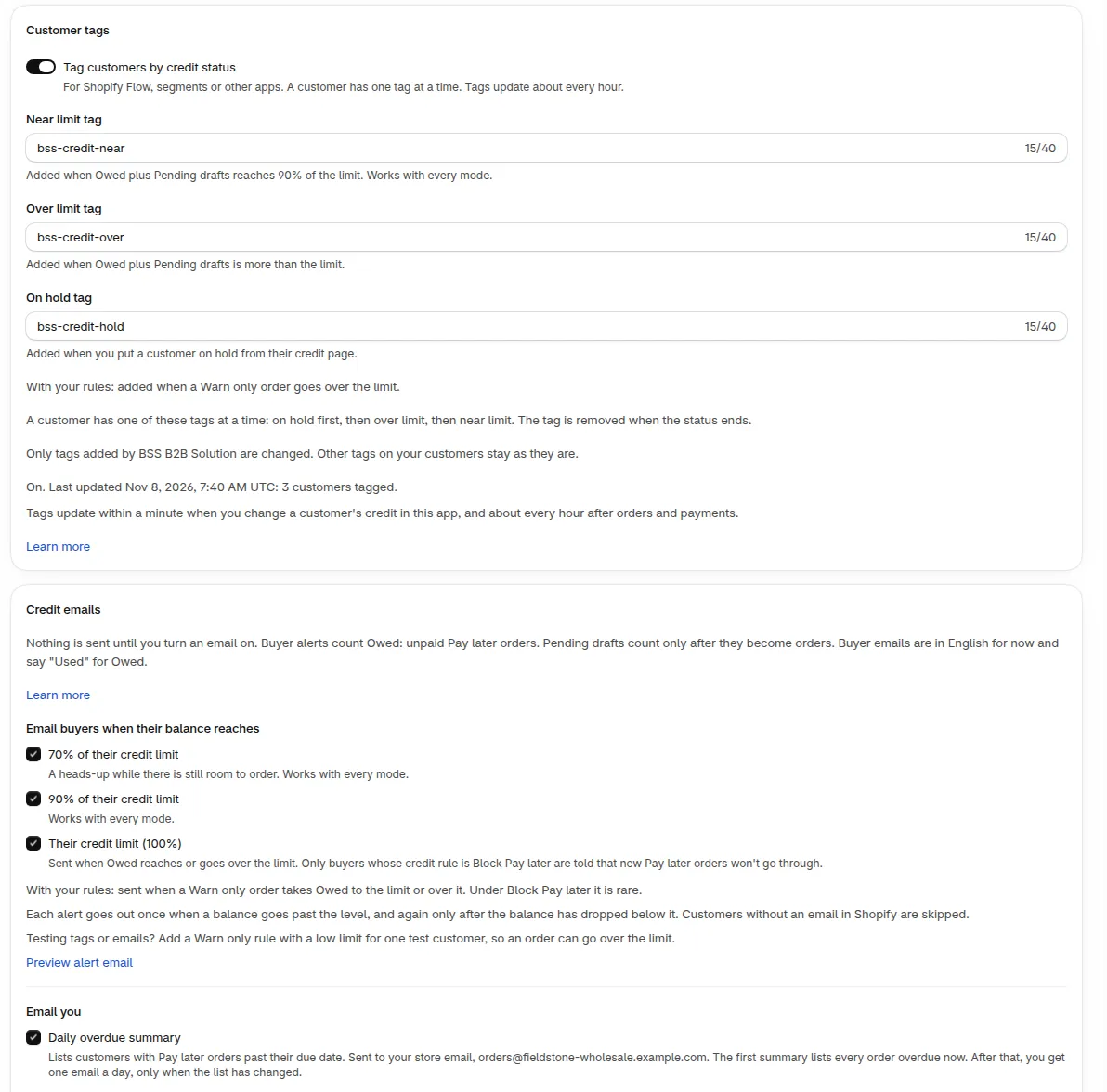
The Customer tags and Credit emails cards in Settings, with the alert levels ticked.
Which page do I need?
Section titled “Which page do I need?”Pick the task and open the page.
- Plans, price and the free trial: Get started with Credit limit
- Rule types, priority, limits and modes: Credit limit rules
- Overdue block, buyer view, tags, emails and checkout switch: Credit limit settings
- The balances list, Overview and exports: Customer balances
- One customer: opening balance, adjustments, hold, temporary limit: Customer page
- Shared company limits and location limits: Company accounts
- Stopping orders at Shopify checkout: Check at Shopify checkout
- What your buyer sees: Buyer experience
- Orders you create for a customer: Manual orders and Credit limit
- Alerts, overdue summary and statements: Emails and statements
- A number looks wrong or an order was not blocked: Troubleshooting Credit limit
- What a term means: Credit limit glossary
- Quick answers and limits: Credit limit FAQ
- Credit status in your own systems: Public API for Credit limit