
Shopify Checkout Credit Limit Validation for Company Orders
Shopify checkout credit limit validation is what Check at Shopify checkout does: it stops an order at Shopify checkout when the order is more than the Available of a company location or of its company. It is off until you turn it on, and it needs one extra Shopify permission. It is a part of Credit limit.
Key takeaways
Section titled “Key takeaways”- The check is opt-in and off by default.
- It uses only company and location rules set to Block Pay later.
- It looks only at locations that have payment terms in Shopify.
- Card orders at those locations can be stopped too.
- If a limit cannot be read the order goes through, and new orders and payments reach the check after about 30 seconds or more.
What does the check stop?
Section titled “What does the check stop?”The check compares the order total with Available at checkout for the buyer’s location and for its company. Available at checkout is the limit minus Owed. Pending drafts are not subtracted. An order exactly equal to that amount goes through, and a free order (total 0) is never stopped.
| What | Checked at Shopify checkout? | What to know |
|---|---|---|
| Company location with payment terms in Shopify | Yes | Only these locations are checked. |
| Company rule in Block Pay later | Yes | Caps every location of the company. |
| Location rule in Block Pay later | Yes | Caps that location. |
| Cart in another currency | Yes | Converted to your store currency at the checkout rate. If Shopify gives no usable rate, the order goes through. |
| Card orders at those locations | Yes, can be stopped | Shopify does not tell the check how the buyer pays. |
| Draft order you complete in Shopify admin | Yes, can be stopped | The same rules apply to it. |
| Customer, tag and all-customer rules | No | Only company and location rules are used. |
| Rules in Warn only | No | Only Block Pay later can stop an order. |
| Temporary limits | No | A temporary limit is not applied at Shopify checkout. |
| Holds | No | A hold is recorded but does not stop checkout. |
| Location without payment terms | No | Never stopped, even when its company is over the limit. |
| Order edits, POS orders, orders created through the API | No | Not checked. |
| Pay later drafts waiting for your review | Not counted | They count as Pending at Pay later checkout, not here. |
| Limits in a currency other than your store currency | No | The rule shows This limit isn’t checked. |
Should I turn it on?
Section titled “Should I turn it on?”Turn it on when you sell to companies with payment terms and want Shopify checkout to stop over-limit orders. Leave it off when you only use Pay later on your online store. That check always runs, with or without this switch.
| Turn on if | Leave off if |
|---|---|
| Your company buyers check out through Shopify with payment terms | You only use Pay later on your online store |
| You want a company or location cap to stop orders that Pay later would not see | You prefer to see over-limit companies in Company balances and decide yourself |
| The accounts that matter have rules in Block Pay later | Your company and location rules are all in Warn only |
How do I turn on Check at Shopify checkout?
Section titled “How do I turn on Check at Shopify checkout?”You turn it on from the Credit limit tab. Nothing changes until you confirm in the dialog.
-
Find the card
Section titled “Find the card”Go to B2B orders & discounts > Net Terms, open the Credit limit tab and scroll to Check at Shopify checkout. It sits below Company balances. Once you have a company or location rule, it shows the badge Off.
If your store has no company or location rule, the badge reads Needs attention, the card shows No company or location limits to check and the switch is locked. Click Add company rule, create a rule in Block Pay later, and come back.
-
Switch it on
Section titled “Switch it on”Turn on the Check at Shopify checkout switch. The dialog Turn on the check at Shopify checkout? opens. The check is still off.
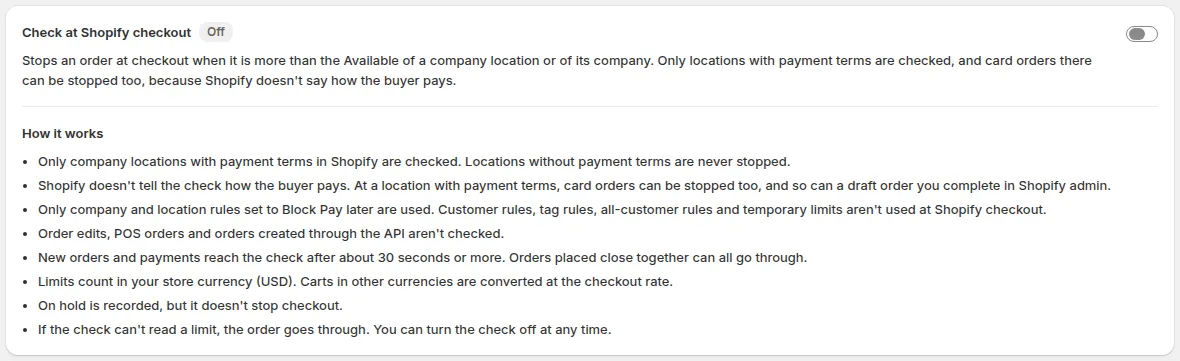
The card in its off and on states.
-
Read who would be stopped
Section titled “Read who would be stopped”The dialog says how many accounts would be stopped right now. It lists up to five, with Company or location, Why and Available at checkout, then “and N more”. Over limit means the account owes more than its limit. At limit means Available is exactly 0, so any order above 0 is stopped. If no account is out of credit, the dialog says so.
If Credit limit could not read the payment terms of some locations, it names them under the list and leaves them out. Open the dialog again later to include them.
-
Turn it on and approve the permission
Section titled “Turn it on and approve the permission”Click Turn on check. If Shopify asks you to approve one extra permission (
write_validations), approve it. If you decline, the card shows Permission needed with a Grant permission button, and nothing is checked.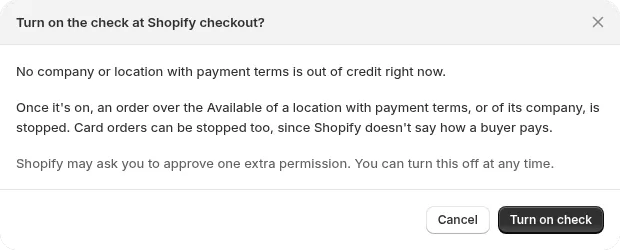
The confirmation dialog lists the accounts that would be stopped now.
-
Confirm it is on
Section titled “Confirm it is on”The page shows Check at Shopify checkout turned on. The badge changes to On and a line shows Balances last sent to Shopify with a date. Both mean the limits are with Shopify.
What do the status messages mean?
Section titled “What do the status messages mean?”The badge is Off, On or Needs attention. The messages under it tell you what to do.
| Badge or message | Meaning | What to do |
|---|---|---|
| Off | Nothing is stopped at Shopify checkout. | Switch it on when you are ready. |
| On | The check runs with the limits last sent to Shopify. | Nothing. Balances last sent to Shopify shows the latest update. |
| Permission needed | The extra Shopify permission is not granted, and nothing is checked yet. | Click Grant permission. |
| Permission was removed | Credit limit cannot update or turn off the check now. It may still stop orders using old balances. | Click Grant permission to update it or turn it off. |
| No company or location limits to check (badge Needs attention) | No active rule has a company or location limit, so nothing is stopped. | Add a rule with Add company rule, or turn the check off. |
| The check at Shopify checkout isn’t working | Shopify did not accept the update, so orders may be checked with old balances. | Click Try again. If it keeps failing, contact support. |
| The check couldn’t turn on | Shopify did not accept the setup. Nothing is checked. | Try again in a few minutes, then contact support. |
| We couldn’t load the check at Shopify checkout | The status is unknown, so the switch is locked. | Refresh the page. If it keeps failing, contact support. |
| We couldn’t update the check. | The last change did not go through. | Refresh the page to see the status, then try again. |
What does the buyer see at checkout?
Section titled “What does the buyer see at checkout?”Shopify checkout shows this error: “This order is more than your company’s available credit. Remove items or contact the store.” The buyer cannot check out until Owed goes down or you raise the limit. The message is in English for every store for now.
How is a limit kept in sync with Shopify?
Section titled “How is a limit kept in sync with Shopify?”Credit limit sends balances and limits to Shopify after changes and once a day. The check uses those numbers, not live ones, which is why a short delay exists.
- Changes that send an update: a new, paid, refunded or cancelled order, a rule change, and a change to a company or location opening balance, adjustment or hold. Credit limit waits about 30 seconds so a burst of changes is sent once.
- The daily refresh at 01:40 UTC reads all orders again and sends fresh balances.
- Balances last sent to Shopify on the card shows when the last update went out.
- After you add or remove payment terms in Shopify, the change is picked up at the next daily refresh (01:40 UTC) or the next limits update, whichever comes first. Recalculate on the Credit limit tab starts a refresh now.
Worked example: what is Available at checkout?
Section titled “Worked example: what is Available at checkout?”Take company Acme with a company limit of $10,000. Location East has a limit of $6,000 and owes $5,000. Location West has a limit of $6,000 and owes $3,000. All three rules are in Block Pay later, and both locations have payment terms in Shopify.
| Account | Limit - Owed | Available at checkout |
|---|---|---|
| East | $6,000 - $5,000 | $1,000 |
| West | $6,000 - $3,000 | $3,000 |
| Acme (company) | $10,000 - $8,000 | $2,000 |
| Order total | Fits the location? | Fits the company? | Result at Shopify checkout |
|---|---|---|---|
| $900 at East | Yes | Yes | Goes through |
| $1,200 at East | No, more than $1,000 | Yes | Stopped by the East limit |
| $2,500 at West | Yes, at most $3,000 | No, more than $2,000 | Stopped by the Acme limit |
Pending drafts are not subtracted here. If Acme had $500 of pending Pay later drafts, Available at checkout would still be $2,000.
What happens if I turn it off or the add-on ends?
Section titled “What happens if I turn it off or the add-on ends?”When you turn the check off, you see Check at Shopify checkout turned off and nothing is stopped at Shopify checkout. Credit limit also clears the limits it sent to Shopify. Pay later checkout on your online store keeps checking your rules.
If you cancel the trial, the check stops within a few minutes. If a trial runs out or a removed add-on reaches the end of its period, an hourly job turns the check off, so it stops within about an hour. Your rules and balances are kept but hidden. See the glossary for terms and troubleshooting if an order is stopped and you did not expect it.
Frequently asked questions
Section titled “Frequently asked questions”Can I stop card orders from being blocked?
Section titled “Can I stop card orders from being blocked?”Not with this check. Shopify does not tell it how the buyer pays, so card orders at a location with payment terms can be stopped. To avoid it for an account, set the rules that cover it to Warn only, or leave the check off.
Why was an order blocked when the company shows Available?
Section titled “Why was an order blocked when the company shows Available?”There are three common reasons. The location’s own limit may be the one that stopped it, because a location is checked against its own Available and its company’s. The check may still hold older balances, since new orders and payments reach it after 30 seconds or more. Or the order was a draft you completed in Shopify admin, which can be stopped too.
Does it block my own orders in Shopify admin?
Section titled “Does it block my own orders in Shopify admin?”A draft order you complete in Shopify admin for a location with payment terms can be stopped. Orders created through the API, POS orders and order edits are not checked.
Does a temporary limit work at Shopify checkout?
Section titled “Does a temporary limit work at Shopify checkout?”No. The check uses the usual limit of the company or location rule. A temporary limit works at Pay later checkout for the buyer’s own limit.