
B2B Portal: One Storefront Page for Your B2B Customers
The B2B Portal adds one page to your storefront. Signed-in B2B customers see their account with you there: links to their orders and addresses, and their credit and unpaid Pay later orders if you use Credit limit. Visitors who aren’t signed in are asked to sign in first. The portal is free and off by default, so nothing on your storefront changes until you turn it on.
Key takeaways
Section titled “Key takeaways”- The portal is one page inside your theme, with your header, footer, fonts and colors.
- Customers see only their own account, never other customers.
- It has three ways in: a header link, a button on the customer account Credit page and your own menu link.
- The Modules card lists Credit, Recurring Orders and Sales Reps. Each module has its own plan or add-on and its own settings.
- With no module on, customers still get a portal home with links to their orders and addresses, and a way to contact you.
- You can translate the portal text and change its look with CSS.
How do I turn on the B2B Portal and link to it?
Section titled “How do I turn on the B2B Portal and link to it?”-
Open the portal settings
Section titled “Open the portal settings”Go to Settings in the app and open B2B Portal.
-
Turn it on
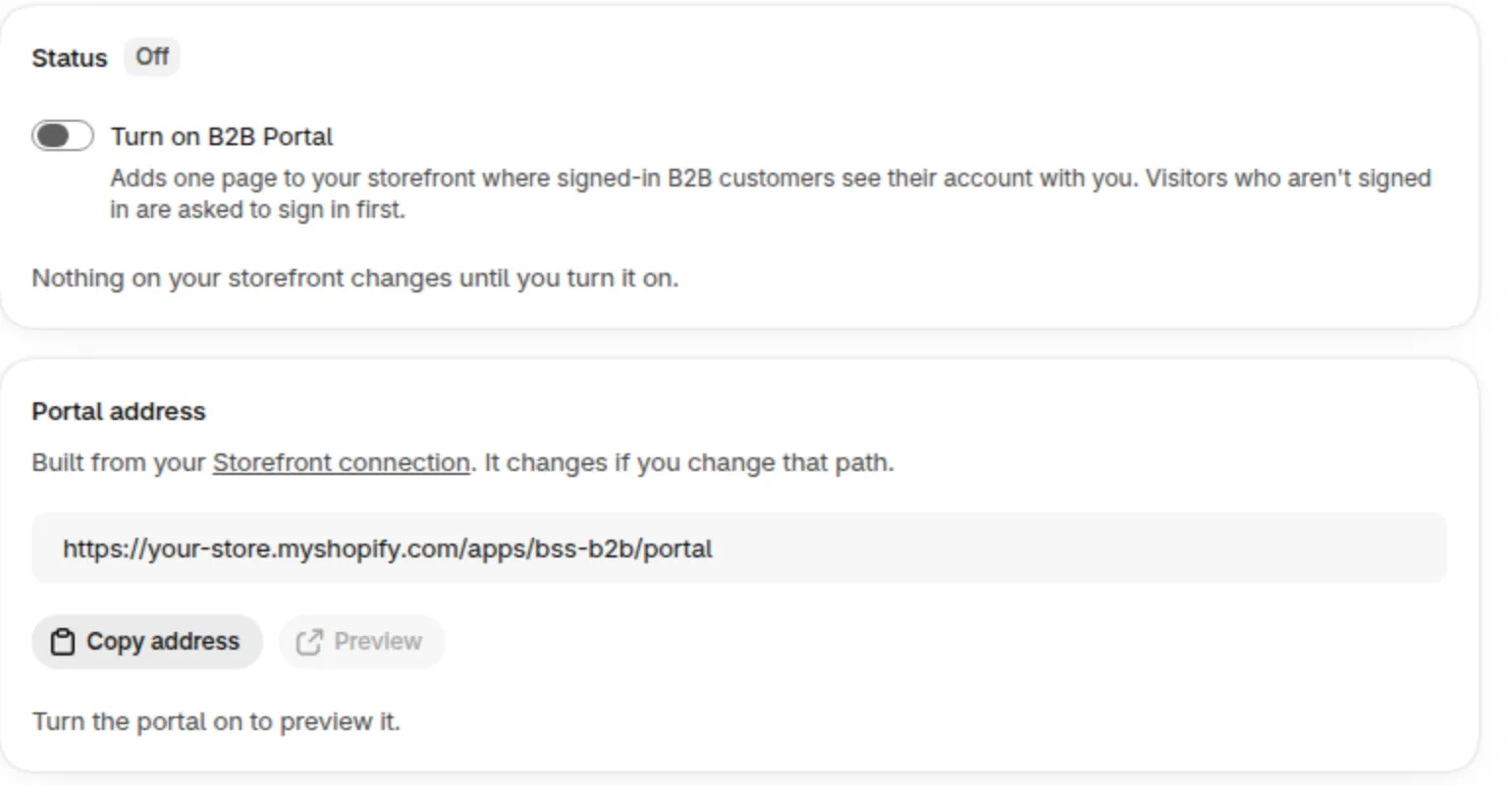
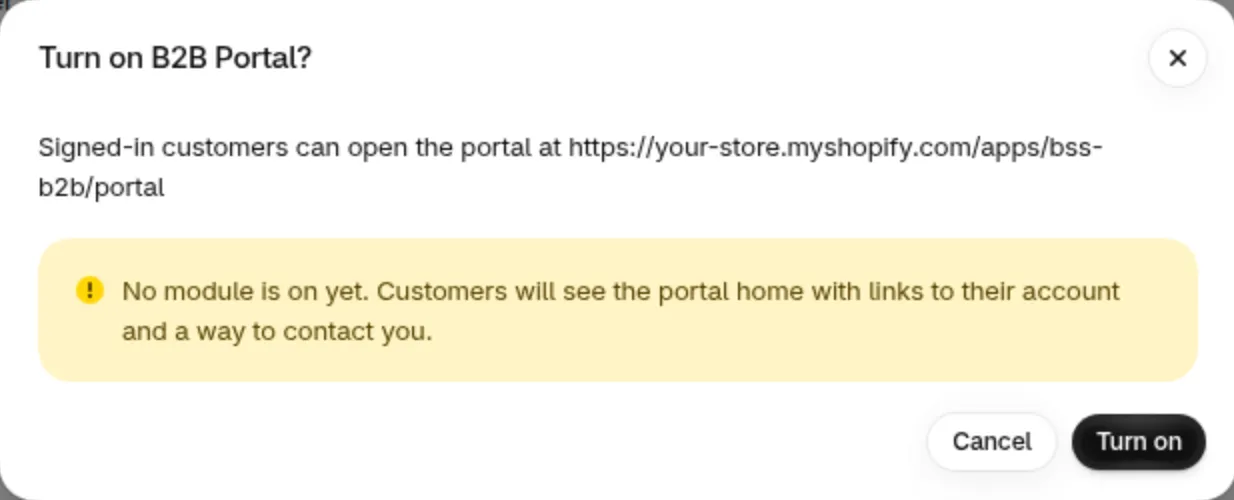
Section titled “Turn it on”Switch on Turn on B2B Portal. In the dialog, click Turn on. If no module is on yet, the dialog says “No module is on yet”: customers will see the portal home with links to their account and a way to contact you. You can turn the portal off at any time.
-
Preview it
Section titled “Preview it”Under Portal address, click Preview and sign in with a customer account. You see what that customer sees.
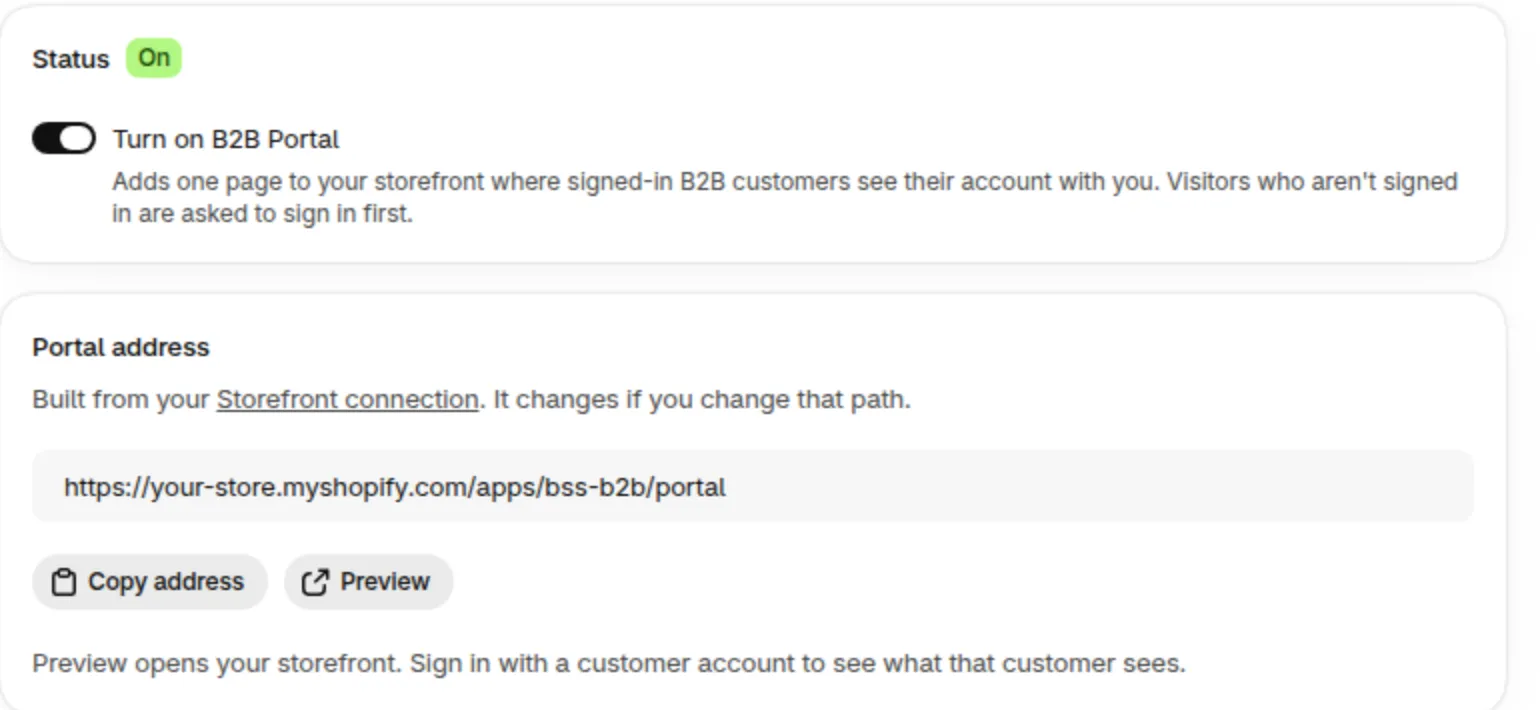
The portal turned on, with its address, Copy address and Preview.
Turning the portal off removes the links and closes the page. The storefront link may take a moment to show up or disappear.
Where do customers find the portal?
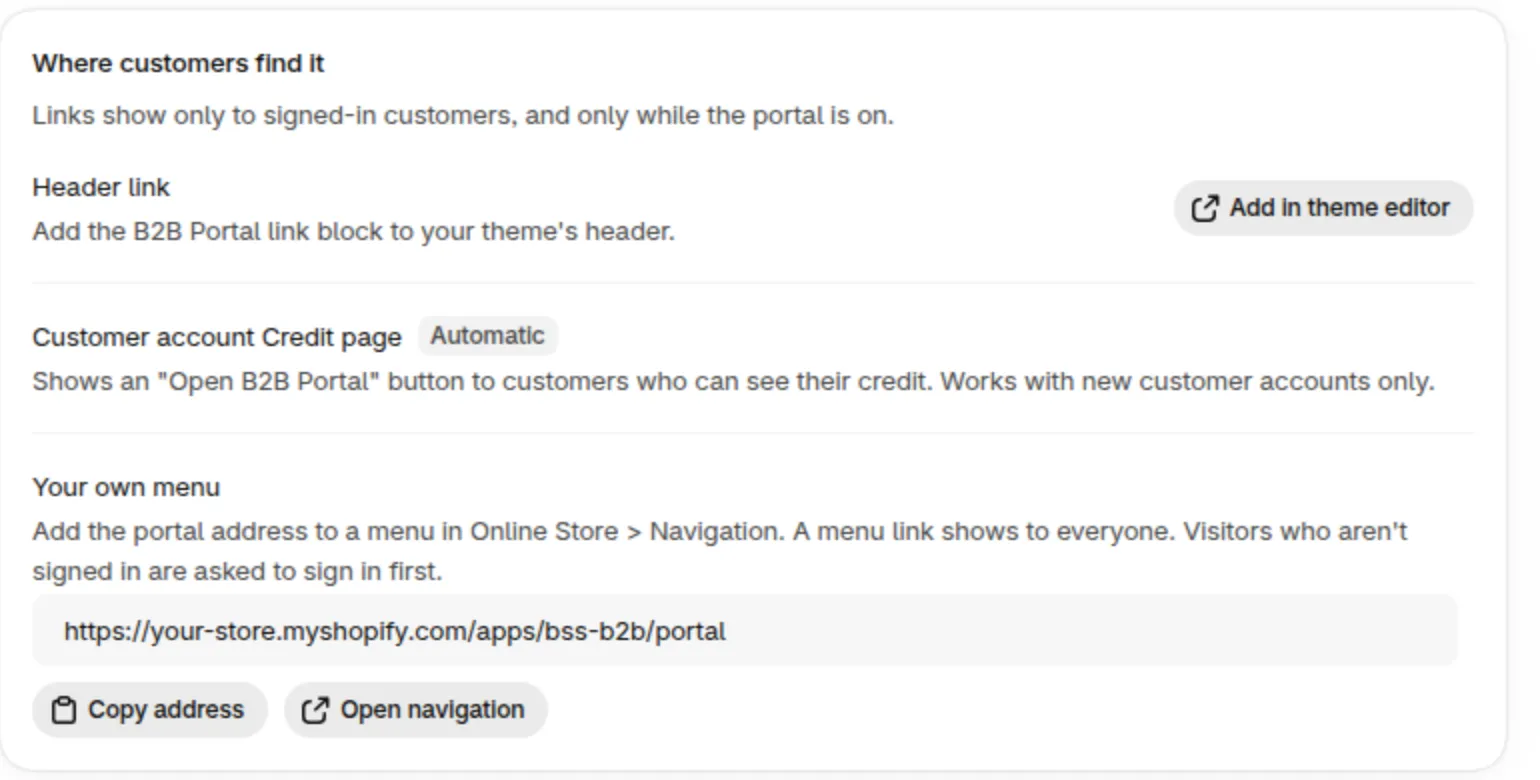
Section titled “Where do customers find the portal?”The Where customers find it card lists three ways in.
| Where customers find it | What to do |
|---|---|
| Header link | Click Add in theme editor and add the B2B Portal link block to your theme’s header. Change the text in the block’s Link label field. The default is B2B Portal. |
| Customer account Credit page | Automatic. Customers who can see their credit get an Open B2B Portal button. It works with new customer accounts only. |
| Your own menu | Click Copy address, then add it to a menu in Online Store > Navigation. A menu link shows to everyone. Visitors who aren’t signed in are asked to sign in first. |

The header link on a Dawn theme copy, as a signed-in customer sees it.
Good to know:
- The header link and the account button show only to signed-in customers, and only while the portal is on.
- The portal address follows your store’s App Proxy URL. You can see it under Storefront connection in the app settings. If you change that URL, the address changes.
- The Link label text is not part of Translations. Change it in the theme editor.
Which modules does the portal have?
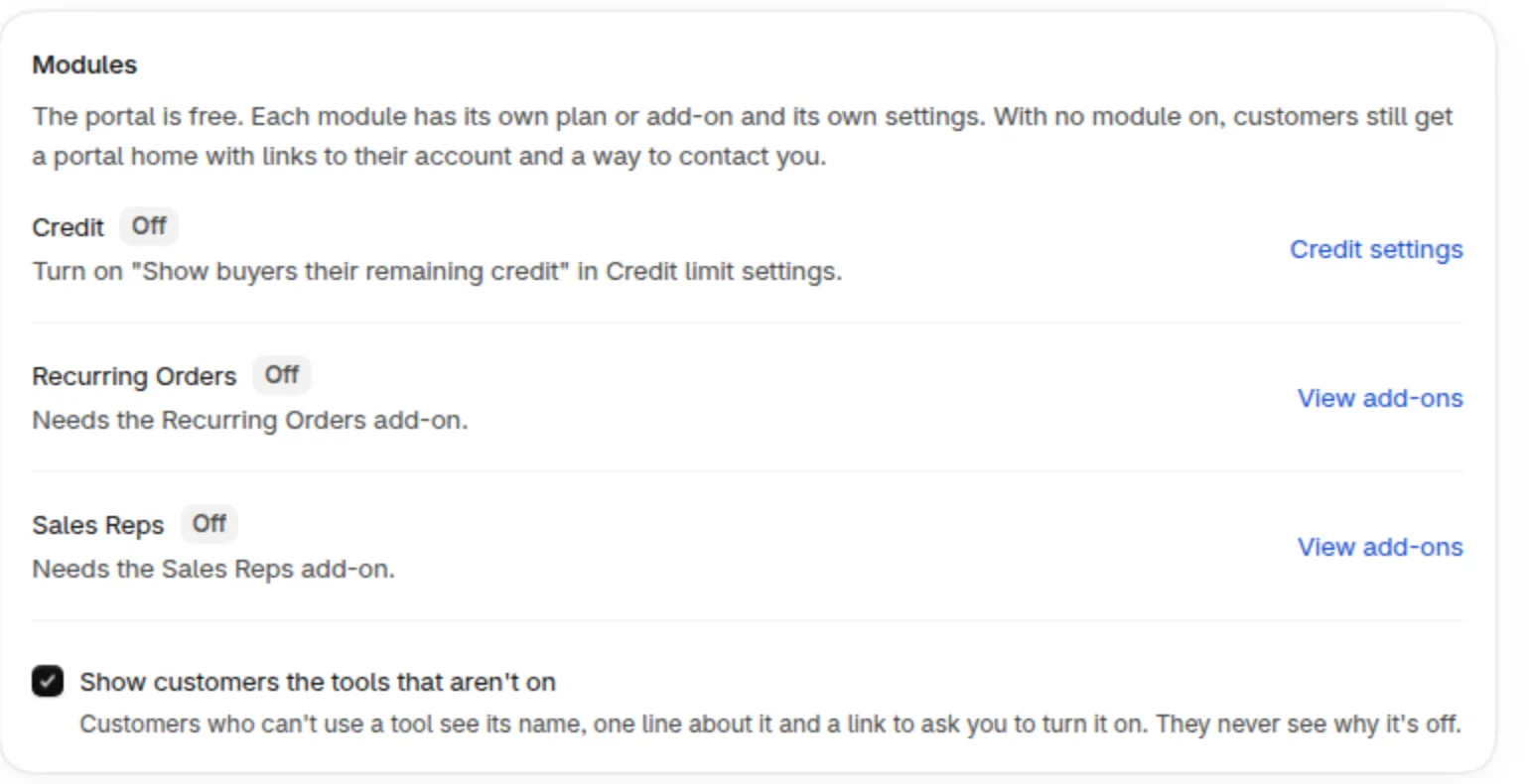
Section titled “Which modules does the portal have?”The Modules card lists Credit, Recurring Orders and Sales Reps. The portal is free. Each module has its own plan or add-on and its own settings.
Credit
Section titled “Credit”The Credit module shows customers who have a credit rule their credit, their unpaid Pay later orders and the orders waiting for your approval. It needs the Credit limit add-on, and Show buyers their remaining credit turned on in the Credit limit settings. See Credit limit settings and what buyers see with Credit limit.
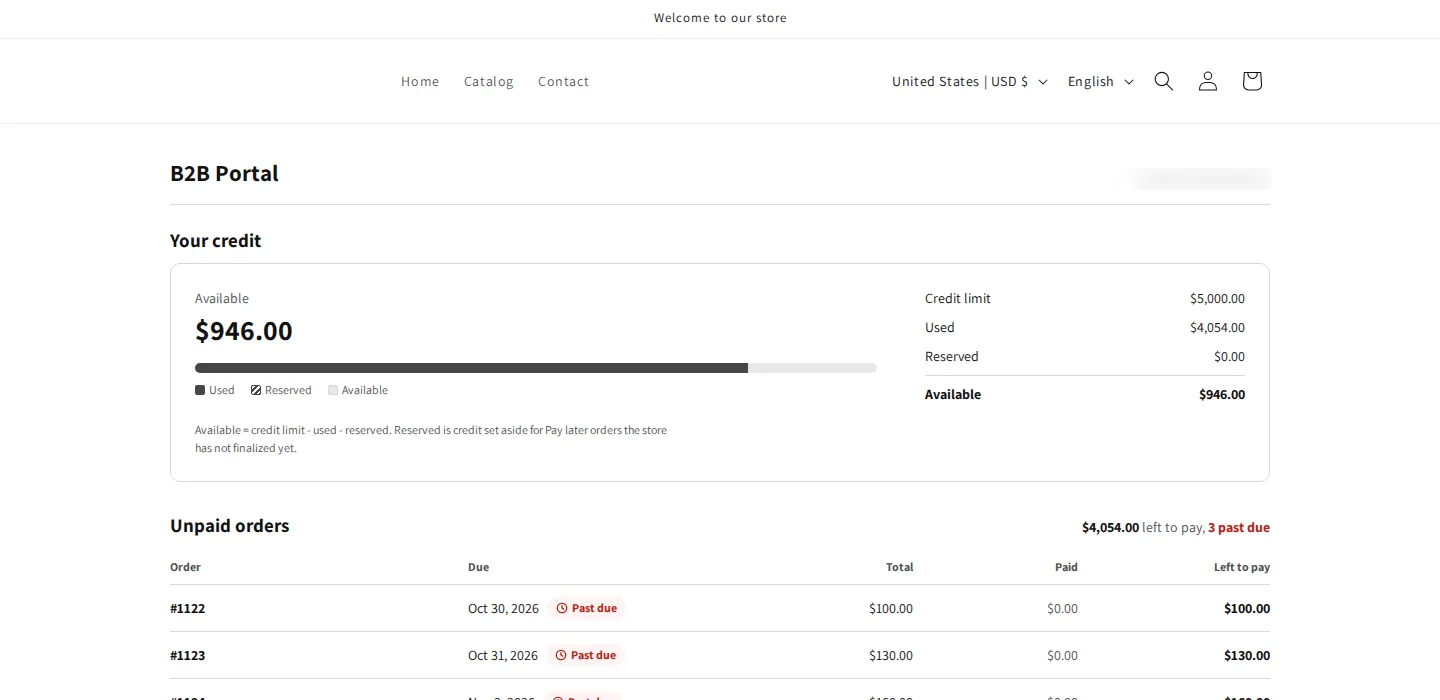
The portal for a customer with a credit rule. Example amounts.
Tools that are not on yet
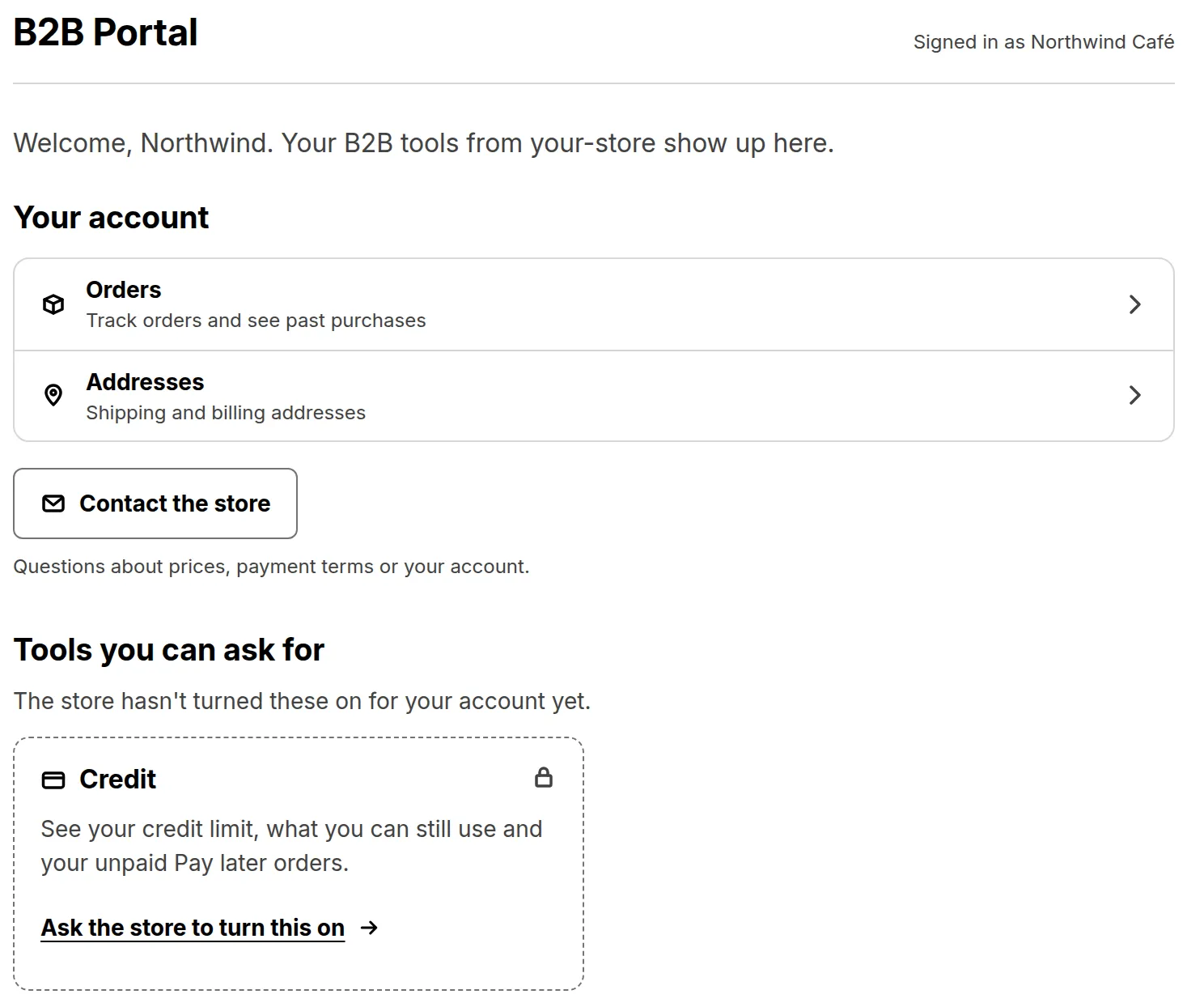
Section titled “Tools that are not on yet”Customers who can’t use a tool see its name, one line about it and a link to ask you to turn it on. They never see why it’s off. You control this with Show customers the tools that aren’t on in the Modules card. Clear the checkbox to hide this list. Customers then see no tool cards.
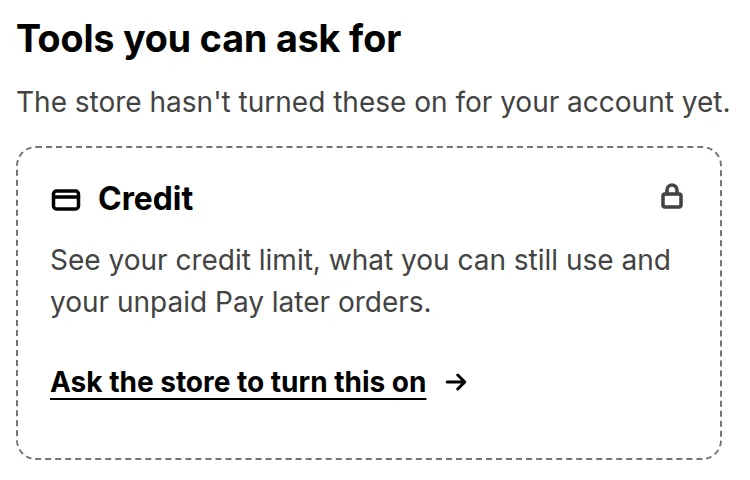
A customer without a credit rule sees Credit as a tool they can ask for.
Ask the store to turn this on opens an email to your store email address.
Quotes link
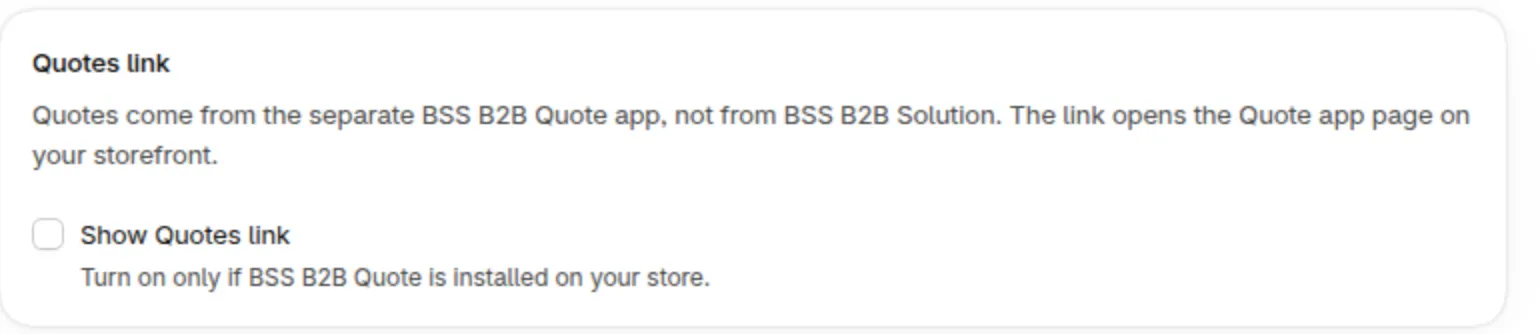
Section titled “Quotes link”Quotes come from the separate BSS B2B Quote app, not from BSS B2B Solution. Turn on Show Quotes link only if BSS B2B Quote is installed on your store. The link opens the My quotes page of that app. Change Link only if your store uses a different app path.
What if no module is on?
Section titled “What if no module is on?”Customers still get a portal home. It has links to their orders and addresses, and a way to contact you. This is what you see when you turn the portal on before you set up any module.
Frequently asked questions
Section titled “Frequently asked questions”Why don’t my customers see the portal link?
Section titled “Why don’t my customers see the portal link?”Check that the portal is on. The header link shows only to signed-in customers, and you must add the B2B Portal link block in the theme editor first. The account button needs new customer accounts and a customer who can see their credit.
What do customers see if I add no language?
Section titled “What do customers see if I add no language?”They see English. Details are in Translate the B2B Portal.