
Recurring Orders FAQ and Limits
Short answers about Recurring Orders, with a link to the full page for each. Start with the overview.
Limits at a glance
Section titled “Limits at a glance”| Limit | What it means |
|---|---|
| Saved cards | Not charged automatically yet. Orders are drafts, Net Terms orders or Shopify invoices, depending on the mode. |
| Buyer | One buyer per schedule. The buyer and company location cannot be changed after saving. |
| Products | Up to 50 per schedule, quantity 1 to 99,999 each. |
| Interval | Every 1 to 12 weeks or months. |
| Run now | Once a day, active schedules only, always a draft. |
| Add-on ends | Schedules pause automatically. You resume each one by hand. |
| Missed dates | Dates missed while paused are skipped. |
| Storefront version | Works on version 3 and version 5. |
| Buyer access | Skip, pause and resume only. Off by default. |
Prices and payment
Section titled “Prices and payment”Are prices fixed when I create the schedule?
Section titled “Are prices fixed when I create the schedule?”No. Prices are worked out again on every order date, from your B2B pricing rules for that buyer. A change to your pricing rules applies to the next order.
How are taxes handled?
Section titled “How are taxes handled?”Taxes follow the buyer’s tax exemption in Shopify: the customer’s setting, or the company location’s setting for company buyers. The order is priced when it runs, using your current pricing rules. A VAT ID entered at checkout applies only after the buyer’s first order with that VAT ID.
Does Recurring Orders charge a saved card?
Section titled “Does Recurring Orders charge a saved card?”No. Nothing is charged to a saved card, and saved cards are not charged automatically yet. A company location pays by its payment terms. A customer without a company pays the Shopify invoice.
Does it work with Shopify subscriptions?
Section titled “Does it work with Shopify subscriptions?”It is separate from Shopify subscriptions. Recurring Orders does not use Shopify subscription plans (selling plans). It creates the orders itself on the schedule you set.
What if a company is over its credit limit?
Section titled “What if a company is over its credit limit?”In Auto, when the Credit limit add-on is on, an order for a company location is checked against the company’s Credit limit before it is completed. If the company is over the limit, on hold or overdue, or the check cannot be done, the order stops at the draft so you can check it. See Credit limit.
Why does the company location need payment terms?
Section titled “Why does the company location need payment terms?”Auto completes the order with the location’s payment terms. A location without payment terms can only use Review. See Review or Auto.
Schedules
Section titled “Schedules”Can I create schedules before adding the add-on?
Section titled “Can I create schedules before adding the add-on?”Yes. You can open Recurring Orders, create and edit schedules, and they are saved as Paused: add-on not active. No orders are created. After you add the add-on, open each schedule and click Resume. See Create a schedule before the add-on.
Can I change the buyer?
Section titled “Can I change the buyer?”No. The buyer and company location cannot be changed. Create a new schedule for someone else.
What if I choose the 31st with months?
Section titled “What if I choose the 31st with months?”Shorter months use their last day.
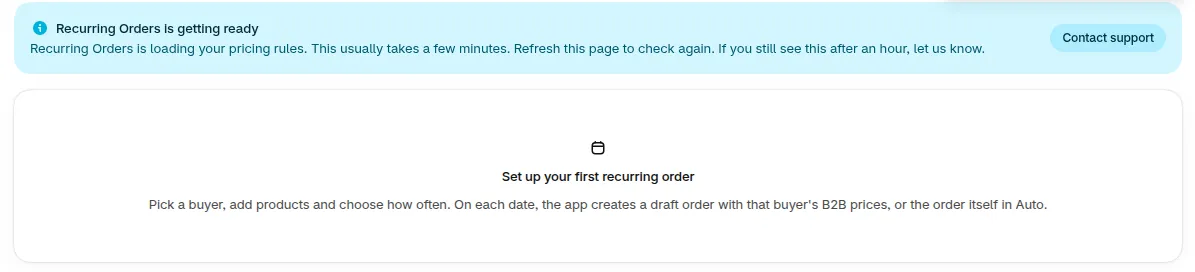
Why does the admin say “Recurring Orders is getting ready”?
Section titled “Why does the admin say “Recurring Orders is getting ready”?”After you turn the add-on on, Recurring Orders needs a few minutes to prepare pricing. Refresh the page to check again. Schedules cannot run during that time, and the next run tries again. If it still fails after several tries, the run fails and you can use Run now. If you still see the banner after an hour, click Contact support.
Why was no order created on a date?
Section titled “Why was no order created on a date?”Check Run history on the schedule. The date may have been skipped because the schedule was paused, or the run failed. See Read the run history.
When the add-on ends
Section titled “When the add-on ends”What happens to my schedules?
Section titled “What happens to my schedules?”Schedules pause automatically, at the latest on their next order date, and show Paused: add-on ended. No draft orders or orders are created while the add-on is off. Your schedules and their history are kept.
Do they restart when I add Recurring Orders again?
Section titled “Do they restart when I add Recurring Orders again?”No. Open each schedule and click Resume. Dates missed while paused are skipped, so no extra orders are created. See Pause, resume and delete.
Buyers
Section titled “Buyers”Can buyers create or edit schedules?
Section titled “Can buyers create or edit schedules?”No. A buyer can skip the next order, pause and resume, and only when you turn on Buyer can manage this schedule in the B2B Portal. See buyer self-service.
Need help with Recurring Orders? Reach us at [email protected] or Live Chat.