
Translate the B2B Portal for Each Storefront Language
Translations let you set the words customers read in the B2B Portal for each language of your storefront. The portal shows in English until you add a language. Customers who browse your storefront in a language you add see your text for it once you save. Any field you leave blank shows English.
Key takeaways
Section titled “Key takeaways”- With no language added, the portal shows English in every storefront language.
- You write the text yourself. Nothing is applied until you click Save.
- Each text can be up to 500 characters. You can add up to 30 languages.
- Some texts hold a value your storefront fills in. Keep it in your text.
- Remove deletes the text. Customers in that language then see English.
How do I translate the portal?
Section titled “How do I translate the portal?”-
Open Translations
Section titled “Open Translations”Open B2B Portal and click Edit translations in the Text and style card.
-
Add a language
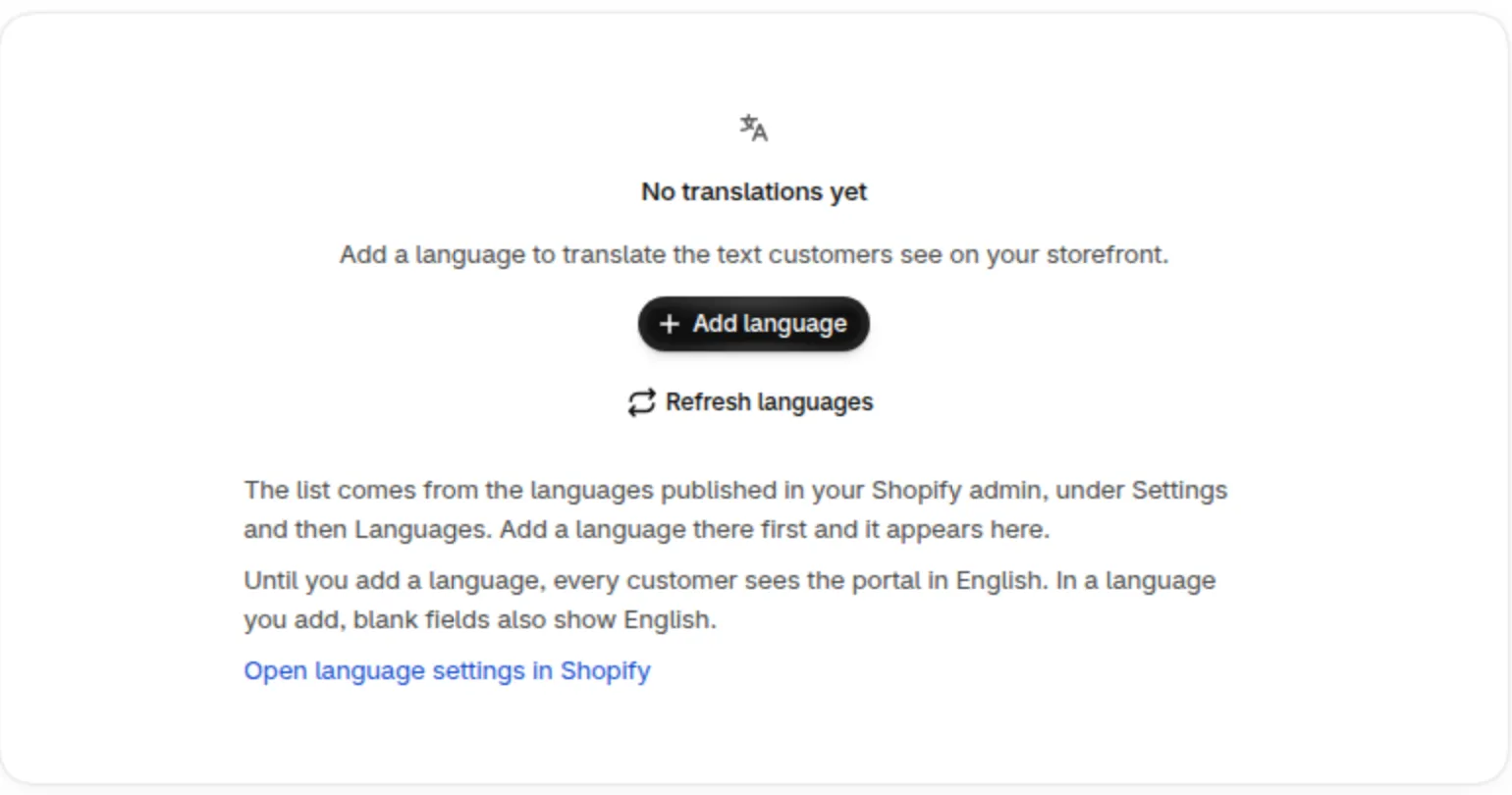
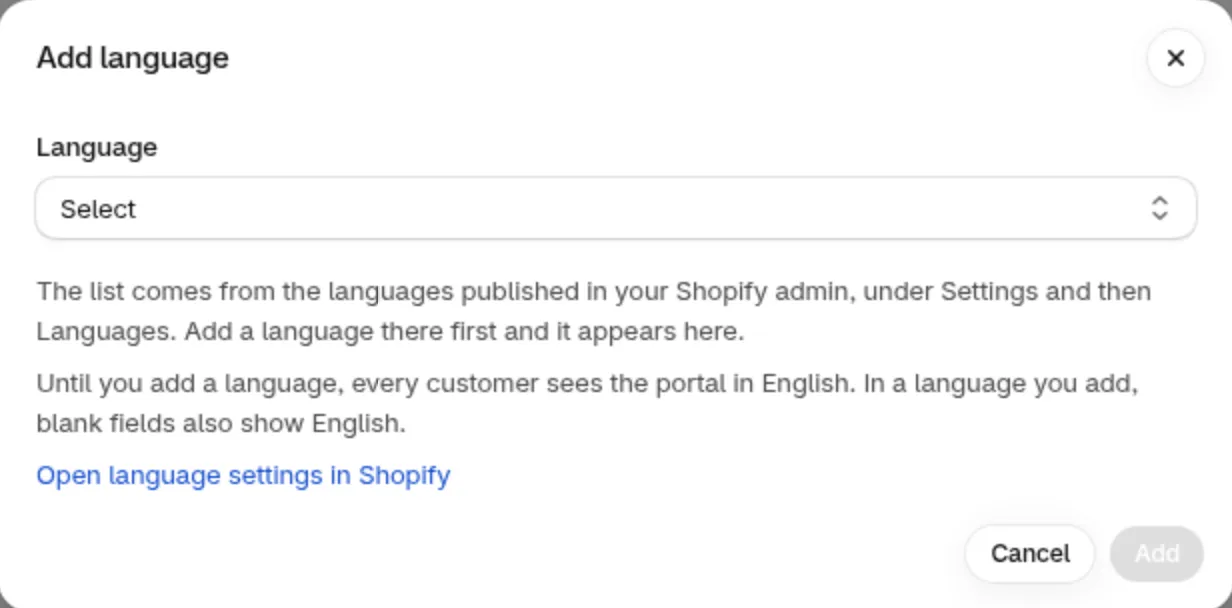
Section titled “Add a language”Click Add language, pick a language and click Add. The list comes from the languages published in your Shopify admin. If a language is missing, add it in Shopify first, then click Refresh languages.
-
Type your text
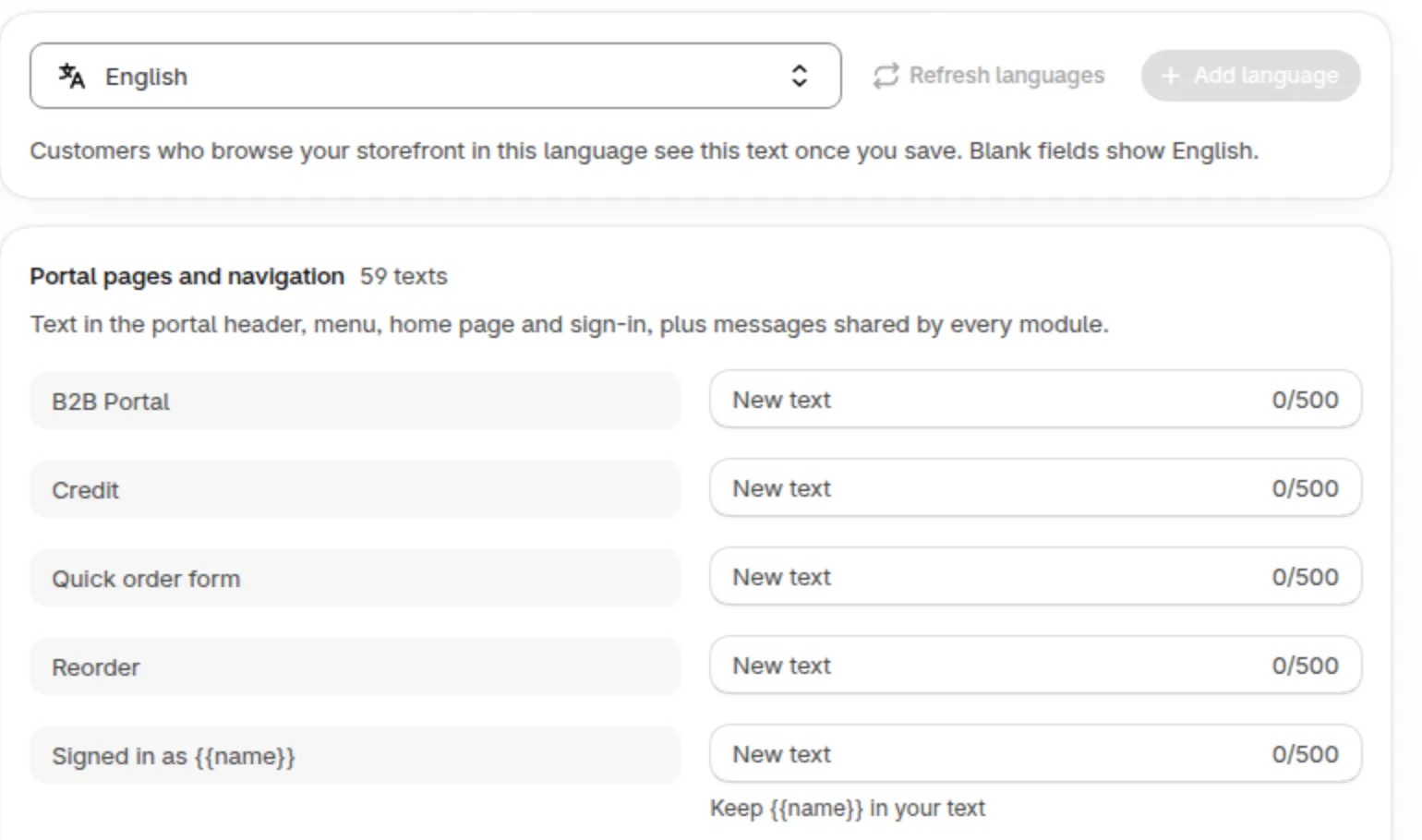
Section titled “Type your text”Type your text in the right-hand field of each row. The English original is on the left.
-
Click Save. Open your storefront in that language, sign in with a customer account and check the portal.
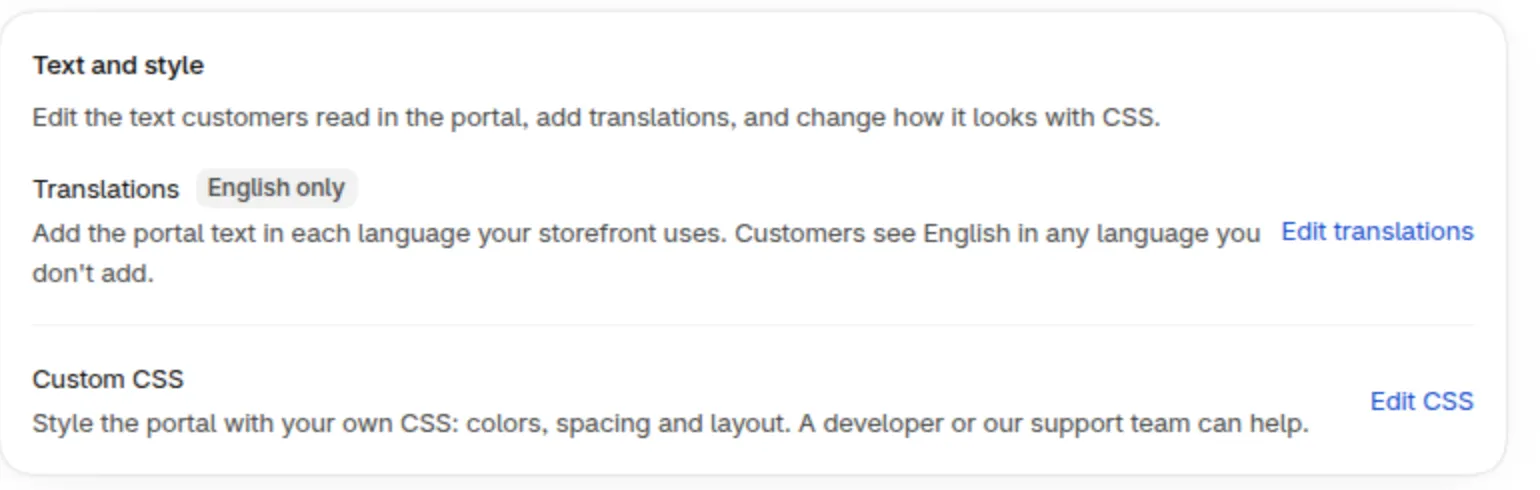
Edit translations sits in the Text and style card. It reads English only until you add a language.
What happens when I add French?
Section titled “What happens when I add French?”When you add French, the right-hand fields are pre-filled with a French translation we wrote, so you can start from it. Review it, change what you like, then click Save. Until you save, customers still see English.
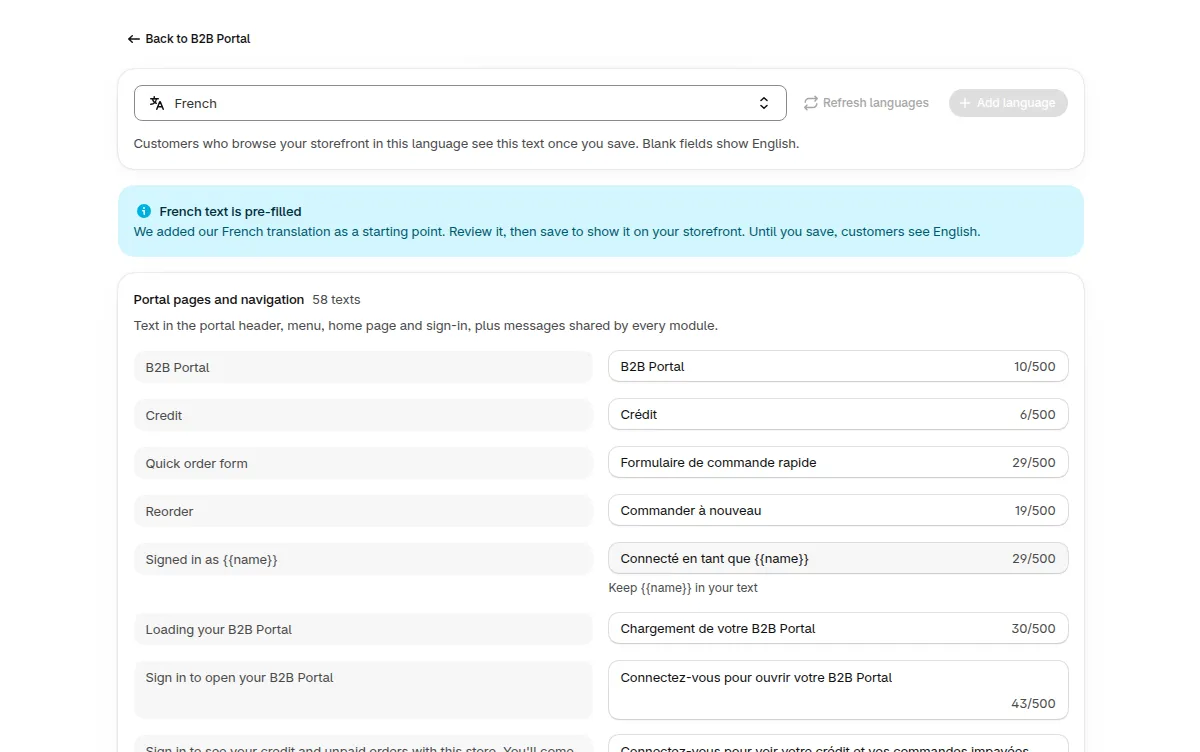
French is pre-filled as a starting point. The Save bar shows because nothing is saved yet.
Other languages start empty. Fill in the rows you want to change and leave the rest blank to show English.
What are the texts with double curly braces?
Section titled “What are the texts with double curly braces?”Some texts hold a value your storefront fills in, shown in double curly braces. For example, Signed in as is followed by the customer name. Keep each one in your text. If one is missing, Save is blocked and the row tells you what to add back.
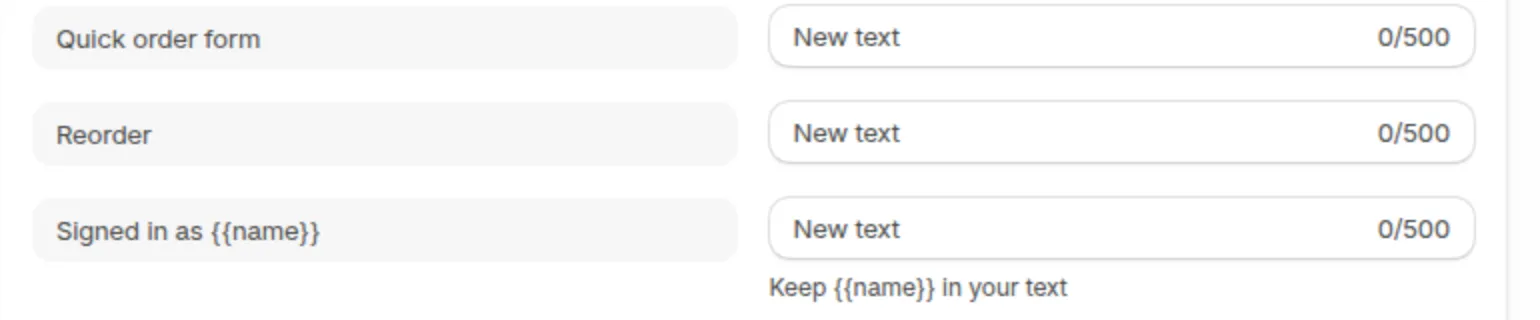
How do I remove a language?
Section titled “How do I remove a language?”Click Remove for that language and confirm. The text is deleted. Customers who browse in that language see English instead.
Limits and good to know
Section titled “Limits and good to know”- Each text can be up to 500 characters.
- You can add up to 30 languages.
- Translations cover the text on the portal page. The Open B2B Portal button in the customer account is not editable here.
- Text you type elsewhere, such as company names or product names, is not part of Translations.
Frequently asked questions
Section titled “Frequently asked questions”What do customers see if I add no language?
Section titled “What do customers see if I add no language?”The portal in English, in every storefront language. In a language you add, any blank field also shows English.
Why is the Save button blocked?
Section titled “Why is the Save button blocked?”A text that held a value in double curly braces lost it. The row tells you what to add back.
I added French. Why do customers still see English?
Section titled “I added French. Why do customers still see English?”French is only pre-filled as a starting point. Click Save to show it on your storefront.