
Net Terms Customer Balances: Read Owed, Pending and Age
The Customers view of the Credit limit tab shows Net Terms customer balances in two places. Totals shows the total owed and four counters. The Customer balances list shows Limit, Pending drafts, Owed and Available for each customer. Numbers update shortly after Shopify reports an order or a payment (usually within a minute), and BSS B2B Solution rechecks every tracked order with Shopify once a day. For the full picture of Credit limit, start at the Credit limit overview.
Key takeaways
Section titled “Key takeaways”- Totals shows Total owed by customers and four counters: Over limit, 90% used or more, On hold and Overdue.
- Customer balances shows Status, Limit, Pending drafts, Owed and Available per customer. Available can be negative.
- Balances update shortly after Shopify reports an order or payment (usually within a minute), again every day at 01:40 UTC, and on demand with Recalculate.
- Shopify shares only the last 60 days of orders until you click Allow access to all orders. For older debt, enter an opening balance.
- Export CSV gives one row per customer, up to 50,000 customers.
- Everything on this page is in the Customers view of the Credit limit tab.
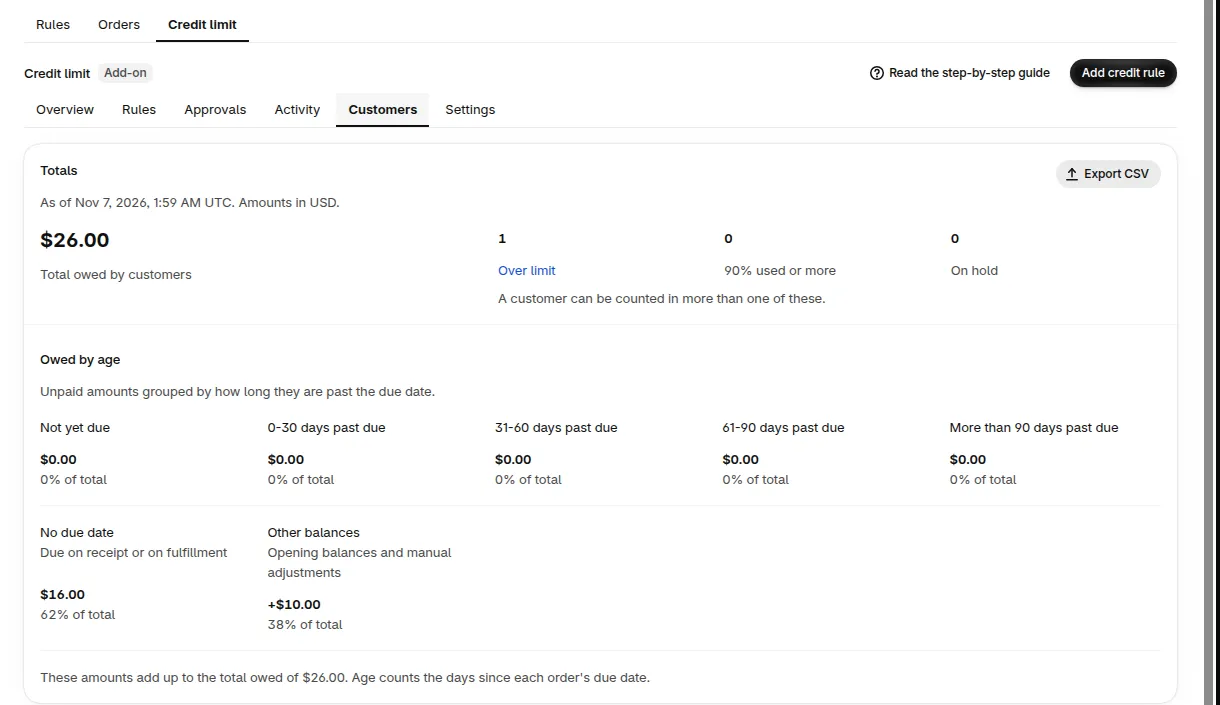
The Customers view: Totals on top, Customer balances below.
What does Totals show?
Section titled “What does Totals show?”Totals shows how much your customers owe in total, how many are in trouble, and how old the unpaid amounts are. It sits at the top of the Customers view, under B2B orders & discounts > Net Terms, tab Credit limit. The Overview view is a different page: it has the setup guide and Is it working?.
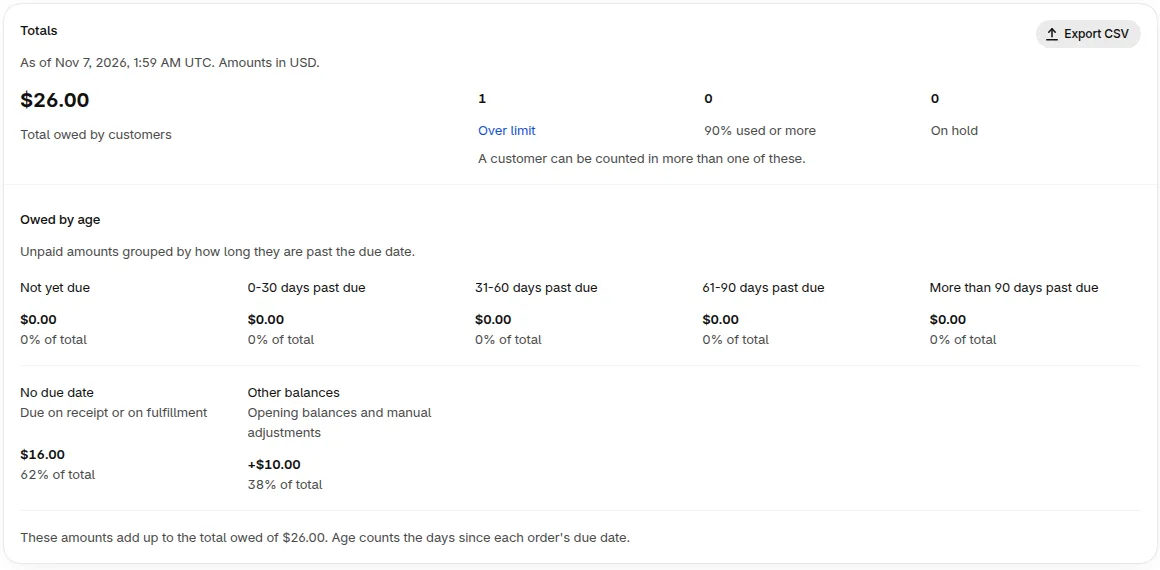
The Totals card. The date and the currency show above the total.
Total owed by customers is the sum of the Owed column in the list. The four counters below it count customers. A customer can be counted in more than one counter. Click a counter to list those customers.
| Counter | Counts customers who are |
|---|---|
| Over limit | Above their limit: Available is below 0. |
| 90% used or more | At 90% or more of their limit (Pending plus Owed), but not over it. |
| On hold | On hold. Pay later is blocked for them. |
| Overdue | Past the number of days you set under Block Pay later when a customer has an overdue order. |
The Overdue counter appears only while that overdue setting is on. See Credit limit settings to turn it on.
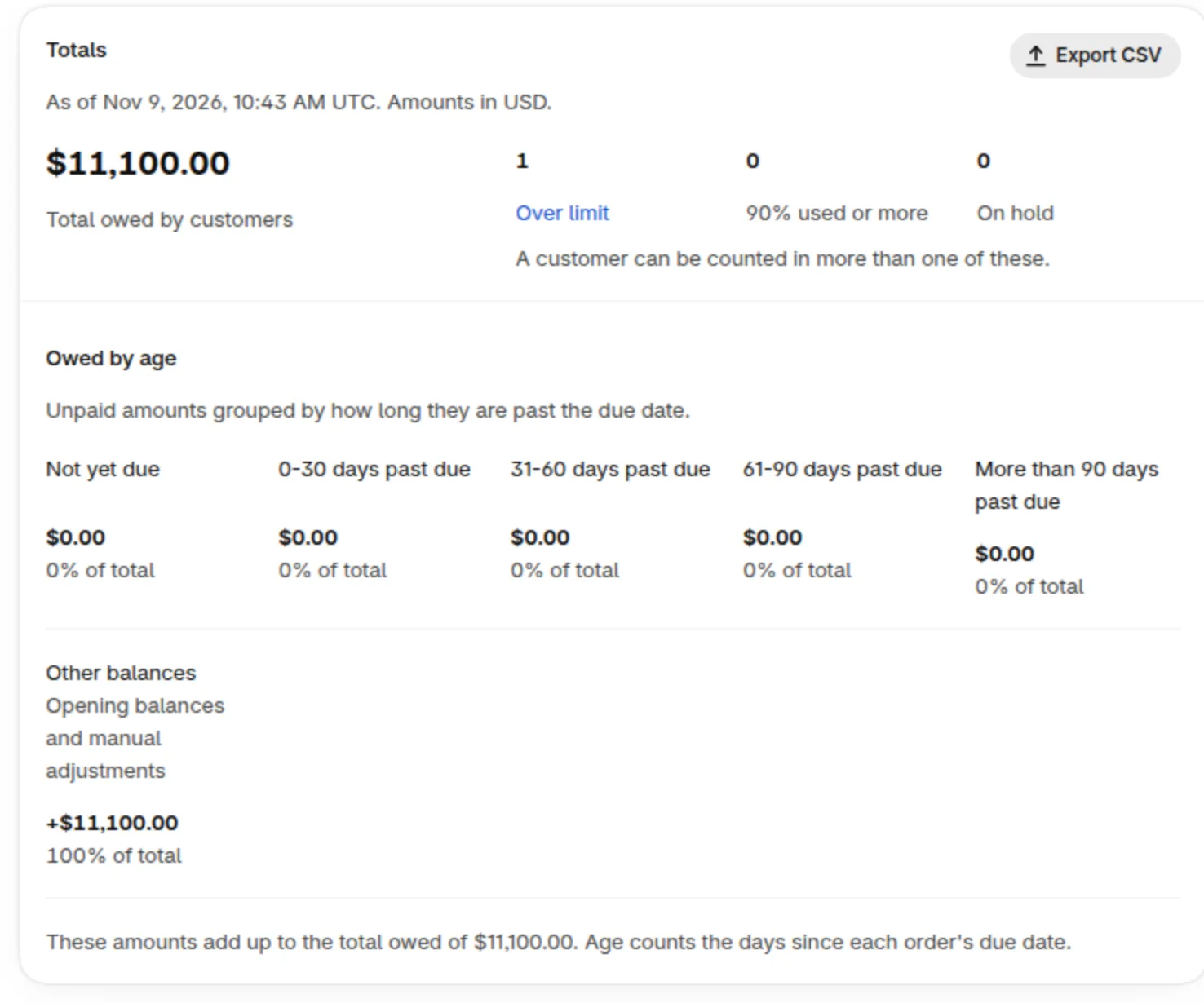
Owed by age splits the unpaid amount by how long it is past the due date. The groups add up to the total.
| Group | What it holds |
|---|---|
| Not yet due | Orders that have not reached their due date. |
| 0-30 days past due | Orders 0 to 30 full days past the due date. |
| 31-60 days past due | Orders 31 to 60 days past the due date. |
| 61-90 days past due | Orders 61 to 90 days past the due date. |
| More than 90 days past due | Orders more than 90 days past the due date. |
| No due date | Pay later and Manual Order orders due on receipt or on fulfillment. |
| Paid or cancelled, not updated yet | Orders that Shopify shows as paid or cancelled but the balance still counts. |
| Other balances | Opening balances and manual adjustments. |
Example: a store has $7,000 owed in total. Not yet due is $4,000, 0-30 days past due $1,500, 31-60 days past due $600, More than 90 days past due $250, No due date $300 and Other balances $350. The groups add up: 4,000 + 1,500 + 600 + 250 + 300 + 350 = $7,000.
If Paid or cancelled, not updated yet shows an amount, click Recalculate. The balances then match Shopify again.
How do I read the Customer balances list?
Section titled “How do I read the Customer balances list?”Each row shows one customer with a Status, a Limit, Pending drafts, Owed and Available. Open a row to see the customer page with every order and change behind the numbers. See the customer page.
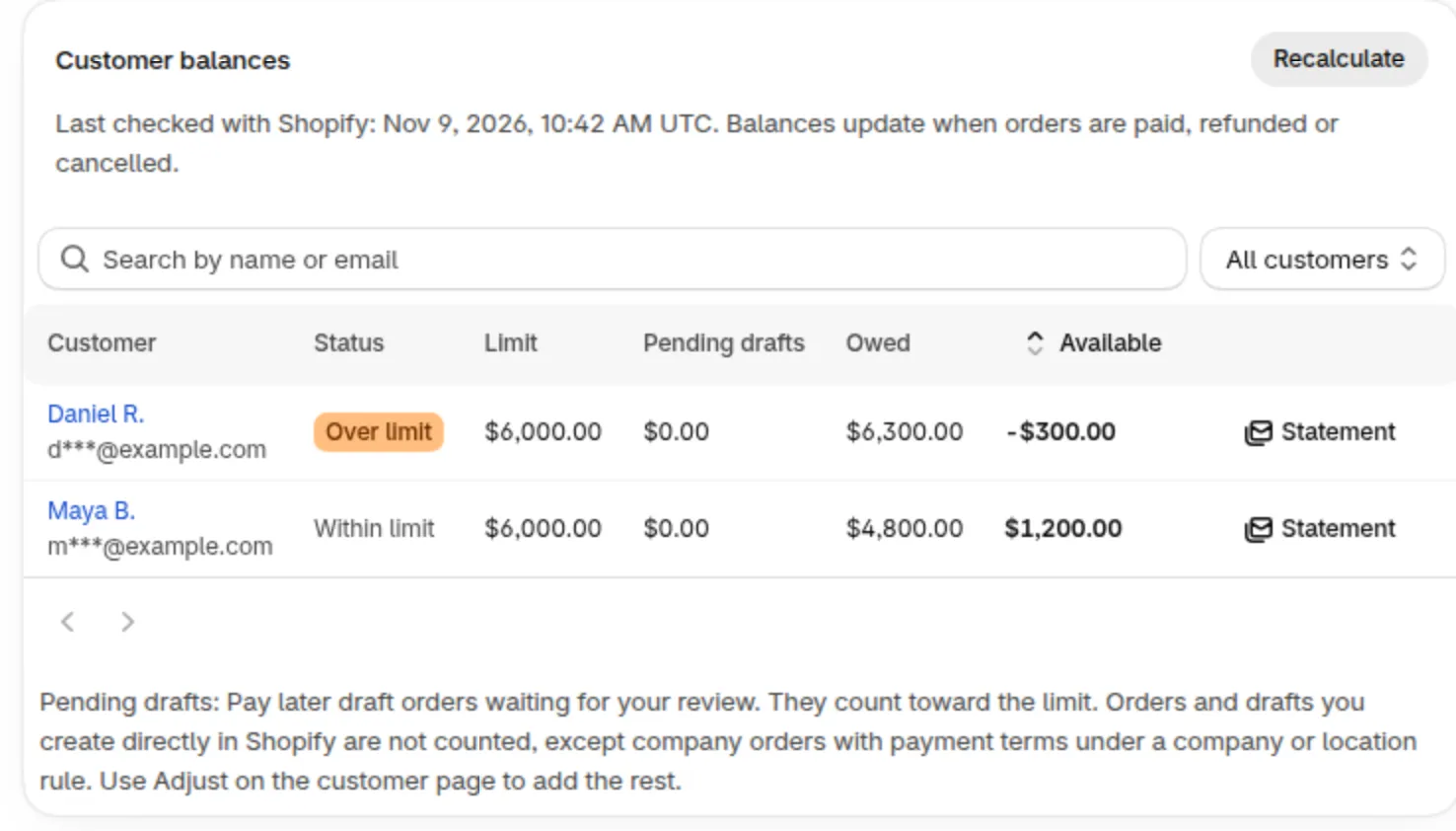
The Customer balances list with its status badges.
| Column | Meaning |
|---|---|
| Status | Badges for the customer’s state. A customer with no limit shows a dash. |
| Limit | The limit that applies now. A temporary limit shows the usual limit next to it. |
| Pending drafts | Pay later draft orders waiting for your review. They count toward the limit. |
| Owed | Unpaid orders, plus the opening balance and manual adjustments. Never below 0. |
| Available | Limit minus Pending drafts minus Owed. It can be negative. |
The Status column uses these badges. A customer can show several at once, for example On hold and Over limit.
| Status | When it shows |
|---|---|
| On hold | You placed the customer on hold. |
| Overdue | The customer has an order past the days set in the overdue setting. Shown only while that setting is on. |
| Over limit | Available is below 0. |
| 90% used | Pending drafts plus Owed is at least 90% of the limit, and the customer is not over the limit. |
| Within limit | None of the above. |
Example: a customer has a limit of $500 and owes $570, with no pending drafts. Available is 500 - 570 = -$70, and the status is Over limit.
Example: a customer has a limit of $1,000, $300 in Pending drafts and $620 Owed. Pending plus Owed is 300 + 620 = $920, which is 92% of the limit, so the status is 90% used. Available is 1,000 - 300 - 620 = $80.
To find a customer, type a name or an email in the search box. Use the filter to show All customers, Over limit, 90% used or more, On hold or Overdue. The filter shows a count next to Over limit, On hold and Overdue. The Overdue option appears only while the overdue setting is on.
Companies and company locations have their own list, Company balances. See company accounts.
How up to date are the balances?
Section titled “How up to date are the balances?”Balances change shortly after Shopify reports an event (usually within a minute), and a daily check with Shopify corrects anything that was missed. The Customer balances card shows Last checked with Shopify with the date of the last full check.
| Event | When the balance changes |
|---|---|
| A buyer picks Pay later and a draft order is created | Right away. The amount is reserved as Pending drafts. |
| You complete the draft with Create order | Shortly after Shopify reports it (usually within a minute). Pending drafts becomes Owed. |
| An order is paid, partly paid, refunded or cancelled | Shortly after Shopify reports it (usually within a minute). Owed goes down. |
| A draft is updated with a new total | Pending drafts adjusts to the new total. The update itself is never blocked. |
| A draft is deleted | Pending drafts is released when Shopify reports the deletion. |
| Daily check | Every day at 01:40 UTC, every tracked order is read again from Shopify. A missed order can raise a balance. |
| Recalculate | Now. It runs the same check as the daily one. |
If a deleted draft still shows under Pending drafts, contact support. A reservation ends by itself 30 days after it was made.
How do I refresh balances now?
Section titled “How do I refresh balances now?”Click Recalculate on the Customer balances card.
- Click Recalculate. The button changes to Recalculating….
- Wait. The card says “Recalculating with Shopify. This can take a few minutes. You can leave this page.” One recalculation runs per store at a time.
- When it finishes, the card shows Balances updated and Last checked with Shopify has a new date.

Recalculate while it runs, and the message if it does not finish.
If it does not finish, the card shows Recalculation didn’t finish and “Balances still show the check from” the date of the last good check. Wait a few minutes and click Try again. If it keeps failing, contact support.
Each customer page has its own Recalculate button that refreshes only that customer. It takes about a minute.
Which orders count toward Owed?
Section titled “Which orders count toward Owed?”Balances count Pay later orders placed through BSS B2B Solution: Pay later at your online store checkout and Manual Orders. Owed adds the unpaid ones with Shopify payment terms, the opening balance and manual adjustments. Orders and draft orders you create directly in Shopify are not counted, even with payment terms, except company orders with payment terms when a company or location rule applies. To record the rest, open the customer and use Adjust.
| Counts | Does not count |
|---|---|
| Pay later draft orders, as Pending drafts, until you complete them. | Orders and draft orders you create directly in Shopify admin or on POS (except company orders with payment terms, listed on the left). |
| Orders created in BSS Manual Order with Shopify payment terms, when a credit rule applies to the customer. | Manual Order and company orders in a currency other than the store currency. |
| Shopify orders placed by a company buyer with payment terms, when a company or location rule applies to that buyer. | Orders that are paid or cancelled (the unpaid part is what counts). |
| The opening balance and manual adjustments you enter. | Orders older than 60 days, until you allow access to all orders. |
For how Manual Order shows credit, see Manual Orders and Credit limit.
Why don’t older orders show up?
Section titled “Why don’t older orders show up?”Shopify shares only the last 60 days of orders with BSS B2B Solution until you allow access to all orders. Older unpaid orders are missing from Owed until you do.
The banner that appears while only 60 days of orders are shared.
You have two ways to fix it:
- Click Allow access to all orders on the banner and approve the request in Shopify. This gives Credit limit the permission
read_all_orders. Then click Recalculate. - Or enter an Opening balance for each customer who owes money from before. See the customer page.
Which customers are in the list?
Section titled “Which customers are in the list?”A customer is in the list when they have a balance record, a rule written for that customer, or Net Terms orders that Credit limit has not picked up yet. A balance record exists once Credit limit tracks an order, a hold, an adjustment or an opening balance for the customer.
Customers covered only by a customer tag rule or by a Logged-in customers rule join the list when their first balance record is created, for example on their first Pay later order. Credit limit does not scan every Shopify customer.
If a tag rule exists and Shopify cannot return the tags of some customers, the list shows “Some limits may be missing from this list. Try Recalculate again in a few minutes.”
Orders placed before you created a rule are picked up by Recalculate. Until then the list shows an estimate for them.
The Public API returns the same customers. A customer that is not in the list gets a 404 from the API.
How do I export balances?
Section titled “How do I export balances?”Export CSV in Totals downloads one row per customer with the amounts by age. Names are shortened and emails are left out. It handles up to 50,000 customers.
- Click Export CSV in Totals. The button changes to Exporting… and a progress message shows the percent exported. It can take a few minutes.
- When the file is ready, the message Credit balances export ready appears with a download link and the date until which the link works.
- Click the link and save the file. The link disappears when you close the message.
If your store has more than 50,000 customers with balances, the message says “Too many customers to export”. If no customer has a balance yet, it says “Nothing to export”.
Can I read the same numbers from my own system?
Section titled “Can I read the same numbers from my own system?”Yes. The Public API returns the limit, pending, owed and available amounts for each customer. See Public API for Credit limit.
What is the difference between Pending and Owed?
Section titled “What is the difference between Pending and Owed?”Pending drafts are Pay later draft orders from your online store checkout waiting for you to complete them in Shopify. Drafts you create directly in Shopify are not counted. Owed is what customers have been billed and not yet paid: unpaid orders, the opening balance and manual adjustments. When you click Create order on a draft, Pending becomes Owed. Buyers see Pending drafts as Reserved and Owed as Used. The glossary defines every term.
Why is Available negative?
Section titled “Why is Available negative?”Available is the limit minus Pending minus Owed, and it is not capped at 0. A negative number shows how far over the limit the customer is, for example -$70. The customer stays Over limit until payments bring Owed down.
Why do two customers have the same limit?
Section titled “Why do two customers have the same limit?”One credit rule can cover many customers, for example a customer tag or all logged-in customers. Each customer gets the same limit, and each has their own Owed and Available. Open the customer page to see which rule applies.
Does an order made in Shopify admin count?
Section titled “Does an order made in Shopify admin count?”Usually no. Orders and draft orders you create directly in Shopify admin or on POS are not counted, even with payment terms, and a draft made in Shopify admin never shows in Pending drafts. Manual Order orders with payment terms count. Shopify orders from a company buyer with payment terms count when you have a company or location rule. For anything else, open the customer, click Adjust and add the amount with a note. See how to adjust a balance.
How often is the data refreshed?
Section titled “How often is the data refreshed?”Shortly after Shopify reports an order or a payment (usually within a minute), every day at 01:40 UTC for all tracked orders, and whenever you click Recalculate.
Why does a balance look wrong?
Section titled “Why does a balance look wrong?”Owed goes down only after the payment is recorded in Shopify (Collect payment > Manual payment > Record payment, or the order is marked paid), so first check that the payment is recorded. Then look at the date under Last checked with Shopify and click Recalculate. The checks to run for each symptom are in Credit limit troubleshooting.