
Auto-fulfill Extra Fee Lines
Extra Fee lines are charges, not products you ship. With this setting and a Shopify Flow workflow, the app marks the Extra Fee lines of every new order as fulfilled for you. Your products stay as they are, and your customer gets no fulfillment email.
Watch the full setup (1 min 20 s, with sound), or follow the steps below.
Before you start
Section titled “Before you start”- Set up at least one Extra Fee rule.
- Install the free Shopify Flow app. It is where you build the workflow.
Set up auto-fulfill
Section titled “Set up auto-fulfill”-
Turn on the setting.
Go to B2B pricing > Extra Fee > Settings and open Auto-fulfill Extra Fee Lines. Tick Auto-fulfill Extra Fee lines in new orders, then click Save. After you save, the Extra Fee lines of new orders are marked so the Flow action can find them.
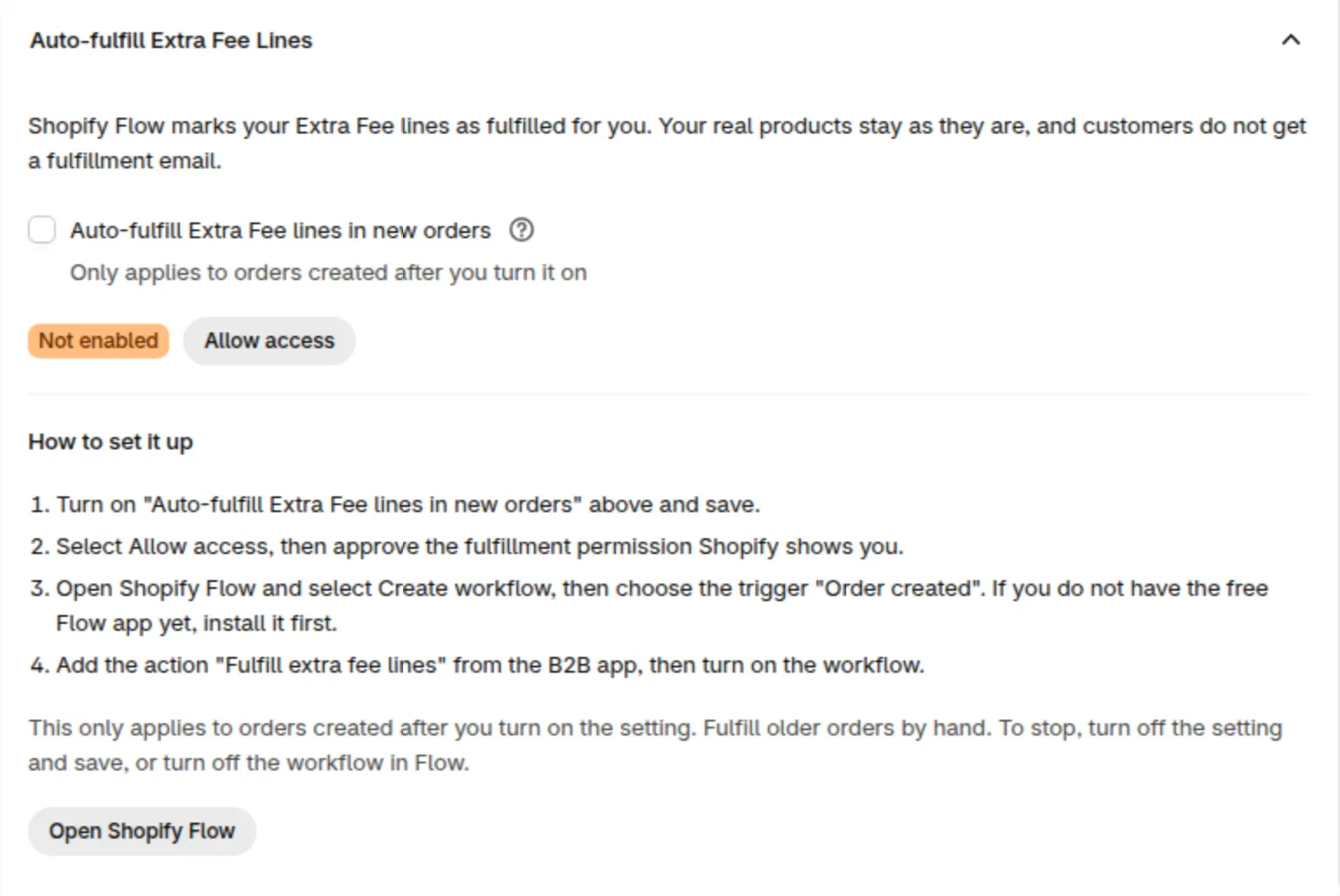
The Auto-fulfill Extra Fee Lines section: the checkbox, the Not enabled badge and the Allow access button.
-
Allow access.
Click Allow access and approve the fulfillment permission Shopify shows you. The badge changes from Not enabled to Access granted. If you decline, a warning says Access was not granted. Click Allow access to try again.
-
Create the workflow.
Click Open Shopify Flow. It opens in a new tab. Click Create workflow and choose the trigger Order created.
-
Add the action.
Click + under the trigger, choose Action, and pick Fulfill extra fee lines. It is listed under BSS B2B Wholesale Pricing, and its Order field is already filled in. Then click Turn on workflow. From now on, each new order’s Extra Fee lines are fulfilled when the order is created.
Good to know
Section titled “Good to know”- It applies only to orders created after you turn the setting on and save. For older orders, the action finishes and changes nothing, so fulfill them by hand.
- The action fulfills only the Extra Fee lines. It never touches product lines, and running it twice on the same order does not fulfill anything twice.
- The shipping fee line named Extra fee and add-on lines are not fulfilled by this action.
- To stop, turn off the workflow in Shopify Flow. Turning the setting off and saving also stops new orders from being marked. The app has no button to take back the permission.
When a workflow run fails
Section titled “When a workflow run fails”The run fails in Shopify Flow with one of these messages. Fix the cause, then run the workflow again.
| Message starts with | What to do |
|---|---|
| The B2B app needs permission to manage fulfillment orders | Open the link in the message and approve it, or click Allow access in the app. |
| The fulfillment order is on hold | Release the hold on the order. |
| The fulfillment order is scheduled for later | Mark the fulfillment order as ready. |