
Recurring Orders Buyer Access: Skip, Pause, Resume
Buyer self-service lets a buyer skip the next order, pause and resume a schedule from the Recurring orders page of the B2B Portal. You turn it on for each schedule. It is off until you do.
Key takeaways
Section titled “Key takeaways”- Turn on Buyer can manage this schedule in the B2B Portal on the schedule.
- The B2B Portal must be on too.
- The buyer can skip the next order, pause and resume.
- The buyer cannot change products, quantities or dates, and cannot delete or create schedules.
- A skip can be undone until about 6:00 AM store time on that order date.
How do I turn it on?
Section titled “How do I turn it on?”- Open the schedule and click Edit schedule.
- Under Buyer access, switch on Buyer can manage this schedule in the B2B Portal.
- Click Save.
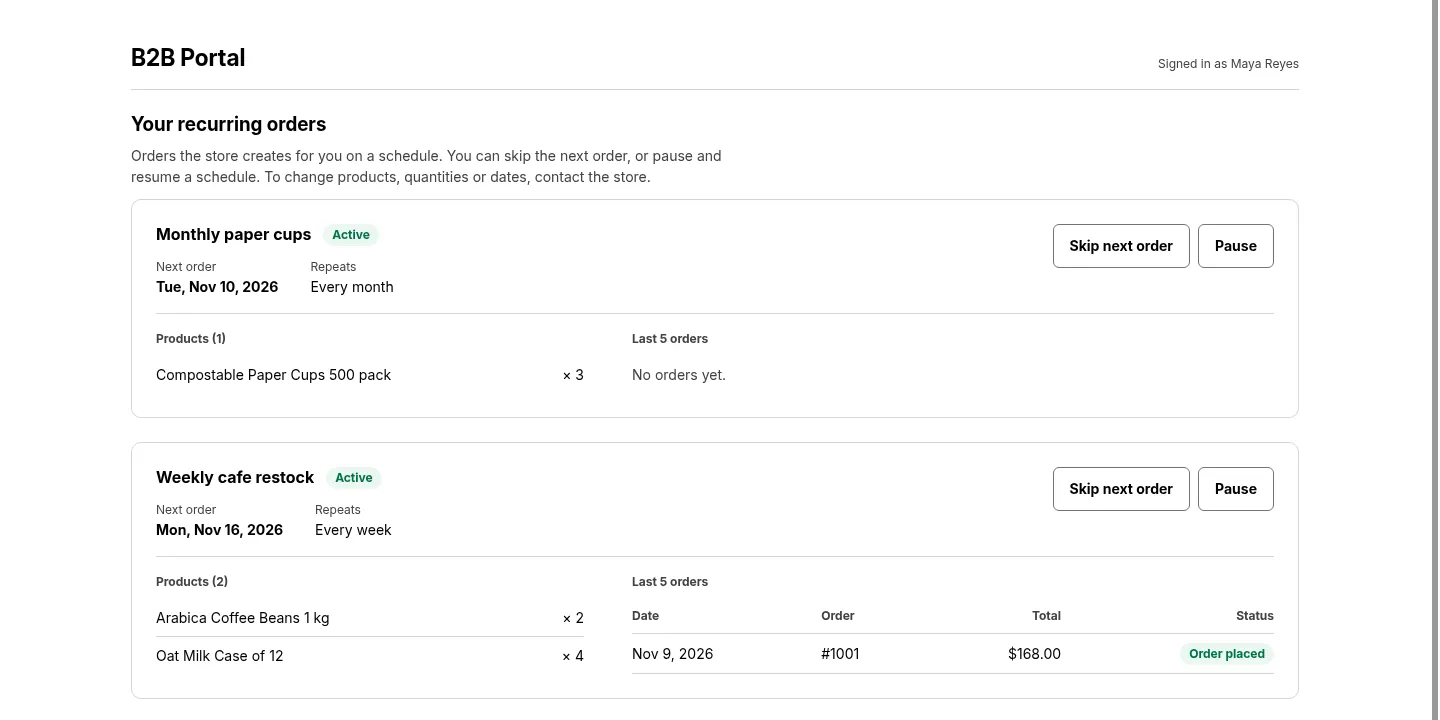
The buyer sees the schedule, with the name you gave it, on the Recurring orders page of the B2B Portal.

If the B2B Portal is off, the form says the buyer cannot see the schedule yet. Click Open B2B Portal settings to turn it on. See the B2B Portal guide.
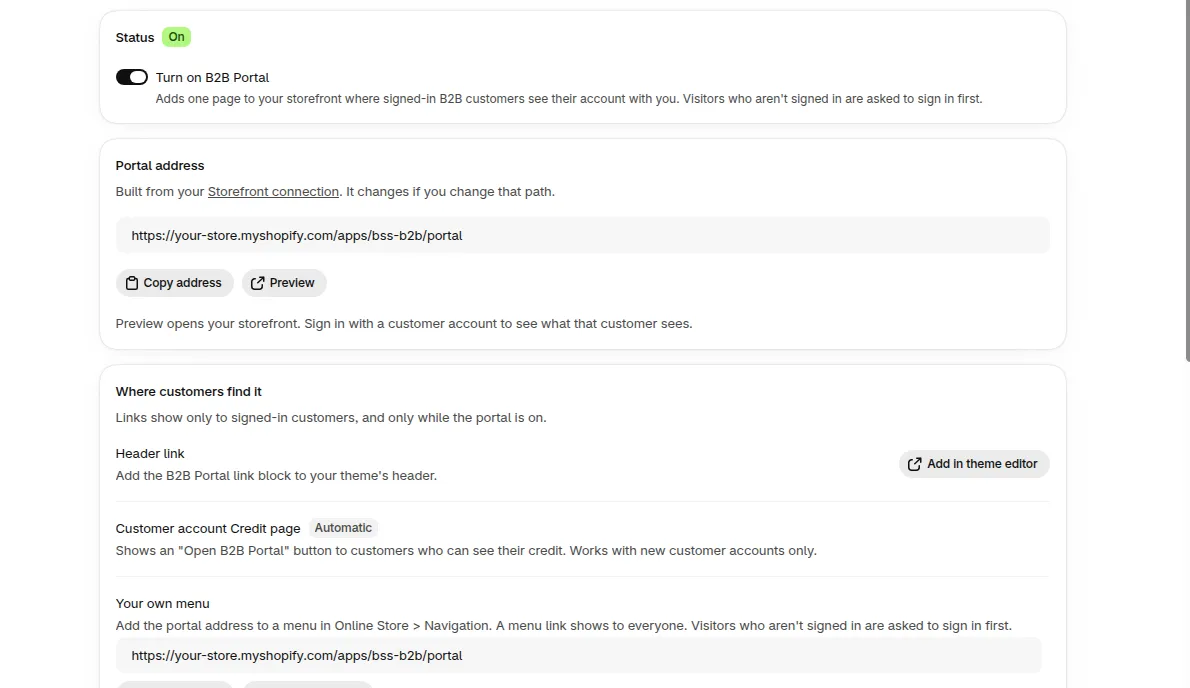
When the portal is on, the settings page shows Status On and the portal address.
What can the buyer do?
Section titled “What can the buyer do?”| The buyer can | The buyer cannot |
|---|---|
| Skip the next order | Change products, quantities or dates |
| Pause a schedule | Delete a schedule |
| Resume a schedule | Create a schedule |
In the B2B Portal, the buyer sees their schedules on the Recurring orders page.
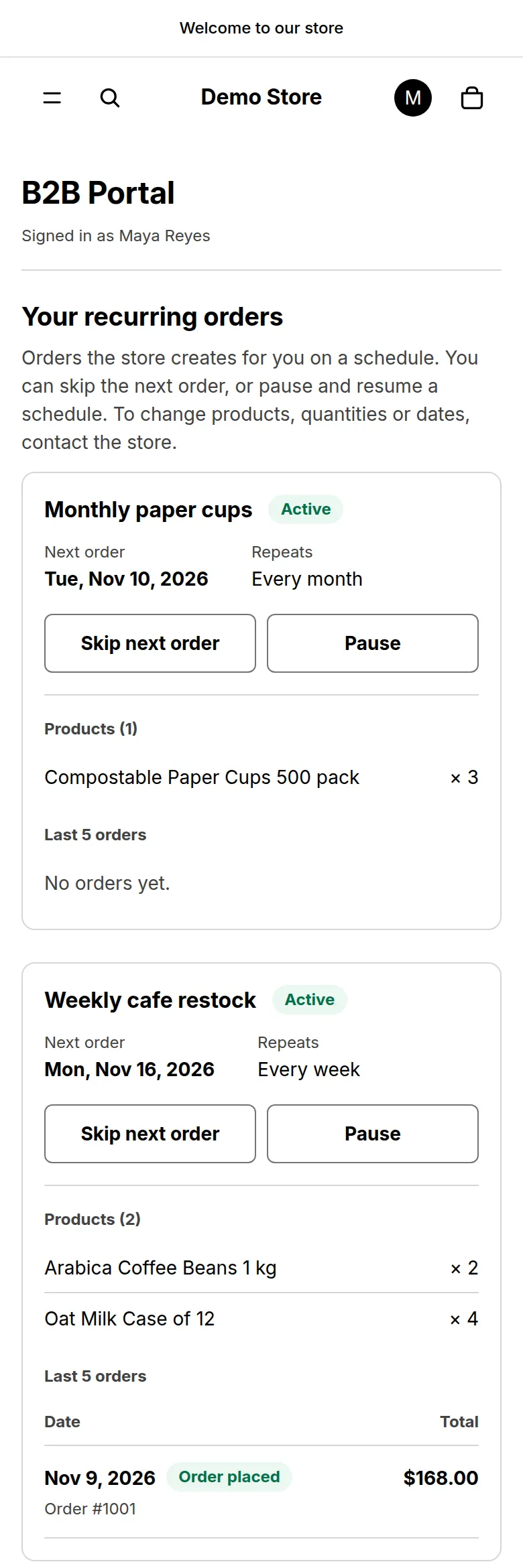
On a phone, the same page stacks the schedules in one column.
How does a skip work?
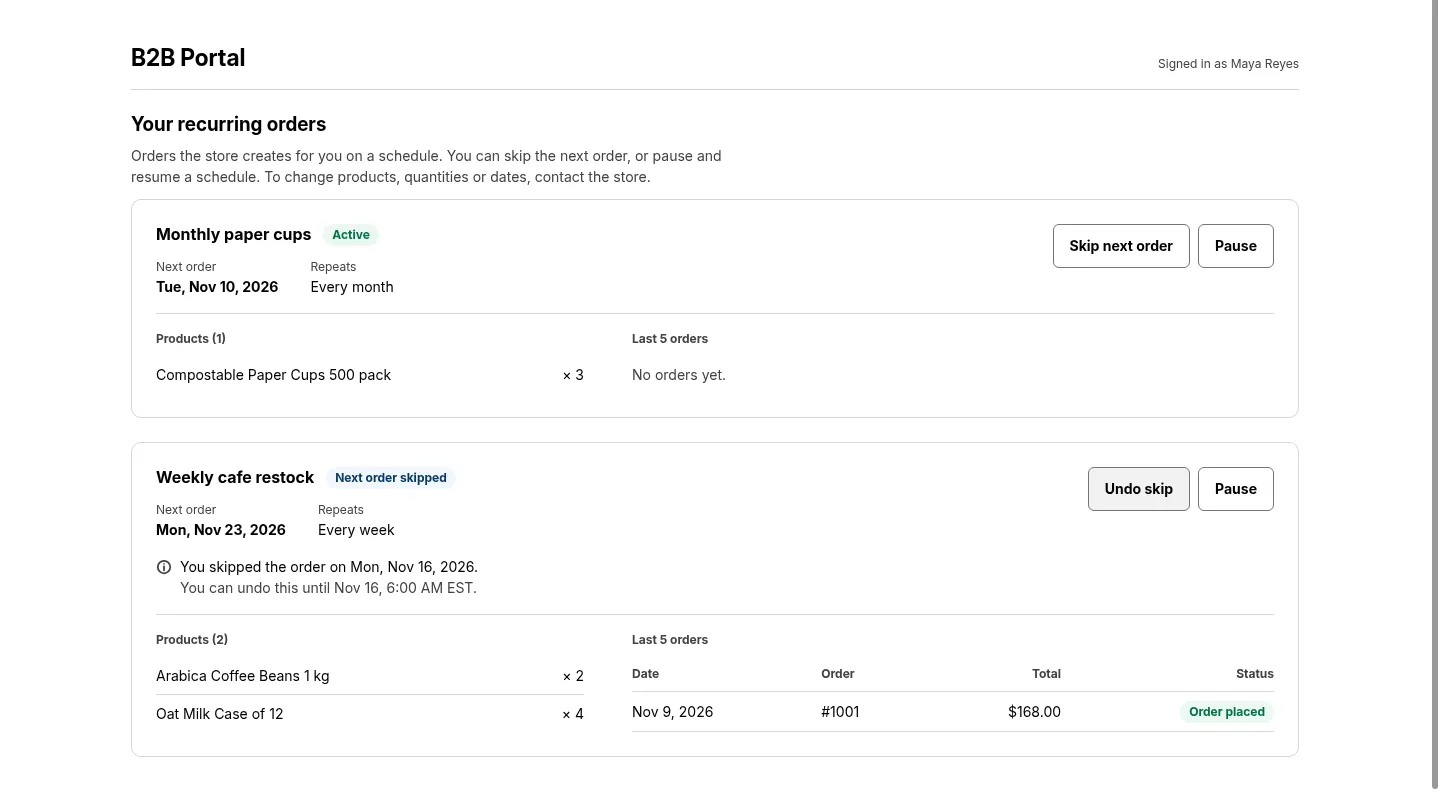
Section titled “How does a skip work?”- A skip can be undone until about 6:00 AM store time on that order date.
- After that, the date stays in Run history as Skipped by buyer.
- The schedule page shows the skipped date next to the next order.
After a skip, the buyer sees Next order skipped and an Undo skip button.
What do I see when the buyer acts?
Section titled “What do I see when the buyer acts?”When the buyer skips, pauses or resumes, the schedule page shows it under Buyer access with the date. Examples are Skipped and Paused with the date.
You can still pause or resume any schedule yourself. Dates missed while paused are skipped, for the buyer as for you.
Need help with Recurring Orders? Reach us at [email protected] or Live Chat.