
Pause, Resume and Delete a Recurring Orders Schedule
You manage a schedule from its detail page with Pause, Resume, Run now and Delete. This page explains what each one does to future orders and to the history.
Key takeaways
Section titled “Key takeaways”- Pause stops new orders.
- Resume starts again from the next date. Dates missed while paused are skipped.
- Delete ends the schedule. Its run history and the drafts and orders already created are kept.
- When the add-on ends, schedules pause automatically, at the latest on their next order date. They do not restart on their own.
How do I pause a schedule?
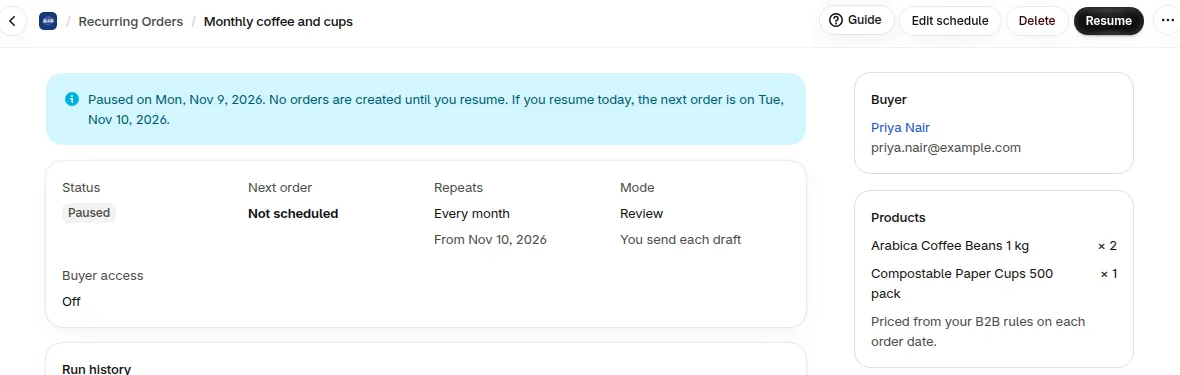
Section titled “How do I pause a schedule?”Open the schedule and click Pause, then confirm. No orders are created while it is paused. The list shows the status Paused.
How do I resume a schedule?
Section titled “How do I resume a schedule?”Open the schedule and click Resume. If you resume today, the page shows the date of the next order. Dates missed while paused are skipped, so no extra orders are created.
How do I delete a schedule?
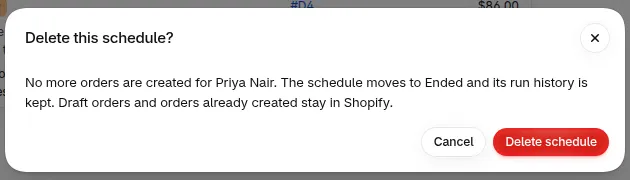
Section titled “How do I delete a schedule?”Click Delete, then Delete schedule. No more orders are created. The schedule moves to Ended, and its run history is kept. Draft orders and orders already created stay in Shopify. To order again for the same buyer, create a new schedule.
What if the add-on was never added?
Section titled “What if the add-on was never added?”A schedule saved before you add the add-on shows Paused: add-on not active. Like Paused: add-on ended, no orders are created and you click Resume on each schedule after you add Recurring Orders. Unlike an ended add-on, you can still edit it. See Create a schedule before the add-on.
What happens when the add-on ends?
Section titled “What happens when the add-on ends?”- Schedules pause automatically, at the latest on their next order date, and show Paused: add-on ended.
- No draft orders or orders are created while the add-on is off.
- Your schedules and their history are kept.
- When you add Recurring Orders again, schedules do not restart on their own. Open each one and click Resume.
- Dates missed while paused are skipped.
- After the add-on ends, you can delete a schedule, and pause one that is still active. You cannot create, edit or resume a schedule, and Run now is not available.
What about a buyer who pauses?
Section titled “What about a buyer who pauses?”If you let buyers manage a schedule in the B2B Portal, the buyer can pause and resume it too. You can still pause or resume any schedule yourself. See buyer self-service.
Need help with Recurring Orders? Reach us at [email protected] or Live Chat.