
Add Products to Several Price Lists
You launch a new product line and want it in your Gold, Silver and Bronze price lists. Pick the products once and add them to all the lists in a single step.
Add the products
Section titled “Add the products”- Start from one of these places:
- On B2B pricing > Price Lists, click Add products at the top.
- To start with some price lists already chosen, tick them in the list first and click Add products in the bar.
- Inside a price list, tick rows and choose Add to other price lists.
- Click Select products and pick the products or variants. Every price list you choose gets all of them. Use Edit selection to change the choice later.
- A product-level price list gets the whole product.
- A variant-level price list gets only the variants you picked.
- In Price lists, tick the price lists that should get the items. Each row says what the list gets, for example Adds 1 variant or Already has all. Search by name, filter by status, or click Select all N price lists to take every price list that matches.
- In Price for the new items, choose Same price in every price list or Different price per price list. Pick a Price type and enter the Price. With a different price per list, enter one for each list before you continue.
- Click Review to see how many new prices go to how many price lists, and which lists are left out.
- Click Add to N price lists, for example Add to 2 price lists.
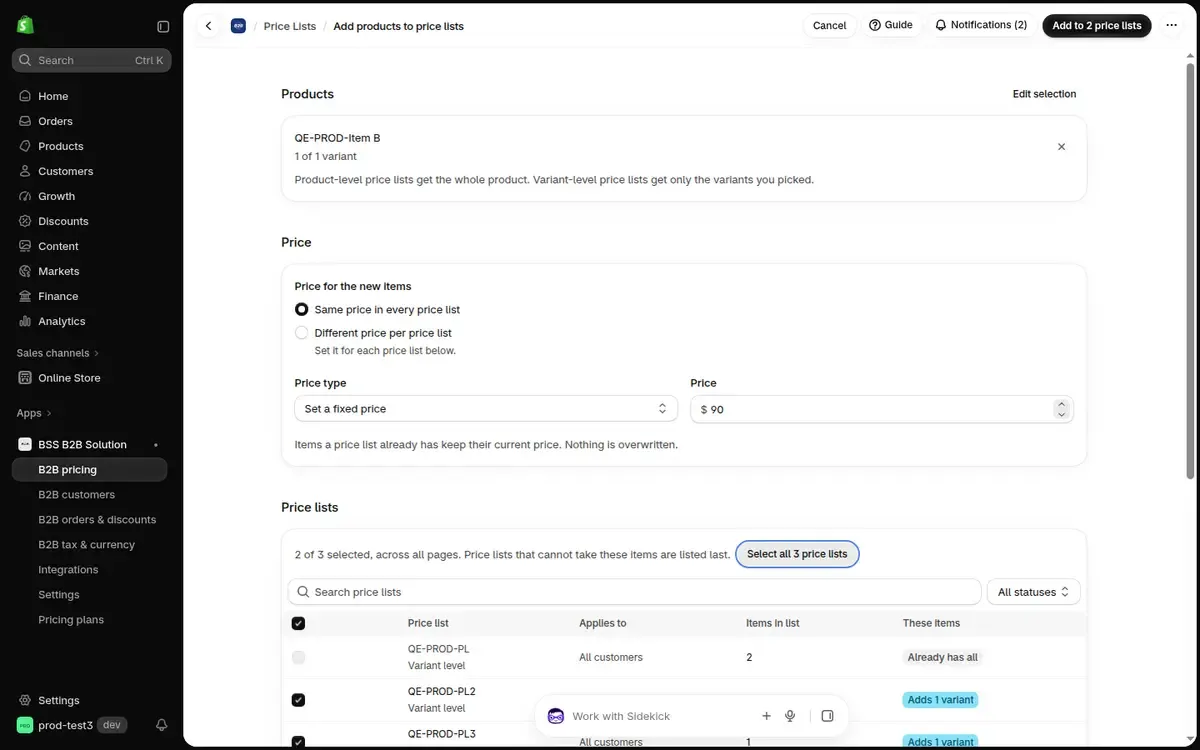
Price lists that cannot take the items are listed last: they already have them, their prices come from a Cost + Markup rule, or they are full. The row says which.
A disabled price list shows the new prices after you enable it.
Check the result
Section titled “Check the result”The result shows Added to X of Y price lists, and why any list was not changed, for example Another change is running on it. Click Retry N price lists to add only to the lists that were not changed.
Under the result, a Change history link opens each price list’s history.
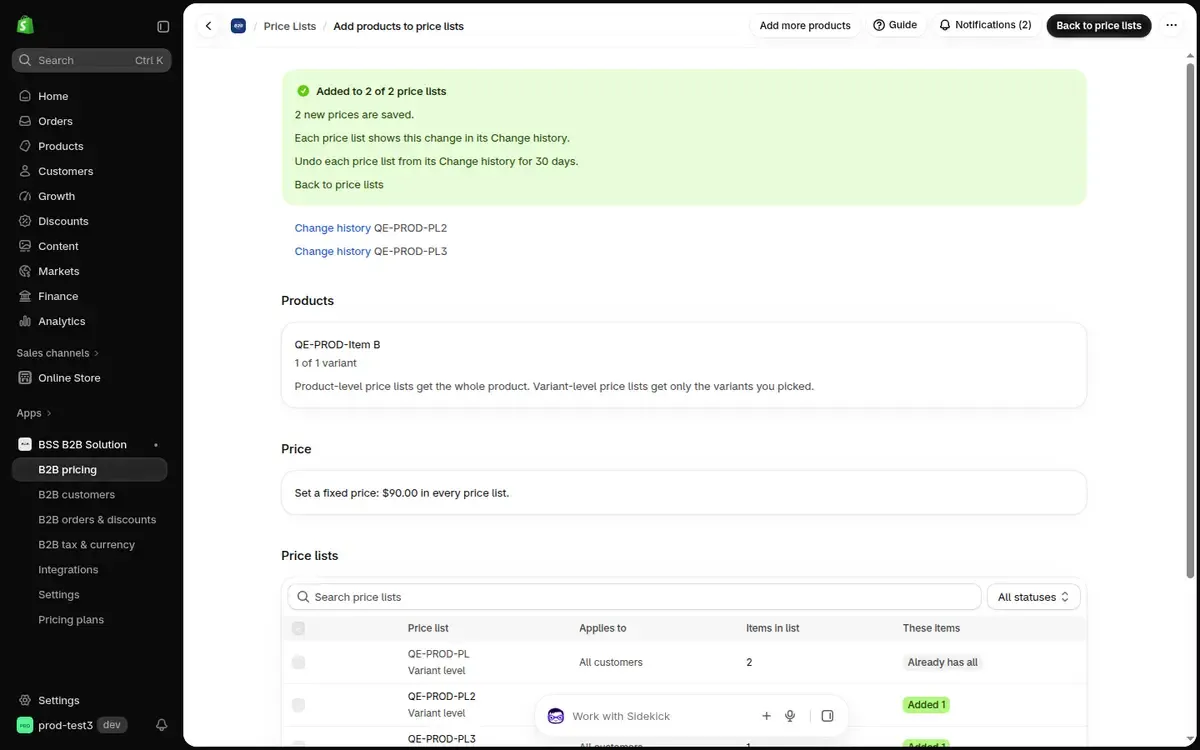
Each price list records this change in its Change history, where you can undo it for 30 days. See Change history and Undo.
Will this change prices a price list already has?
Section titled “Will this change prices a price list already has?”No. Items already in a price list keep their price. Use Change prices to change existing prices.
Why can’t I tick a price list?
Section titled “Why can’t I tick a price list?”It already has every item, its prices come from a Cost + Markup rule, or it reached its item limit. The row says which.