
Edit Many Rules at Once
A promotion ends and 40 rules need to switch off. Or you want to move a group of rules down in priority. Edit rules changes many rules in one step. You review the changes before they go live.
It works on the rule lists of Price Lists, Custom Pricing and Volume Pricing.
Select the rules
Section titled “Select the rules”- Go to B2B pricing and open Price Lists, Custom Pricing or Volume Pricing.
- Tick two or more rules. Edit rules appears in the bar above the list.
- To take every rule that matches your search and status filter, including other pages, tick the rules on the page and click Select all N rules.
Choose what to change
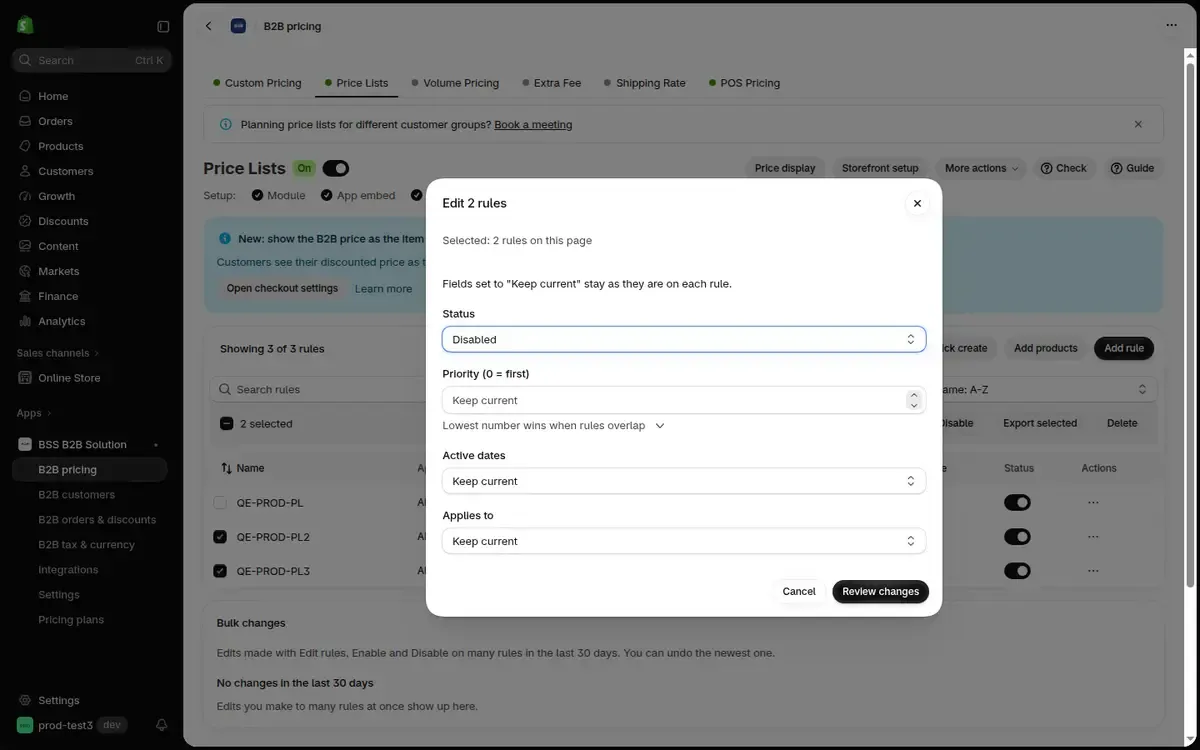
Section titled “Choose what to change”Click Edit rules. Every field starts on Keep current, so each rule keeps its own value. Change only the fields you need:
- Status: enable or disable the rules.
- Priority: a whole number from 0 to 99. 0 comes first. Priority decides between rules when the price setting is By priority. When it is Lowest price or Highest price, the final price wins and Priority only breaks ties.
- Active dates: the start and end date.
- Applies to: replace the customer tags, or add tags.
- Discount (Custom Pricing only): set a new discount, or change the percentage by a number of points. A minus sign lowers it, so 10% with -2 becomes 8%.
Review the changes
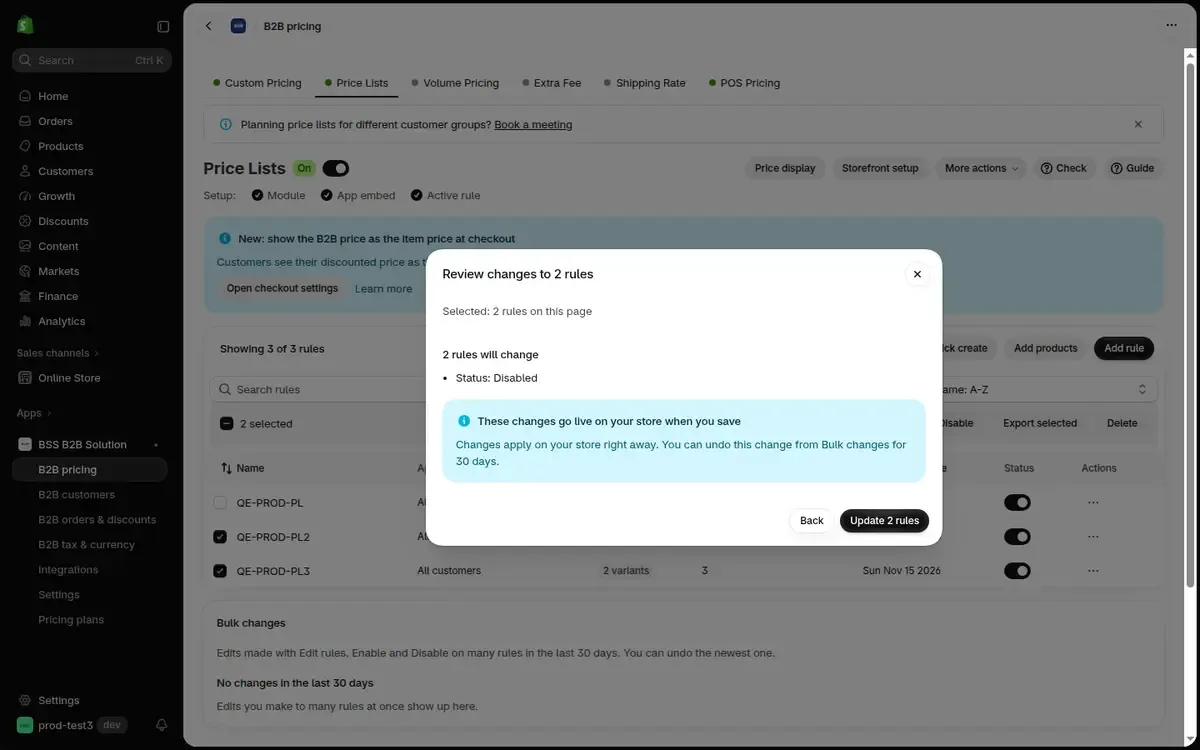
Section titled “Review the changes”Click Review changes. The window shows how many rules will change, with one line for each change, for example Status: Disabled.
Rules that cannot take the change are skipped and listed with the reason, for example Would become 105%. Skipped rules stay as they are.
Update the rules
Section titled “Update the rules”Click Update N rules, for example Update 2 rules. Changes apply on your store right away.
- Up to 100 rules are saved at once.
- More than 100 rules run in the background. Those rules are locked until it finishes, and it cannot be stopped once it starts. You can close the window. The rules page shows the progress and the result.
If some rules cannot be saved, a warning banner shows X of Y rules updated and lists the failed rules with the reason. Click Retry failed rules (N) to send only those again. The same banner appears after a background run.
Find it in Bulk changes
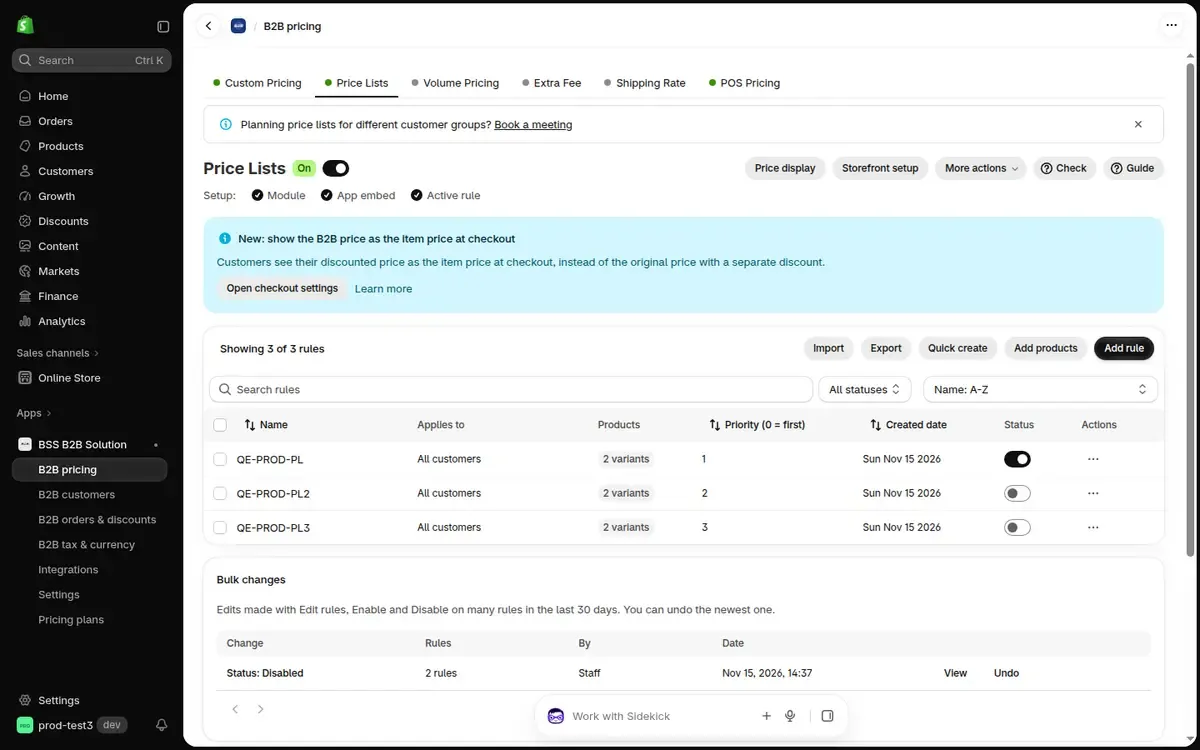
Section titled “Find it in Bulk changes”Below the rule list, Bulk changes shows each change from the last 30 days. Click View to see each rule before and after. You can undo the newest change from there. See Change history and Undo.
Can I enable or disable many rules at once?
Section titled “Can I enable or disable many rules at once?”Yes. Tick the rules and use Enable or Disable in the bar. In Custom Pricing, changing status needs a paid plan. These changes are listed in Bulk changes too.
Why were some of my rules skipped?
Section titled “Why were some of my rules skipped?”The review lists each skipped rule with its reason. The common ones:
- You add tags to a rule that does not use customer tags.
- You change a discount by points on a rule that is not a percentage.
- The result would be below 0% or above 100%.
- The prices come from a cost rule.
- Another update is already changing the rule.