
Edit Prices in Bulk in a Price List
Your supplier raises costs by 5%, or you get a new price sheet from a buyer. You do not need to retype every row. In a saved price list, select the rows, choose a change, check the preview and save.
This page covers Change prices and Paste prices. Both work inside a saved price list, with a preview before anything goes live and an Undo afterwards.
Change many prices
Section titled “Change many prices”- Go to B2B pricing > Price Lists and open a saved price list.
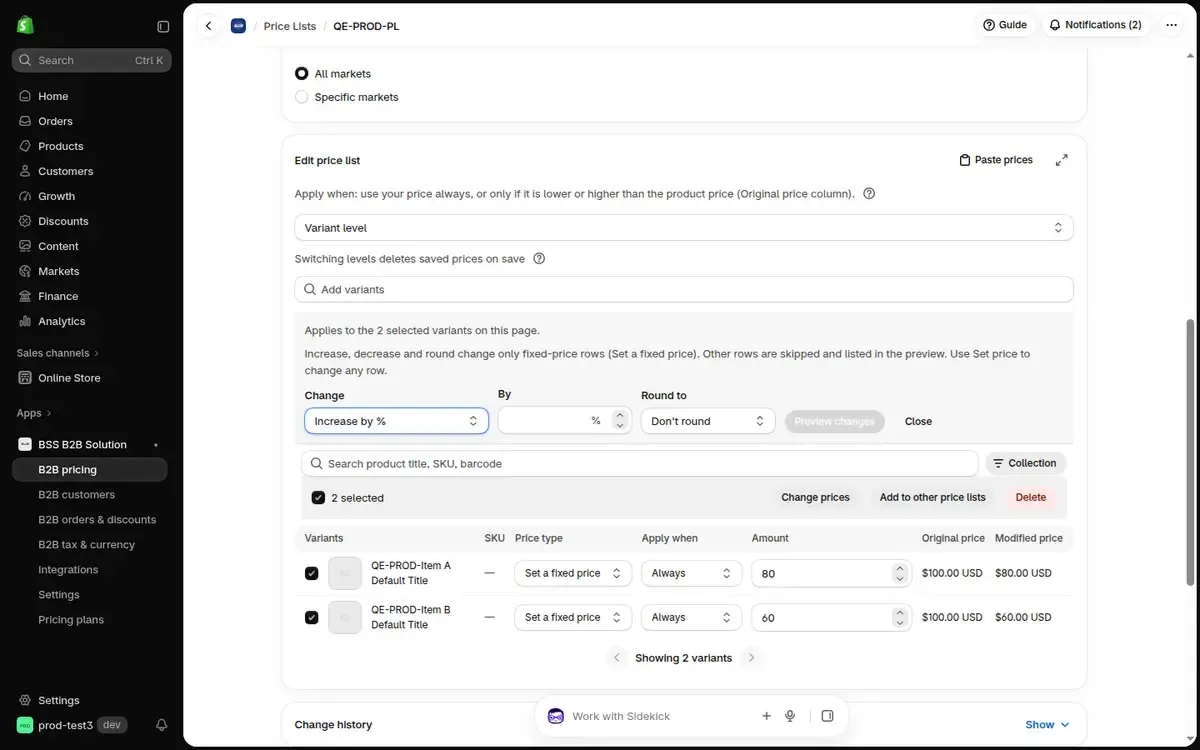
- In the Edit price list card, tick the rows you want to change. The Change prices button appears in the bar above the table.
- To take every variant in the price list, tick the rows on the page and click Select all N in this price list.
- To take every variant that matches a search, search first and click Select all matching this search.
- Click Change prices.
- In Change, choose Set price, Increase by %, Decrease by %, Increase by amount, Decrease by amount or Round only.
- Enter the number in By.
- In Round to, keep Don’t round or choose Nearest .00 or Nearest .99.
- Click Preview changes.
Or paste prices from a spreadsheet
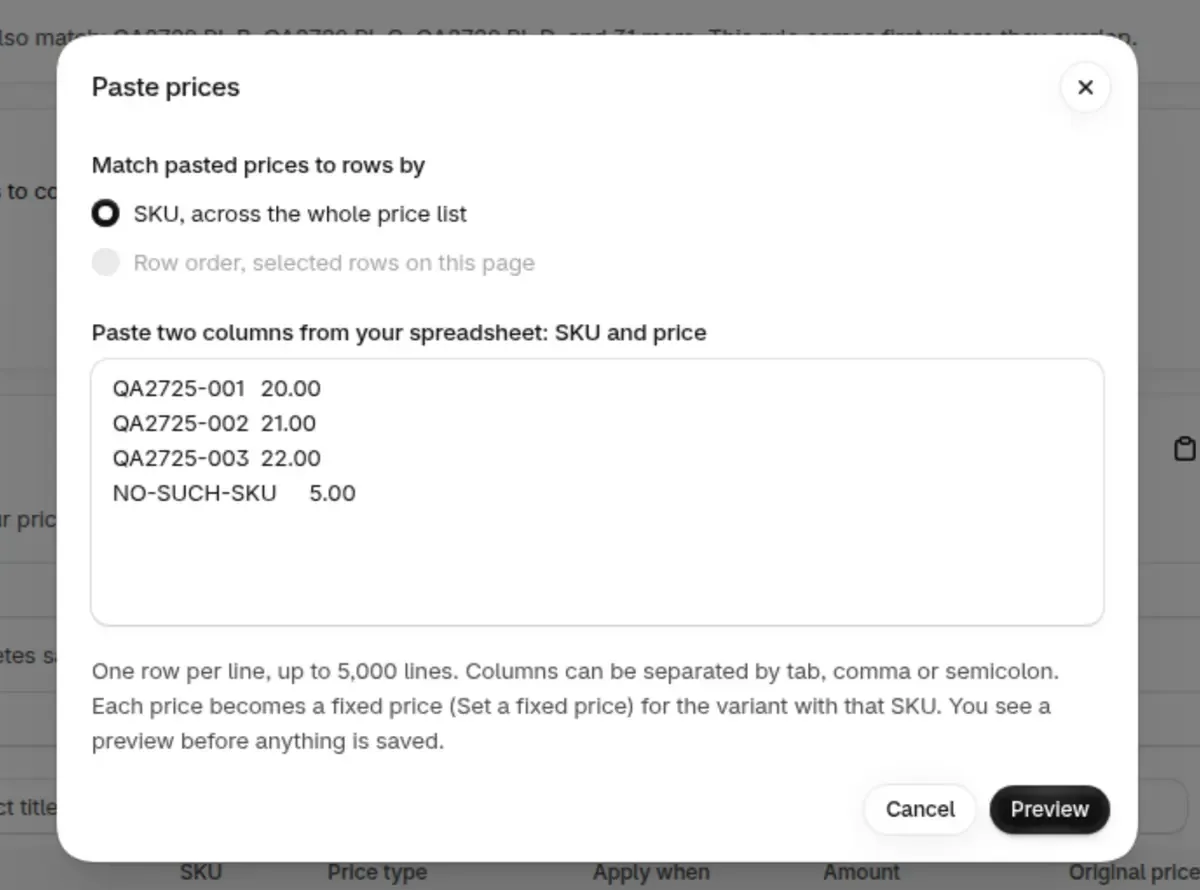
Section titled “Or paste prices from a spreadsheet”- Click Paste prices above the table.
- Choose how to match the pasted prices to rows:
- SKU, across the whole price list (variant level).
- Row order, selected rows on this page, which fills the rows you ticked.
- Paste two columns from your spreadsheet: SKU and price, one row per line, up to 5,000 lines. Separate the columns with a tab, comma or semicolon.
- Click Preview.
Each price becomes a fixed price (Set a fixed price) for the variant with that SKU.
Review the preview and save
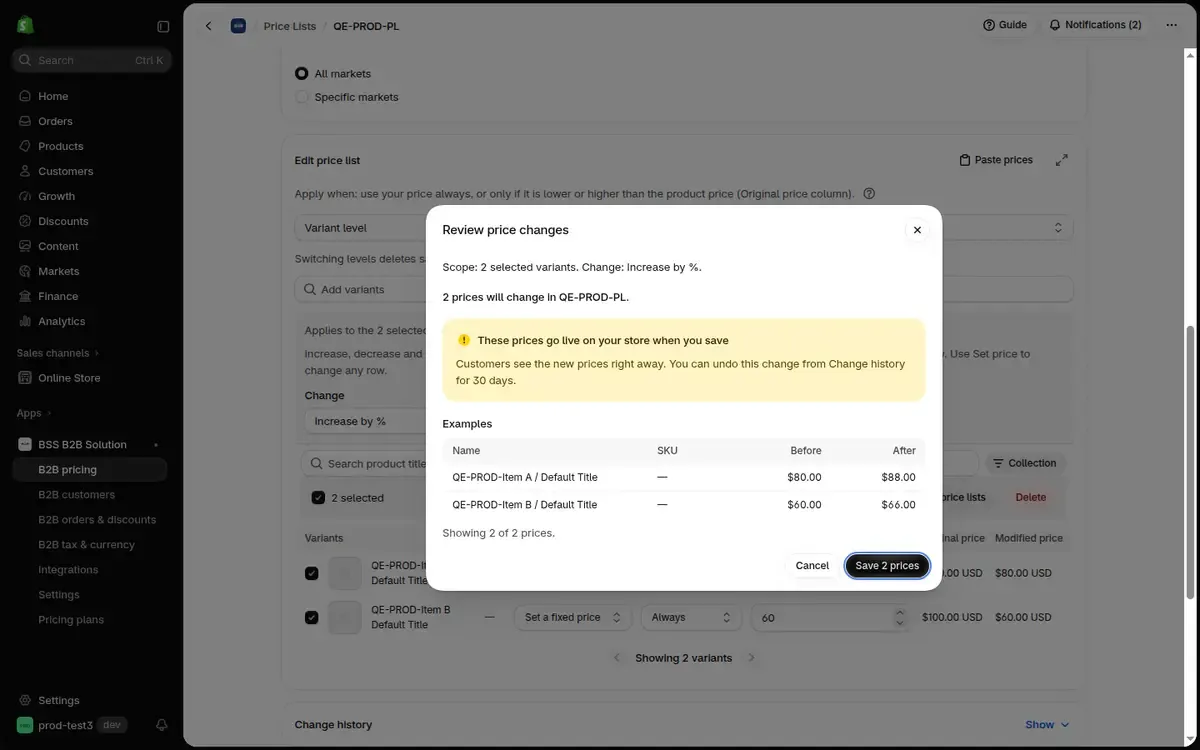
Section titled “Review the preview and save”Review price changes shows:
- the scope and how many prices will change,
- the variants that are skipped, and why,
- examples with the price before and after.
Check the numbers, then click Save, for example Save 2 prices. If the preview says the price list changed, click Preview again.
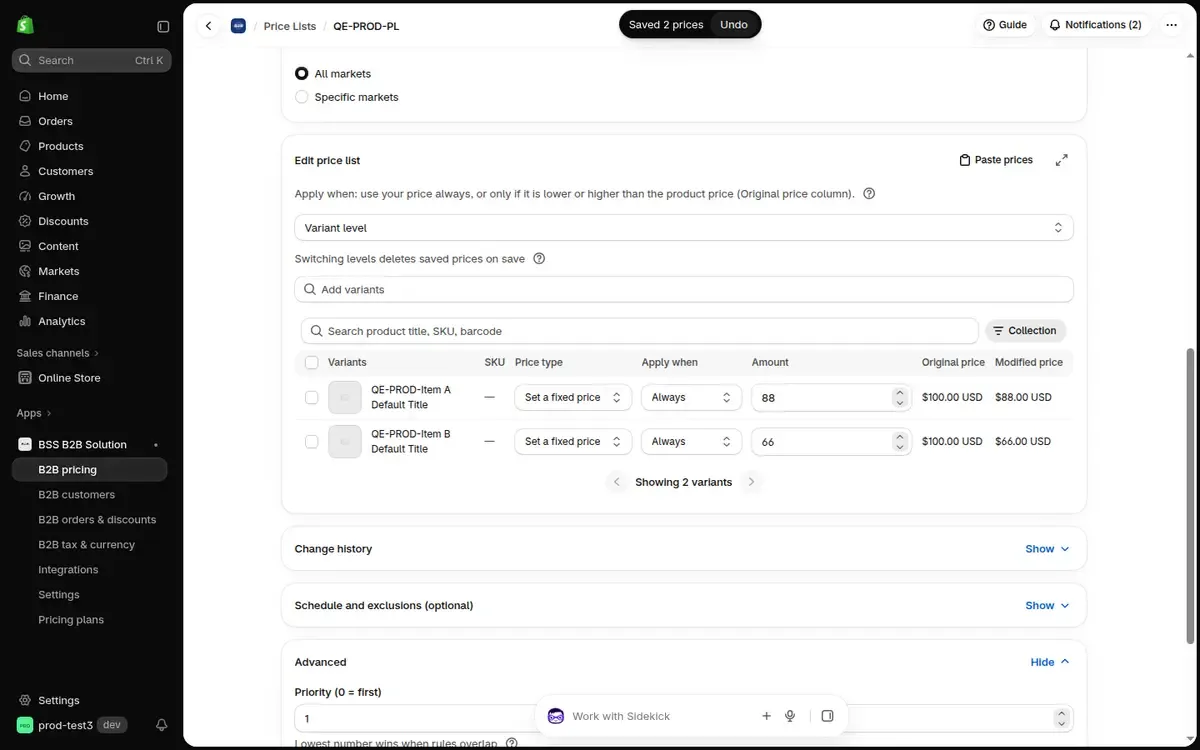
A message shows how many prices were saved, with Undo.
Large price lists run in the background
Section titled “Large price lists run in the background”More than 1,000 prices run as a background job. The price list is locked until the change finishes, and the job cannot be stopped once it starts. You can leave the page while it runs.
If a background change stops before it finishes, a banner shows how many prices changed. Click Retry N prices (for example Retry 800 prices) to change only the prices that are left. The prices that were not changed stay as they were.

Why rows were skipped
Section titled “Why rows were skipped”- The row does not use Set a fixed price, and you chose increase, decrease or round.
- The new price would be zero or less, or over the maximum price.
The preview lists every skipped row and the reason. Skipped rows stay as they are.
Undo a change
Section titled “Undo a change”Every change is listed in Change history on the price list for 30 days. See Change history and Undo.
Why is Change prices missing on my new price list?
Section titled “Why is Change prices missing on my new price list?”Change prices works on a saved price list. While you add products to a price list that is not saved yet, use the Set prices panel, then save.
How is this different from import and export?
Section titled “How is this different from import and export?”Change prices and Paste prices work inside the price list with a preview and Undo, and you do not need a file. Import and export are still the way to create price lists from a file, or to edit every column of many price lists. See Import & Export Price List Rules.