Quick setup: build your wholesale flow
Quick setup builds the rules for one wholesale customer group in one place. You pick the group by its customer tag, choose how those buyers sign up, see prices, order and pay, and Quick setup creates draft rules for you. Draft rules stay off until you activate your flow, so your storefront and checkout do not change while you set up.
Quick setup is open to every store that has BSS B2B Solution. Some choices need a paid plan. Where that matters, this page says so.
Open Quick setup
Section titled “Open Quick setup”On Home, click the floating Quick setup button at the bottom left. If you have no flow yet, it opens Quick setup.
The button shows only on Home. A blue dot on its left corner means drafts are waiting for you to activate, or you left a setup open. Hover over the button to see the status. Click the small x at its top right to hide it for 2 hours in that browser.
If Shopify Sidekick is on in your store and you want a guide, open Ask Sidekick in the app menu, then under Get started click Ask Sidekick on Set up a wholesale flow. Sidekick can ask about your buyers and give you a link that opens Quick setup with your choices filled in. See Use BSS B2B Solution with Shopify Sidekick.
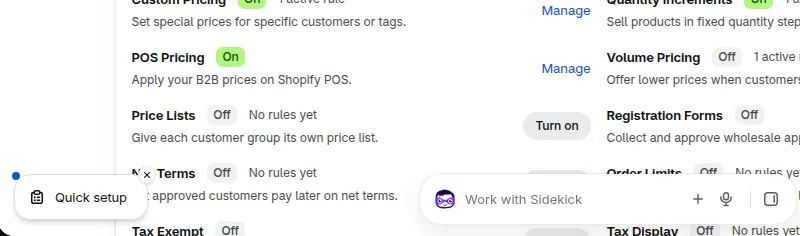
The Quick setup button at the bottom left of Home, with a blue dot and the small x.
If you left a setup open earlier, Quick setup asks Continue your setup? Click Continue to pick up where you stopped, or Start over. Start over clears the choices you have not created as rules yet. Rules you already created stay as they are.
The three pages
Section titled “The three pages”Quick setup has three pages. Each shows a step number: Your buyers, Your flow and Review drafts. Use Back to go to the page before, or Save and exit to leave and come back later.
Step 1: Your buyers
Section titled “Step 1: Your buyers”The page asks Who buys wholesale from you? Quick setup recognises the group by its customer tag. Customers without the tag keep your normal retail store.
- Enter a Group name. New setups start with Retailers.
- Enter the Customer tag that your wholesale buyers have. Quick setup shows how many customers already have it. Counts can take a few minutes to update.
- If you are not sure where to start, pick one of three common setups. Quick setup fills in the flow and you can change anything on the next page.
- Private wholesale portal: guests cannot see wholesale prices. Buyers apply, you approve, then they shop at their price.
- Retail and wholesale on one store: everyone shops the same catalog. Tagged buyers see wholesale prices and a minimum order.
- Tiered distributors: two or more groups, each with its own price, minimum and payment terms.
- Click Next: build the flow.
A tag cannot contain commas or single quotes, and it can have up to 255 characters. Each group needs its own tag. If your store already has the same tag with different capital letters, Quick setup offers to use that spelling, because Shopify treats them as one tag.
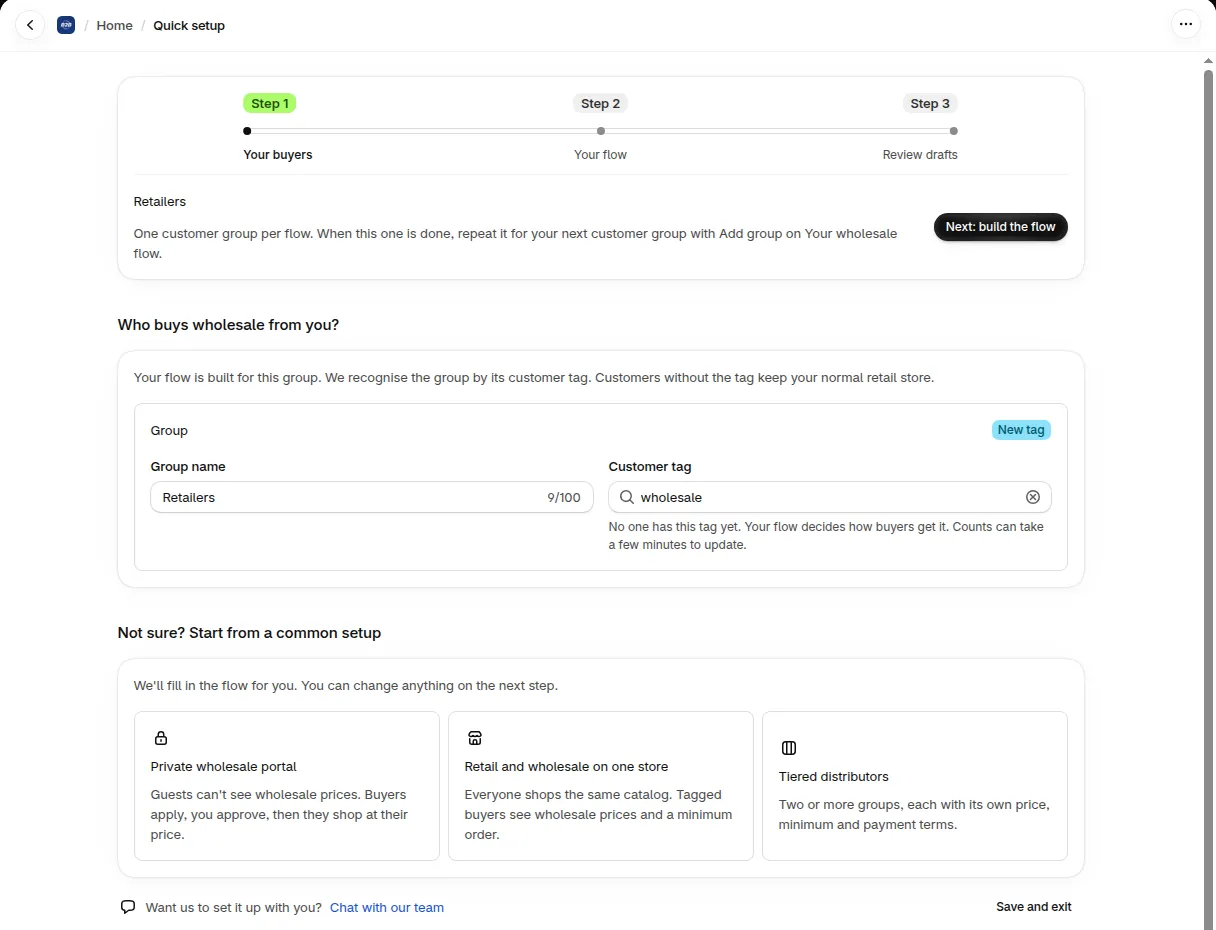
Step 1 asks for a group name and a customer tag.
Step 2: Your flow
Section titled “Step 2: Your flow”The page title is Build the flow for your group name. It lists seven stages. Click a stage, then pick the options that fit. Stages 1 and 2 take one choice. The others let you pick all that apply, and Quick setup fills in a starting value that you can change.
| Stage | Name | Options |
|---|---|---|
| 1 | Enter your store | Retail and wholesale (B2C + B2B): guests shop at retail prices, approved buyers see wholesale prices. Wholesale only (B2B): you sell only to approved business buyers. |
| 2 | Sign up | Wholesale application form, or I’ll create accounts for buyers myself. |
| 3 | Get approved | Approve applications automatically, or Tag buyers automatically when they qualify (Auto tag, on total spent or number of orders). |
| 4 | See wholesale prices | Same discount on everything they buy (percentage off, fixed amount off, or a fixed price), Cheaper when they buy more (volume tiers), or A price list just for this group. |
| 5 | Build the order | Set an order limit (minimum or maximum order value or number of items), Buy X, get Y, or Charge an extra fee. |
| 6 | Shipping and tax | A shipping rate just for this group, or Tax exempt. |
| 7 | Payment | Let them pay later with net terms (Net 7, 15, 30, 60 or 90, due on receipt, or due on fulfillment), or I place orders for my buyers (turns on Manual Order). |
Notes on the options:
- Retail and wholesale (B2C + B2B) points to B2B Lock, our separate app, for hiding wholesale prices and pages from guests. Quick setup changes nothing in B2B Lock.
- Wholesale application form and Tax exempt are created when you activate your flow, not when you create drafts.
- I’ll create accounts for buyers myself needs no approval stage. You add the tag to your customers.
- Approve applications automatically works with the application form. Applicants are approved at once and get the group’s tag.
- Leave Approve applications automatically off to approve each applicant by hand. Approving every applicant automatically needs a paid plan.
- Rules that pick products or collections open in a window where you choose them.
The panel Rules we’ll draft for your group name lists what Quick setup will make. Click Next: review drafts when you are done.
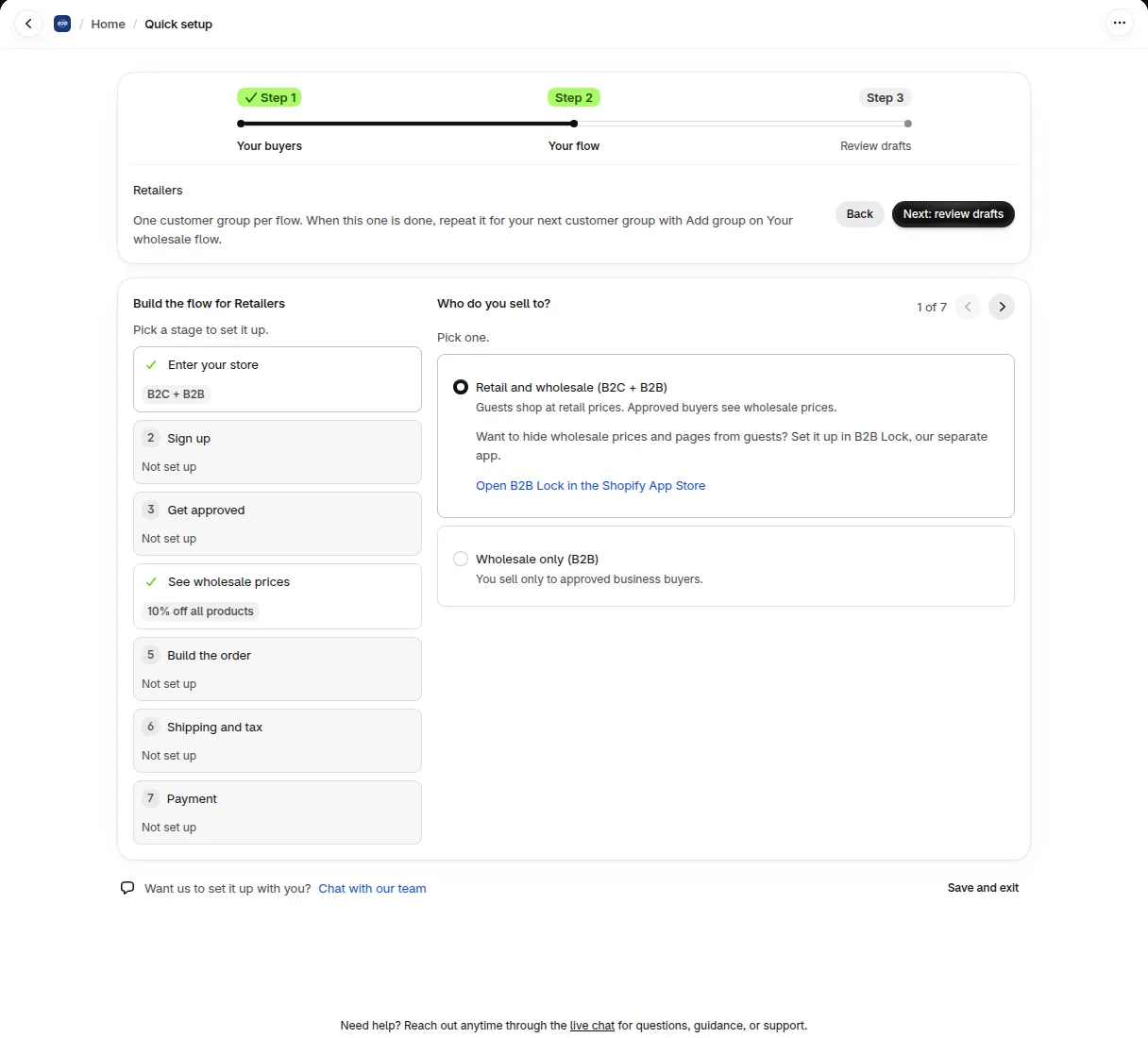
Step 2 lists the seven stages. Pick a stage to set it up.
Step 3: Review drafts
Section titled “Step 3: Review drafts”The banner Nothing goes live yet reminds you that draft rules stay off until you activate your flow, and your storefront and checkout do not change.
The table Rules we’ll create for your group name lists each rule with its stage, group, main setting and status. Read the warnings above it before you continue:
- No customers have the tag yet. Rules for this group apply only to customers who have the tag. Add a sign-up form or Auto Tag to your flow, or tag customers yourself. If you tag customers yourself, tick I’ll tag customers myself to continue.
- A rule applies to everyone and wins over this group’s rule. A rule for all customers has a higher priority, so customers with the tag may not get this draft’s setting. Click Open and the module name to look at it.
- A choice that your plan does not include is left out of the drafts and listed as waiting for a plan upgrade. Upgrade, then activate it from your flow. See Pricing Plans & Details for what each plan includes.
Click Create N draft rules, for example Create 3 draft rules. The results list shows each rule as Created, Already created or Not created. If a rule was not created, click Try again. If a module has no free priority left, the result says No priority left. Remove or reorder a rule in that module, then create the rule from the module.
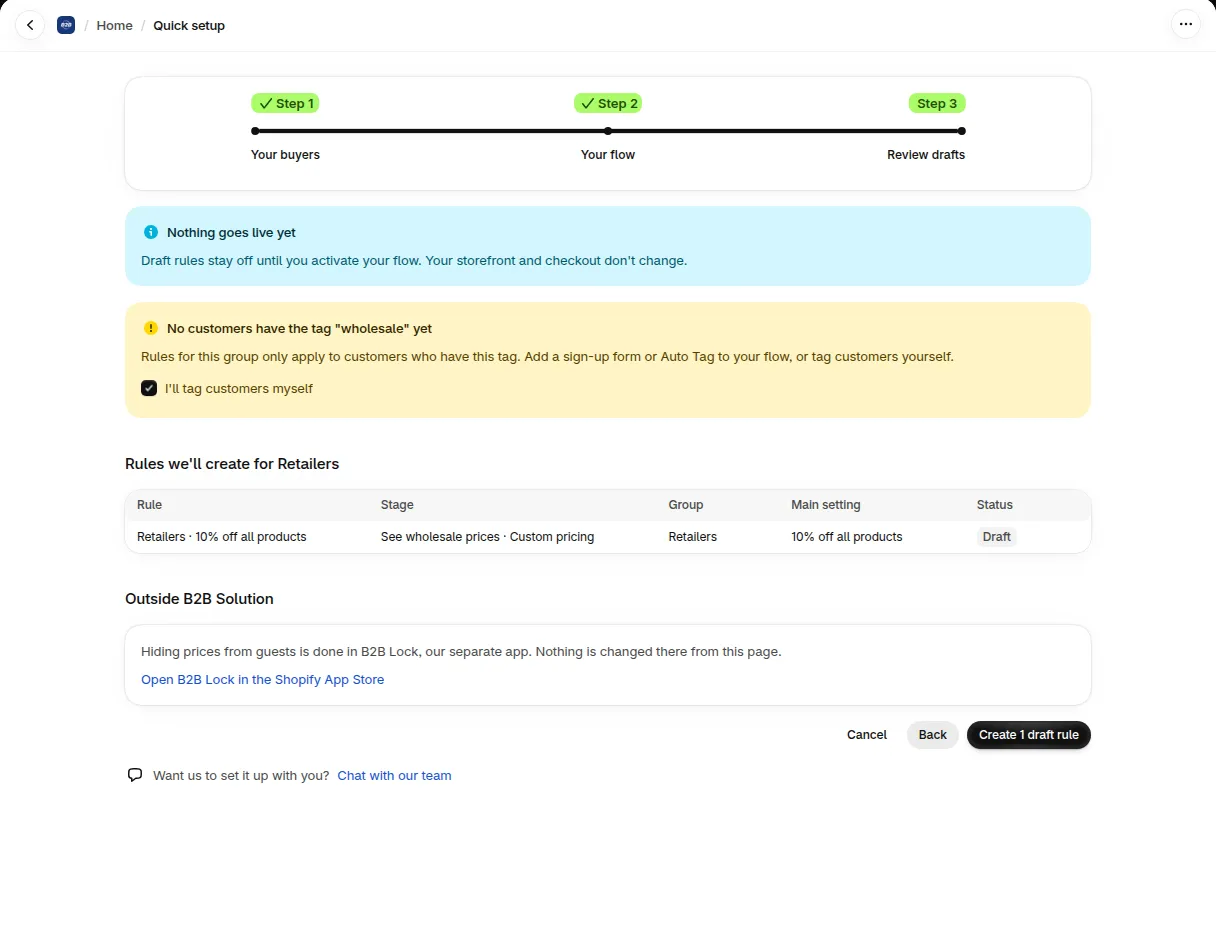
Review drafts lists the rules before you create them.
Activate your flow
Section titled “Activate your flow”Drafts are saved, but buyers cannot see them yet. Click Go to your flow, or Review and activate on the results page, to open Your wholesale flow. The checklist at the top says how many things are left to do before buyers see your rules. It has up to five items:
- N draft rules created (for example 2 draft rules created). It becomes N rules are live once rules are on.
- Turn on the app embed. Your rules show on your storefront only when the app embed is on. Click Turn on app embed.
- Put the application forms on a page. Shows when your flow has an application form. It becomes available after you activate.
- Add the app blocks to your theme. Shows only after a Net terms or Tax exempt rule is turned on. Click Add block for each module that needs one.
- Activate the rules. Click Review and activate.
In the Activate your flow window, each section lists rules with a box you can untick:
- Created by Quick setup lists your draft rules. They start ticked.
- Already in your store with this tag lists every rule you made earlier with the same tag. A rule that is already on shows the badge Live and has no box. A rule that is off has a box, and it starts unticked, so Quick setup turns it on only if you tick it.
- Will be created now lists items that are made at activation: the application form, Tax exempt and Manual Order.
- Still waiting for a plan upgrade lists choices your plan does not include yet.
The window also warns you about what will change. For example, if you use Tax exempt, it says how many customers with the tag become tax exempt right away.
On the Free plan, one Custom Pricing rule can run at a time. Turning on the one from your flow turns off the others, and the window lists them.
Click Activate. A results list shows what is Live, Turned on or Not done. Click Try again for anything that was not done.
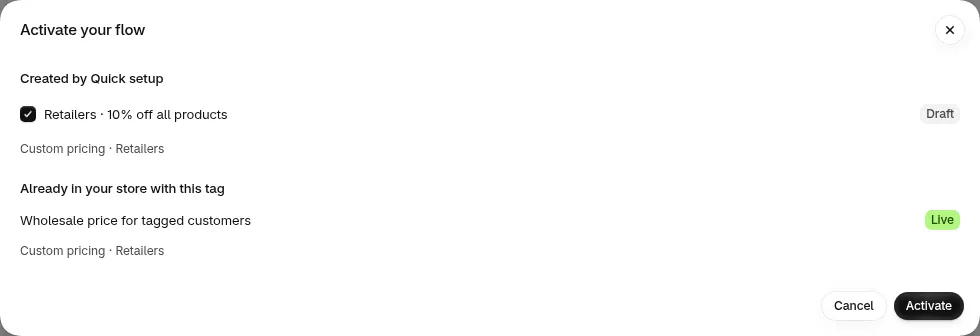
The window lists your draft rule, and a rule already live with the tag.
When every step you use is running, the page says your group is live. On every screen width, a Next step banner shows one reason and one main button for the group you are viewing, such as Review and activate, Turn on app embed or Tag customers.
Example: from a tag to live rules
Section titled “Example: from a tag to live rules”Say you sell to shops that have the customer tag wholesale. The amounts below are examples. Use your own.
- On Your buyers, keep the group name Retailers and enter the tag
wholesale. - On Your flow, pick one option in each stage:
- Enter your store: Wholesale only (B2B)
- Sign up: Wholesale application form
- See wholesale prices: Same discount on everything they buy. Quick setup starts it at 10% off all products.
- Build the order: Set an order limit, with the limit type Minimum order value. Enter an amount, for example 500.
- Payment: Let them pay later with net terms. Quick setup starts it at Net 30.
- On Review drafts, the table Rules we’ll create for Retailers lists four rows:
Retailers · 10% off all products, stage See wholesale prices · Custom pricing, status DraftRetailers · Minimum order $500.00, stage Build the order · Order limit, status Draft. The amount shows in your store’s money format, for example $500.00 on a USD store.Retailers · Net 30, stage Payment · Net terms, status DraftRetailers · Wholesale application form, stage Sign up · Registration form, status Created when you activate
- The button reads Create 3 draft rules. The application form is not counted, because it is created when you activate.
- After you click it, open Your wholesale flow. The first checklist item reads 3 draft rules created, and the stages whose rules are still off show Draft. Nothing is live yet.
- Click Review and activate. Created by Quick setup lists the three rules, ticked, and Will be created now lists Registration form for Retailers. Click Activate.
If your plan does not include a module, that choice shows as waiting for a plan upgrade instead of Draft. See Pricing Plans & Details for what each plan includes.
Manage groups
Section titled “Manage groups”Once your flow has rules, the Quick setup button on Home opens your flow. Quick setup allows up to 5 groups here. Click Add group for your next customer group, Edit flow to change one, or Compare groups to see what each group goes through, stage by stage. If two groups share customers, Quick setup tells you which group’s rule applies.
- Pause group turns off the group’s rules for the tag. The rules stay in their modules, and Resume group turns them back on. Tax Exempt and registration form rules have no on/off switch, so a pause does not change them.
- Delete group permanently deletes the group’s rules for the tag and removes the group from your flow. You cannot undo it. A group with no rules is removed without deleting anything. If a rule is also used for other tags, the window says so before you confirm.
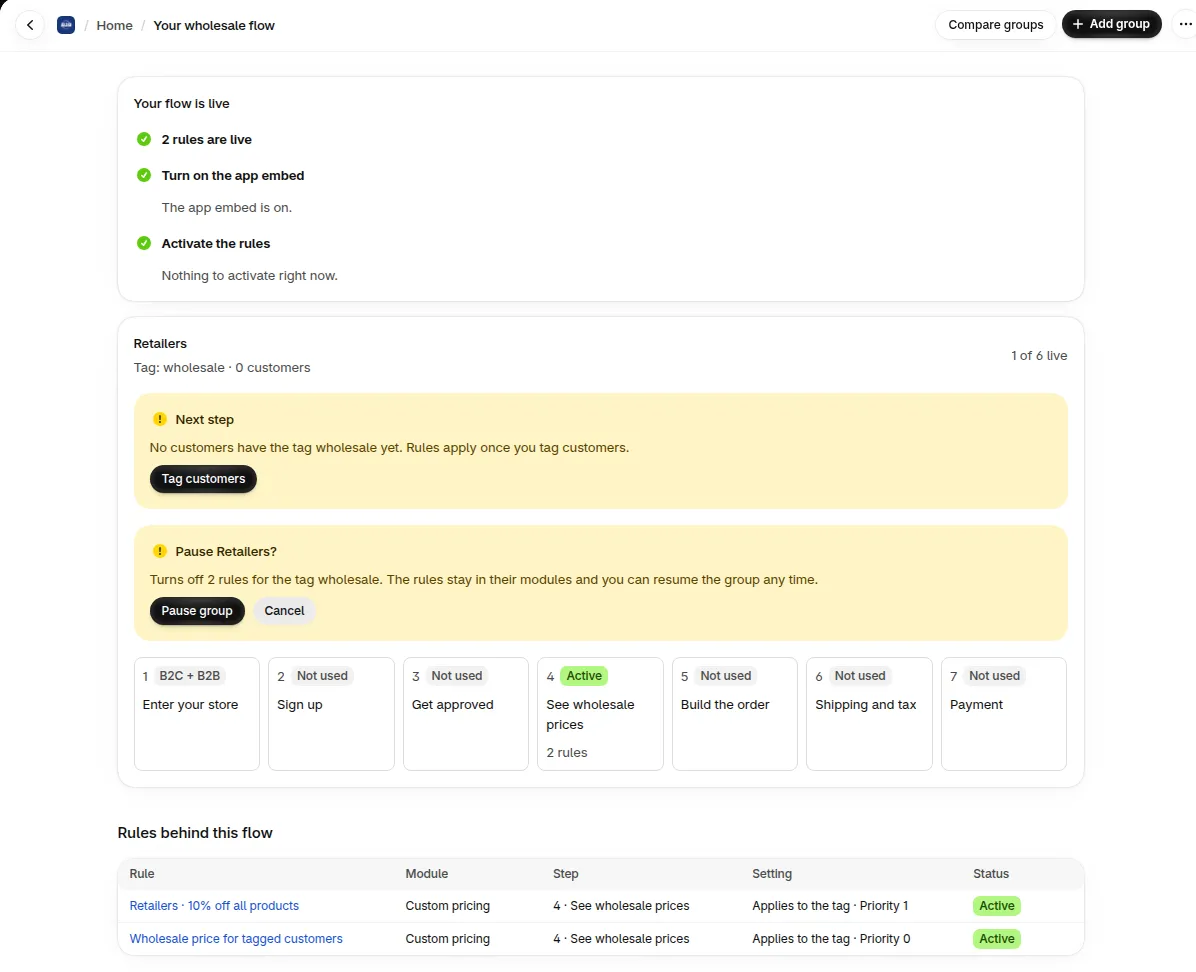
Pause group asks you to confirm before it turns rules off.
Price list limit
Section titled “Price list limit”A price list made in Quick setup holds a limited number of rows. The limit follows the size of the saved list, not a fixed row count, so we do not give one exact number. About 100 variants fit, and 100 products fit with room to spare. Longer product and variant ids use more of the limit. If you add too many, Quick setup says Too many products or variants for one price list here. Remove some, or add the rest on the Price List page. Choose fewer rows here, then add the rest on the Price List page.
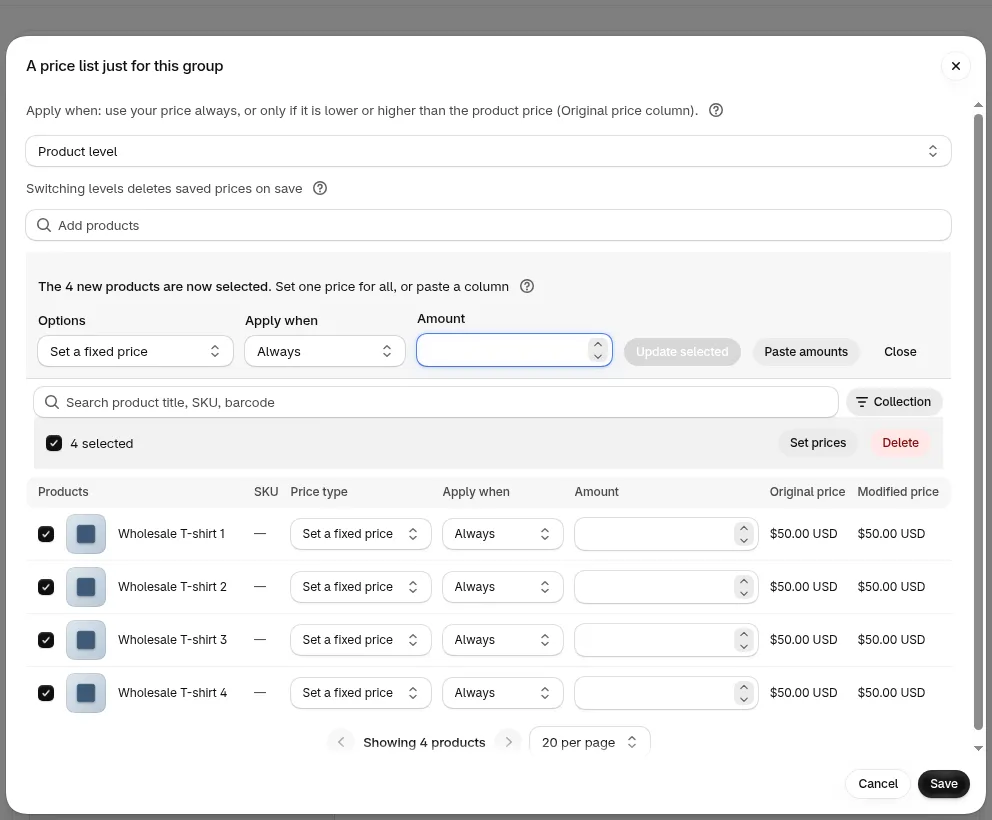
Choosing the products for a price list in Quick setup.
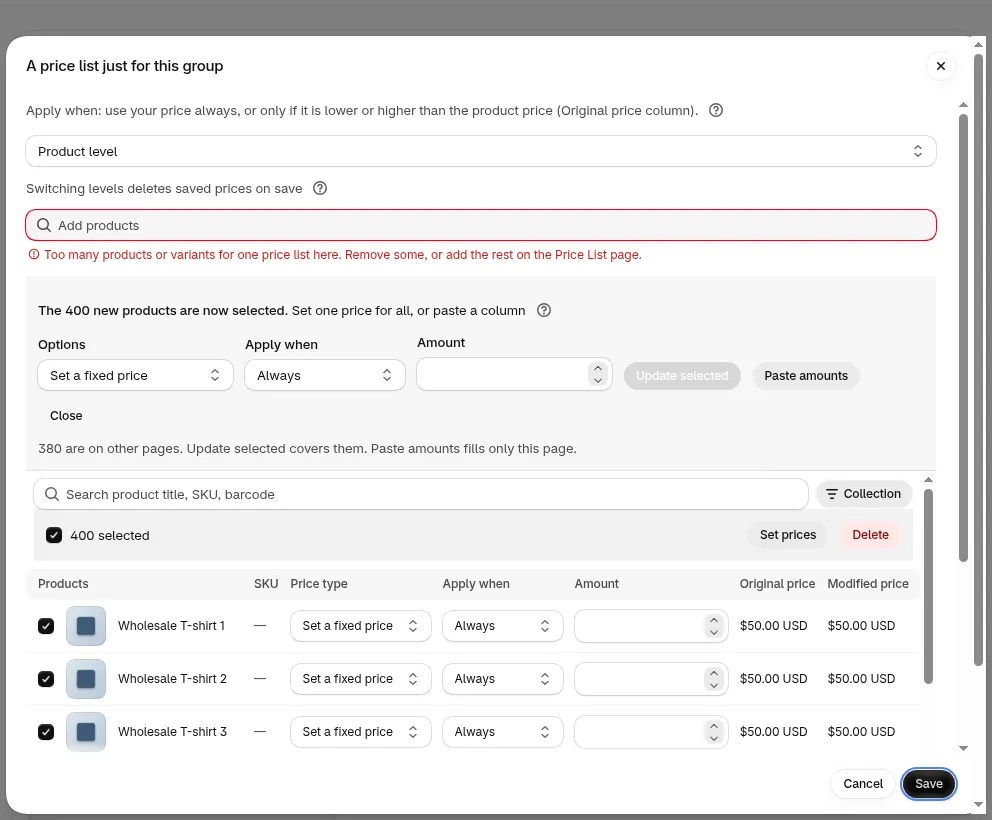
The message you see when a price list has too many rows.
Use Quick setup on a phone
Section titled “Use Quick setup on a phone”Quick setup adapts to narrow screens, such as a phone.
- On your flow page, the seven stages show as a vertical list. Each shows its number, its name and a full status label such as Active, Draft or Not used.
- On steps 1 and 2, the Back and Next buttons sit under the guide text.
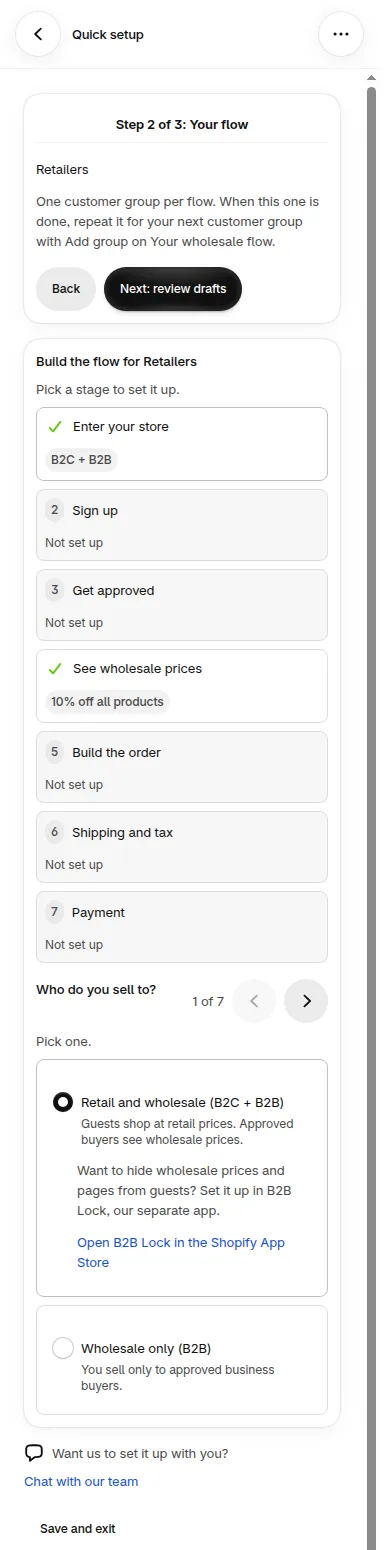
Step 2 on a phone.
Does Quick setup change my store right away? No. Create N draft rules makes rules that are turned off. Your storefront and checkout change only after you activate your flow.
Can I change a rule after Quick setup creates it? Yes. Open the rule from Rules behind this flow, or from its module, and edit it there.
What if I already have rules for the same tag? Quick setup lists them under Already in your store with this tag. They are not ticked when you activate, so they stay as they are unless you tick them.
Why is a choice marked as waiting for a plan? Your plan does not include that module yet. Upgrade, then activate it from your flow. See Pricing Plans & Details.
Can Sidekick do this for me? Sidekick can ask about your buyers and give you a link that opens Quick setup with your choices filled in. You still click Create N draft rules and activate the flow yourself.