
Handle Registrations From Existing Shopify Customers
Some people who fill in your form already have a customer record in your Shopify store. They may be past retail buyers, newsletter subscribers, or customers who never activated an account. This page explains what the app does with their registrations and how to approve them faster.
Why the app does not update the customer on its own
Section titled “Why the app does not update the customer on its own”Anyone can type any email into a form, so a registration does not prove that the email belongs to the person who sent it. For that reason a form submission alone never changes an existing customer. Either the owner of the email confirms it, or you decide.
You choose between two behaviors for each form:
| Option | What happens | Best when |
|---|---|---|
| Ask them to confirm their email (default) | The app emails the address a confirmation link. The registration is approved after the shopper confirms. | You want approval without a manual review, and you want proof that the shopper owns the email. |
| Approve automatically, only add tags and a note | The registration is approved at once, with no email confirmation. The app only adds tags, a note and empty metafields. | You accept that anyone with a customer’s email can get your form’s tags. |
Forms with Manual approval after registration do not show these options.
Set it up
Section titled “Set it up”-
Open Registration Forms, open the form and go to the Settings step.
-
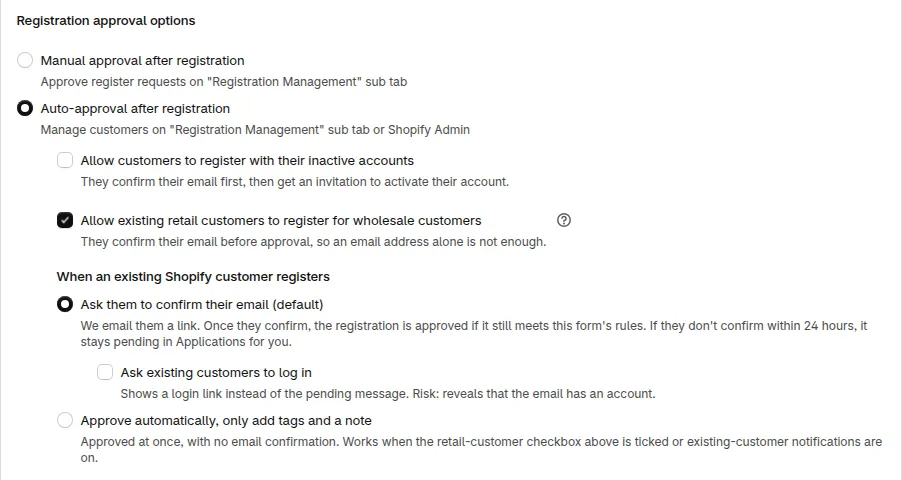
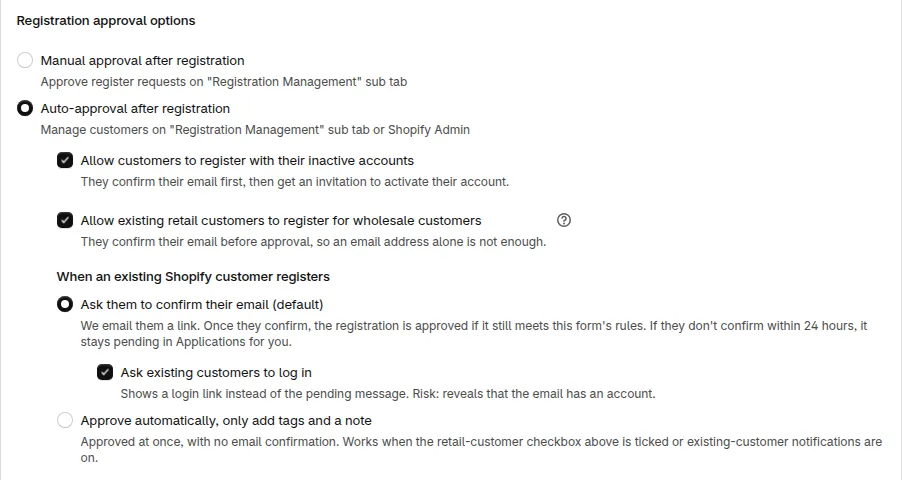
Under Registration approval options, choose Auto-approval after registration.
-
Tick the box for the customers you want to cover:
- Allow existing retail customers to register for wholesale customers covers customers with an active Shopify account.
- Allow customers to register with their inactive accounts covers customers who were invited but never activated their account.
Tip: If you tick only the retail box, a shopper with an inactive Shopify account sees “Email has already been taken”. Tick Allow customers to register with their inactive accounts as well if they should get the neutral reply and the confirmation email.
-
In the group When an existing Shopify customer registers, choose Ask them to confirm their email (default) or Approve automatically, only add tags and a note.
-
Click Save.
Option 1: ask them to confirm their email
Section titled “Option 1: ask them to confirm their email”This is the default. It works only for registrations sent from your storefront form.
- The shopper submits the form with an email that already has a Shopify account.
- The form shows your usual pending message. It does not say that the email has an account.
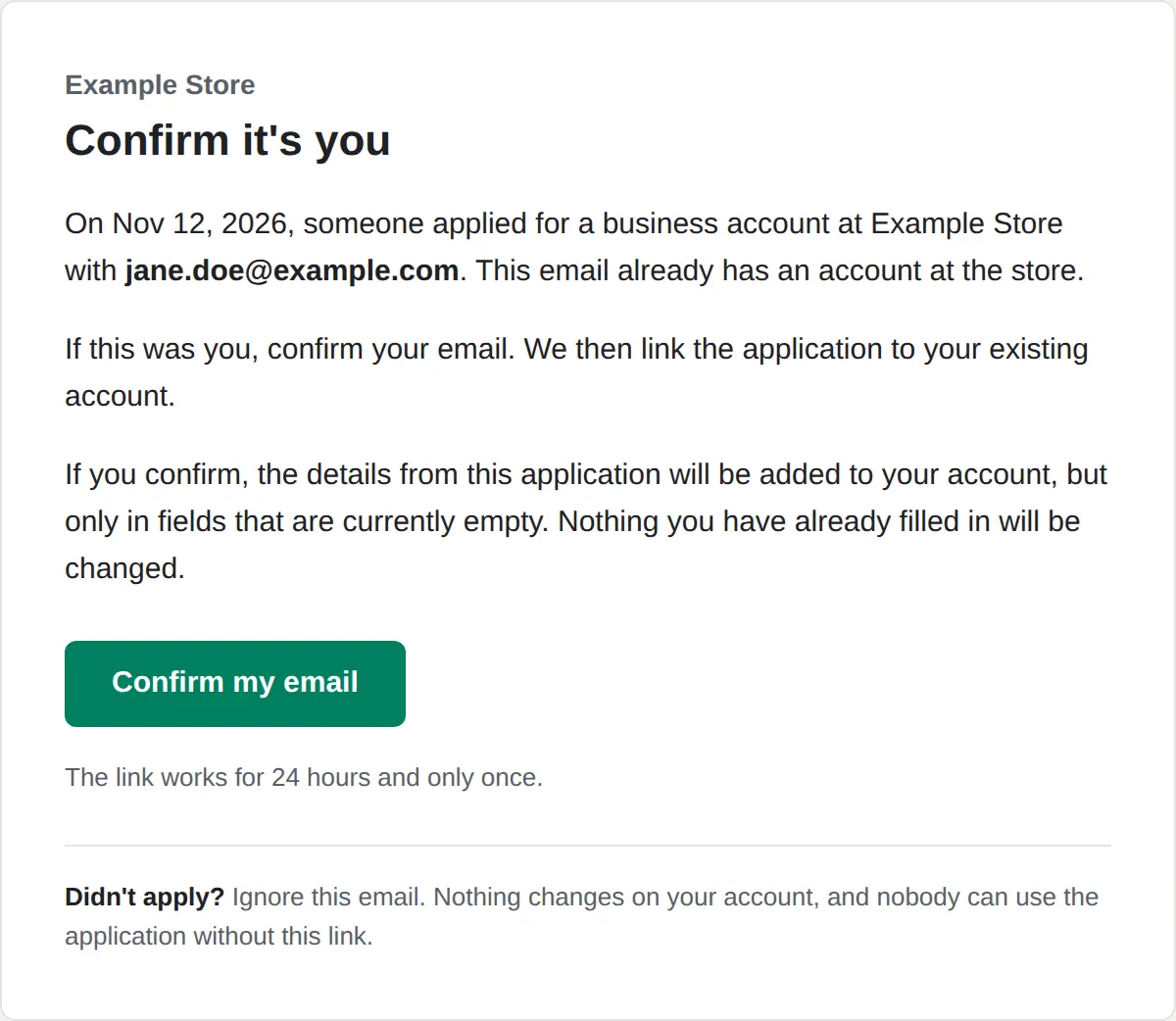
- The app sends that address an email with the subject Confirm your email to finish your application at your store name. The email has a Confirm my email button.
- When the shopper confirms, the app approves the registration if the form still allows existing customers. The registration moves to the Approved tab.
What the confirmation does to the customer:
- It links the registration to the existing Shopify customer and adds the form’s tags.
- It fills in only the fields that are empty on the customer. Nothing the customer already has is changed. The email says the same.
- A customer whose account is not activated yet gets the account activation email after confirming.
The link works for 24 hours and only once. If it expires, the page offers a new link. The app sends at most 3 confirmation emails for one registration, and waits 5 minutes between them.
What you see in Applications
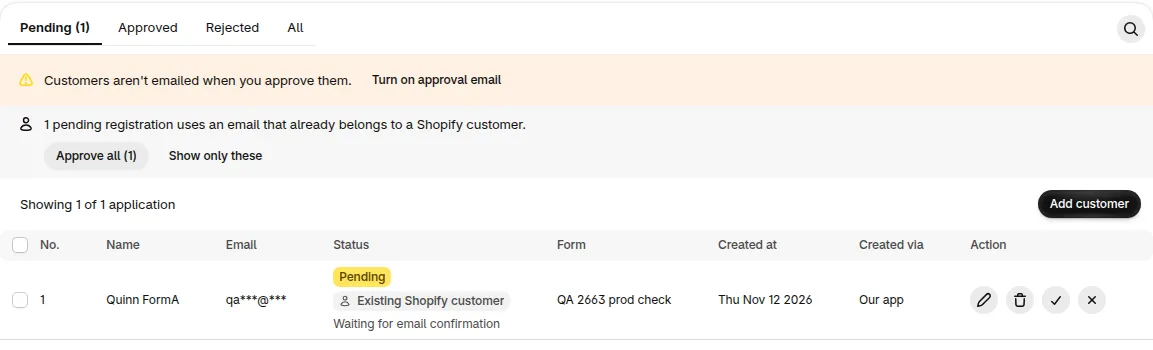
Section titled “What you see in Applications”While the registration waits, a short note appears under its status. The detail page shows the same note with the date the link expires.
| Note | Meaning |
|---|---|
| Waiting for email confirmation | The link is live. |
| Email not confirmed in time, review it yourself | The link expired and the shopper did not confirm. The registration stays in Pending. |
| Email confirmed, approve it yourself | The shopper confirmed, but the app could not approve. For example, you changed the form in the meantime, or Shopify returned an error. |
You can approve the registration yourself at any time. If it is still Waiting for email confirmation, the dialog tells you that approving now skips the check.
Option 2: approve automatically, only add tags and a note
Section titled “Option 2: approve automatically, only add tags and a note”This option links the registration to the existing customer right away and changes very little on that customer. The registration is approved at once, with no email confirmation.
It takes effect only when Allow existing retail customers to register for wholesale customers is ticked, or when Always notify on existing-customer approval is on (Registration Forms > More actions > Theme settings). If you ticked only Allow customers to register with their inactive accounts, the option shows but does not approve anything by itself.
When you choose it, a yellow banner, Nothing is overwritten, repeats what is added.

What the customer gets
- The form’s tags and the matching Auto Tag tags.
- One line in the customer’s note that says the form linked them. The registration answers are not copied into the note.
- The registration answers, saved in metafields that are empty now.
What does not change
- Name, email, phone, addresses and password.
- Tax exemption. It stays off even if the form has Auto exempt tax for customers registered with this form ticked. The note on the customer says the exemption was not applied. Turn it on in Shopify after you check the customer.
The app writes the note first, then the metafields, and the tags last. Tags can unlock wholesale prices, so if an earlier step fails the customer gets no access.
Emails. The customer gets the same emails as when you approve a registration by hand. The approval email follows your approval email settings. A customer without an active account also gets an account invite. A customer with an active account gets the Login reminder only when Always notify on existing-customer approval is on (new customer accounts only). See Notify existing customers when you approve them.
When the app falls back to the confirmation email. If Shopify returns an error, if the email on the Shopify customer does not match the registration, or if the form receives an unusually high number of registrations in one hour, the app does not approve. It sends one confirmation email as in Option 1 instead.
The two options are in the Settings step of Version 2 forms. Multi-step forms do not have them.
Approve existing customers in bulk
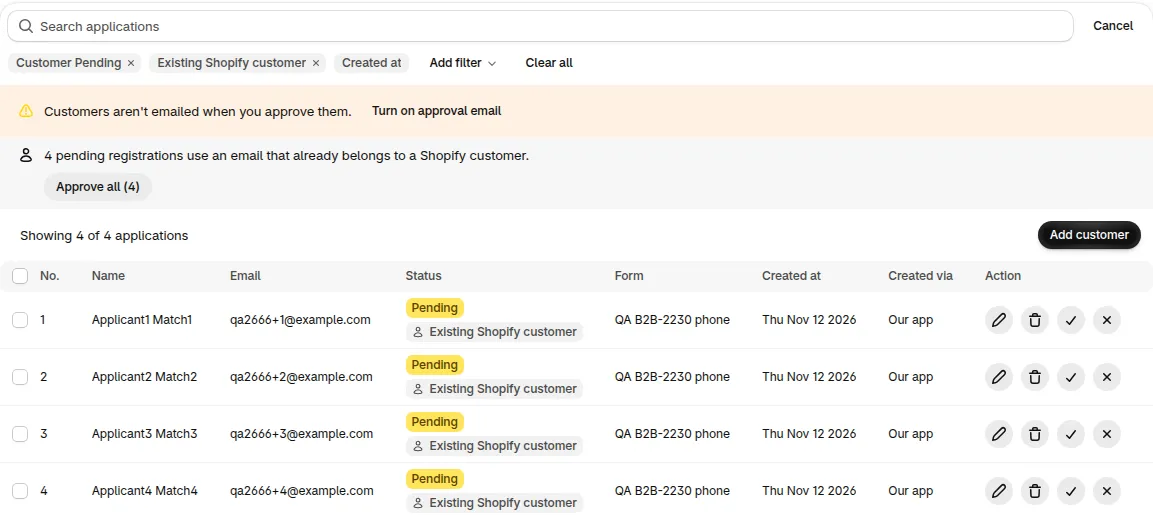
Section titled “Approve existing customers in bulk”On Applications > Pending, a registration whose email belongs to a Shopify customer shows the label Existing Shopify customer under its status. Above the list, a notice says how many: 4 pending registrations use an email that already belongs to a Shopify customer. It has two buttons: Approve all (N) and Show only these.
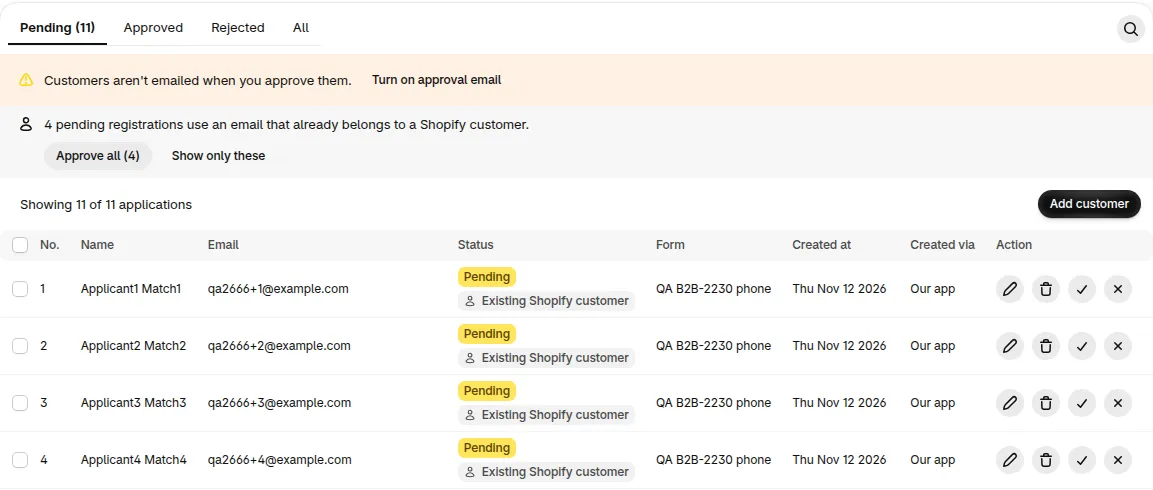
To filter the list yourself, click Add filter, choose Shopify customer, then Existing Shopify customer or New customer.
Approve everything that matches
Section titled “Approve everything that matches”- Click Approve all (N).
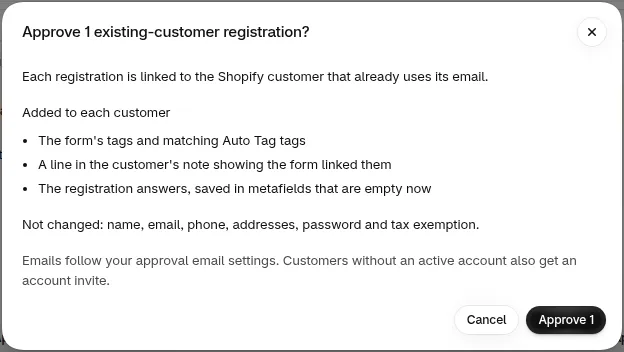
- Read the dialog Approve N existing-customer registrations?. It lists what is added to each customer and what stays unchanged.
- Click Approve N.
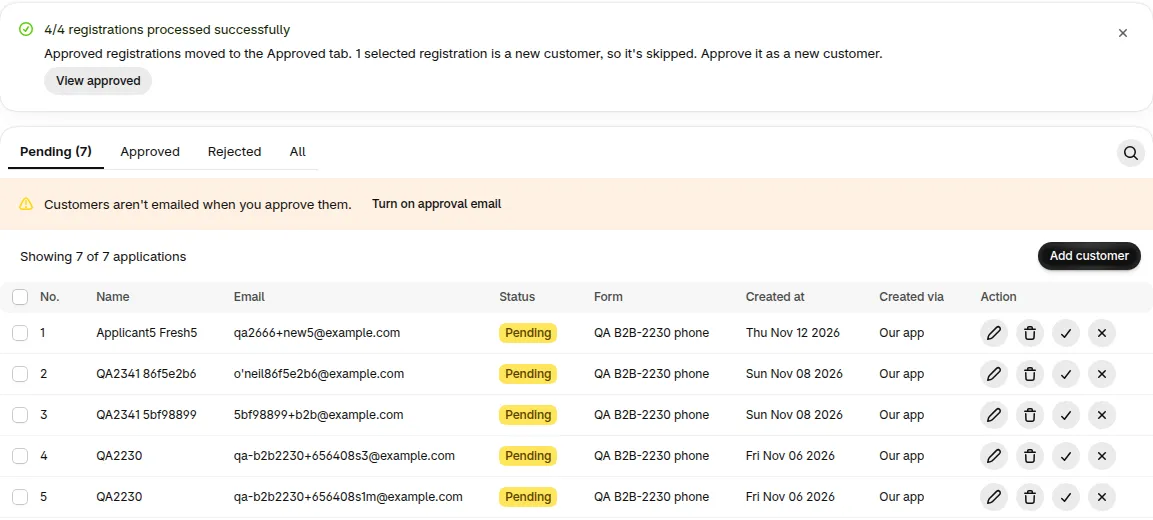
A progress banner follows. When it finishes, the result banner says N/N registrations processed successfully and Approved registrations moved to the Approved tab. Click View approved to see them.
Approve only some
Section titled “Approve only some”- Select the rows, or use the header checkbox.
- In the bar that appears, click Approve as existing customers. The bar tells you how many of the selected rows qualify, for example 4 of 11 selected are existing Shopify customers.
- Confirm in the same dialog.
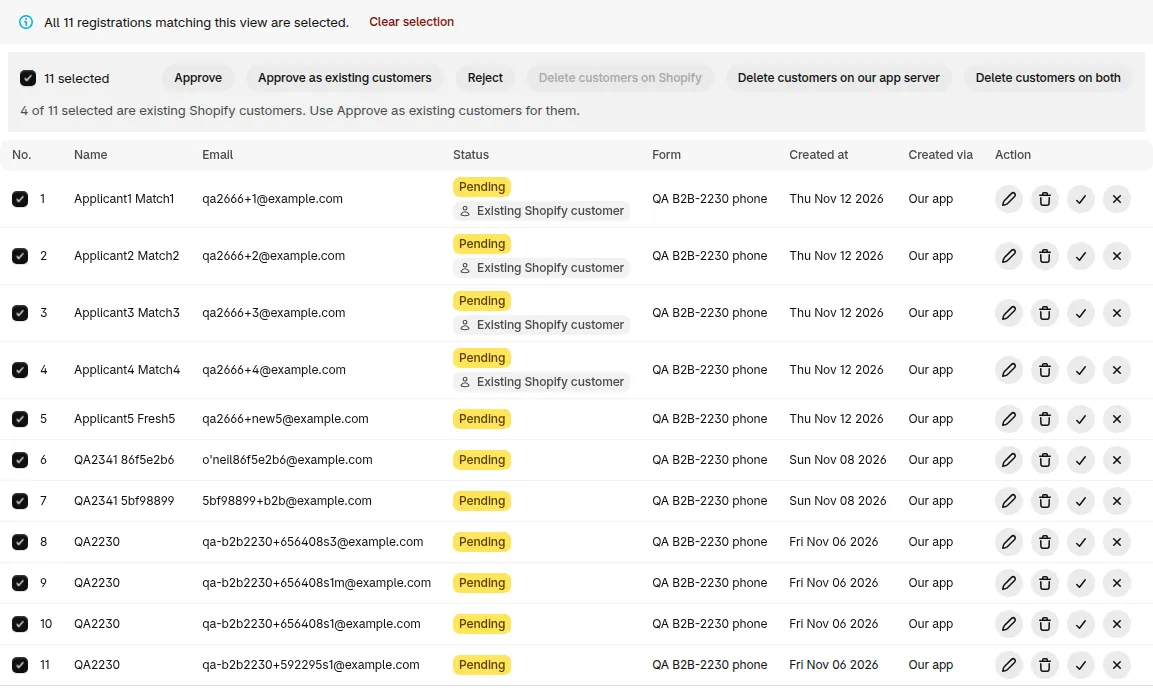
Rows in your selection that are new customers are skipped and stay in Pending. The result banner says so: 1 selected registration is a new customer, so it’s skipped. Approve it as a new customer. The plain Approve button in the bar works as before.
Bulk approval uses the same rules as Approve automatically, only add tags and a note. It adds tags, a note line and empty metafields, and it changes nothing else. It has no Override data option, and it approves at once without waiting for the shopper’s email confirmation. To update a customer’s details, approve the registration one by one.
If a registration fails
Section titled “If a registration fails”It stays in Pending and the banner lists it under Not approved with a reason:
- This customer was deleted in Shopify. Open the registration to approve it as a new customer.
- Someone already approved or rejected this registration.
- Shopify didn’t accept the update. Try again in a few minutes.
- This email isn’t on Shopify anymore. Open the registration to approve it.
Click Download failed list (.csv) to keep the list.
Bell alert for matching registrations
Section titled “Bell alert for matching registrations”When pending registrations from the last 7 days use an email that belongs to a Shopify customer, the notification bell shows one alert: N registrations match an existing Shopify customer (1 registration matches an existing Shopify customer for one). Click Review these registrations to open the Pending list with the filter already applied.
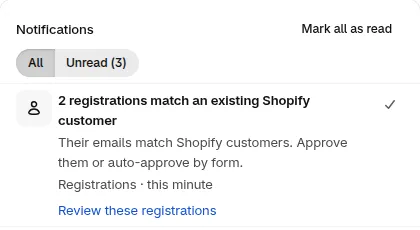
The alert updates its number as you approve the registrations and is marked as reviewed when none are left. It never approves or changes anything for you. For the other alerts, see Notifications in the App.
Ask existing customers to log in
Section titled “Ask existing customers to log in”A shopper who already has an account may not realize it. You can show them a login link instead of the usual pending message.
- In the Settings step, keep Ask them to confirm their email (default) selected.
- Tick Ask existing customers to log in.
- Click Save.
The checkbox appears when the form uses Auto-approval after registration, Allow existing retail customers to register for wholesale customers is ticked, and Ask them to confirm their email (default) is chosen. It is off by default.
When a shopper registers with the email of an active customer, the form shows This email already has an account. Log in to continue. We will review your registration soon. The words Log in link to your store’s login page. The shopper sees the message in their own language. The registration still follows the email confirmation.
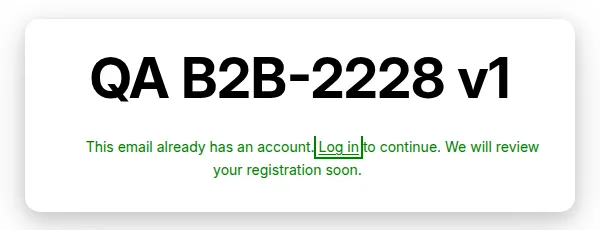
Customers who were invited but never activated their account, and emails with no account, see your usual pending message.
If you need help choosing between these options, we are happy to look at your form with you: [email protected].